
Lieferung heute & morgen

Qualitätsgarantie

Willkommens-Angebote freischalten: KOSTENLOSE Lieferung | Bis zu 80 % RABATT | Kostenlose 30-Tage-JoyPlus-Testphase
App herunterladen
Modern laptops like the MacBook or Dell XPS are powerful and portable, but their minimalist port selection can quickly become a productivity bottleneck. A 14-in-1 USB-C Docking Station promises to solve this problem with a single connection. However, the market is flooded with products making lofty promises that often fall short in practice. Misleading specifications about monitor support or insufficient charging power can quickly lead to frustration and a costly mistake.
This guide will help you understand the crucial technical details and avoid the typical pitfalls. We'll show you what to look for to find a reliable laptop docking station for your home office or professional workspace.
Before you make a decision, you should be aware of the three most common problems that occur with low-quality USB-C multiport adapters:
To avoid these issues, you should carefully examine three core technical parameters. These determine whether a docking station will meet your requirements or not.
The ability to drive multiple screens is often the main reason for buying a docking station. Pay attention to the 4K 60Hz HDMI Adapter specification. A 60 Hz refresh rate ensures a smooth, stutter-free display, which is essential when working with moving content or simply for a pleasant user experience.
Even more important is the distinction between MST (Multi-Stream Transport) and SST (Single-Stream Transport):
The 100W USB-C Power Delivery specification on the packaging refers to the maximum input power the hub can handle—not the output power for your laptop. A good docking station will transparently state how much power is reserved for its own operation. If a hub consumes 15 watts for itself, it will only deliver 85 watts to the laptop from a 100-watt power adapter. For powerful notebooks like a 16-inch MacBook Pro, a high net charging power of at least 85 watts is crucial to reliably charge the battery, even under load.
A 14-in-1 docking station should offer a balanced mix of ports. Check if the available ports meet your needs:
Based on these criteria, we have compiled a selection of products suitable for different user profiles and their specific requirements.
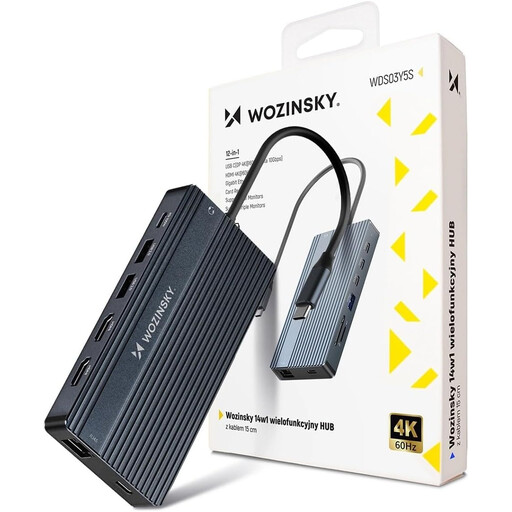
Why This Fits Their Persona: Ideal for users who want to transform their laptop into a fully-fledged workstation. With support for up to three monitors (via 2x HDMI, 1x DisplayPort), Gigabit Ethernet, and 100W Power Delivery, this hub covers all the needs of a demanding workspace.
The sturdy aluminum housing ensures good heat dissipation and prevents overheating. The specifications clearly list the video outputs and MST support for Windows, providing transparency on its multi-monitor capabilities.
Comprehensive 14-in-1 connectivity that leaves nothing to be desired. Supports high resolutions (up to 8K via DisplayPort) and provides a stable wired network connection.
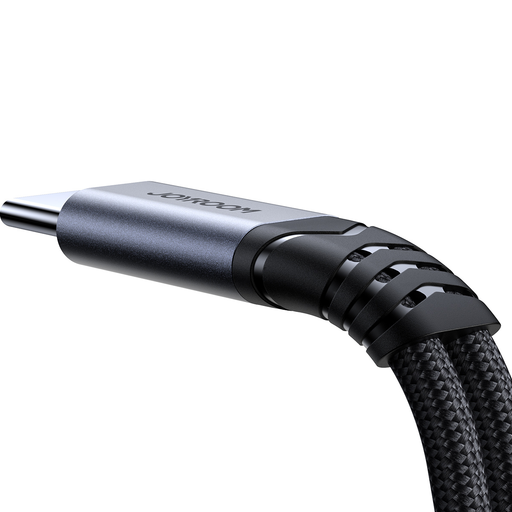
Why This Fits Their Persona: Perfect for users who miss the 3.5mm headphone jack on their modern smartphone or tablet and want to charge their device at the same time. A compact solution for on-the-go use or for long conference calls.
This adapter focuses on one core function, avoiding the complexity and potential compatibility issues of large docking stations. It reliably solves a specific problem instead of doing many things mediocrely.
Allows simultaneous charging up to 60W and use of 3.5mm jack headphones. The integrated DAC chip ensures clear digital-to-analog audio conversion.
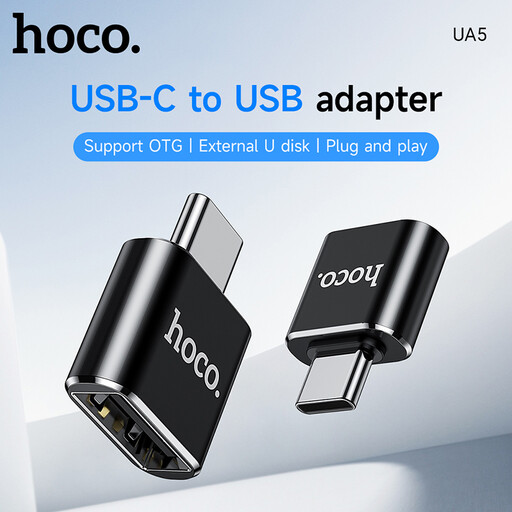
Why This Fits Their Persona: For users who only need to connect a single, older USB-A device (like a flash drive, mouse, or keyboard) to their new laptop with a USB-C port. A simple, cost-effective, and straightforward solution.
This adapter prevents you from spending money on an expensive docking station with countless features you don't need. It's a single-purpose solution without complex specifications or potential compatibility issues.
Extremely compact, lightweight, and works via plug-and-play without any driver installation. It establishes compatibility with older USB-A devices in the simplest way possible.
If your main focus is on audio connectivity, we've compiled a complete, up-to-date list of products that fully meet these strict selection criteria and safety standards.
1. Why aren't all my monitors detected on my MacBook? This is often due to the way macOS handles video signals over USB-C. Standard MacBooks (especially models with M1/M2/M3 chips) natively support only a limited number of external displays via their Thunderbolt/USB-C ports. Many hubs use MST technology, which is not supported by macOS for extended desktops, resulting in mirrored displays. To run multiple, independent extended screens, you often need a docking station with special DisplayLink technology and its associated driver software. Therefore, always check the product description for explicit macOS compatibility for extended multi-monitor setups.
2. Can a USB-C docking station damage my laptop? A high-quality docking station that complies with the official USB-IF (USB Implementers Forum) specifications generally poses no threat to your laptop. Such devices have protection mechanisms against overcurrent, overvoltage, and overheating. However, cheap, non-certified models with unstable power delivery could potentially pose risks. Look for products from established brands and check the specifications for charging power and safety standards.
3. Does a 14-in-1 docking station need its own power supply? The docking station itself is powered by the laptop's USB-C port. However, to ensure full functionality—especially charging the laptop via Power Delivery and running multiple power-hungry peripherals (like external hard drives)—you must connect your laptop's original USB-C power adapter to the dedicated PD input port on the docking station. The dock then passes the power through to the laptop ("pass-through charging") while also powering itself and the connected devices.