
Lieferung heute & morgen

Qualitätsgarantie

Willkommens-Angebote freischalten: KOSTENLOSE Lieferung | Bis zu 80 % RABATT | Kostenlose 30-Tage-JoyPlus-Testphase
App herunterladen
Modern laptops like the MacBook Pro or Windows Ultrabooks embrace a minimalist design—often at the expense of connectivity. One or two USB-C ports are expected to handle everything: power, monitors, internet, and accessories. A 14-in-1 USB-C Docking Station promises to solve this problem, transforming your laptop into a fully-fledged workstation. However, the market is flooded with products whose real-world performance falls short of their marketing claims.
Many users invest in a supposed all-in-one solution, only to be faced with flickering monitors, an unstable internet connection, or a laptop that loses battery power even while plugged in. This guide highlights the most common pitfalls and explains which technical details you need to look for to make an informed purchasing decision.
Before you invest in new home office accessories, you should be aware of the typical flaws that make budget-friendly or poorly specified models unusable.
To avoid the problems mentioned above, you should carefully examine three core technical parameters. These will determine whether a laptop docking station truly meets your needs.
For a multi-monitor setup, such as a docking station for 3 monitors, it's not just the number of HDMI or DisplayPort connections that matters, but also the underlying technology.
The "100W PD" specification is only half the story. What's crucial is the actual charging power that reaches the laptop (passthrough power). A high-quality USB-C multiport adapter should explicitly state how much power is reserved for its own operation. For a 16-inch MacBook Pro or a powerful Windows notebook, a net charging power of at least 85 watts is recommended.
A good docking station is more than just a video adapter. For a productive work environment, stable and fast data connections are essential.
Based on the criteria above, we have selected products for different user groups.
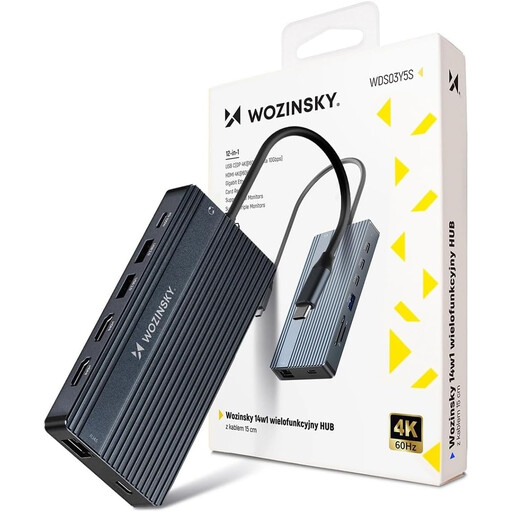
Why this product is a good fit: Ideal for users who want to transform their laptop into a full-fledged desktop workstation. With ports for up to three monitors, wired internet, and numerous peripherals, it's a comprehensive solution for a demanding home office setup.
According to the manufacturer, it supports up to 3x 4K@60Hz (MST for Windows), offers 100W Power Delivery, and features an aluminium housing for heat dissipation. This addresses the problems of unstable monitors, insufficient power, and overheating.
A huge variety of 14 ports, including 2x HDMI, 1x DisplayPort, Gigabit Ethernet, and fast USB 3.0 ports. Plug-and-play functionality with no driver installation required.
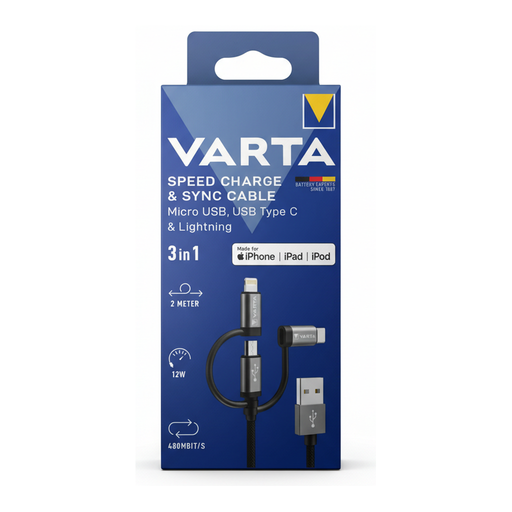
Why this product is a good fit: For users who are frequently on the go and value reliability and minimalism. This single cable replaces three separate charging cables for different devices (Apple, Android, older peripherals) and reduces clutter in your laptop bag.
Instead of relying on an unreliable multi-port hub, this product focuses on one core function: stable charging and syncing. The MFi certification for the Lightning connector guarantees compatibility and safety with Apple devices.
High durability thanks to a nylon-braided cable and MFi certification. A single, 2-meter-long cable for maximum flexibility and compatibility with the most common mobile devices.
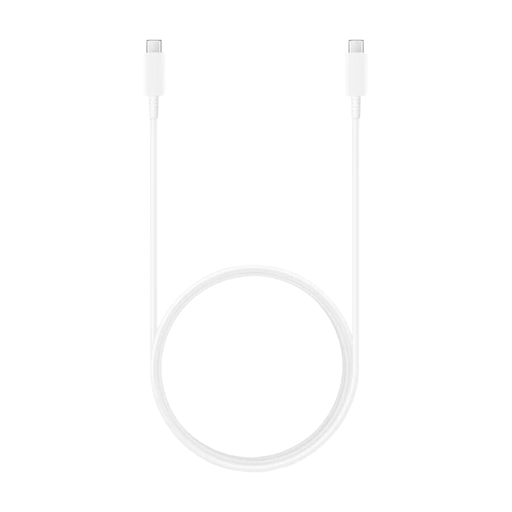
Why this product is a good fit: Perfect for users who primarily need a powerful and reliable charging and data connection for their USB-C notebook or tablet and want to avoid the cable mess of a docking station.
This cable directly addresses the pitfall of insufficient power delivery. It is explicitly designed for high charging power of up to 100 watts, ensuring that even demanding laptops are charged efficiently under load.
According to the manufacturer, it supports Power Delivery up to 100 watts and Super Fast Charging up to 45 watts. The durable construction and 1.8 m length offer reliability and flexibility for daily use.
We have compiled a complete, real-time updated list of products that fully meet these strict selection criteria and UK safety regulations.
Can any USB-C docking station drive 3 monitors? No, this depends on both the docking station and the laptop. Windows laptops with Thunderbolt or a USB-C port that supports DP Alt Mode can often drive multiple extended desktops via MST (Multi-Stream Transport). Most MacBooks, however, only support SST (Single-Stream Transport) over a single USB-C port, which means all external monitors will mirror the same content. To run multiple extended desktops on a Mac, you typically need a docking station with DisplayLink technology or to connect directly to multiple Thunderbolt ports on the laptop. Always check the manufacturer's compatibility notes before purchasing.
How can I tell if a docking station is prone to overheating? Pay attention to the casing material. An aluminium enclosure dissipates heat much more effectively than a plastic one. It's normal for the device to become moderately warm under load, but it should not feel uncomfortably hot. If a docking station overheats, it can throttle its performance (thermal throttling), leading to slower data speeds or connection drops and shortening the device's lifespan.
Do I need a separate power adapter for my USB-C docking station? Yes, for docking stations with Power Delivery (PD), this is essential. The docking station itself usually does not have a built-in power supply. You connect your laptop's original USB-C power adapter to the PD input port on the dock. The dock then powers itself and passes the remaining electricity through to your laptop. To ensure the full charging power (e.g., 85-100W) for your notebook, the power adapter you use must have a sufficiently high wattage.