
Lieferung heute & morgen

Qualitätsgarantie

Willkommens-Angebote freischalten: KOSTENLOSE Lieferung | Bis zu 80 % RABATT | Kostenlose 30-Tage-JoyPlus-Testphase
App herunterladen
Modern laptops are powerful and portable, but their connectivity options are often lacking. For professional users, developers, or creatives who rely on a multi-monitor workspace, this limitation quickly becomes a productivity bottleneck. A 4-Monitor USB-C Docking Station promises a solution, but the market is confusing. Before you make a purchase, it's crucial to understand the common pitfalls that often only become apparent after you buy.
Common Pitfalls When Buying USB-C Hubs:
To avoid these problems, you should check three core technical specifications. These define a docking station's true performance far more than the sheer number of ports.
The ability to use multiple monitors as extended desktops depends on the MST (Multi-Stream Transport) standard. While Windows largely supports this standard, compatibility with macOS is more complex. Base MacBook models (e.g., with M1/M2/M3 chips) often natively support only one external monitor via a USB-C port. Therefore, you must explicitly check if the manufacturer guarantees extended multi-monitor setups for your specific operating system.
Also, pay close attention to the specifications of the individual video outputs:
The Power Delivery feature determines how many watts your laptop receives from the docking station. While 60 watts may be sufficient for simple ultrabooks, professional devices like a MacBook Pro or a mobile workstation require significantly more. A USB-C hub with 100W Power Delivery ensures that your device charges reliably, even when all connected peripherals are in heavy use.
The USB ports are crucial for fast data exchange with external SSDs, USB drives, or other devices. Look for ports that support at least the USB 3.2 Gen 1 (5 Gbit/s) standard, or even better, USB 3.2 Gen 2 (10 Gbit/s). A 13-in-1 USB-C hub should offer at least one or two of these high-speed ports to avoid becoming a bottleneck for your data.
Based on these objective criteria, we have identified products that are well-suited for specific user profiles.
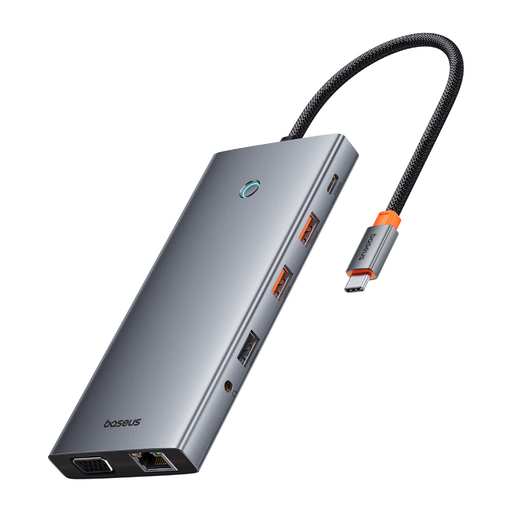
Why it's a match: Ideal for power users who want to connect a maximum number of displays and peripherals without compromise. This hub transforms a laptop into a fully-fledged command centre.
This hub offers four separate video outputs (2x HDMI, 1x DisplayPort, 1x VGA) and explicitly supports extended desktops. The 100W Power Delivery prevents laptop power drain, and the 10 Gbit/s USB 3.2 Gen 2 ports eliminate data bottlenecks.
Maximum connectivity with four video outputs for complex multi-monitor setups and a powerful 100-watt power supply in a single device.
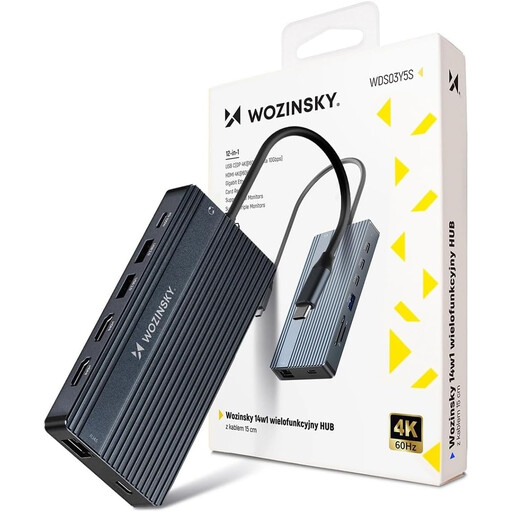
Why it's a match: Perfect for video editors, designers, and developers who work with ultra-high-resolution content and need a future-proof display option.
This hub addresses the display trap by supporting up to three 4K@60Hz monitors and a future-proof 8K DisplayPort. The 100W PD and multiple USB 3.0 ports ensure high performance and data transfer capabilities.
Provides forward-thinking connectivity with an 8K-capable DisplayPort connection and a robust aluminium housing for optimal heat dissipation.
We have compiled a complete, up-to-date list of products that fully meet these strict selection criteria and safety regulations.
1. Does my laptop need special drivers for a 4-monitor USB-C docking station? Most modern docking stations are "plug-and-play," meaning they work without manual driver installation. However, the core functionality, especially driving multiple external monitors (MST), depends on your laptop's operating system and graphics drivers. It is advisable to ensure your system is fully up to date.
2. Will any USB-C docking station work with a MacBook? No, caution is advised here. Standard MacBooks (e.g., MacBook Air or base MacBook Pro with M1/M2/M3 chips) often natively support only a single external monitor through one USB-C port. If you connect a docking station with multiple video outputs, all monitors will likely only show a mirrored image. For extended multi-monitor setups on these devices, special docking stations with DisplayLink technology are required. Always check the product specifications for explicit macOS compatibility claims. MacBook Pro/Max models with M-Pro/Max/Ultra chips typically support multiple external displays natively.
3. How much charging power (Power Delivery) do I really need? This depends on your laptop. For a slim ultrabook or a MacBook Air, 60 watts may be sufficient. For a high-performance 15- or 16-inch notebook, a mobile workstation, or a MacBook Pro, a docking station with 100W Power Delivery is recommended. This ensures the battery will charge even when the processor is under full load and all peripherals are active.