Frame and timeline organisers
If you arrange lots of individual frames and want to see the preview and tools at the same time, consider screen size, scaling and available desk space together.


If you need to see the preview, individual frames and timeline at the same time, choosing between 27 and 31.5 inches comes down mainly to the desk space available and whether you can read the screen comfortably at your chosen scaling. For team reviews, adjustability and glare control matter too. If colour approval is essential, look for suitable colour modes or a consistent calibration process. And if you use different laptops, make sure the monitor has compatible video, USB and charging connections.
If you arrange lots of individual frames and want to see the preview and tools at the same time, consider screen size, scaling and available desk space together.
If several people need to view the same frames from different seats, an adjustable screen position and good glare management are important. For workplace screen-based workstations, the German Federal Institute for Occupational Safety and Health (BAuA) sets out workstation design requirements in ASR A6.
Depending on your needs, you may prioritise suitable colour modes and calibration, or the right video, USB and charging connections. A creative monitor’s features won’t necessarily cover both.
First, check how your animation software is laid out in the space where you plan to use the monitor. Then you can work out whether team reviews, colour checking or switching between computers should guide your choice.
| Priority | What to check before buying | Who is this especially important for? |
|---|---|---|
| Comfortable working area | Measure the space available and check the preview, frames and timeline at the scaling you usually use in your software. | If I want to keep frames, the preview and timeline easy to read at the same time, usable screen space matters. Around 36% of consumers put working area first. |
| Colour reproduction | Decide on your output target, then check for suitable colour modes and, where necessary, regular calibration. | If I’m planning to approve colours, I want to set the monitor up for the specific output target. Around 29% of consumers prioritise colour reproduction. |
| Reviewing work together | Check the adjustment range and screen finish, and consider its position in relation to windows and lights. | If several people view frames from different seats, I need to be able to adjust the viewing position and take glare into account. Around 21% of consumers prioritise reviewing work together. |
| Switching between computers | Check the video output on each laptop and compare it with the charging power required. If you share a keyboard and mouse, also check for USB upstream or KVM. | If different laptops will be used at the same workstation, I want to connect them to the monitor and shared input devices appropriately. Around 14% of consumers prioritise switching between computers. |
Pixel count alone won’t tell you how large the controls will look at your preferred scaling. BenQ lists the MA320U at 31.5 inches; its larger screen also takes up more desk space than a 27-inch model.
Set up your windows in your animation software and measure the space you have, including the stand.
A wider monitor may need a different spot or a change to your workstation layout.
BenQ lists an Animation Mode on the PD2706U, while EIZO lists a self-calibration sensor on the CG2700X. A particular mode alone doesn’t guarantee colour-accurate output.
First decide whether you’re just arranging frames or need to assess colours against a specific output target. Then check for suitable colour modes and any calibration process you may need.
A consistent colour-checking process may involve extra set-up and regular calibration.
Video, data transfer, charging power and KVM are separate features. BenQ lists USB-C with DisplayPort Alt Mode, 90 W Power Delivery and KVM for the PD2706U; you can’t assume other models offer the same.
Check the connections on the specific monitor against every laptop you plan to use and any shared input devices.
Depending on your connection set-up, you may need an extra cable or a separate laptop charger.
Visibility also depends on screen position and lighting. ASUS lists an anti-glare finish and several adjustment options for the PA279CRV, but the finish alone can’t make up for a poorly positioned screen.
Check where you plan to place the monitor in relation to windows and lights, as well as the adjustment options on the specific screen.
BenQ’s DesignVue PD2706U is a 27-inch 4K model with creative features, while the MA320U is a larger 31.5-inch option.
The ProArt PA279CRV is a 27-inch option for colour-focused work, with an adjustable stand.
Dell offers the UltraSharp U2725QE as a 27-inch work monitor and the S3225QS as a larger 31.5-inch 4K alternative.
The ColorPro VP2776T-4K is designed for a 27-inch creative workstation with Thunderbolt 4 connectivity.
The ColorEdge CG2700X is a 27-inch 4K model with features for managed colour workflows.
The UltraFine 27UP850K-W is a 27-inch 4K IPS option with USB-C and an adjustable stand.
The following Joybuy options are 27-inch monitors described as 4K or UHD, for arranging frames and timelines in a shared office.
 No image available
For a 27-inch working view; the listed stand adjustments may be useful when people view the screen from different positions.
UHD 160 Hz / FHD 320 Hz; Mini-LED; Rapid IPS.
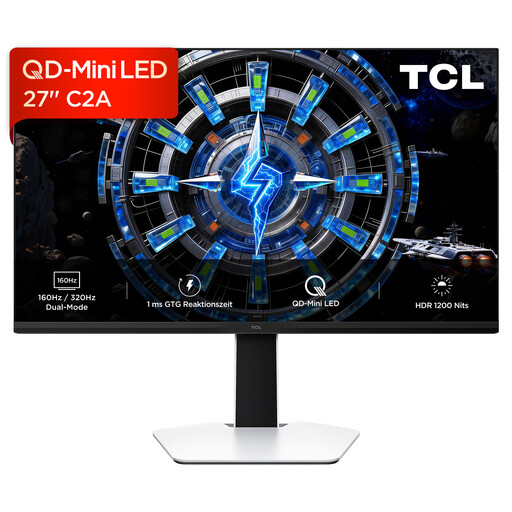 No image available
Its listed 27-inch size puts it in the compact screen category for shared reviews.
QD-Mini-LED; HFS (IPS); 160 Hz. The product name says 4K UHD, but the listed resolution is 3180 × 2160; check this specification before choosing.
 No image available
For a 27-inch 4K working view; the listed height, tilt and swivel adjustments may be useful when people view the screen from different positions.
4K 160 Hz / FHD 320 Hz; Mini-LED; USB-C 65 W; KVM.
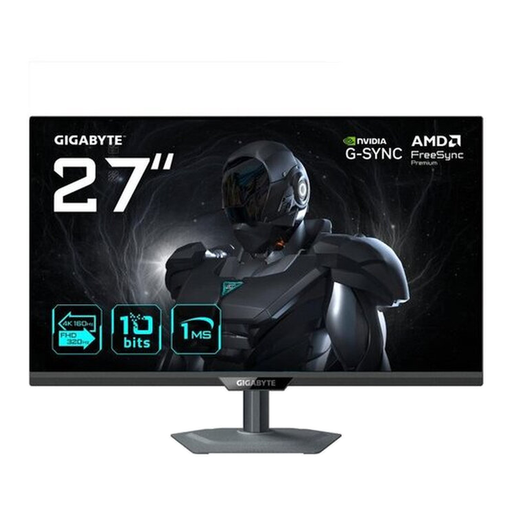 No image available
For a 27-inch 4K UHD view; the listed stand adjustments can make it easier to position the screen for different users.
3840 × 2160; IPS; 144 Hz.
 No image available
For a 27-inch 4K UHD working view; the listed height and pivot adjustments may be useful when people view the screen from different positions.
3840 × 2160 at 160 Hz; FHD at 320 Hz; Fast IPS. According to the product description, it has a glossy finish, which may be a drawback in an office with distracting reflections.
Not just for sorting individual frames. The PA279CRV and MA320U are listed at 60 Hz, while Dell lists the S3225QS at 120 Hz. Base your choice on your actual preview and motion workflow, not just the higher number.
Adjust the screen position and lighting for the actual seating positions, and agree on an output target and display mode. If the monitor supports calibration, a documented calibration process may be useful. For workplace screen-based workstations, the BAuA sets out requirements under the German Workplace Ordinance in ASR A6; this is not a blanket buying requirement for every home desk.
Only if the laptop supports the required video output, the charging power is sufficient and the USB devices are connected as intended. For the PD2706U, BenQ lists DisplayPort Alt Mode, data transfer, 90 W Power Delivery and KVM; check that these features work with every computer you use.
The BAuA sets out requirements for workplace screen-based workstations in ASR A6; this does not create a blanket requirement to buy a 4K monitor. What matters is an assessment of the specific working conditions covered by the regulations.