Animators with a busy timeline
If you need to see individual frames, the preview and your tools at the same time, check how easy the interface is to read and how your software handles scaling.


Start by checking how much usable space your animation software needs, then see whether you can adjust the monitor to suit your sitting and standing positions. Colour modes and any hardware calibration should match your output format. If you use a laptop, make sure the video connection and USB-C charging power are compatible with your computer. Manufacturers’ specifications describe individual models; they do not prove that one brand is generally better than another.
If you need to see individual frames, the preview and your tools at the same time, check how easy the interface is to read and how your software handles scaling.
If you switch between desk heights, check that you can position the monitor comfortably for both sitting and standing, and that it works with your desk setup. Germany’s Federal Institute for Occupational Safety and Health (BAuA) recommends individually adjusted workstations and regularly alternating between sitting and standing.
For a defined output, you’ll need suitable colour modes and, where appropriate, a repeatable calibration process. Information from BenQ Germany and EIZO Germany relates to specific models and features.
First check that frames, the preview and your tools fit comfortably on screen in your software. Then consider monitor positioning, your colour workflow and, if relevant, the laptop connection.
| What matters when buying | What to look for | Who is it important to? |
|---|---|---|
| Usable workspace | Try a typical software layout with the timeline, preview and tools visible, at your usual viewing distance. Check the scaling too: 4K alone doesn’t guarantee that on-screen controls will be easy to read. | If I want to see my frames, preview and tools at a glance, how my software displays them is crucial. For around 31% of consumers whose main concern is workspace, a clear layout is the priority. |
| Screen position | Compare the height you need when sitting and standing with the adjustment range of the stand or arm. If you’re using a separate mount, also check the VESA measurements, desk attachment and available movement. | If I change the height of my desk, I still want to be able to position the screen comfortably. Around 31% of consumers who prioritise this pay particular attention to monitor positioning. |
| Colour reproduction | Decide on your output format, then check the specific model’s compatible colour modes, profiles and, where relevant, hardware calibration. A named mode or stated colour gamut doesn’t remove the need to check that it suits your workflow. | If I’m judging colours for a particular output, my monitor and project settings need to match. This is a particular concern for around 23% of consumers who prioritise their colour workflow. |
| Laptop connection | Check that your computer’s video output, cable and charging requirements match the monitor’s connection features. USB-C on its own doesn’t guarantee that one cable will provide both a suitable picture and power to your laptop. | If I connect my laptop to a monitor, I want a suitable connection for video and, where needed, charging. Around 15% of consumers whose main concern is connecting a laptop pay particular attention to this. |
BenQ Germany lists Animation, sRGB and Rec.709 as separate modes on the PD2706U. The name of a mode doesn’t tell you whether it’s right for your project and output format.
Decide on your output format first, then choose the corresponding colour mode on your monitor and in your project software.
The specifications list 110 mm of height adjustment for the BenQ PD2706U and 130 mm for the ASUS PA279CRV. Whether either range works for your setup depends on the positions you need.
Work out the right screen height for sitting and standing before choosing a stand or arm.
Video transmission and Power Delivery vary between monitors and laptops. If the power supplied isn’t enough, you may also need to use your laptop’s power adapter.
Check your computer’s video output and charging requirements against the connection, cable and stated power delivery of the specific monitor.
Depending on your setup, you may need additional compatible accessories; make sure you have space for them at your workstation too.
Germany’s Consumer Advice Centre distinguishes between your statutory rights against the seller and a voluntary warranty with its own terms and conditions.
Read the warranty terms for the specific model, and keep your proof of purchase in case you need to make a claim against the seller.
The DesignVue PD2706U and PD2705UA are different 4K options. The PD2706U lists Animation, sRGB and Rec.709 modes, among others, while the PD2705UA comes with an ErgoArm.
The ProArt PA279CRV is a 27-inch 4K option with several colour presets and an adjustable stand.
The ColorEdge CS2740 is designed for a 4K colour workflow where hardware calibration is genuinely used.
The UltraFine 27UP850K-W is a 27-inch 4K IPS option with USB-C and an adjustable stand.
The Pro P2725QE is a 27-inch 4K hub monitor for workstations where connectivity and general use are the main priorities.
This selection at Joybuy includes 4K monitors for arranging animation frames and adjusting your setup to suit a sit-stand workstation.
 No image available
A 27-inch 4K option if you want to arrange your animation views on an IPS monitor.
3840 × 2160 pixels, 60 Hz, HDR Ready.
 No image available
A 27-inch option for 4K viewing if you want to adjust the screen at your sit-stand desk.
3840 × 2160 pixels, 120 Hz, HDR500, USB-C with 90 W Power Delivery, height-adjustable.
 No image available
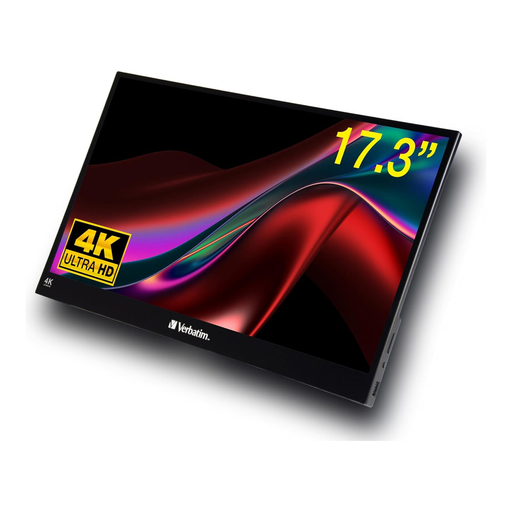
A compact, portable display if you want to view animation frames on a smaller screen.
4K, touchscreen, USB-C and HDMI.
 No image available
A 32-inch option if you prefer a larger physical screen for your animations.
3840 × 2160 pixels, 240 Hz, height-adjustable.
 No image available
A 27-inch 4K option with an adjustable stand for a workstation where you want to change the monitor position.
Dual mode with 4K at 160 Hz or FHD at 320 Hz, Type-C with 65 W, KVM, tilt and swivel.
No. 3840 × 2160 pixels and the screen size are just starting points; check how readable your software layout is with your intended scaling. EIZO lists a pixel density of 164 ppi for the 26.9-inch CS2740.
Check the screen position at both desk heights. If you’re using an arm, make sure it can be attached to your particular desk. The BAuA describes individually adjusted workstations and alternating between sitting and standing. Its screen-work guidance applies to a specific occupational setting, not to every home workstation.
Hardware calibration isn’t generally necessary just to arrange frames. If you repeatedly judge colours for a defined output, a suitable colour workflow can be important; EIZO lists ColorNavigator and hardware calibration for the CS2740.
No. Check your laptop’s video output and charging needs against the connection and cable for the specific monitor. BenQ lists 90 W Power Delivery for the PD2706U, while EIZO lists a maximum of 60 W for the CS2740.
No. Your statutory rights cover claims against the seller for faulty goods, while a warranty is a voluntary promise with its own terms and conditions. According to Germany’s Consumer Advice Centre, online consumer contracts generally come with a 14-day right to cancel from the date you receive the goods; check the terms of your specific purchase.