Photo editors preparing work for print
If you prepare images for print, Adobe RGB and calibration may be important. What matters is whether they suit your actual output. BenQ and EIZO list relevant features for the SW272U and CS2740.


Choose a 4K monitor for comparing colours based first on your intended output. Adobe recommends sRGB for images destined for the web, while Adobe RGB and calibration options are particularly relevant to a suitable photo or print workflow. Then check that the screen and your viewing angle work for you both sitting and standing, and that the size, desk space and laptop connections suit your workspace. Manufacturers’ claims about colour gamut and calibration are no substitute for checking your specific workflow.
If you prepare images for print, Adobe RGB and calibration may be important. What matters is whether they suit your actual output. BenQ and EIZO list relevant features for the SW272U and CS2740.
If you alternate between sitting and standing while editing, consider the screen height, viewing angle and desk space you need in both positions. The German Federal Institute for Occupational Safety and Health describes alternating between sitting and standing as sit-stand activity.
If you compare image variations on a laptop, the video connection and, where applicable, charging over a single cable need to be compatible with your computer. Check the specifications for the monitor and laptop together rather than choosing based on the connection type alone.
Start by deciding on your intended output. Then check the screen position at both desk heights, the space available for comparing images and, if you use a laptop, the specific connection you need.
| What you need | What to check before buying | Who is it most relevant to? |
|---|---|---|
| Colour reproduction suited to your intended output | Make sure the file profile, monitor mode and intended output work together. Adobe recommends sRGB for images prepared for the web. | If I prepare images for print, the colour gamut and colour management need to suit my intended output. That’s why around 36% of consumers put a suitable output colour workflow first. |
| Position when sitting and standing | Check the adjustment range, stand dimensions or arm mounting, and whether you can achieve a comfortable viewing position at both desk heights. The DGUV gives 50 to 80 cm as a recommended eye-to-screen distance. | If I change my desk height while editing, I want to be able to position the screen comfortably in both positions. Around 29% of consumers prioritise ergonomic positioning when switching between sitting and standing. |
| Space for comparing images | Consider the native resolution of 3840 × 2160 pixels, screen size, desk space and the scaling options available in your editing software. | If I want to see variations and tools at the same time, I need a screen that suits my desk and viewing distance. Around 21% of consumers prioritise space for direct comparison. |
| Laptop connection and power | Check your computer’s video output, cable and charging requirements against the specific monitor. ASUS lists 96 W for the PA279CRV, while BenQ lists 90 W for the PD2732U. | If I work on a laptop, I want to make sure it can handle video output and, where needed, charging reliably. Around 14% of consumers prioritise a suitable laptop connection. |
sRGB for digital output and an Adobe RGB print workflow have different requirements. A wider colour gamut alone doesn’t tell you whether your files, profiles and monitor mode will work well together.
Decide on your intended output first, then check the relevant modes, profiles and calibration options, if needed.
The stand and screen position need to suit your available desk space and changes in working height. A monitor arm also requires a suitable mounting point on your desk.
Before buying, compare the space the monitor will take up and its adjustment options. Check its position both sitting and standing.
A USB-C port alone doesn’t confirm that your computer can output the right video signal or use the stated charging power.
Check your computer’s port, cable and charging requirements against the specifications for the specific monitor.
The ProArt PA279CRV is a 27-inch 4K model with selectable colour modes and a height-adjustable stand.
The range offers different approaches to colour workflows, Thunderbolt connectivity and flexible positioning.
The ColorEdge CS2740 is a 27-inch 4K model for photo, video and graphic work, with colour management features.
The UltraSharp U2725QE is a 27-inch 4K hub monitor designed for flexible office use and connectivity.
This selection includes 4K monitors for digital sRGB colour comparisons and workspaces where flexible positioning or laptop connectivity may be important.
 No image available
For digital colour comparisons, the listed sRGB picture preset is worth checking. Make sure it suits your file profile and intended output.
3840 × 2160 pixels; IPS panel; matte finish; 10-bit colour depth.
The stand is listed with 110 mm of height adjustment, swivel, tilt and pivot.
Connections: HDMI 2.0b and DisplayPort 1.4a.
 No image available
If you’re considering a photo or print workflow, check the listed colour gamut specifications against your intended output and colour management setup.
3840 × 2160 pixels; IPS panel; 120 Hz.
The product specifications list sRGB 100%, Adobe RGB 99% and Delta E < 1.
USB-C with 90 W Power Delivery; the stand is listed with 150 mm of height adjustment, swivel and pivot.
 No image available
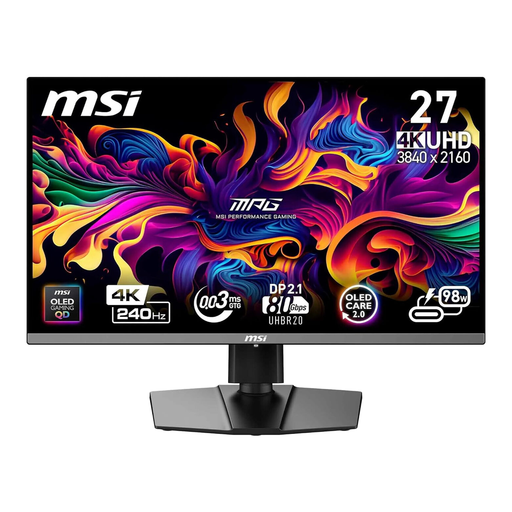
For a workflow geared towards Adobe RGB, you can compare the listed colour gamut figures with your intended output. They’re no substitute for checking your setup.
The product specifications list Adobe RGB 98% and DCI-P3 99%.
The stand is listed with height adjustment, pivot and tilt.
USB-C Power Delivery at 98 W.
 No image available
If you’re looking for more space to compare images, consider the 32-inch screen alongside the space available and your viewing distance.
3840 × 2160 pixels; the product specifications list Adobe RGB 98% and DCI-P3 99%.
The stand is listed with height adjustment and pivot.
 No image available
The listed 4K resolution is worth considering if you want to compare edits side by side. Also check that the screen size suits your desk.
3840 × 2160 pixels; the product specifications list a 4K mode at 160 Hz and a Full HD mode at 320 Hz.
The stand is listed with 130 mm of height adjustment, tilt, swivel and pivot.
No. Start by working out the colour gamut you need based on your intended output, then make sure the file profile, monitor mode and colour management work together. A manufacturer’s claim about colour coverage alone doesn’t confirm that your finished setup is correctly configured.
Check the screen position both sitting and standing. The DGUV recommends looking slightly downwards, with the top line of the screen below eye level, and gives 50 to 80 cm as a recommended eye-to-screen distance. The right setting depends on your workspace.
No. Check your computer’s video capabilities and charging requirements, as well as the cable, against the connections on the specific monitor. ASUS lists 96 W for the PA279CRV, while BenQ lists 90 W for the PD2732U.
For the specific model, check the EU energy label, including the figures for SDR and, where applicable, HDR. The European Commission lists this information for electronic displays. Without knowing how long you’ll use the monitor and your electricity tariff, it isn’t possible to calculate your personal cost in euros. The Verbraucherzentrale distinguishes the statutory right to a remedy from the seller from a voluntary guarantee. For eligible online consumer purchases, you generally have a 14-day right to cancel.
No. The German Federal Institute for Occupational Safety and Health applies ASR A6 to display screen workstations in workplaces and teleworking environments. According to BAuA, it doesn’t apply to screen use in private settings outside these workplaces. However, its ergonomic guidance may still help when setting up your desk.