A 4K monitor won’t hide a distracting background during a video call. For that, you’ll need to set up an available video effect in your conferencing app. A new screen could also be worthwhile for detailed work, provided its size, stand and ports suit your workspace and computer. Microsoft Support warns that confidential information may still be visible even when you use a background effect.
Who should consider this purchase?
Video-call users with a distracting room
If it’s mainly the room in your camera view that bothers you, first check the background effects in your conferencing app. A new screen won’t change what’s behind you on camera. Microsoft Support also warns that an effect may not completely conceal confidential information.
Home workers who spend a lot of time at their screens
If you use the same workspace for meetings and detailed documents, look for a suitable screen size and scaling that keeps everything easy to read. Microsoft Support explains how to adjust resolution and scaling in Windows.
Laptop users with limited cabling options
If you regularly connect your laptop at your workstation, compare the specific monitor’s ports with your computer’s video output and charging requirements. Specifications vary by model.
What should you look for?
Use a background effect instead of buying a monitor
Best if: The only issue is the distracting room in your camera view and your current screen is fine for work.
Bear in mind: The effect may not be available in Teams on every device. Microsoft Support also notes that confidential information may still be visible.
27-inch 4K monitor
Best if: You regularly work with text or several windows and have room on your desk for a 27-inch screen.
Bear in mind: USB-C, charging power, hub features and stand vary by model. The monitor won’t hide your background.
31.5-inch 4K monitor with a hub
Best if: You need more screen space and suitable extra ports, and have enough room to accommodate it.
Bear in mind: Dell specifies power delivery of up to 140 W for the U3225QE. According to the manufacturer, this model has neither a webcam nor speakers.
| What you need |
What to check before buying |
Who is it most important to? |
| Background in video calls |
Check that the effect is available in the app you use and review the camera preview. |
If your main aim is to hide the room behind you, check the camera view and app first. Around 36% of consumers prioritise this. |
| Readable 4K workspace |
Check the screen size against your desk, as well as the computer’s native resolution and scaling. |
If you regularly work on documents or use several windows, the text size should suit your workspace. Around 29% of consumers prioritise a 4K workspace that’s easy to read. |
| Laptop and power supply |
Check that the video output, monitor input, cable and charging power required all work together. |
If you want to keep cables to a minimum at your laptop workstation, the ports and charging power need to suit your computer. Around 21% of consumers prioritise these connectivity requirements. |
| Space and positioning |
Check the available desk space, including room for the stand, as well as height adjustment and tilt. |
If desk space is limited or you need to position your screen carefully, the monitor’s actual dimensions matter. Around 14% of consumers prioritise space and positioning. |
Common buying mistakes
-
Confusing 4K resolution with hiding your background
Resolution affects the picture on your monitor, not the camera feed. If you only want to change your background, buying a new screen won’t solve the problem.
First, check the video effects and camera preview in the conferencing app you actually use. Then decide whether you also need a different screen for work.
This helps you avoid buying a monitor solely to change your camera background.
-
Assuming USB-C will charge your laptop sufficiently
USB-C alone doesn’t tell you whether a particular model will provide enough power for your laptop or transmit the video signal you need.
Compare the monitor’s specifications with your computer’s charging requirements, video ports and compatible cable.
Depending on your setup, you may still need a separate charger or a different connection solution.
-
Choosing a larger monitor without checking your workspace
A larger display needs more room. Screen size alone won’t tell you whether a particular model will fit your setup.
Measure the available desk space, including the stand, and check the dimensions and adjustment options of the exact model. In Windows, you can change the text size using scaling.
Key brands at a glance
Dell
The models mentioned here include 27-inch monitors and a 31.5-inch UltraSharp, with different features and connectivity options.
- Dell lists 4K and speakers for the S2725QC, a USB-C hub and 90 W power delivery for the P2725QE, and up to 140 W for the U3225QE.
- According to Dell, the U3225QE has neither a webcam nor speakers. These monitor features don’t mean it can hide your background.
LG
According to LG, the 27UP850K-W pairs a 27-inch 4K IPS display with USB-C and an adjustable stand.
- LG also lists DCI-P3 coverage and DisplayHDR 400 for this model.
- These manufacturer and certification claims don’t prove that the monitor will display your video-call background more effectively.
Philips
According to Philips, the 27E1N1900AE/00 combines a 27-inch 3840 × 2160-pixel IPS display with USB-C and a height-adjustable stand.
- These features may help you compare resolution, connectivity and positioning.
- Before planning to connect everything with one cable, check the detailed USB-C charging power against your laptop’s requirements.
Lenovo
According to Lenovo, the ThinkVision T27p-30 is a 27-inch 4K office monitor with USB-C, HDMI, DisplayPort, Ethernet and a USB hub.
- These ports are useful if you want to connect video, networking and peripherals at your workstation.
4K monitors at Joybuy
The Joybuy products below are 4K screens for detailed work at your laptop or desk. To change your background during a video call, you’ll still need an available effect in your conferencing app.
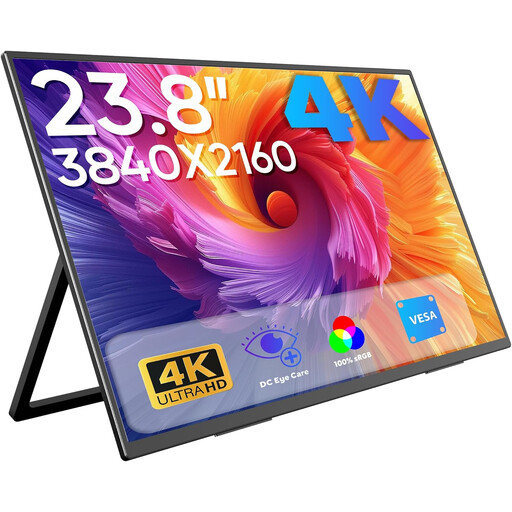 Image unavailable
Portable 23.8-inch 4K monitor, 60 Hz
For detailed work on your laptop when you want a portable screen.
3840 × 2160 pixels, 60 Hz and 100 % sRGB; integrated stand and two speakers.
Ports: USB-C and Mini-HDMI. VESA-compatible.
View at Joybuy
 Image unavailable
MSI PRO MP273UPDE E6, 27-inch 4K UHD IPS
For office work with detailed content on a 27-inch 4K screen.
IPS panel, 3840 × 2160 pixels, 60 Hz and HDR Ready.
View at Joybuy
 Image unavailable
CRUA CR320QB, 32-inch curved 4K
For office work if you have room for a curved 32-inch display.
3840 × 2160 pixels, VA display, 3000R curvature and HDR10.
100 % sRGB according to the product name.
View at Joybuy
 Image unavailable
INNOCN CB27U1, 27-inch 4K UHD
For detailed work on your laptop if the USB-C charging power is suitable for your computer.
3840 × 2160 pixels, IPS, 120 Hz and HDR500.
USB-C with 90 W Power Delivery; HDMI and DisplayPort. Height-adjustable stand.
View at Joybuy
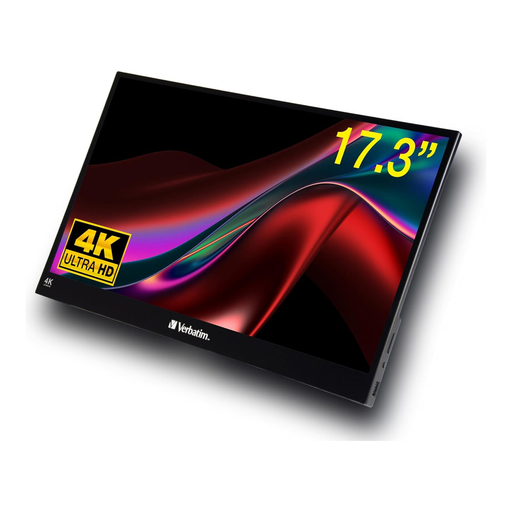 Image unavailable
Verbatim portable 17.3-inch 4K touchscreen monitor
For working on your laptop or on the go if you’re looking for a portable touchscreen.
3840 × 2160 pixels, 17.3 inches and HDR.
Ports: USB-C and HDMI.
View at Joybuy
Frequently asked questions
Will a 4K monitor hide a distracting background during a video call?
No. In Teams, you can select blur or a replacement background as a video effect, if the feature is available on your device. Microsoft Support warns that confidential information may still be visible even when an effect is applied.
What should I adjust if text looks too small on my new 4K monitor?
In Windows, first check that you’re using the recommended screen resolution, then adjust scaling for text and on-screen controls. Microsoft Support notes that using a resolution lower than the native one can make text look blurry.
Will every USB-C 4K monitor charge my laptop?
No. You can’t tell from the USB-C label alone. Check the specific monitor’s power delivery and video connection against your laptop and cable requirements. For example, Dell lists 90 W for the P2725QE and up to 140 W for the U3225QE.
Do I have to put up with the default text size on a larger 4K monitor?
No. You can adjust scaling for text and on-screen controls in Windows. Also check that the screen and stand will fit on your desk.


