Photographers correcting lens distortion
If you assess image edges and check corrections in your software, a clear display and enough room for tools are important. Adobe describes lens profiles for Photoshop, Lightroom and Camera Raw.


A 4K monitor is a good choice for correcting lens distortion if image edges and controls remain easy to see at your chosen scaling setting. The correction itself is handled by your photo-editing software, not the monitor. If you also assess prints, consider colour gamut, calibration and the output profile together. For laptop use, make sure the video connection and charging power are right for your specific device.
If you assess image edges and check corrections in your software, a clear display and enough room for tools are important. Adobe describes lens profiles for Photoshop, Lightroom and Camera Raw.
If you assess edited images for a particular print process, consider colour gamut, calibration and the output profile together. EIZO and BenQ describe relevant features for specific models.
If your laptop, monitor and tool palettes all share the same desk, you’ll need to consider desk space, video connection and charging power together. Port and power specifications vary by model.
Start by deciding which task is most important in your day-to-day work: checking corrections on screen, assessing print colours or connecting your laptop with ease. This will help you weigh up the features that matter, without treating any single technical specification as a guarantee of the overall result.
| Priority | What to look for | Who is it most relevant to? |
|---|---|---|
| Image detail and scaling | Check the resolution, screen size and how clearly your photo-editing software can be read at your intended scaling setting. | If I want to assess distortion at the edges of an image and check corrections in my software, I need a clear display. Around 40% of consumers prioritise this. |
| Colours for print | Consider colour gamut, calibration options and the profile for your intended output process together. | If I’m assessing edited photos for a specific print process, I want a colour workflow tailored to it. Around 30% of consumers prioritise this. |
| Laptop connection | Check that your laptop’s video output and cable are compatible with the monitor’s ports and provide the charging power you need. | If I want to switch between my laptop and monitor easily at my home-office desk, the video signal and power supply need to be compatible. Around 20% of consumers prioritise this. |
| Space and setup | Check the dimensions, including the stand or arm, and the adjustment options available for your desk. | If my desk has limited space or I need to adjust the monitor position, the footprint and setup are especially important. Around 10% of consumers consider this first. |
The monitor’s resolution doesn’t change the image file. Adobe describes lens distortion correction using lens profiles in photo-editing software.
Check how your software corrects files, then inspect the image edges and controls on your monitor.
Manufacturers’ stated colour gamut coverage doesn’t, on its own, prove how a specific monitor will display colours or how well it will match a print process. EIZO points out that calibration cannot fundamentally fix a limited colour gamut or panel uniformity issues.
Check the colour mode, calibration options and output profile together. Also find out what accessories your colour-management setup requires.
A controlled colour workflow may require a measuring device and other colour-management accessories.
USB-C alone doesn’t tell you whether your laptop will receive the video signal you need through that particular connection or charge sufficiently. Charging power varies by model.
Check that your laptop’s video output, cable and charging requirements match the ports on the specific monitor.
BenQ mainly positions the 31.5-inch RD320UA for programming; the specifications reviewed do not confirm Adobe RGB coverage for this model.
Consider the space your tools need separately from the requirements of your colour workflow.
The ProArt PA279CRV is a 27-inch 4K option for photo editing at a desk where space is at a premium.
The ColorEdge CS2740 is designed for 4K photo editing with controlled colour reproduction.
The PhotoVue SW272U and Creative Pro PD2732U are 27-inch 4K models for creative work; the RD320UA is mainly positioned for programming.
The UltraSharp U2725QE is a 27-inch 4K option if you need a Thunderbolt hub for a mix of office tasks.
The UltraFine 27UP850K-W is a 27-inch 4K option with USB-C and an adjustable stand.
The Joybuy monitors below are options for a 4K workspace; screen sizes, connections and features vary by model.
 No image available
Could be worth considering for checking image detail on a 27-inch workspace.
Specifications listed in the product name: 3840 × 2160 pixels, 120 Hz and USB-C with 90 W Power Delivery.
 No image available
Could be worth considering if you want a large 4K workspace on your desk.
Specifications listed in the product name: 3840 × 2160 pixels, 240 Hz and USB-C with 98 W Power Delivery.
 No image available
Could be worth considering for checking image detail on a 27-inch workspace.
Specifications listed in the product name: 4K at 160 Hz or Full HD at 320 Hz, plus USB-C with 65 W.
 No image available
Could be worth considering for checking image detail across a large 4K display.
Specifications listed in the product name: 3840 × 2160 pixels, 240 Hz and USB-C with 90 W Power Delivery.
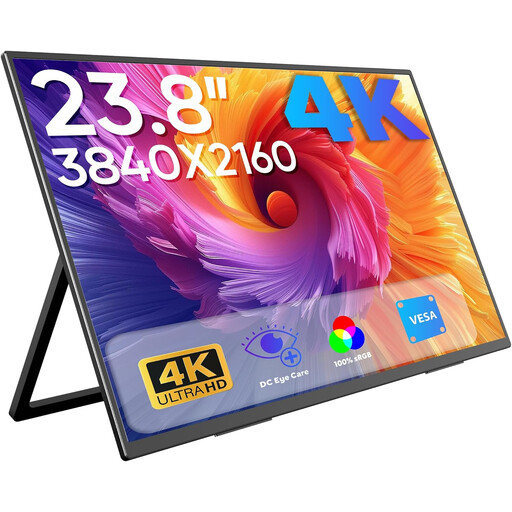 No image available
Could be worth considering for a laptop workspace if you’re looking for a smaller screen.
Specifications listed in the product name: 3840 × 2160 pixels, 60 Hz, 100% sRGB, plus USB-C and Mini HDMI inputs.
No. Corrections are made in photo-editing software, not by the monitor’s resolution. Adobe describes lens profiles for Photoshop, Lightroom and Camera Raw; different profiles may be available for raw and non-raw files.
No. Calibration, profiling and the intended output process also matter when assessing a particular print. EIZO points out that a limited colour gamut or panel uniformity issues can’t simply be calibrated away.
Check that your laptop’s video output, cable and charging requirements match the specifications of the specific monitor. Manufacturers list different USB-C charging capacities: up to 60 W for the EIZO CS2740, 90 W for the BenQ SW272U and 96 W for the ASUS PA279CRV.
Consider your desk space, viewing distance and how clearly you can read your software at your preferred scaling setting. A higher resolution alone doesn’t guarantee that the tools and controls will be easy for you to see.