Photographers who print regularly
If you assess colours for different papers or repeat print jobs, you’ll need a monitor and soft-proofing workflow you can control.


For regular, colour-critical prints, a stated Adobe RGB colour gamut, calibration capability and consistent display matter more than 4K alone. For occasional prints, a versatile 4K monitor may be a good fit if you profile it and set up soft proofing for your printing method and paper. No monitor can guarantee an exact match with a print on its own; also check your working light, laptop connections and whether you’ll need a measurement device.
If you assess colours for different papers or repeat print jobs, you’ll need a monitor and soft-proofing workflow you can control.
If you use the same desk for photo work and other tasks, you’ll need to consider more than colour reproduction: check the video connection, charging power and available desk space too.
If you only prepare prints now and again, it’s worth checking which colour and profiling features you’ll actually use, rather than choosing on 4K resolution alone.
Start by deciding how often you print and how colour-critical your work is. Then you can weigh up colour management, detail and the connections you need for your workspace.
| What matters | What to check before buying | Who is it important to? |
|---|---|---|
| Assessing colours for print | Check the stated colour gamut and colour mode of the specific model; use the appropriate ICC profile for your printing method and paper when soft proofing. | If I prepare prints regularly, I want to assess colours for the specific paper and printing method. Around 36% of consumers therefore prioritise assessing colour for their own prints. |
| Getting consistent colour reproduction | Check hardware calibration, supported software and whether you’ll need a sensor for the exact model. | When editing regularly, I want to be able to measure and adjust my monitor settings again. Around 29% of consumers put repeatable calibration first. |
| Seeing details and tools clearly | Check the 4K resolution, screen size and how easy your image-editing software is to read at your preferred scaling. | If I want to see image details and editing tools at the same time, I look for a suitable resolution and screen size, along with easy-to-read scaling. Around 21% of consumers prioritise detail and workspace. |
| Connecting a laptop and workspace | Check that your computer’s video output matches the monitor input, and that the charging power and space for the stand and cables meet your needs. | For a shared laptop workspace, I need a suitable video connection, enough power and a practical setup. Around 14% of consumers rank workspace connectivity as their top buying priority. |
4K describes the resolution, not how closely the screen matches a print. The printing method, paper and ink can all affect the result.
Start by deciding on your print workflow, then check the colour gamut, profiling and soft proofing for your specific setup.
A calibration result on its own doesn’t account for every change in working conditions. Adobe describes a colour measurement device as the basis for objectively measured colour settings.
Before buying, check which calibration software the exact model supports and whether you’ll need a measurement device. When setting up, avoid direct light falling on the screen.
LG typically lists 98% DCI-P3 for the 27UQ850V-W; EIZO, BenQ and ASUS give Adobe RGB figures for the models covered here. A P3 figure on its own doesn’t confirm a particular level of Adobe RGB coverage.
Check the colour gamut and calibration features of the specific model against your print workflow.
Maximum charging power varies by model: EIZO lists up to 60 W for the CS2740, BenQ lists 90 W for the SW272U and ASUS lists 96 W for the PA279CRV.
Before ordering, check the video signal, USB-C features and your laptop’s power requirements against the exact monitor model.
The ColorEdge range includes the CS2740, a 4K model designed for photography and retouching.
The PhotoVue SW272U and Creative Pro PD2732U are two different 27-inch 4K options for photo editing and digital-to-print workflows.
The ProArt PA279CRV is a 27-inch 4K option for photo work and a desk setup with versatile connectivity.
The UltraFine 27UQ850V-W is a 27-inch 4K option for photo editing and general laptop work in the same space.
Here you’ll find 4K monitors for detailed editing in your home office. For photo printing, check the colour gamut and calibration features of the specific variant against your printing method.
 No image available
The 4K resolution is useful for checking detail; compare the colour gamut and calibration specifications of the specific variant with your print workflow.
IPS display with 3840 × 2160 pixels, 120 Hz, USB-C with 90 W and a height-adjustable stand.
 No image available
The 4K resolution is useful for viewing detail; before buying, check which colour gamut and profiling features you need for your prints.
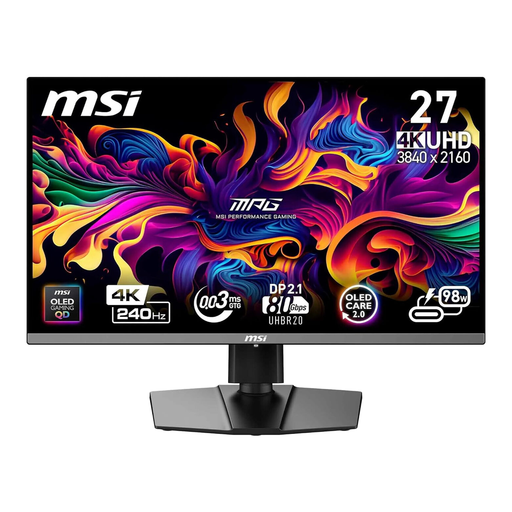
QD-OLED display, 3840 × 2160 pixels, 240 Hz and USB-C with 98 W Power Delivery. According to the product specifications, OLED Care features help reduce the risk of burn-in.
 No image available
The 4K resolution and 32-inch screen give you plenty of room for detailed editing; check the colour gamut and calibration features for your print workflow.
QD-OLED display with 3840 × 2160 pixels, 240 Hz and USB-C with 98 W Power Delivery.
 No image available
The 4K resolution is well suited to detailed editing; compare the colour gamut specifications and calibration options of the specific variant with your print workflow.
OLED display with 3840 × 2160 pixels, 240 Hz and USB-C with 90 W. According to the product specifications, OLED Care features should remain enabled to help reduce the risk of burn-in.
No. 4K refers to image resolution, while the colour gamut figure describes a different feature. To preview how an image will look on a particular paper using a specific printing method, you’ll also need a suitable soft proof; EIZO notes that the print result can differ from what you see on screen.
Calibrate and profile your monitor for your working conditions, then select the ICC output profile for the relevant combination of printing method and paper in suitable image-editing software. EIZO explains that printer and paper manufacturers, as well as some print services, provide these profiles; soft proofing can’t overcome the limitations of the paper.
Adobe describes a colorimeter as the way to set monitor settings using objective measurements. Before buying, check whether you have a suitable device and which software the specific model supports; a factory calibration report isn’t the same as taking measurements at your workspace.
Consumers making private online purchases generally have a 14-day right to cancel; the Verbraucherzentrale states that the period starts when the contract is concluded or the goods are received. Your statutory rights for faulty goods are separate from any voluntary guarantee. Consumer rights can’t automatically be applied to business purchases.