What should you consider when choosing?
First decide whether you’ll mainly be viewing digital references or making print-related colour decisions. Then compare the adjustment options, the screen space you need and the ports on your computer.
| Buying priority |
What to look for |
Who it matters most to |
| Colour reproduction |
Identify your target medium and colour profile; check for an sRGB or Adobe RGB mode and calibration options on the exact model. |
If I’m assessing digital references or print samples, I want a colour mode that suits my workflow; around 26% of consumers put colour reproduction first. |
| Positioning |
Check the adjustment range, stand or clamp, and the space and cable management needed at both desk heights. |
If I switch between sitting and standing, I need to be able to position the screen comfortably in both positions; around 26% of consumers prioritise adjustability. |
| Screen space |
Compare screen dimensions, viewing distance and the space required for the entire setup. |
If I want to see details at a larger size without losing sight of how much desk space I have, screen size is key; around 21% of consumers put screen space first. |
| Connectivity |
Check your computer’s video output against the monitor’s inputs, cables and required USB-C charging power. |
If I want to connect my laptop as easily as possible, its video output and charging requirements need to match; around 16% of consumers prioritise convenient connectivity. |
| Running costs |
Compare energy consumption on the same SDR or HDR basis, and budget only for accessories you actually need. |
If I use my monitor for long periods or need accessories for my workflow, I want to factor in energy use and equipment; around 11% of consumers focus first on running costs. |
The BAuA describes sit-stand working as regularly changing your working position. So check the actual screen position and any potential glare at both desk heights, rather than comparing only the monitor’s maximum height adjustment.
Joybuy monitors for reference images
This selection features 4K monitors ranging from 26.5 to 32 inches, with stated colour and positioning features for viewing reference images at a sit-stand desk.
 No image available
MSI PRO MP273UPDE E6, 27-inch, 4K UHD, 60 Hz
A good fit if you’re looking for a 27-inch 4K monitor with a stated sRGB preset and an adjustable position.
The product description lists 10-bit colour depth, 110 mm of height adjustment, plus tilt, swivel and pivot.
View at Joybuy
 No image available
INNOCN CB27U1, 27-inch, 4K UHD, IPS, 120 Hz, White
A good fit for a workspace where you want a 27-inch 4K screen and a stand that can be positioned flexibly.
The product specifications list 100% sRGB, Adobe RGB coverage, 90 W USB-C Power Delivery, 150 mm of height adjustment, tilt, swivel and pivot.
View at Joybuy
 No image available
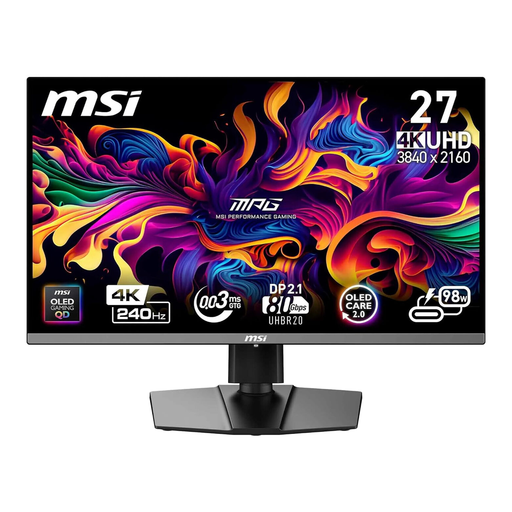
MSI MPG 272URXDE, 26.5-inch, 4K UHD, QD-OLED, 240 Hz
Worth considering if you’re looking for a high-resolution screen with explicitly stated Adobe RGB coverage.
The product specifications list 98% Adobe RGB, 99% DCI-P3, 10-bit colour depth and 98 W USB-C Power Delivery. Height adjustment, pivot, tilt and swivel are also listed.
View at Joybuy
 No image available
MSI MPG 322URXDE, 32-inch, 4K UHD, QD-OLED, 240 Hz
A good fit if you need a larger viewing area for reference images and have enough room on your desk.
The product specifications list 98% Adobe RGB, 99% DCI-P3 and 98 W USB-C Power Delivery. The description says the stand is height-adjustable and offers pivot, tilt and swivel.
View at Joybuy
 No image available
KTC M27P6, 27-inch, 4K Mini-LED monitor with dual mode
Worth considering if you’re looking for a 27-inch 4K monitor with an adjustable stand and USB-C connectivity.
The product specifications list Mini-LED, Fast IPS, 4K at 160 Hz or FHD at 320 Hz, and 65 W USB-C Power Delivery. Height adjustment, tilt and swivel are also listed.
View at Joybuy
Frequently asked questions
Do I always need Adobe RGB for reference images?
No. It depends on your target medium and colour workflow. For digital references, check for a suitable sRGB mode; for print-related colour decisions, Adobe RGB coverage and calibration also matter. The figures quoted for each model come from its manufacturer.
How should I position my monitor when switching between sitting and standing?
Check the screen position and any potential glare at both desk heights. The BAuA describes switching between sitting and standing as sit-stand working; the DGUV lists lighting, glare and poor workstation design as potential sources of strain. ASR A6 applies to workplaces and home-based work within its scope, but doesn’t automatically apply to every home desk.
Can a USB-C monitor always charge my laptop at the same time?
No. Check your laptop’s video output and charging requirements against the ports and power output of the specific monitor. ASUS specifies 96 W Power Delivery for the PA279CRV; EIZO states that the CS2740 provides up to 60 W over USB-C.
How do I compare a monitor’s energy consumption?
Compare the consumption shown on the EU energy label in kWh per 1,000 hours, using the same SDR or HDR basis. To work out your personal electricity costs, you’ll also need to factor in how long you use the monitor and your electricity tariff.
What are my rights if a product is faulty or I cancel an online purchase in Germany?
If a product is faulty, your statutory rights against the seller are separate from any voluntary manufacturer’s warranty; the usual first step is to ask for the fault to be put right. Consumers generally have a 14-day right to cancel an online purchase, subject to the relevant conditions. The Verbraucherzentrale explains both topics, but your specific circumstances and the applicable terms will determine what applies.


