For spotting dust on scans, choose a 4K monitor whose native resolution, display and stand suit your small desk. The monitor displays the scan but won’t remove marks – you’ll need retouching software for that, and should zoom in on the affected area, as Adobe recommends. Extra colour-management features matter most when you’re assessing scans for a consistent print or output process. If you’re using a laptop, check the video signal and the power delivery you need separately.
Who is this selection for?
Students with lots of dusty scans
If you want to spot small imperfections in enlarged sections of an image and retouch them precisely, think of the monitor as a display for your image-editing work – not an automatic cleaning tool. Adobe recommends zooming in on the area you want to correct before retouching it.
Students with limited desk space
If your monitor, keyboard and work materials all need to fit on a small surface, compare the dimensions of the specific stand with your desk. ASUS Germany and BenQ Germany list the width and depth of their respective models, among other details.
Students working on print projects
If you need to assess scans for a defined output process, suitable colour modes, calibration and profiling become more important than they are for correcting marks on digital images alone. The International Color Consortium describes calibration and profiling as complementary steps towards consistent display.
What should you consider when buying?
For retouching scans in a student room, first check the level of detail and the space the monitor will take up. Then decide whether colour management or laptop features are relevant to the way you actually work.
| What matters |
What to check when buying |
Who is it important to? |
| Spotting fine dust marks |
The native 4K resolution of the specific model and how clearly it displays the retouching software you use. |
If I want to find small marks on scans, I need a clear view of the details and zoom in my software. Around 29% of consumers prioritise spotting fine imperfections on scans. |
| Desk space and positioning |
Measure the width and depth of the monitor with its stand, and check how much room is left for your keyboard and work materials. |
On a small desk, I still want room for input devices and scan originals. Around 22% of consumers prioritise the space the monitor takes up. |
| Choosing the right features |
Decide in advance whether you’ll only be editing digital scans or also need colour management and laptop connections. |
If I mainly retouch marks digitally, I don’t want to choose features that I won’t use in my workflow. Around 21% of consumers prioritise sticking to the features they actually need. |
| Assessing colours for output |
Check for colour modes that suit your output goal, along with calibration and profiling options. |
For my print projects, I need a colour workflow that matches the image and output profiles – not just a high colour gamut figure. Around 14% of consumers prioritise this colour workflow. |
| Connecting a laptop |
Check that your laptop’s video output, the monitor’s supported connection and the power delivery you need are compatible. |
If I edit scans on my laptop, I want to know whether the connection supplies a video signal and enough power. Around 14% of consumers prioritise a suitable laptop connection. |
Common selection mistakes
-
Expecting 4K resolution to remove dust automatically
A monitor displays the image file. You’ll need image-editing software to correct small marks, which are often easiest to assess reliably when you zoom in.
Try your usual retouching process with typical scans, and assess the screen as a display – not as a replacement for an image-editing tool.
Allow extra time for checking and retouching images.
-
Comparing screen size but not the stand
Stand depth varies by model: ASUS Germany lists 21,50 cm for the PA279CRV, while BenQ Germany lists 274 mm for the SW272U. These manufacturer measurements apply to the models named.
Measure the space available on your desk and compare it with the width and depth of the specific monitor version.
Depending on the space available, you may need a different setup or a suitable mount.
-
Assuming colour gamut figures guarantee print accuracy
A stated colour gamut doesn’t replace a coordinated process involving calibration, profiling and the right output settings.
Only make advanced colour-management features a buying priority if you’re actually planning to use them in your output process.
Depending on your needs, a colour workflow may require extra profiling work, a measuring device or additional proof prints.
Key brands to consider
ASUS
The ProArt PA279CRV is a 27-inch 4K option for viewing scans and using colour modes; the features listed apply to this model.
- ASUS Germany lists 3840 × 2160 pixels, sRGB and Adobe RGB modes, and 96 W USB-C Power Delivery. In its review of the PA279CRV on 8 May 2023, PRAD rated its performance positively in several colour spaces.
- Its resolution and colour modes won’t remove dust marks or, on their own, guarantee an accurate print preview.
BenQ
The PhotoVue SW272U is designed for workflows that use colour-management features.
- BenQ Germany lists the SW272U as a 27-inch 4K monitor with an Adobe RGB mode and hardware calibration.
- BenQ gives the stand depth as 274 mm. Check that its footprint will fit your desk; the manufacturer’s colour-gamut figures don’t guarantee a match with your prints.
EIZO
The ColorEdge CG2700X is a 27-inch 4K option for regular monitor calibration.
- EIZO lists an integrated calibration sensor for this model, which can automate regular recalibration.
- You don’t need this feature just to find and retouch dust. Consider whether it serves a specific purpose in your colour workflow.
LG
The UltraFine 27UP850K-W combines a 27-inch 4K display with USB-C.
- LG lists 3840 × 2160 pixels, IPS and typical 95% DCI-P3 coverage for this model.
- The DCI-P3 figure doesn’t demonstrate equivalent Adobe RGB coverage or guarantee an accurate print preview.
Dell
The UltraSharp U2725QE is a 27-inch 4K alternative with Thunderbolt hub features.
- Dell lists a Thunderbolt hub, an anti-glare screen and 120 Hz for this model.
- These features don’t demonstrate any particular suitability for retouching dust. Check the laptop connections you need on the specific device.
Joybuy products for retouching scans
This selection includes 4K monitors for viewing scans, from portable models to larger displays. You’ll still need image-editing software to retouch dust.
 No image available
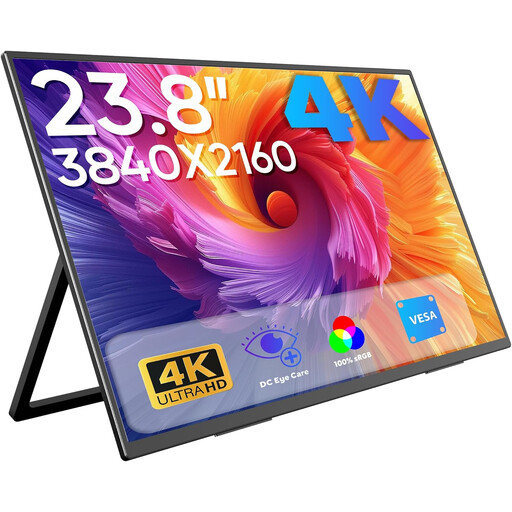
Portable 23.8-inch 4K monitor (3840 × 2160)
If you want to check scans on a portable monitor, the stated 4K resolution is relevant; you’ll still need image-editing software to retouch marks.
The product title lists 100% sRGB, USB-C, Mini-HDMI and an integrated stand.
View at Joybuy
 No image available
INNOCN CB27U1, 27-inch 4K UHD monitor
If a larger screen suits your workspace, this model gives you a 4K view of your scans; you’ll do the retouching in software.
The product title lists 3840 × 2160 pixels, IPS, USB-C with 90 W Power Delivery and a height-adjustable stand.
View at Joybuy
 No image available
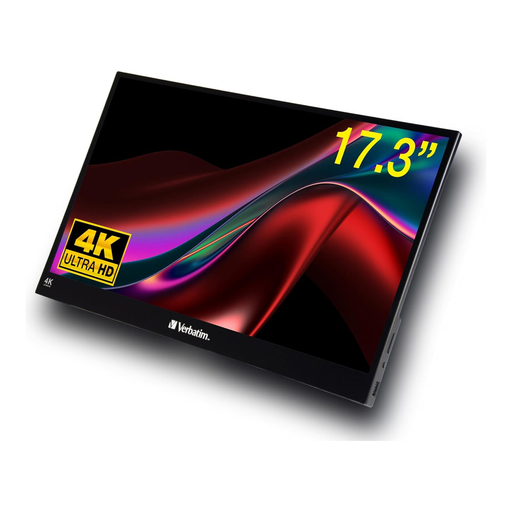
Verbatim portable 17.3-inch 4K touchscreen monitor
If you’re looking for a portable screen to view scans, the product title lists 4K resolution; you’ll still need image-editing software to correct marks.
USB-C and HDMI are listed as connections, and the screen is described as a touchscreen.
View at Joybuy
 No image available
MSI MPG 322URXDE QD-OLED, 32 inches
If a 32-inch display suits your desk and workflow, you can use it to view scans in 4K; you’ll retouch dust marks separately in software.
The product title lists 3840 × 2160 pixels, 240 Hz, USB-C with 98 W Power Delivery and a height-adjustable stand.
View at Joybuy
 No image available
KTC M27P6, white 27-inch 4K MiniLED monitor
If you’re looking for a 27-inch 4K monitor for viewing scans and plan to use its other display modes too, check that its features suit your desk and workflow.
The product title lists a 4K mode at 160 Hz, an FHD mode at 320 Hz, USB-C with 65 W and a height-adjustable stand.
View at Joybuy
Frequently asked questions
Will a 4K monitor remove dust from my scans?
No. A monitor displays the image file; you’ll need a retouching tool to remove individual marks. Adobe recommends zooming in on the affected area before correcting it.
Is a wide colour gamut enough for a reliable print preview?
No. The International Color Consortium describes calibration and profiling as complementary steps for consistent display. You should also make sure your colour workflow matches your actual output goal.
Can I connect and charge my laptop with a USB-C cable?
Only if your laptop’s port supports a compatible video signal and the monitor supplies enough power for your device. BenQ lists DisplayPort Alt Mode and 90 W Power Delivery for the SW272U; ASUS lists 96 W for the PA279CRV. Check the requirements of your specific laptop model.
What are my rights if a monitor bought online in Germany is faulty?
Your statutory right to cancel an online order is separate from your rights if a product is faulty. The seller is generally responsible for faults; a manufacturer’s guarantee is an additional voluntary benefit. The Verbraucherzentrale explains these differences for Germany.


