For inspecting texture seams, choose a 4K monitor that gives you enough room for your 3D and UV views at a comfortable scaling level. Then compare its colour modes, stand adjustment range and connections with your workflow. For colour-critical decisions, suitable colour modes and, where needed, calibration features matter more than a higher refresh rate. However, a high-resolution screen won’t fix errors in your UV layout or texture application.
Who checks texture seams on a monitor?
Those inspecting texture details
If you compare small transitions in a 3D view with UV or image views, you’ll need a clear display and enough room for your workspaces. The Blender Foundation describes aligning the edges of different UV islands as a challenge in 2D texturing.
Colour-critical texture artists
If you’re assessing colours for a particular output as well as checking seams, look for suitable colour modes and, where needed, calibration features. ASUS lists model-specific colour features for the PA279CRV, while EIZO does the same for calibration features on the CG2700X.
People working at a sit-stand desk
If you switch between sitting and standing, you should be able to adjust the screen to suit both working positions. The German Federal Institute for Occupational Safety and Health describes alternating between standing and sitting as sit-stand dynamics; the applicable requirements for display screen workstations depend on the setting.
What should you look for when buying?
First, check that your 3D and UV views are easy to read at the scaling you intend to use. Then assess colour, positioning and connections in relation to your specific workflow.
| Priority |
What to check before buying |
Who should pay particular attention? |
| Seam details and workspaces |
Compare the native resolution and screen size, as well as the scaling and layout of your 3D and UV views. |
If I want to check small transitions in my UV and 3D views, I need a display that stays clear from my usual viewing position. Around 33% of consumers put seam details and workspace first. |
| Colour assessment |
Check the target colour space, available colour modes and the calibration options offered by the exact model. |
If I’m assessing textures for a particular output, the colour mode needs to match that target. Calibration is only relevant if it’s part of my workflow. Around 27% of consumers prioritise reliable colour assessment. |
| Screen positioning |
Check the height range, tilt and stand depth against your sitting and standing positions at your desk. |
If I switch between sitting and standing while I work, I should be able to adjust the screen to suit both positions. Around 20% of consumers prioritise an adjustable screen position. |
| Connection to your computer |
Check the video output, required charging power, cables and peripherals against your computer. |
If I connect a laptop and want to keep cables to a minimum, the video signal and, where applicable, power supply need to work with my device. Around 20% of consumers prioritise a straightforward computer connection. |
Common buying mistakes
-
Assuming 4K sharpness will fix a texture
A high-resolution screen can make problems easier to see, but it won’t fix errors in your UV layout or texture application. The Blender Foundation describes the challenge of aligning the edges of different UV islands in 2D texturing.
Check a known problem area in both the 3D and UV views, rather than assuming a texture is flawless just because of the screen’s resolution.
-
Treating colour space specifications as a guarantee of final colour reproduction
Colour space and calibration specifications apply to particular models. On their own, they don’t prove that your entire colour workflow is right for your intended output.
Choose a colour mode that suits your workflow, and only plan for calibration if you need it and will actually use it.
-
Assuming USB-C and adjustability will suit your setup without checking
USB-C charging power and height adjustment ranges vary by model. The name of a connection alone doesn’t tell you whether your computer will provide the video signal you need and receive enough power at the same time.
Before buying, check your laptop’s video output and power requirements, as well as your desk space and the screen height you need.
Depending on your setup, you may need a suitable cable or a separate monitor arm.
Key brands at a glance
BenQ
The DesignVue PD2706U is a 27-inch 4K monitor for detailed digital workspaces, with several colour modes.
- BenQ lists 100% sRGB, 95% DCI-P3, USB-C with 90 W Power Delivery and 110 mm of height adjustment for the PD2706U.
- Charging requires a compatible computer. Also check that the adjustment range suits your desk.
ASUS
The ProArt PA279CRV combines a 27-inch 4K display with documented colour modes and an adjustable stand.
- ASUS lists 99% Adobe RGB, 99% DCI-P3, USB-C with 96 W Power Delivery and 0–130 mm of height adjustment for this model.
- The colour space figures are manufacturer specifications, not independent measurements of your own colour workflow.
EIZO
EIZO positions the ColorEdge CG2700X for colour-critical graphics and post-production work.
- EIZO specifies a 27-inch 4K display, hardware calibration and an integrated sensor for the CG2700X.
- These features are most relevant if they’re genuinely part of your colour workflow; they don’t offer an advantage for every seam check.
Dell
The UltraSharp U2725QE is a 27-inch 4K model with a Thunderbolt hub, designed for a workstation where connectivity matters.
- Dell lists an adjustable stand and hub features for this model.
- Whether a one-cable setup will work depends on the computer you connect. The hub features don’t indicate whether the monitor is suitable for colour-critical sign-off.
4K monitors for inspecting textures
These Joybuy monitor options combine 4K resolution with features for detailed workspaces at a sit-stand desk.
 No image available
INNOCN CB27U1 27-inch 4K UHD monitor
The 27-inch 4K resolution is well suited to detailed 3D and UV workspaces.
3840 × 2160 pixels, IPS, 120 Hz, USB-C with 90 W Power Delivery and an adjustable stand.
View at Joybuy
 No image available
MSI MPG 322URXDE QD-OLED 32-inch 4K UHD monitor
The 32-inch 4K resolution gives you a large workspace. Check that the screen size suits your available space and viewing position.
3840 × 2160 pixels, QD-OLED, 240 Hz, USB-C with 98 W Power Delivery and an adjustable stand.
The product description warns against applying pressure to the OLED screen surface.
View at Joybuy
 No image available
KTC M27P6 27-inch 4K MiniLED monitor
The 27-inch 4K resolution suits detailed workspaces. Check whether the available modes meet your actual needs.
4K at 160 Hz or FHD at 320 Hz, USB-C with 65 W Power Delivery and an adjustable stand.
View at Joybuy
 No image available
ASUS ROG Swift OLED PG32UCDMR 32-inch 4K UHD monitor
The 32-inch 4K resolution makes this a large-format option for inspecting textures. Consider the space it needs and your viewing distance at your desk.
3840 × 2160 pixels, 240 Hz, 10-bit and USB-C with 90 W Power Delivery.
View at Joybuy
 No image available
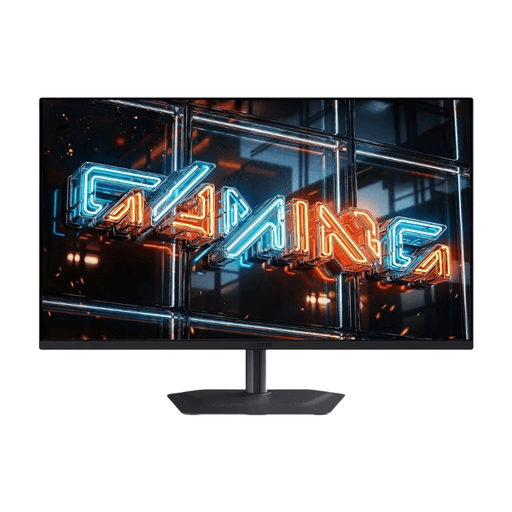
GIGABYTE MO32U24 OLED 32-inch 4K UHD monitor
The 32-inch 4K resolution gives you a large-format view for inspection. Check that it suits the space available at your sit-stand desk.
3840 × 2160 pixels, OLED and an adjustable stand with pivot function.
The product description warns against applying pressure to the QD-OLED screen surface.
View at Joybuy
Frequently asked questions
Will a 4K monitor fix visible UV or texture seams?
No. A higher screen resolution can help with visual inspection, but it won’t fix problems in your UV layout or texture application. The Blender Foundation describes the challenge of aligning the edges of different UV islands in 2D texturing.
What should I check when setting up a monitor at a sit-stand desk?
Compare the adjustment range and footprint of the specific monitor with your sitting and standing positions. The ASR A6 guidance from the German Federal Institute for Occupational Safety and Health applies to display screen workstations in workplaces and teleworking setups within its scope; it isn’t a blanket requirement for every home desk.
Does a manufacturer’s guarantee replace my rights if a monitor is faulty?
No. For consumer purchases, your statutory rights are against the retailer; a guarantee is an additional voluntary promise and is subject to its own terms. The German consumer advice centre explicitly distinguishes between statutory rights and guarantees.
Are there energy labelling rules for monitors?
Yes. EU energy labelling rules cover electronic displays, including monitors, although some specialist display types are exempt or subject to different requirements. Check the product information for the specific model rather than assuming its energy class from the general product description.


