Vector detail-checkers
If you compare fine lines, text and views across two screens, you’ll need a 4K workspace that’s easy to read.


For fine lines and text, a 4K monitor with a resolution of 3840 × 2160 pixels makes sense, with a screen size that keeps details and text easy for you to read. If you’re assessing colours for a specific output, you’ll also need the right colour mode and a well-matched colour management workflow. Check too that your computer supports the number of displays you plan to use, and that the connections, power supply and available desk space suit your setup.
If you compare fine lines, text and views across two screens, you’ll need a 4K workspace that’s easy to read.
If you assess colours for a specific output, you should factor colour modes and calibration into your workflow.
If you use a 4K monitor alongside another screen, your computer, video connections and, where applicable, USB-C power delivery all need to work together.
Start by deciding what matters most for your work: fine detail, reliable colour matching, connecting a second screen or making the most of your desk space.
| Buying consideration | What to check before buying | Who is it important to? |
|---|---|---|
| Seeing fine lines and text clearly | Consider the 3840 × 2160 resolution, screen size and your preferred scaling together. | If I’m comparing small vector details alongside a second display, the workspace needs to be sharp and the text needs to stay readable. Around 36% of consumers say checking detail is their top priority. |
| Matching colours to the intended output | Check the colour space you need, the available colour modes and whether calibration suits your workflow. | If I’m signing off colours for a specific output, the monitor needs to suit its colour requirements and my colour management setup. Around 29% of consumers put colour matching first. |
| Connecting two screens | Check how many displays your computer supports, its video outputs and the cables you need. With USB-C, check the power requirements too. | If I want to use a second screen alongside my 4K monitor, my specific computer needs to support the setup I have planned. Around 21% of consumers prioritise connecting a second display. |
| Fitting both displays into your workspace | Compare the total width, stand depth and height adjustment of both devices with the space available. | If I want two displays on my desk, they need to fit without the stands or casings taking up too much room. Around 14% of consumers prioritise desk space and ergonomics. |
Whether your planned setup will work also depends on how many displays your computer supports and which connections the two screens use.
First check your computer’s display support, then compare the connections on both monitors and the links you’ll need.
Depending on the connections available, you may need extra cables or a different connection solution.
A quoted colour gamut on its own doesn’t show whether the monitor, colour profile and output process are a good match.
Decide on your intended output, then check that the colour mode and calibration fit your colour management workflow.
Calibration and colour management may mean extra setup work.
The width and stand depth affect whether a monitor will fit beside your existing screen.
Compare the actual casing and stand dimensions with your available space, and take your planned mounting setup into account.
If the stands take up too much room, you may need a suitable mount.
The PD2706U and PD3205U come in different sizes for 4K design work.
The ProArt PA279CRV combines a 27-inch 4K screen with colour modes and connections that may support DisplayPort daisy chaining.
The ColorEdge CS2740 is designed for creatives whose colour checking calls for a carefully matched calibration workflow.
The UltraSharp U2725QE is a 27-inch 4K monitor with a Thunderbolt hub for computers with compatible connections.
The UltraFine 27UP850K-W is a 27-inch 4K IPS option with USB-C and an adjustable stand.
The following Joybuy listings include 4K monitors for detailed work and colour tasks. If you plan to use one alongside a second screen, also check your computer’s display support and the connections you’ll need.
 No image available
Could be worth considering for checking vector details on a larger screen; compare its dimensions with the space available for your second display.
 No image available
A 27-inch 4K option if you want to check details on a more compact screen; consider the quoted colour gamut in relation to your intended output.
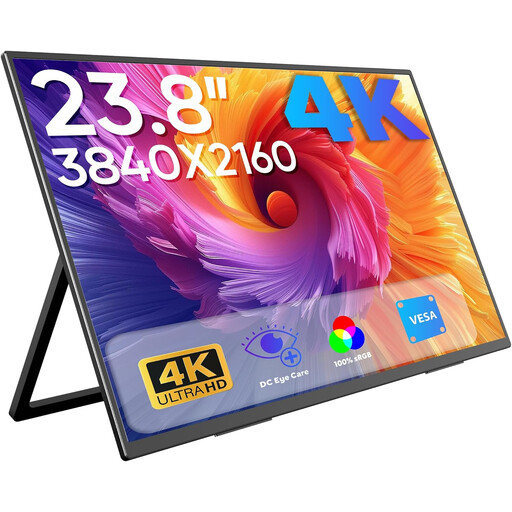 No image available
Could work as a portable second screen alongside a laptop; check that its connections are compatible with your computer.
 No image available
Could suit detail work on a 27-inch screen; compare the listed inputs with your computer’s outputs.
 No image available
Could be worth considering for vector detail work on a 27-inch screen; check the connection options for your planned display setup.
No. First, decide whether you want to use your laptop screen plus one external monitor, or two external monitors, then check which displays your computer supports. For daisy chaining, the relevant ports and connections also need to be compatible.
Arrange the displays in your computer’s display settings to match their actual positions, then choose between an extended desktop and screen mirroring. After that, check the resolution and choose a scaling setting that’s easy for you to read on each screen.
No. Choose a colour mode that suits your intended output, and factor in calibration and the other settings in your colour workflow. A percentage in a spec sheet alone doesn’t prove that the finished print will match.
Check the EU energy label and the consumption figures shown for each model; when you use two displays, both devices’ energy use matters. Depending on your setup, you may also need cables, adapters or a mount.
EU energy labelling and ecodesign rules apply to electronic displays, including computer monitors. The energy label uses a scale from A to G; you can find further information about each model in EPREL.
For consumer purchases in the EU, the statutory two-year legal guarantee applies to your contract with the seller; an additional manufacturer’s warranty doesn’t replace it. For online purchases, you generally also have a 14-day right to cancel from the date you receive the goods, subject to applicable terms and exceptions.