
Lieferung heute & morgen

Qualitätsgarantie

Willkommens-Angebote freischalten: KOSTENLOSE Lieferung | Bis zu 80 % RABATT | Kostenlose 30-Tage-JoyPlus-Testphase
App herunterladen
A cluttered desk tangled with charging cables, HDMI adapters, and network cords is a common problem in the home office. For professionals who use a laptop as their primary device, this often leads to cumbersome workflows and disorganisation. A 4K monitor with a USB-C docking station offers an elegant solution: it transmits video, data, a network connection, and power through a single cable. The result is a tidy workspace and a significant boost in efficiency.
This article provides objective information and a selection of monitors that can serve as the central hub for a modern work environment. The goal is to give you an informed basis for choosing a suitable productivity monitor.
Choosing the right monitor depends on your specific needs. The following points highlight key technical features that are crucial for a productive work setup.
The core feature of a monitor with a docking station is its USB-C port. The supported charging power, measured in watts (W), is a critical factor. For high-performance laptops like a MacBook Pro or Dell XPS, a monitor with 90W Power Delivery or more is recommended to reliably charge the device even under heavy load. Models with lower power output are better suited for more compact notebooks.
Another advantage is an integrated monitor with a LAN port (RJ-45). This provides a stable and fast wired internet connection directly through the monitor, which is especially beneficial in environments with unreliable Wi-Fi.
A 32-inch 4K monitor offers a large workspace and high pixel density, which improves text readability and detail accuracy for image editing. In terms of panel technology, IPS Black has emerged as an interesting option. According to manufacturers, these panels offer a higher contrast ratio compared to conventional IPS displays, resulting in deeper blacks and more vibrant colour reproduction.
For long workdays, a height-adjustable monitor with a pivot function is essential. The ability to adjust the screen's height, tilt, swivel, and rotate it into portrait mode (pivot) supports an ergonomic posture and helps prevent muscle strain.
A monitor with a KVM switch (Keyboard, Video, Mouse) is an extremely useful feature for users who work with two different computers—for example, a company laptop and a personal desktop. The KVM switch allows you to control both devices with a single keyboard and mouse, switching between them at the push of a button or with a keyboard shortcut. This eliminates the need for a second set of peripherals and significantly simplifies the setup.
Here is a selection of monitors that cover different requirements for connectivity, image quality, and functionality.
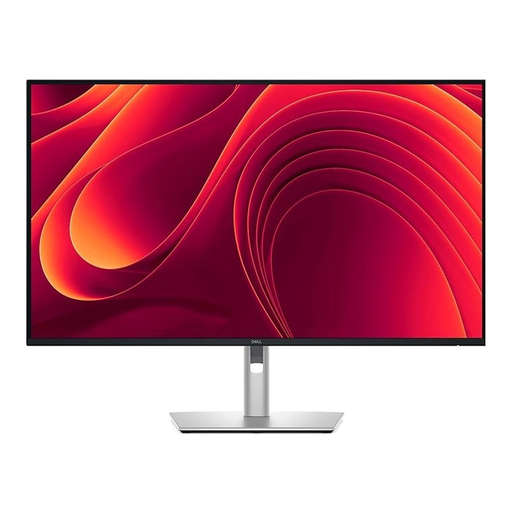
Why it stands out: The Dell P3225QE is consistently tailored to the needs of a modern home office monitor. It combines a 31.5-inch 4K display with a powerful USB-C hub that delivers up to 90W Power Delivery—sufficient for most business laptops. The IPS Black technology ensures a high 2000:1 contrast ratio.
Pros:
Who it's for: Ideal for professionals and power users seeking a central, clutter-free, single-cable solution for their laptop, who also value high image quality, ergonomics, and network stability.
View Product: DELL Pro Plus P3225QE
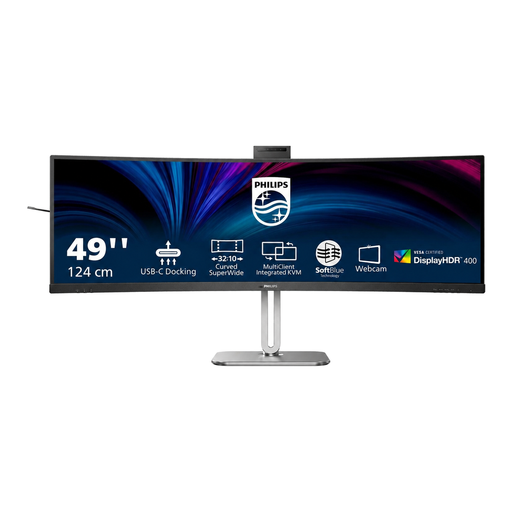
Why it stands out: This 49-inch curved monitor with a 32:9 aspect ratio replaces two 27-inch monitors, offering a seamless workspace without a distracting central bezel. It's a complete communication hub with an integrated 5MP webcam, a noise-cancelling microphone, and a Busylight that syncs with Microsoft Teams.
Pros:
Who it's for: Perfect for multitaskers, finance professionals, and creative experts who need an extremely wide display area and frequently participate in video conferences. The KVM function makes it ideal for hybrid work setups.
View Product: Philips 49B2U6900CH
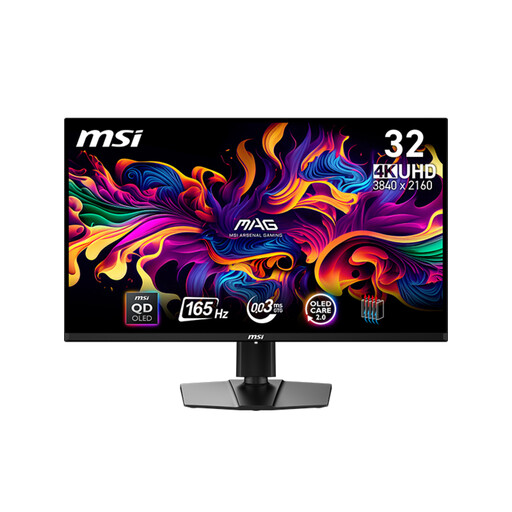
Why it stands out: The MSI MAG 321UPDE uses QD-OLED technology, which ensures perfect black levels, an extremely high contrast ratio, and outstanding colour reproduction. With a 165 Hz refresh rate and a 0.03 ms (GtG) response time, it targets users with the highest demands for image quality.
Pros:
Who it's for: Suitable for creative professionals (graphic design, video editing) and gaming enthusiasts for whom image quality and response speed are top priorities. However, its USB-C port only offers a basic 15W PD charging function for smaller devices.
View Product: MSI MAG 321UPDE QD-OLED
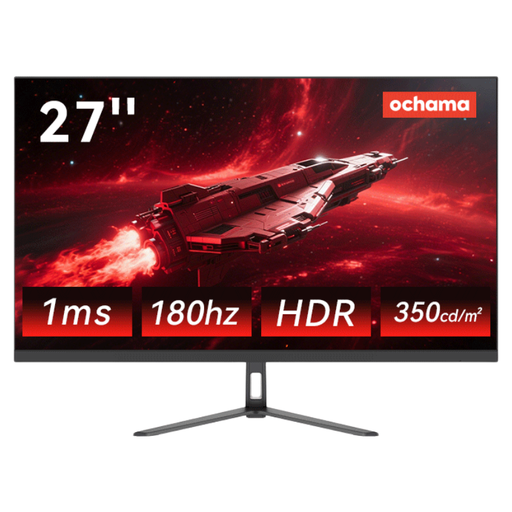
Why it stands out: This 27-inch monitor, with its 2K resolution and high 180 Hz refresh rate, provides a smooth picture for general office tasks and gaming. Its ultra-slim bezel makes it a great option for multi-monitor setups.
Pros:
Who it's for: Users looking for a responsive monitor for general office work and occasional gaming who can forgo an integrated USB-C docking station. It provides a solid foundation that can be supplemented with an external docking station if needed.
View Product: ochama Gaming & Office Monitor
The selection presented here covers specific use cases. If you are looking for other models with different sizes, resolutions, or features, you may find the right solution in our broader selection.
Discover More Monitors in the Ultra HD Display Category
1. Do I need a special cable for a monitor with a USB-C docking station? Yes, you need a full-featured USB-C cable that supports "DisplayPort Alternate Mode" for video transmission and "Power Delivery" at the appropriate wattage. Not all USB-C cables are the same; charging-only cables often do not transmit video data. A suitable cable is typically included with the monitor.
2. Will a 4K monitor with USB-C work with a MacBook Pro or Air? Yes, MacBooks are very well-suited for use with USB-C monitors, as they have supported this technology for years. However, it is advisable to match the monitor's charging power (PD in watts) with the MacBook's power requirements. A MacBook Pro generally requires more power (e.g., 90W) than a MacBook Air (e.g., 45-65W).
3. What is a KVM switch, and is it useful for me? A KVM (Keyboard, Video, Mouse) switch allows you to operate two different computers (e.g., a work laptop and a personal PC) with just one monitor, one keyboard, and one mouse. You can switch between the two systems with the press of a button. This is particularly useful if you regularly switch between two devices without wanting to unplug cables or have a second set of peripherals on your desk.