Who are two 4K monitors suitable for?

People comparing plans

If you compare two floor plans or versions side by side, you need a scaling setting that keeps labels and details legible. The DGUV guidance on workstations with multiple screens notes that the task and screen configuration both matter.

Laptop users in architectural practices

If you want to connect two external 4K displays to a laptop, check the display support of your specific computer, its video outputs and the power delivery you need alongside your monitor setup. Apple Support notes that the number of displays you can use also depends on the model, resolution and refresh rate.

People reviewing plans and visualisations

If you also assess colour views, consider the colour modes available and how you work. Manufacturers such as BenQ and ASUS document these features for specific models, but a CAD mode alone doesn’t prove that you’ll spot plan errors more reliably.

What should you look for when buying?

Two 27-inch displays

A good fit if: you want to show two drawings separately and have limited desk space.

The trade-off: at 4K on a 27-inch screen, higher scaling can reduce the amount of the plan you can see at once.

Two 31.5-inch displays

A good fit if: larger sections of your plans on both screens are a priority, and you have enough desk space and viewing distance.

The trade-off: a larger diagonal doesn’t add pixels at the same 4K resolution; check how both displays will be positioned.

Thunderbolt connection

A good fit if: your computer and monitor support a documented signal path for a one-cable setup with a second screen.

The trade-off: the supported number of displays, resolution and refresh rate also depend on your computer model.

Priority What to check before buying Who is it most important for?
Legibility and plan space Test typical drawings in your own software and with your preferred scaling; compare 27-inch and 31.5-inch screens by how much content you can see. If I want to read labels and fine lines without constantly changing the section of the plan I’m viewing, usable screen space is key. Around 28% of consumers put legible plan details first.
Two external 4K displays Check your computer model, the number of supported displays, ports, cables and the refresh rate you want as a complete setup. If I want to use two external 4K screens at the same time, the entire signal path needs to work, not just the monitor output. Around 22% of consumers prioritise a working dual-display connection.
Positioning and ergonomics Check the width, depth, height adjustment and, where applicable, VESA mount for both displays. If I often use both screens side by side, I want to be able to position them to suit my seating position and workspace. Around 22% of consumers prioritise the positioning of two displays.
Reviewing colour views Decide which colour space and colour mode you need for your workflow; don’t treat manufacturer specifications as independent test results. If I review colour designs or visualisations as well as line drawings, I need suitable display options for the job. Around 17% of consumers prioritise reviewing colour views.
Equipment for a dual-monitor setup Check which cables and mounts you need for both monitors, as well as what’s actually included in the box. If I want to set up the complete dual-monitor arrangement, I want to know in advance which connections and accessories I’ll need. Around 11% of consumers pay particular attention to the equipment needed for the whole setup.

Common misconceptions

  • A daisy-chain port guarantees two 4K displays

    Whether both screens run at the resolution and refresh rate you want also depends on your computer and the complete connection setup.

    Before you buy, check the specifications for your computer, monitors and cables against the signal path you’re planning to use.

  • More 4K pixels automatically make plans easier to read

    At the same 4K resolution, a larger screen diagonal doesn’t add pixels. Scaling that enlarges text can also reduce the amount of the plan you can see.

    Test your own labels in the software you use, with your preferred scaling, on the screen sizes you’re considering.

  • KVM, Picture-by-Picture and daisy-chaining do the same thing

    These features aren’t interchangeable: KVM switches input devices between computers, Picture-by-Picture displays multiple sources on one screen, and daisy-chaining passes a video signal on to another monitor.

    For each monitor you plan to use, check which video output and connection are actually supported.

Relevant brands at a glance

ASUS

The ProArt PA279CRV is a 27-inch 4K model for detail- and colour-focused work.

  • ASUS lists an sRGB mode, 96 W USB-C Power Delivery and DisplayPort daisy-chaining for this model.
  • Whether daisy-chaining works with two 4K displays also depends on your computer configuration.

BenQ

The DesignVue PD2725U is a 27-inch 4K model with a CAD/CAM mode and Thunderbolt ports.

  • BenQ lists KVM, Thunderbolt daisy-chaining and 65 W power delivery for this model.
  • A CAD/CAM mode is a display option, not proof of more reliable error detection.

EIZO

The FlexScan EV3240X is a 31.5-inch 4K office monitor that EIZO also recommends for CAD.

  • EIZO lists USB-C docking with up to 94 W, KVM and Picture-by-Picture.
  • Docking and KVM aren’t the same as daisy-chaining; these features don’t confirm a video output for a second monitor.

Philips

The 27B1U7903/00 is a 27-inch 4K model with Thunderbolt daisy-chaining.

  • Philips explicitly states that you can connect a second 4K monitor to this model’s Thunderbolt output.
  • Your specific computer must also support the display configuration you want.

Dell

The UltraSharp U2725QE is a 27-inch 4K model with a Thunderbolt hub.

  • Dell lists IPS Black and a 120 Hz refresh rate for this model.
  • For comparing static plans, a higher stated refresh rate isn’t automatically more important than legibility and connection compatibility.

Joybuy products for comparing plans

The selection below includes 27-inch and larger 4K monitors that could be used as individual screens in a dual-monitor setup. Check the connections and your computer’s support for both displays separately.

MSI PRO MP273UPDE E6 27-inch 4K monitor

MSI PRO MP273UPDE E6

As a 27-inch 4K monitor, this model could be part of a more compact dual-screen setup; test how legible your plan labels are at your preferred scaling.

27 inches, 4K UHD, IPS and 60 Hz.

View at Joybuy

Samsung ViewFinity S7 S70H 27-inch 4K UHD IPS monitor

Samsung ViewFinity S7 S70H

The 27-inch format is an option if you want to fit two separate 4K screens on your desk; check the scaling with your plans.

27 inches, 4K UHD and IPS.

View at Joybuy

CRUA CR320QB 32-inch curved 4K monitor

CRUA CR320QB

The 32-inch format gives you more physical screen space per monitor; check whether two curved displays will fit in your workspace.

32 inches, curved, 4K UHD, VA, 3000R, HDR10 and 100% sRGB.

View at Joybuy

INNOCN CB27U1 27-inch 4K UHD monitor

INNOCN CB27U1

The 27-inch format is worth considering if you want two separate plan areas in a more compact setup; check that the connection works with your computer.

27 inches, 4K UHD, IPS, 120 Hz, HDR500, PIP and PBP, plus USB-C with 90 W PD.

View at Joybuy
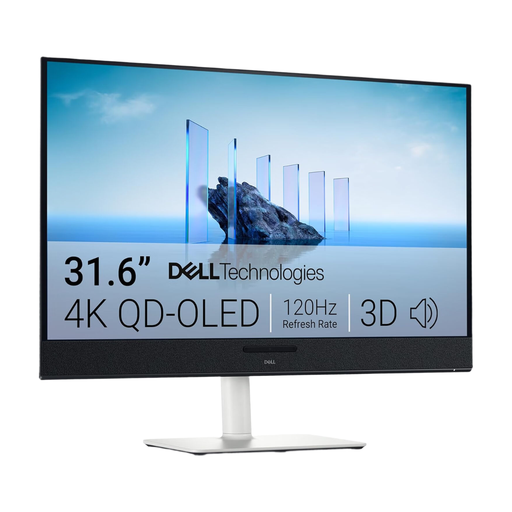
Dell Plus S3225QC 31.6-inch 4K UHD QD-OLED monitor

Dell Plus S3225QC

At 31.6 inches, this model is a larger option for a dual-monitor setup; check the space needed for both screens and your viewing distance.

31.6 inches, 4K UHD and QD-OLED.

View at Joybuy

Frequently asked questions

How do I set up two displays to compare plans?

In Windows, arrange the detected displays in the display settings to match their actual positions, then check the scaling for each screen. On other hardware, check the relevant system settings and supported outputs.

Is one USB-C port enough for two external 4K monitors?

No, a USB-C port alone isn’t enough. Check the display support of your specific computer, the video output, the daisy-chain method and the resolution you want. Apple Support notes that a hub or daisy-chaining doesn’t increase the maximum number of displays supported by a MacBook Air.

What should I know about complaints and returns in Germany?

Your statutory rights if goods are faulty apply against the seller; these are separate from a manufacturer’s guarantee. According to Verbraucherzentrale, consumers buying online generally have a right to cancel, usually within 14 days of receiving the goods. Check for possible exceptions and the terms of your specific contract.

Which rules and labels are relevant to monitors in German workplaces?

ASR A6 sets out requirements for employers within its scope for workstations with screens; it isn’t a general model threshold for private buyers. EU energy labelling and ecodesign rules apply to electronic displays, including computer monitors; the EU energy label lets you compare specific models.