For mainly digital reference images, a versatile 4K monitor with a suitable colour mode may be enough. Screen size, positioning and connections should also suit your workspace. If you need to assess colours for print, the right colour space and a calibratable workflow become more important. However, manufacturers’ specifications alone don’t prove that a print will match what you see on screen.
Which monitor is right for you?
Viewing digital references
If you view artwork and image details at your home office desk, choose a colour mode that suits the purpose of your files. BenQ’s specifications can help you assess the particular model, but they don’t promise a match with printed artwork.
Working with print in mind
If you use reference images for retouching or print decisions, pay closer attention to the colour mode and calibration workflow. ASUS and EIZO describe features relevant to these needs in their respective models.
Setting up a laptop workspace
If you want to use the same monitor for reference images and everyday laptop work, make sure it has the right connections and can be positioned to suit your desk. Dell and LG list features of this kind for their respective model ranges.
What should you look for when buying?
First, decide whether you’ll be viewing digital files or assessing colours for print. Then compare the colour mode, detail, laptop connections and positioning with the needs of your workspace.
| What matters |
What to look for when buying |
Who will benefit most? |
| Suitable colour reproduction |
Check the colour mode for your files. For print-focused work, also check the specific model’s Adobe RGB mode and calibration options. Colour space specifications alone don’t prove that print colours will be accurate. |
If I’m assessing digital references, I want a colour mode that suits my files. For print decisions, I also need to consider the output and calibration workflow. Around 33% of consumers put suitable colour reproduction first. |
| Fine image details |
Compare the native resolution and screen size, and check that the display size suits your viewing distance. In Windows, you can adjust the size of text and apps separately, as Microsoft Support explains. |
If I want to make out fine details, I need the right combination of resolution, screen size and display scaling for where I sit. Around 27% of consumers prioritise clarity of detail. |
| Laptop connectivity |
Check your laptop’s output against the monitor’s input, the charging power you need and any connected peripherals. Also check which cables are required. |
I need a monitor that works with my laptop, so I can use the desired video signal and, if needed, charging or peripherals through the available connections. Around 20% of consumers put laptop connectivity first. |
| Positioning and comfort |
Check the anti-glare finish, stand adjustment and space required. Also consider how light and potential reflections fall on the screen. |
If I’m viewing images at my desk for long periods, I need a suitable setup and want to take distracting reflections in the room into account. Around 20% of consumers prioritise workspace comfort. |
Common misconceptions
-
Assuming colour gamut coverage guarantees accurate print colours
A colour gamut percentage doesn’t describe the whole process, from image file to print. For repeated colour-critical assessments, suitable settings and the output process matter too.
First, decide whether you’ll be viewing images digitally or assessing print colours. Then check the colour mode and, if your workflow requires it, the calibration options of the specific monitor.
A calibration and matching workflow can take extra time.
-
Assuming a monitor’s USB-C port supports every laptop function
Video transmission, peripherals and power supply also depend on which connection your laptop supports and how much power it needs.
Before buying, compare the connections on both devices, the charging power required and the cables you’ll need.
Depending on the connection between your devices, you may need extra cables or a separate power supply.
-
Permanently lowering the resolution to fix a blurry 4K image
Microsoft Support notes that text can look blurry when the screen is set to a resolution below its native resolution.
Check the native resolution and adjust the size of text and apps using scaling, rather than permanently setting a lower resolution.
Brands and model ranges to consider
BenQ
The DesignVue PD2706U is a 27-inch 4K option for digital references and general creative work.
- BenQ lists 100 % sRGB and USB-C for this model.
- These manufacturer specifications don’t prove a match with printed artwork.
ASUS
The ProArt PA279CRV is aimed at buyers who want to consider Adobe RGB references and laptop connectivity on a 27-inch 4K screen.
- ASUS lists 99 % Adobe RGB, colour modes and 96 W USB-C Power Delivery.
- The model specifications aren’t independent proof of how it will reproduce colours in your own room.
EIZO
The ColorEdge CS2740 is an option for print-focused image assessment, with hardware calibration.
- EIZO lists a typical maximum colour gamut of over 99 % Adobe RGB and describes hardware calibration with ColorNavigator.
- The extra calibration workflow isn’t essential for occasional viewing of digital images.
Dell
The UltraSharp U2725QE is worth considering if you’d like to use your reference monitor as a laptop hub too.
- Dell documents a Thunderbolt hub and an adjustable stand for this model.
- Hub features depend on your laptop and don’t prove that the monitor is suitable for print soft proofing.
LG
The UltraFine 27UP850K-W is a 27-inch 4K option for general image viewing, with USB-C and an adjustable stand.
- LG lists 95 % DCI-P3 as a typical figure.
- This colour gamut specification alone doesn’t tell you whether the model suits a particular print workflow.
4K monitors at Joybuy
This selection includes 4K monitors for reference images and home working, with different screen sizes, designs and connections. Check the colour mode and calibration options for each model before relying on it for colour-critical print decisions.
 No image available
TCL 32x3A 32-inch OLED monitor, 4K UHD
A 32-inch screen could be a good fit if you have enough desk space and want to view reference images alongside other applications.
The product name specifies an OLED+ display with 4K UHD and 3840 × 2160 pixels, as well as an anti-glare screen.
View at Joybuy
 No image available
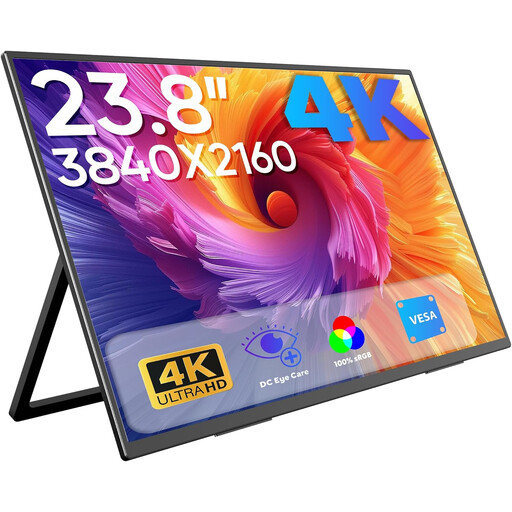
Portable 23.8-inch 4K monitor, 100 % sRGB
The portable design may suit a workspace where space is limited or where you need to move your screen around.
The product name specifies 4K UHD with 3840 × 2160 pixels, 60 Hz, 100 % sRGB, a built-in stand, and USB-C and Mini HDMI inputs. Check which connection your laptop supports and which cables you’ll need.
View at Joybuy
 No image available
Samsung ViewFinity S7 S70H 27-inch 4K UHD IPS monitor
This 27-inch monitor could suit you if you want to view reference images on a 4K IPS screen.
The product name specifies a 4K UHD resolution and an IPS display. If you’ll be using it for colour-critical work, check the colour mode of the specific model.
View at Joybuy
 No image available
CRUA CR320QB 32-inch curved 4K monitor
The 32-inch design is an option if it suits your desk and viewing distance.
The product name specifies 4K UHD with 3840 × 2160 pixels, a curved VA display with 3000R, HDR10 and 100 % sRGB. The colour gamut specification alone doesn’t prove that print colours will be accurate.
View at Joybuy
 No image available
INNOCN CB27U1 27-inch 4K UHD IPS monitor
This 27-inch monitor could suit a laptop workspace if you need the connections and positioning it offers.
The product name specifies 4K UHD with 3840 × 2160 pixels, 120 Hz, USB-C with 90 W Power Delivery and a height-adjustable stand. Check that the charging power and connection are suitable for your laptop.
View at Joybuy
Frequently asked questions
Do I need to lower the 4K resolution in Windows to make on-screen controls larger?
No. Microsoft Support explains that you can scale text and apps separately and generally recommends using the screen’s native resolution. A lower resolution can make the display look blurry.
What should I adjust after setting up the monitor for image assessment?
First, choose a colour mode that suits what you’ll be using it for. For colour-critical work, the calibration workflow for the specific monitor matters too; EIZO describes the CS2740’s workflow with ColorNavigator. A wide colour gamut alone doesn’t guarantee accurate print colours.
Is 100 % sRGB enough for colour-accurate print decisions?
Not on its own. BenQ lists 100 % sRGB as a specification for the PD2706U, but that doesn’t mean it will match a print. For print decisions, consider the colour mode and calibration workflow across the entire output process.
Which energy label applies to electronic displays?
The European Commission includes electronic displays such as computer monitors among the products covered by the EU energy label, which uses a scale from A to G. Check the information for the specific model rather than assuming its energy use based on screen size alone.


