For checking the picture quality of training demonstration videos, a 4K monitor with a colour mode suited to the delivery format is a good choice. If you need to see lots of tracks at once, an ultrawide model may better suit your editing workflow, although at 3,440 × 1,440 pixels it won’t provide a native 4K preview. At a shared workstation, you should also check height adjustment, reflections and whether the connections work with the computers you’ll actually be using.
Which monitor is right for you?
Teams sharing an editing workstation
If you share a workstation, it’s important to be able to adjust the screen position and connect your computers easily. For employees’ display screen equipment, the German Workplace Ordinance and ASR A6 are also relevant.
Trainers who need to check colour
If you assess how demonstration videos look, the colour mode should suit the intended delivery format. A high colour gamut figure alone doesn’t tell you whether the mode is right for your workflow.
Editors working with long timelines
If you want to see lots of tracks and tools at once, you’ll need to weigh screen width against resolution: a wide timeline and a native 4K preview place different demands on your display.
What should you look for when buying?
When choosing a monitor for a shared editing workstation, focus on an adjustable working position, reliable colour, enough room for the timeline and preview, and the right connections.
| What matters |
What to check |
Who needs it? |
| Adjustability at a shared workstation |
Check height adjustment, tilt, desk space and potential reflections where the monitor will be used. |
If several people take turns using the workstation, I want to be able to adjust the screen height and angle quickly. Around 33% of consumers consider adjustability their top priority. |
| Consistent, reliable colour |
Check the colour modes for the exact model, and clarify who will manage profiles and calibrate the monitor if needed. |
If I’m assessing colour for a defined SDR delivery workflow, I need a suitable colour mode and a clear approach to profiles. Around 25% of consumers prioritise colour. |
| Timeline space and preview resolution |
Plan how the preview, timeline and tools will fit at your preferred scaling in your editing software. |
If I want to see lots of tracks alongside the preview, I need to decide whether screen width or native 4K resolution matters more. For around 25% of consumers, the layout of the timeline and preview is their main concern. |
| Computer and peripheral connections |
Check the video output, power requirements, cables and USB switching against the devices you’ll connect. |
If several computers or input devices are used at one workstation, I want to choose connections and switching that suit them. Around 17% of consumers put connections and device compatibility first. |
Common buying mistakes
-
Assuming an ultrawide gives you a native 4K preview
The 34-inch Philips 346B1C/00 ultrawide has a resolution of 3,440 × 1,440 pixels, not the 3,840 × 2,160 pixels required for a native 4K preview.
Before you buy, decide whether you’d rather have an uninterrupted timeline or a native 4K preview.
-
Assuming a wide colour gamut guarantees accurate colour for your workflow
A listed colour mode or calibration feature doesn’t tell you whether your workflow is set up properly at the workstation itself.
Choose your delivery format and colour mode, then decide who will manage colour profiles and carry out calibration when needed.
Profiling and repeated calibration may require extra time and suitable equipment.
-
Choosing USB-C or KVM without checking your devices
USB-C power delivery, a USB hub and KVM serve different purposes. A connection listed in the specifications doesn’t, on its own, prove that every feature will work with your computers.
Before ordering, check the video output, power requirements, cables and switching needed for each device you plan to use.
Depending on your computers’ specifications, you may need a separate docking solution or an extra cable.
Brands and model ranges to consider
BenQ
The DesignVue range offers specific examples of colour modes and connections for an editing workstation.
- For the PD2705U, BenQ lists sRGB and Rec.709 modes, plus 65 W USB-C Power Delivery and KVM.
- The stated charging power needs to suit the connected laptop; features listed for the PD2705U don’t necessarily apply to other models.
ASUS
The ProArt PA279CRV combines a 27-inch 4K format with colour mode specifications and ergonomic adjustments.
- For this model, ASUS lists a Rec.709 mode, 96 W USB-C Power Delivery and 0–130 mm of height adjustment.
- CHIP notes that the PA279CRV doesn’t have a KVM switch, so check whether you need to switch devices through the monitor.
Philips
The B-Line 346B1C/00 is an ultrawide option for workflows where a long timeline is the priority.
- Philips lists a 34-inch screen and 3,440 × 1,440-pixel resolution for this model.
- This resolution doesn’t provide a native 3,840 × 2,160-pixel preview on the same display.
EIZO
The ColorEdge CS2740 is an option for workstations where colour decisions need regular attention.
- For this 27-inch 4K model, EIZO lists hardware calibration with ColorNavigator.
- How useful this is in practice depends on whether a suitable measurement and profiling workflow is in place at the training workstation.
Dell
The UltraSharp U2725QE is a 27-inch 4K option for workstations where connections and adjustability also matter.
- Dell lists a Thunderbolt hub, height adjustment and 120 Hz for this model.
- These features alone don’t show whether the model suits the colour workflow and connected devices at your particular workstation.
Monitors for a shared editing suite
This selection includes monitors for shared editing workstations, from 4K previews to wide timelines and adjustable working positions.
 No image available
KTC M27P6, 27-inch 4K MiniLED monitor, White
The stated 4K resolution suits a need for a native 4K preview. KVM is useful if several computers need to share the same input peripherals.
The product title lists 4K at 160 Hz and FHD at 320 Hz, Type-C with 65 W, KVM, and tilt, swivel and height adjustment.
View at Joybuy
 No image available
CRUA 49-inch ultrawide monitor, DQHD 5120 × 1440
The 49-inch format is suited to workflows where you need room for lots of tracks side by side; its resolution doesn’t provide a native 3,840 × 2,160-pixel preview.
The product title lists a 32:9 format, 165 Hz, a height-adjustable stand, HDMI 2.1 and DP 1.4.
View at Joybuy
 No image available
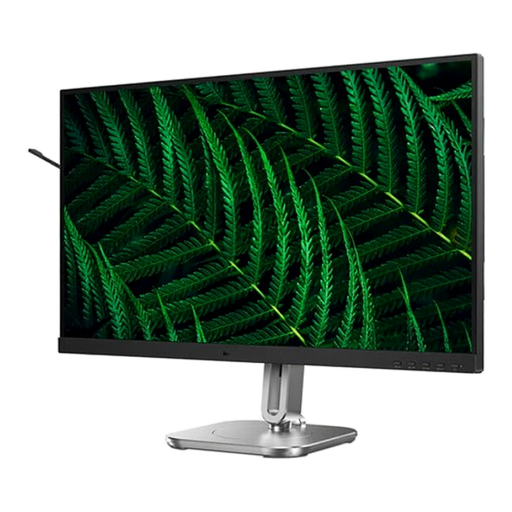
Philips 27B2G5200, 27-inch Full HD IPS monitor
Height adjustment and the USB hub are features worth checking against the needs of a shared workstation and its connected devices.
The description lists 1,920 × 1,080 pixels, a USB hub with four downstream ports and 150 mm of height adjustment. The resolution isn’t suitable for a native 4K preview.
View at Joybuy
 No image available
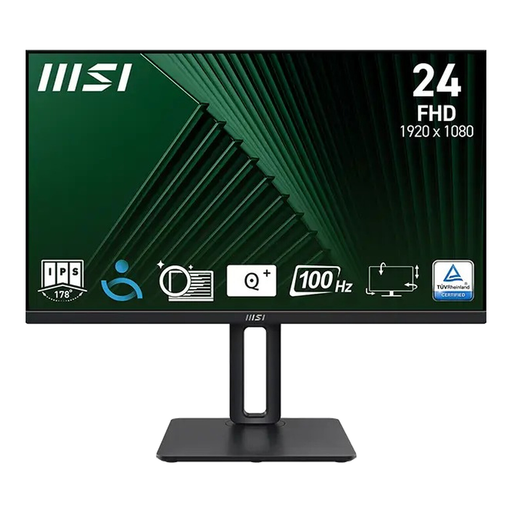
MSI PRO MP245PG, 23.8-inch Full HD IPS monitor
The listed height, tilt, swivel and pivot adjustments may be useful at a workstation shared by different people.
The description lists 1,920 × 1,080 pixels, 120 mm of height adjustment, HDMI, DisplayPort and VGA. The resolution isn’t suitable for a native 4K preview.
View at Joybuy
Frequently asked questions
Does a shared editing workstation in Germany have to meet specific rules for display screen equipment?
If it’s a display screen workstation for employees at a workplace, the requirements of the German Workplace Ordinance apply. ASR A6, published by the Federal Institute for Occupational Safety and Health, provides more detail within its scope. Whether a particular demonstration workstation is covered depends on how it is actually used and classified.
Can a USB-C cable always handle video, peripherals and laptop charging at a shared workstation?
No, it depends on the computer, cable and monitor. Check the video and USB functions, along with the required charging power, against the specifications for the exact model. For example, BenQ specifies USB-C with DisplayPort Alt Mode, data transfer and 65 W Power Delivery for the PD2705U.
How can you keep colours consistent when different people use the workstation?
Agree on a shared colour mode for the same delivery workflow and document how colour profiles should be managed. If you regularly do colour-critical work, a managed hardware calibration workflow may be suitable; EIZO lists this option for the CS2740. The model’s specifications don’t replace checks at the actual workstation.
Is a manufacturer’s warranty the same as statutory consumer rights?
No. The Verbraucherzentrale distinguishes between your statutory claim against the seller and a voluntary warranty offered by the manufacturer or retailer. Check warranty terms separately. A purchase for a business or educational institution isn’t automatically treated in law as a private consumer purchase.


