Checking invoices across two windows
If you compare figures or line items between your accounting software and an invoice, check whether you can read both windows comfortably on an ultrawide at the text size you need.


If you run your accounting software and invoice on the same computer, a 34-inch ultrawide could be a good fit, provided both windows remain easy to read at your preferred text size. A 49-inch model gives you more horizontal space, but also needs more room; two separate monitors can be positioned independently. If you want to connect two computers at once, look for Picture-by-Picture (PBP) and, if you want to switch your mouse and keyboard between them too, KVM.
If you compare figures or line items between your accounting software and an invoice, check whether you can read both windows comfortably on an ultrawide at the text size you need.
For a laptop setup, make sure the video connections are compatible. USB-C docking can make connecting everything easier, provided your monitor and laptop support the features you need.
If you want to display signals from two computers on one screen, look for Picture-by-Picture (PBP). If you also want to switch control between the computers, KVM is another feature to consider.
A good fit if: You regularly have your accounting software and an invoice open side by side on the same computer.
The trade-off: At a total width of 3,440 pixels, each half would have 1,720 pixels in theory. Window borders and scaling affect how much space is actually usable.
A good fit if: Wide spreadsheets and invoices need plenty of horizontal space at the same time, and you have enough room at your desk.
The trade-off: The Philips 49B2U5900CH/00 has a resolution of 5,120 × 1,440 pixels, which gives each window half 2,560 × 1,440 pixels in theory. Make sure you have enough desk space and a suitable viewing distance.
A good fit if: You want one view to stay permanently on one screen, while positioning or adjusting the other independently.
The trade-off: You’ll need desk space for two devices and the right connections.
A good fit if: You really do want to connect two computers at once. Picture-by-Picture displays their signals side by side; with the right connections, KVM switches your input devices between them.
The trade-off: A wide resolution or several video inputs alone don’t confirm that a monitor has KVM. Picture-by-Picture and KVM are documented features of the EIZO FlexScan EV3450XC.
| Priority | What to check before buying | Who is this particularly important to? |
|---|---|---|
| Keeping accounting and invoices in view | Open your actual accounting screen and an invoice side by side at the scaling you use. | If I regularly compare both views, I want to read them without constantly switching between windows. Around 31% of consumers prioritise seeing documents side by side. |
| Reading figures and documents clearly | Test the smallest text you regularly need to read, along with your operating system and PDF scaling. | If I need to read small amounts and invoice text, what matters is how it looks from my usual sitting distance. Around 25% of consumers put readability first. |
| Connecting a laptop | Compare the video output, USB-C video support and charging requirements with the specifications of the monitor you’re considering. | If I work on a laptop, I need connections that suit my device. Around 19% of consumers prioritise laptop connectivity. |
| Using two computers | Check Picture-by-Picture, the supported signal inputs and, if needed, the USB connections for KVM. | If I use two computers, I want to see their signals at the same time and, if needed, switch my mouse and keyboard between them. Around 13% of consumers prioritise two signal sources. |
| Space and sitting position | Check your desk’s width and depth, the adjustment options and readability from your intended sitting position. | If my workspace is limited, I need to be able to position and adjust the screen sensibly. Around 12% of consumers pay particular attention to desk space and seating arrangements. |
Split the 3,440 pixels of a documented 34-inch model evenly and each window half has 1,720 pixels in theory. Window borders and other controls reduce the usable space further.
Open your accounting screen and a sample invoice side by side, then check both at your preferred scaling.
Windows Snap arranges windows from one computer. Picture-by-Picture displays input signals side by side; KVM switches input devices between computers. Each feature does a different job.
First, decide whether you want to connect one computer or two. Then check which features are specifically listed for the monitor model you’re considering.
The maximum charging outputs listed for some models — 90 W for the Dell P3425WE and 94 W for the EIZO FlexScan EV3450XC — don’t guarantee that they’ll charge every laptop.
Compare your laptop’s video and charging requirements with the specifications for the monitor’s specific port.
The Dell P3425WE is a 34-inch office ultrawide with a USB-C hub and RJ45.
EIZO describes the FlexScan EV3450XC as a 34.1-inch ultrawide for office applications and lists finance as one of its intended uses.
The Philips models mentioned offer different screen sizes and connectivity features.
The LG 34U650A-B is a 34-inch ultrawide with a resolution of 3,440 × 1,440 pixels.
This selection of Joybuy products includes 34-inch ultrawide monitors for viewing two windows from one computer, as well as wider models and devices with specified features for two computer signals. Choose a model that suits your workspace in terms of readability, space and connectivity.
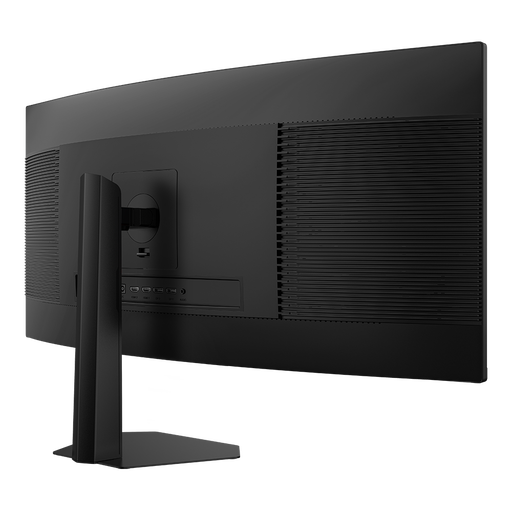 No image available
The wide format gives you a shared workspace for two windows from one computer; check that text is clear at your preferred size.
3,440 × 1,440 pixels, 1500R, 200 Hz, PIP/PBP, height-adjustable stand; HDMI and DisplayPort.
 No image available
The larger screen could suit you if you want to keep two views open side by side; test your own layout to see whether the text size works for you.
5,120 × 2,160 pixels, 21:9, IPS, 100 Hz, USB-C with 65 W Power Delivery, PIP/PBP and height-adjustable stand.
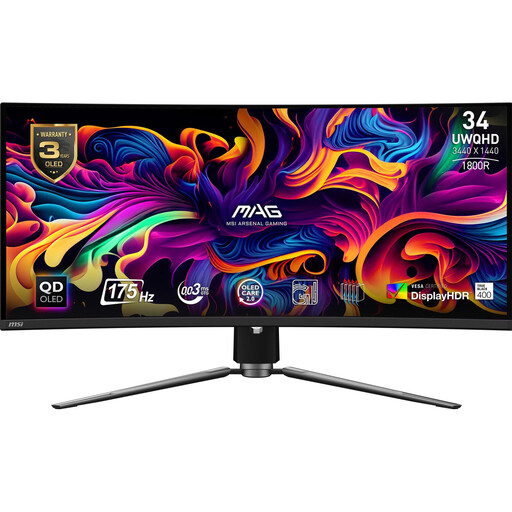 No image available
You can use the wide screen for two windows from one computer; if you connect two computers, the specified PIP/PbP and KVM features are relevant.
UWQHD, 21:9, 175 Hz, PIP/PbP, KVM and USB-C with 15 W Power Delivery. The stand is height-adjustable, tiltable and swivelling.
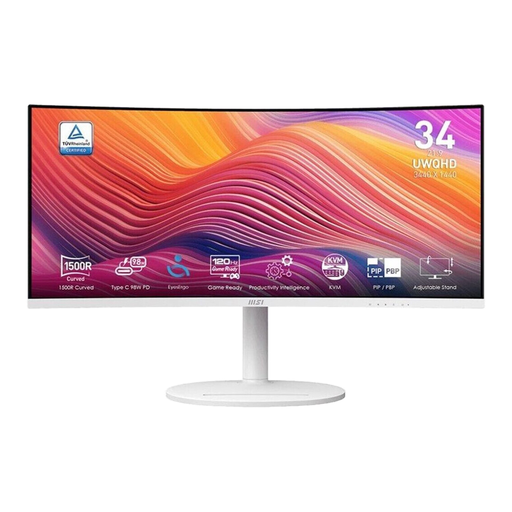 No image available
The 21:9 format gives you a wide space for two windows; try it with your accounting screen and a sample invoice.
Curved VA LED, 120 Hz, matt finish and VESA mounting. Connections: HDMI, DisplayPort and two USB 3.0 ports.
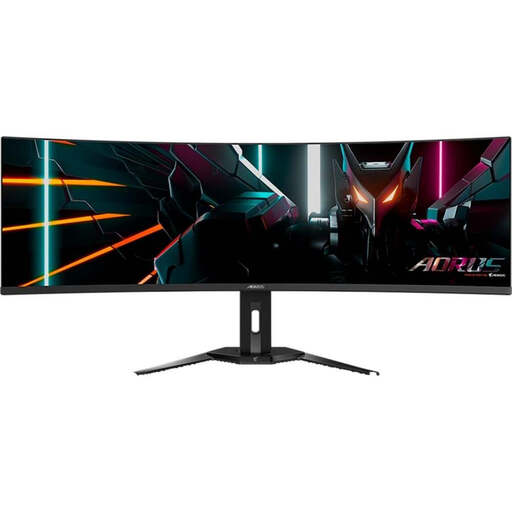 No image available
The 32:9 format gives you plenty of horizontal space for wide views; check that the screen and viewing distance will suit your workspace before buying.
5,120 × 1,440 pixels, PIP/PbP, KVM and USB-C with 18 W Power Delivery. The stand is height-adjustable, tiltable and swivelling.
No, not if both windows are running on the same Windows computer: Microsoft Support explains how to arrange windows using Snap. Picture-by-Picture is useful for displaying different input signals at the same time.
It depends on your layout and the text size you need. At a total width of 3,440 pixels, each half has 1,720 pixels in theory, before you account for window borders and other controls. Open your accounting screen and an invoice side by side at the scaling you actually use.
Not automatically. Check that your laptop and monitor support the video connection you need and that the charging output is sufficient. Dell lists up to 90 W for the P3425WE and EIZO up to 94 W for the FlexScan EV3450XC; these maximum outputs don’t guarantee compatibility with every laptop.
In Germany, the Workplace Ordinance sets out requirements for employers when setting up and operating workplaces. The Workplace Committee’s ASR A6 provides more detailed requirements for its respective scope, including screen-based workstations in workplaces and teleworking workstations. It is not a blanket product approval and does not automatically apply to every home desk.
In Windows, drag one window to the left edge of the screen and another to the right, or use the Snap feature with your keyboard. Then adjust the text size and scaling so figures and invoice text are easy to read from your usual sitting distance.