What to look for when buying
First, check whether your forms actually need colour. Then make sure the printer’s scanning capacity, connections and handling of confidential documents suit your workspace.
| Buying priority |
What to check before buying |
Who it matters most to |
| Shared use and confidential printouts |
Check that the connections and drivers work with your existing devices. Decide separately how printouts will be collected and who can access scan destinations; Germany’s Federal Office for Information Security considers print and scan infrastructures that handle confidential information to require protection. |
When several people print forms, I don’t want personal details left in an open output tray or at a shared scan destination. That’s why around 33% of consumers put a shared printing and collection process they can control first. |
| Regular black-and-white printing |
Check your documents in greyscale and compare duplex printing, the paper tray and the consumables for the exact model. |
When we print lots of text pages regularly, I want to choose paper handling and replacement supplies to suit the print volume. Around 27% of consumers prioritise regular text printing. |
| Scanning completed forms |
Check the ADF capacity and the types of originals it can handle. For double-sided originals, confirm that the complete model supports duplex scanning. |
When completed forms come back in batches, I want to know if both sides can be scanned without turning the pages by hand. Around 20% of consumers prioritise scanning returned forms. |
| Colour details on forms |
Check whether your documents really need colour, and compare cartridges or ink tanks for the specific model. |
When colour fields or attachments need to remain clear, I don’t want to be limited to black-and-white printing. Around 13% of consumers make colour their top buying priority. |
| Occasional applications |
Consider how often you plan to use the printer, the scanning functions you need and the right replacement cartridges before choosing a device. |
If I only print applications occasionally, I want to weigh the purchase and the features I need against how rarely I’ll use them. Around 7% of consumers put this consideration first. |
Joybuy printers and scanners for shared workspaces
This product selection includes mono and colour laser all-in-one printers for printing forms and shared use.
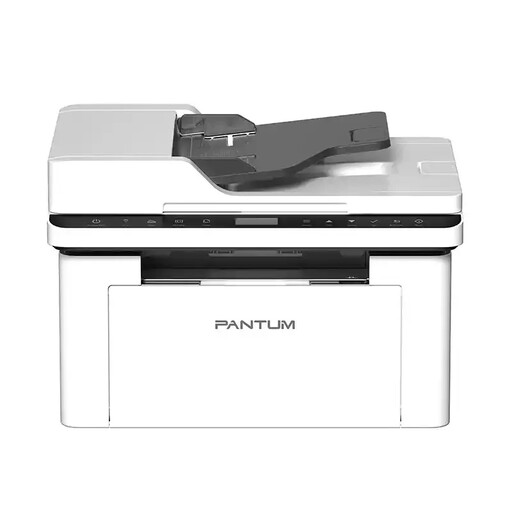 Image unavailable
PANTUM BM2300AW A4 Mono Laser Multifunction Printer
For mainly text-based forms when you need to print, copy and scan over Wi-Fi or Ethernet.
Mono laser printing at 22 pages per minute, with Wi-Fi and Ethernet. Duplex printing is manual, so you’ll need to turn the paper over for double-sided printouts. An ADF is specified, but this doesn’t confirm automatic duplex scanning.
View at Joybuy
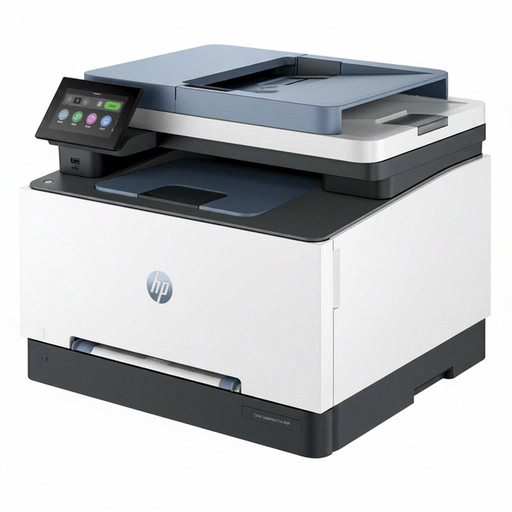 Image unavailable
HP Color LaserJet Pro MFP 3302sdwg
A colour option if you need to print forms in colour and Wi-Fi or Ethernet suits your shared workspace.
Colour and black-and-white printing, automatic two-sided printing, flatbed scanner, Wi-Fi, Ethernet and touchscreen. Automatic two-sided printing doesn’t automatically mean two-sided scanning.
View at Joybuy
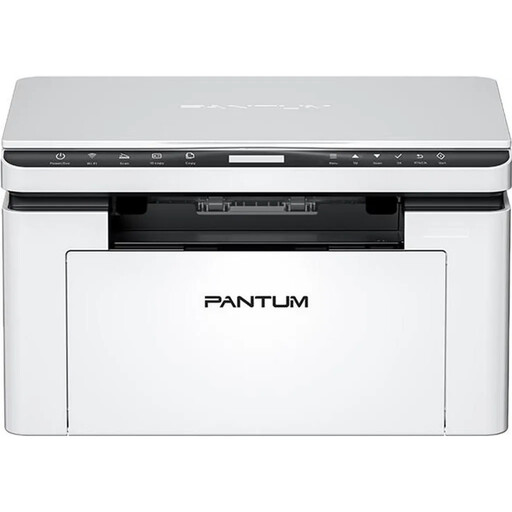 Image unavailable
PANTUM BM2300NW A4 Mono Laser Multifunction Printer
For mainly text-based forms when several devices need to access the printer over Wi-Fi or Ethernet.
Mono laser printing at 22 pages per minute, dual-band Wi-Fi and Ethernet. The paper input capacity is listed as 150 sheets; duplex printing is manual. Printing, copying and scanning are supported.
View at Joybuy
Frequently asked questions
Do I need automatic duplex scanning for a batch of completed forms?
Only if you need to scan both sides of the originals without turning them by hand. An ADF and automatic duplex printing describe different features; Epson specifically lists an automatic two-sided document feeder for the ET-4950.
How do I set up a shared printing and scanning station?
Check that LAN or Wi-Fi and the devices you plan to use are compatible with the complete model. Before use, decide who will collect printouts and who can access scan destinations. Germany’s Federal Office for Information Security considers printers and scanners that handle confidential information to be infrastructure requiring protection.
How should I assess running costs and what happens if the printer is faulty?
Compare consumables to suit your own page volume, such as cartridges or toner and, if needed, a separate drum. For a faulty consumer purchase, your statutory rights are against the seller and are not the same as a voluntary guarantee; the Verbraucherzentrale explains the difference. The rights that apply in your case depend on the circumstances of the purchase and contract.
What data protection rules apply to completed forms at a shared printer?
If an organisation processes personal data, the data controller must have appropriate technical and organisational safeguards in place, based on risk, under Article 32 of the GDPR. The Data Protection Conference explains this obligation; the necessary settings and processes depend on the actual operation and the data being processed. BSI recommendations for print and scan infrastructures don’t create a blanket requirement to buy a particular printer model.
Should laser printers always be ruled out because of emissions?
No. Germany’s Federal Environment Agency doesn’t recommend a blanket ban. It advises looking for low-emission devices when buying and names the Blue Angel ecolabel as a guide. Its precautionary advice about placing printers in separate rooms applies to large office printers.


