If you want a long timeline across a wide workspace, with your preview or references kept separate, a 34-inch ultrawide alongside an existing second screen could be a good fit. If you want to use two computers with one display, check PBP specifically for displaying both signals at once, and KVM for sharing input devices. Depending on your available space and how much separation you prefer, a single 49-inch monitor or two separate displays may suit your workflow better.
Which setup is right for you?
Animators with long timelines
If you work with lots of frames and layers, a wide workspace can give you room for your timeline and panels. You can keep the preview separate on a second screen. Adobe describes the timeline in Animate as the area for layers, frames and the playhead.
Animators working with colour approvals
If you compare previews with references, look for suitable colour modes and consider your entire colour workflow. A large stated colour gamut alone does not tell you how a particular file will appear across all the devices involved.
Users with two computers
If you use two computers, check separately whether you want to see both signals at once or switch input devices between the computers. PBP and KVM serve different purposes.
What should you consider when buying?
34-inch ultrawide plus a second screen
A good fit if: you want a wide timeline and would prefer to keep your preview or references on a separate display.
Consider: Make room for both devices and check that your computer supports the displays you need.
One 49-inch ultrawide
A good fit if: you prefer one continuous, wide workspace and have a desk that can accommodate it.
Consider: PBP can display two signal sources at once, but it is not a replacement for physically separate displays. Samsung lists PBP for the S95UF.
Two separate monitors
A good fit if: clearly separated work and preview areas matter more to you than one continuous, wide timeline.
Consider: There will be a bezel between the displays, and positioning and colour matching may take extra effort.
One 34-inch ultrawide on its own
A good fit if: you want to organise your timeline, preview and tools on a single display.
Consider: Check that there is enough vertical space for your preview and panels.
| Buying priority |
What to check |
Who it matters most to |
| Room for a timeline and preview |
Native resolution and your preferred window layout in your animation software. |
If I want to organise lots of frames and layers and see the preview alongside them, usable workspace matters to me. Around 36% of consumers put a wide, easy-to-organise timeline first. |
| Colours and reference images |
Colour modes suited to your output format and colour management in your application. |
If I need to match colours to references, I want suitable display modes rather than simply the widest screen possible. Around 29% of consumers prioritise colour modes and assessing references. |
| Two signals or two computers |
PBP for displaying two signals at once; KVM for sharing input devices. |
If I use two computers, I check whether I want to see both images at once or switch between input devices. Around 21% of consumers put two signal sources first. |
| Desk space and laptop connections |
Dimensions including the stand, as well as video transmission and the required charging power over USB-C. |
If there is little room alongside a second screen or I need to connect a laptop, I look at the dimensions and check for suitable connections. Around 14% of consumers prioritise how easily a monitor fits into their workspace and connects to it. |
Which mistakes should you avoid?
-
Confusing PBP with a second physical monitor
PBP splits one display between multiple signal sources. To arrange windows from the same computer, use software instead.
First decide whether you need to use two computers, have two separate displays or simply place windows side by side.
If you only want to arrange windows from one computer, extra PBP features may not be necessary for your needs.
-
Focusing only on screen size
An ultrawide alongside a second monitor takes up desk space. Pixel height also affects how much room you have for your preview and panels.
Measure your workspace, including the stand, and check that the native resolution suits your preferred layout.
Depending on your setup, you may need a suitable mount or extra space.
-
Assuming a stated colour gamut guarantees colour approval
A stated colour gamut alone does not prove that a particular file will look the same on every device involved.
Check the output colour space, suitable monitor modes and the colour management settings in your application.
A consistent colour workflow may require some extra setup.
Key brands at a glance
BenQ
The DesignVue PD3420Q is a 34-inch model with a dedicated Animation Mode.
- BenQ lists a resolution of 3440 × 1440 pixels, 100% sRGB, 100% Rec.709 and 65 W USB-C Power Delivery for the PD3420Q.
- These are manufacturer specifications; whether 65 W is enough for your laptop depends on its power requirements.
Lenovo
The ThinkVision P34WD-40 combines a 34-inch ultrawide display with laptop docking.
- Lenovo lists a resolution of 3440 × 1440 pixels, IPS, 24–120 Hz and up to 140 W over USB-C.
- The docking features are useful if they suit your laptop's connections and power requirements.
Dell
The UltraSharp U3425WE is a 34-inch model with a Thunderbolt hub.
- Dell lists a resolution of 3440 × 1440 pixels at 120 Hz, IPS Black and 90 W power delivery.
- Whether the hub fully connects your computer depends on its ports and power requirements.
Samsung
The 49-inch ViewFinity S95UF is an option if you want an extra-wide workspace and two signal sources.
- Samsung lists a 32:9 aspect ratio, PBP, KVM and 90 W USB-C for this model.
- PBP is useful for two signal sources; also check that the width and curvature suit your workspace.
EIZO
The FlexScan EV3451X is a 34.1-inch office monitor with docking and KVM.
- EIZO lists a resolution of 3440 × 1440 pixels, up to 94 W over USB-C, KVM and a seven-year warranty.
- Warranty terms are separate from your statutory consumer rights.
Joybuy monitors for wide workspaces
This Joybuy selection includes ultrawide monitors for a wide timeline, including models with specifications for multiple signal sources and connections for a laptop workspace.
 No image available
INNOCN E34A1R, 34 inches
For a wide timeline alongside a second display, the specifications list a 34-inch screen, 21:9 aspect ratio and 3440 × 1440 pixels.
A VA panel, PIP and PBP are listed; PIP and PBP are relevant when using multiple signal sources.
Joybuy
 No image available
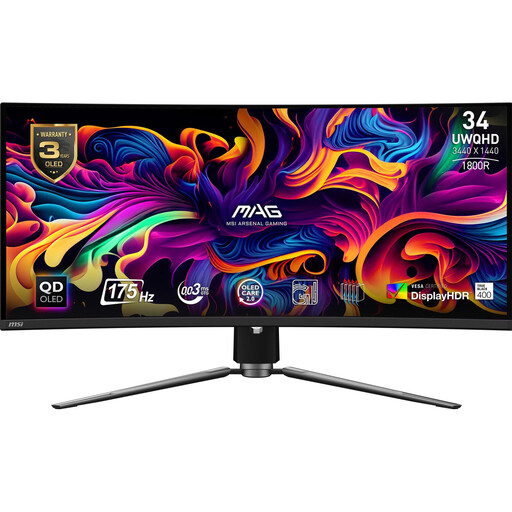
MSI MAG 341CQPDE QD-OLED, 34 inches
For a wide workspace, the specifications list a 34-inch screen, 21:9 aspect ratio and 3440 × 1440 pixels.
The product description lists 99.3% DCI-P3, 10-bit colour depth, KVM and PiP/PbP. Check that these features suit your colour workflow and multi-device setup.
Joybuy
 No image available
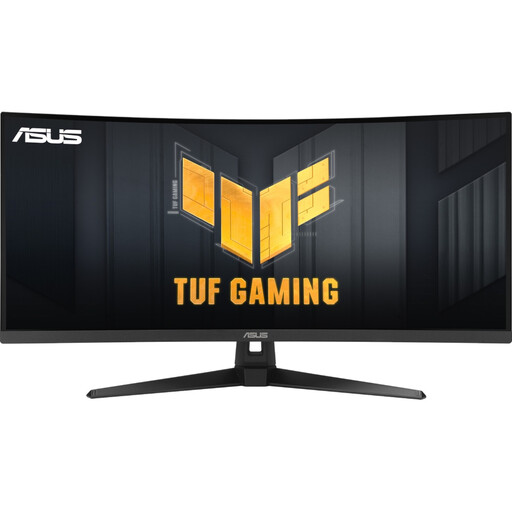
ASUS TUF Gaming VG34VQ3B, 34 inches
For a wide workspace, the specifications list a 34-inch screen, 21:9 aspect ratio and 3440 × 1440 pixels.
The title lists a VA panel, 90% DCI-P3, as well as HDMI, DisplayPort and USB. Check that the connections suit your devices.
Joybuy
 No image available
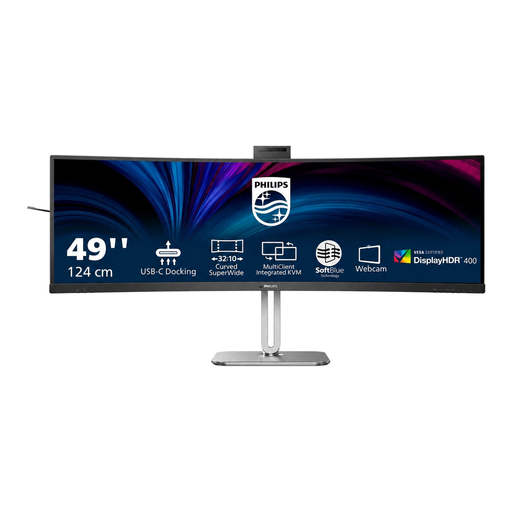
Philips 49B2U6900CH, 49 inches
For one continuous, wide workspace, the specifications list a 49-inch screen, 32:9 aspect ratio and 5120 × 1440 pixels.
The product description lists SmartKVM, MultiView for two sources and USB-C docking. Because of its size and weight, the product description says the monitor should be installed and transported by two people.
Joybuy
 No image available
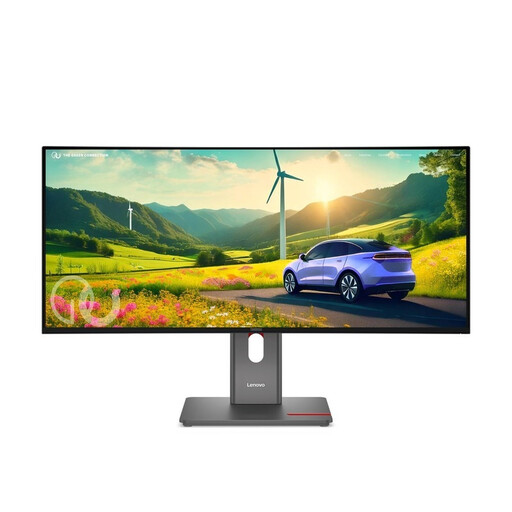
Lenovo ThinkVision P34WD-40, 34 inches
For a wide timeline alongside a second display, the specifications list a 34-inch screen, 21:9 aspect ratio and 3440 × 1440 pixels.
The product description lists 98% DCI-P3, 99% sRGB, up to 140 W USB-C Power Delivery and a USB hub. Check that the charging power suits your laptop.
Joybuy
Frequently asked questions
Do I need PBP if the timeline and preview come from the same computer?
No, not for that alone. PBP displays multiple signal sources at once; Adobe Animate lets you move panels, and Windows can arrange windows on one screen. Check that your software supports the layout you want.
How do I set up a second screen in Windows?
Connect both displays and arrange them in Windows display settings to match their actual positions. Then save your workspace, if your animation software allows you to.
What should I consider when setting up a large monitor?
Allow enough desk space and choose a suitable position. For screen-based workstations in workplaces and teleworking, the German Federal Institute for Occupational Safety and Health's ASR A6 applies within its stated scope; it does not apply generally to private use outside these workplaces. Also follow the instructions for your particular model when cleaning and operating it.
What costs and rights should I consider when buying online in Germany?
Check whether the necessary cables, mounts or a suitable docking solution are included. Consumer distance contracts generally come with a statutory right of withdrawal, subject to exceptions; the Verbraucherzentrale gives 14 days as the standard period. Your statutory consumer rights against the seller are separate from any voluntary manufacturer's warranty.


