If you want to keep your frames, timeline and preview arranged across a larger workspace, a QHD or 4K desktop monitor is a natural place to start – but it will still need its own power socket. If your laptop is compatible, USB-C Power Delivery can replace its separate power adapter, but it cannot power the monitor. If you don’t have a spare socket for another monitor, a portable display powered by your laptop may be an option. Bear in mind, though, that it offers less workspace and puts more strain on your laptop battery.
Which monitor options are right for different users?
Laptop animators with limited access to sockets
If you want to avoid using a separate laptop power socket at your desk, check whether your laptop outputs video over USB-C and whether the monitor’s charging power is suitable for it. The monitor itself will still need to be plugged into a socket. BenQ lists 65 W Power Delivery for the GW2790QT.
Animators who need to see lots of individual frames
If you need room for frames, a timeline and a preview window at the same time, compare the resolution and the scaling you actually use. ASUS lists the PA279CRV as a 27-inch 4K model; BenQ lists the GW2790QT as a 27-inch QHD model.
Animators who work in different locations
If you want to carry an extra display with you and use it without its own power socket when the connection allows, a portable monitor could be an option. ASUS describes the MB16AHVE as a 15.6-inch Full HD model that can be powered by a laptop in suitable conditions.
What should you look for when buying?
| Buying priority |
What to look for |
Who is it important to? |
| Sockets and USB-C |
Check whether the monitor needs its own power socket, and whether your laptop, port and cable support USB-C video and the charging power you need. |
At my animation workstation, I want to keep a socket free if possible, without losing the video signal to my laptop. Around 36% of consumers put socket requirements and connection compatibility first. |
| Space for frames and a timeline |
Set up a typical scene alongside the timeline in your animation software, then check the window sizes at your usual scaling. |
I need to keep frames, the timeline and the preview visible at the same time, without making the panels too small. Around 29% of consumers put workspace size first. |
| Colour gamut |
Decide which colour space your project requires and compare it with the specifications for the exact model. |
If my animation is being produced for a particular target colour space, I want to be able to assess the colour specifications of the exact model. Around 21% of consumers prioritise colour accuracy. |
| Portability |
Check video and power delivery from your laptop, and whether the smaller screen is large enough for your window layout. |
I move between workspaces often and want to use an extra display without its own power socket, even if that means less screen space. Around 14% of consumers prioritise portability. |
Which assumptions should you avoid?
-
USB-C Power Delivery doesn’t mean the monitor won’t need its own plug
Power Delivery supplies power to a connected device. A desktop monitor still needs its own power supply, even if it can charge a laptop over USB-C.
Plan for the monitor and laptop separately: check whether the monitor’s charging power is suitable for your laptop and whether you have a socket available for the monitor itself.
-
Don’t expect a portable Full HD monitor to offer the same workspace
According to ASUS, the MB16AHVE offers a 15.6-inch screen with a resolution of 1920 × 1080 pixels. That’s a different amount of workspace from a 27-inch QHD or 4K desktop monitor.
Try a typical scene with the preview and timeline in your software, using your usual scaling.
-
Not every USB-C port supports video
For the ASUS MB16AHVE’s single-cable connection, ASUS specifies DisplayPort Alt Mode as a requirement. If your port doesn’t support video output, the manufacturer describes using HDMI alongside a separate USB-C power connection.
Before buying, compare the port specifications for your laptop and monitor, and make sure the cable supports the connection you intend to use.
Which brands and model ranges are worth considering?
BenQ
The GW2790QT and PD2706U are 27-inch desktop monitors with USB-C Power Delivery. These specifications apply to these models, not the entire range.
- BenQ Germany lists 65 W Power Delivery for the GW2790QT and 90 W for the PD2706U.
- According to their specifications, both desktop models still need their own mains power supply. Also check that the charging power is suitable for your laptop.
ASUS
The range includes both a larger 27-inch desktop display and a portable secondary monitor.
- ASUS Germany lists the ProArt PA279CRV as a 27-inch 4K model. ASUS says the ZenScreen MB16AHVE can be powered by a laptop when used with a suitable connection.
- The MB16AHVE offers a 15.6-inch Full HD screen. Single-cable use depends on the video output supported by your laptop’s port.
Philips
The 27E1N1600AE/00 is a 27-inch QHD monitor with USB-C Power Delivery, designed for a fixed workstation.
- The Philips product page for Germany lists a QHD resolution and USB-C Power Delivery.
- A USB-C connection doesn’t automatically replace the monitor’s own power connection. Check the power requirements and the charging power specified for your laptop.
Lenovo
The L15 is described as a compact, portable 15.6-inch Full HD monitor.
- Lenovo lists two USB-C ports for the L15.
- If you want to arrange lots of animation windows on screen at once, its smaller Full HD display is better suited as a secondary monitor.
Joybuy products for animation workstations
This selection includes larger desktop monitors for working with several windows and a portable secondary monitor. On desktop models with Power Delivery, USB-C powers the laptop, while the monitor itself still needs its own power socket.
 No image available
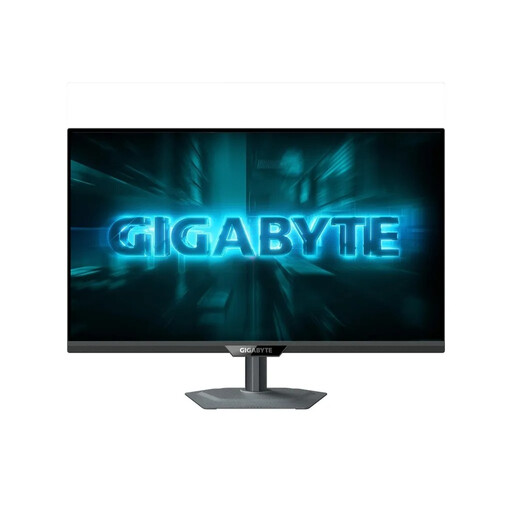
GIGABYTE G27Q2 27-inch QHD monitor
Its listed 27-inch QHD screen could be a good fit for working with several animation windows at a fixed workstation.
2560 × 1440 pixels; SuperSpeed IPS; 200 Hz (OC 210 Hz).
View at Joybuy
 No image available
INNOCN CB27U1 27-inch 4K monitor
If you want to arrange frames, a timeline and a preview across a larger workspace, 27 inches and 4K are listed as key features.
3840 × 2160 pixels; IPS; USB-C with 90 W Power Delivery. According to the product description, the monitor needs its own power adapter.
View at Joybuy
 No image available
Philips 276B9 27-inch QHD IPS monitor
Its listed QHD resolution and 27-inch screen could be useful for working with several windows at a fixed workstation.
2560 × 1440 pixels; IPS; USB-C Power Delivery up to 65 W. The monitor needs its own power connection.
View at Joybuy
 No image available
MSI PRO MP275QPDGDE 27-inch WQHD docking monitor
The 27-inch WQHD screen is worth considering for an animation workstation where you need to see several windows at once.
USB-C with 98 W Power Delivery; 100 Hz; built-in KVM switch. According to the product description, the monitor needs its own mains power supply.
View at Joybuy
 No image available
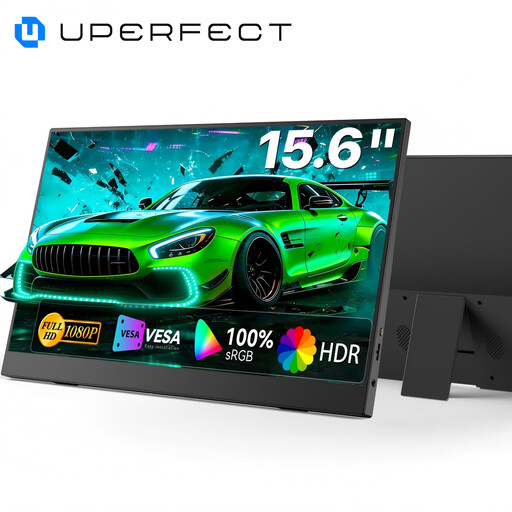
UPERFECT portable 15.6-inch Full HD monitor
This portable secondary display could suit a changing workstation; according to the product description, it can be powered by a connected device. Check that it’s compatible with your laptop.
15.6 inches; Full HD; 100 % sRGB; USB-C and Mini-HDMI. Compared with a large desktop display, the smaller screen offers less room to keep the timeline, preview and other windows open at the same time.
View at Joybuy
Frequently asked questions
Does a USB-C monitor automatically save you a socket?
No. With a compatible desktop monitor, Power Delivery can replace your separate laptop power adapter, but the monitor will still need its own power connection. According to ASUS, a portable monitor such as the MB16AHVE can draw power from your laptop if the USB-C connection supports both video and power.
What can I check if there’s no picture over USB-C?
Check whether the specific port on your laptop supports video over USB-C and whether the cable is suitable for the connection. For single-cable use of the MB16AHVE, ASUS specifies DisplayPort Alt Mode as a requirement; alternatively, the manufacturer describes using HDMI alongside USB-C as a separate power supply.
How can I compare the power costs of different monitors?
Compare the power consumption specifications for the specific models under similar usage conditions. Your actual costs will also depend on how long you use the monitor and how much you pay for electricity.


