If there isn’t a spare socket for your monitor at your workspace, a portable USB-C display could be an option – provided your computer and cable can carry both the image signal and power. For the ASUS ProArt PA148CTV, ASUS specifies DisplayPort Alt Mode and at least 10 W of output power from the connected device. If you have a socket for a monitor, a desktop USB-C model can charge your laptop and give you more room for your timeline and preview, but the monitor itself will still need mains power. For colour-critical animation, you should also match the colour mode and calibration process to your output format.
Which monitor is right for you?
Animation work without a spare monitor socket
If you need an additional screen, check whether your computer can supply both the image and power over USB-C. The ASUS PA148CTV requires DisplayPort Alt Mode and at least 10 W of output power for one-cable operation; this requirement applies to this model. (ASUS Germany)
Animators who care about colour
If you’re assessing colours for a particular output format, look for suitable colour modes and a clear process for profiling or calibration. BenQ and EIZO describe relevant features on their respective models; their suitability depends on your workflow. (BenQ Germany; EIZO Germany)
Laptop-based animation with plenty of room for your timeline
If you have a socket for your monitor, a desktop USB-C screen can give you more room for previews, tools and your timeline, while charging your laptop. Check that the selected model’s Power Delivery output is suitable for your laptop. (ASUS Germany; BenQ Germany)
What to look for when buying
Portable monitor without a dedicated monitor socket
A good fit if: there isn’t a spare socket for the screen at your workspace, and your computer and cable support the required image and power connections.
The trade-off: A compact display gives you less room for your timeline, tools and preview than a larger monitor.
Desktop USB-C monitor with Power Delivery
A good fit if: you have a socket for the monitor and want to charge your laptop over USB-C at the same time.
The trade-off: Power Delivery supplies power to the connected laptop, not the monitor itself, which still needs to be plugged into the mains.
| Criteria |
What to look for when buying |
Who should pay particular attention? |
| Power supply |
Check image signal and power delivery over USB-C separately. For desktop models, also check the mains connection and make sure the charging output is suitable for your laptop. |
If there isn’t a spare socket for your monitor, I’d start by checking the ports on your computer and cable. Around 36% of consumers prioritise using a monitor without an additional socket. |
| Colour workflow |
Check for colour modes suited to your output format, along with options for profiling or calibration. |
If you need to assess colours for a particular output format, suitable modes and a manageable colour workflow matter. Around 29% of consumers put colour assessment first. |
| Workspace |
Consider screen size and resolution together, and plan how your software interface will fit with the scaling you intend to use. |
If you want your timeline, tools and preview visible at the same time, usable screen space is key. Around 21% of consumers prioritise screen space. |
| Ports |
Check image transmission, USB functions and the required charging output individually against your computer, cable and accessories. |
If you want to connect several devices or use multiple functions, you’ll need the right ports for each job. Around 14% of consumers put port flexibility first. |
Common buying mistakes
-
Assuming Power Delivery means a monitor doesn’t need mains power
On desktop monitors, the stated USB-C output may supply power to the connected laptop. It doesn’t mean the monitor can run without its own power supply.
Before buying, check which devices supply and receive power, and how many mains sockets your setup needs.
-
Choosing a portable one-cable monitor without checking the ports
A USB-C port alone doesn’t guarantee that your computer can supply the required image signal and enough power for the monitor. For the PA148CTV, ASUS specifies DisplayPort Alt Mode and at least 10 W of output power.
Check the requirements of the specific monitor against the details of your computer’s port and the cable you plan to use.
-
Assuming a colour-gamut figure means your colour workflow is ready to go
A stated colour-gamut coverage or selectable colour mode doesn’t mean your whole workspace is already set up for the colour assessment you need.
First, decide on your output format and the right colour mode. Then plan how profiling or calibration will fit into your workflow.
Profiling and calibration may take additional time to set up.
Monitor brands to consider
ASUS
The ProArt range showcases two different approaches: a portable display and a desktop monitor with laptop charging.
- For one-cable operation with the PA148CTV, ASUS specifies DisplayPort Alt Mode and at least 10 W of output power. (ASUS Germany)
- According to ASUS, the desktop PA279CRV offers up to 96 W of Power Delivery to the connected computer, but it still needs mains power itself. (ASUS Germany)
Lenovo
The ThinkVision M14d is a portable 14-inch display with two USB-C ports.
- Lenovo lists a resolution of 2240 × 1400 pixels, 100% sRGB and Power Passthrough of up to 65 W. (Lenovo Germany)
- You’ll still need a power source to charge your laptop via Passthrough; it doesn’t charge the laptop without an external power supply. (Lenovo Germany)
BenQ
The PD2706U is a desktop 27-inch 4K monitor with USB-C, while the GW2786TC is a Full HD model.
- BenQ lists up to 90 W of Power Delivery for the PD2706U, along with sRGB and Rec.709 modes. An Animation Mode is also listed for this model. (BenQ Germany)
- Animation Mode is a manufacturer feature and, on its own, isn’t independent proof of better animation results. Both desktop models mentioned need mains power. (BenQ Germany)
EIZO
The ColorEdge CS2740 is a desktop 4K model with features to support a planned colour workflow.
- EIZO lists hardware calibration and USB-C with DisplayPort Alt Mode. (EIZO Germany)
- According to EIZO, the maximum power output to the connected computer is 60 W. Check that this is suitable for your laptop before buying. (EIZO Germany)
Dell
The UltraSharp U3223QE is an example of a desktop 32-inch 4K USB-C hub monitor.
- Dell lists up to 90 W of power delivery to a laptop for this model. (Dell Germany)
- The monitor still needs mains power; its stated charging output doesn’t replace that connection. (Dell Germany)
Joybuy products for limited sockets
This selection includes portable extra monitors for flexible setups, as well as a desktop USB-C monitor with laptop charging.
 No image available
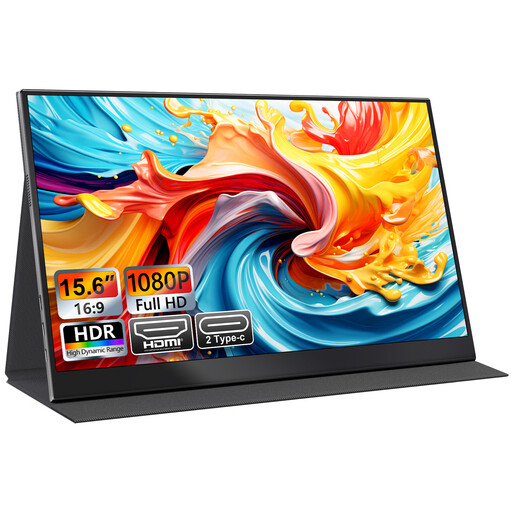
UFYQL M156F04, portable monitor, 15.6 inches, Full HD
The product description says it can operate without an external power supply; check whether your computer can provide both the image signal and power through the connection you intend to use.
15.6 inches; 1920 × 1080; IPS; USB-C and HDMI; smart cover stand; VESA-compatible.
View at Joybuy
 No image available
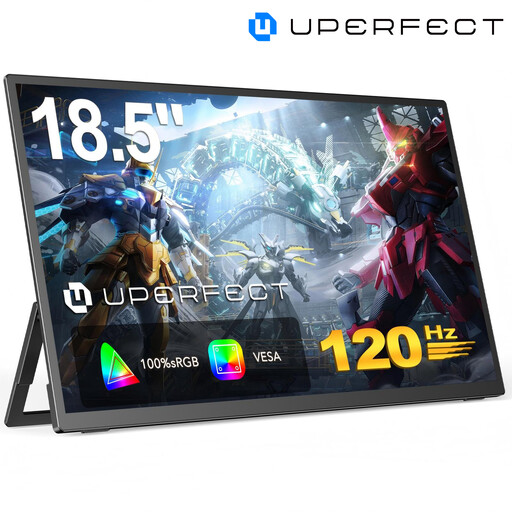
UPERFECT portable monitor, 18.5 inches, Full HD, 120 Hz
As a portable extra screen, this model has USB-C and Mini HDMI, according to the product details; it’s designed to draw power from Type-C devices or an external 5 V power supply.
1920 × 1080; IPS; up to 120 Hz; VESA-compatible. Depending on your setup, you may need an external 5 V power supply.
View at Joybuy
 No image available
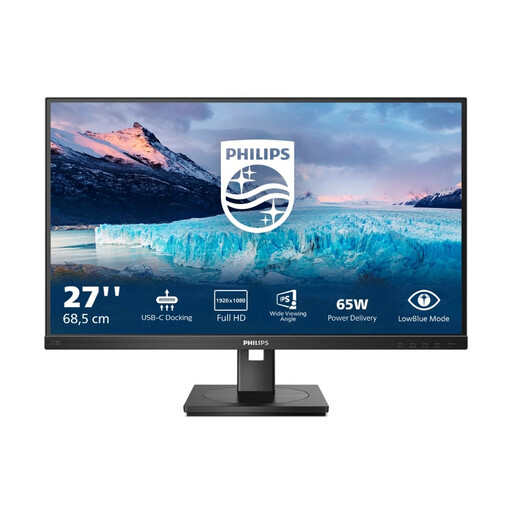
Philips 273S1, 27 inches, Full HD, USB-C docking
If you have a socket for your monitor, USB-C docking can give you a larger workspace and charge your laptop.
1920 × 1080; IPS; 75 Hz; USB-C with up to 65 W Power Delivery; RJ45; USB hub; height-adjustable stand.
View at Joybuy
 No image available
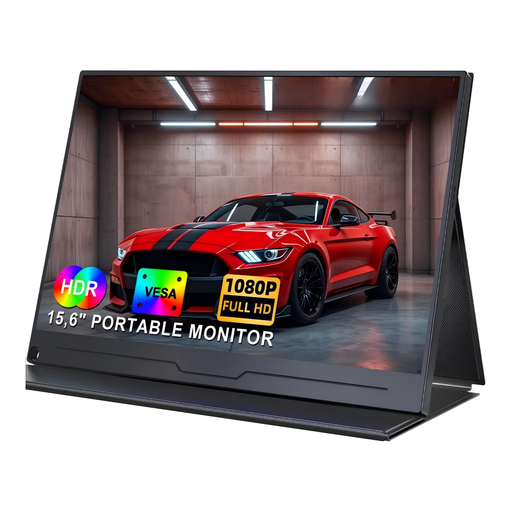
UPERFECT portable monitor, 15.6 inches, Full HD, IPS
As a portable extra screen, this model has USB-C; according to the description, it can draw power from the connected device or an external 5 V adapter.
1920 × 1080; HDR support; VESA-compatible; built-in speakers. Check whether your computer can supply enough power for your particular setup.
View at Joybuy
 No image available
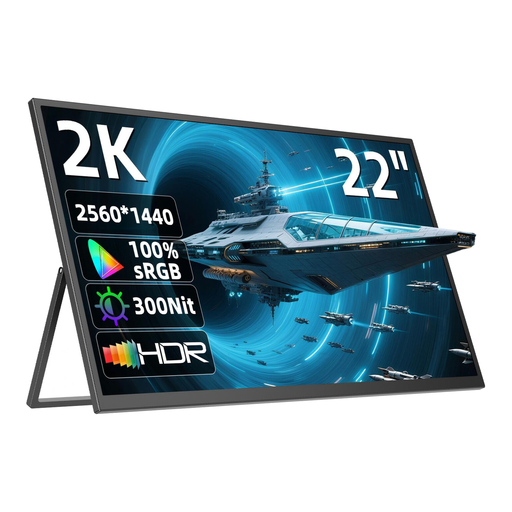
UPERFECT portable monitor, 22 inches, QHD, IPS
If you’re looking for a larger workspace in a portable format, this model offers a 22-inch screen and QHD resolution, according to the product details.
2560 × 1440; IPS; USB-C and Mini HDMI; stand adjustable through 180°; VESA-compatible. Depending on the connected device, you may need an external power adapter.
View at Joybuy
Frequently asked questions
Does every USB-C monitor save you a socket?
No. For the portable ASUS PA148CTV, ASUS specifies DisplayPort Alt Mode and at least 10 W of output power from the connected device as requirements for one-cable operation. The desktop BenQ PD2706U, on the other hand, needs mains power itself, but can supply up to 90 W to a connected device over USB-C. (ASUS Germany; BenQ Germany)
What should I check when connecting the monitor and setting a colour profile?
First, check that your specific computer and cable support the required USB-C image transmission and power supply. For colour-critical work, your colour mode, output format and profiling or calibration should all work together; EIZO notes that a monitor’s display can change over time. (ASUS Germany; EIZO Germany)
Which details can help me compare power consumption?
The energy label for electronic displays lets you compare things such as energy efficiency class and stated consumption in SDR and HDR modes. The European Commission classifies computer monitors as part of this product group.
How should I dispose of an old monitor?
Return an old monitor separately from your household waste. The German Environment Agency lists local collection points and, where the relevant conditions apply, retailer take-back schemes as options.


