iOS and Android testers
If you test locally on both platforms, first check which Mac is compatible with the Xcode and macOS versions you need. Then plan your Android workflow around the number of emulators you expect to run.


If you want to test locally with Xcode and iOS simulators, you’ll need a compatible Mac. For Android Studio, suitable Windows or Linux desktops are also an option. After that, your choice depends on how many emulators you’ll run at once, which ports you need for physical test devices, and how much room you have for the computer and cables at your adjustable desk. A small case alone doesn’t tell you whether a computer will suit your testing workflow.
If you test locally on both platforms, first check which Mac is compatible with the Xcode and macOS versions you need. Then plan your Android workflow around the number of emulators you expect to run.
If you need Android Studio to run several virtual devices at once, RAM and available storage are important considerations. Check the requirements for your specific setup rather than choosing on case size alone.
If you regularly connect smartphones for debugging, you’ll need accessible, suitable ports and cable routing that won’t get in the way as you adjust the desk height.
Start by deciding which testing platform you need. Then compare emulator resources, device connections and the space available at your adjustable workstation.
| Buying consideration | What to check before buying | Who should pay particular attention? |
|---|---|---|
| Local iOS testing | Check the Xcode version you need and whether the Mac supports the required macOS version. Apple Developer lists macOS Tahoe 26.6 or later for Xcode 27. | If I need to test locally with Xcode and iOS simulators, a compatible Mac comes before form factor and expandability. Around 36% of consumers prioritise local iOS testing. |
| Multiple Android emulators | Allow for the planned number of AVDs running at once, plus RAM and available SSD space. Google recommends around 4 GB of additional RAM per AVD running at the same time and up to 6 GB of storage per additional AVD. These are planning figures, not a performance guarantee. | If I need several virtual Android devices at once, I want to match the resources to that workload. Around 29% of consumers put running Android emulators in parallel first. |
| Connecting physical devices | Check that the ports are accessible, that you have suitable data cables and, where necessary, the right drivers. Google describes connecting an Android device via USB or Wi-Fi for debugging. | If I regularly connect physical smartphones for testing, straightforward connections matter more than an especially small case. Around 21% of consumers prioritise physical test devices. |
| Space and cable routing | Plan where the computer will sit, cable lengths and the desk’s range of movement alongside your monitor and test devices. The BAuA describes alternating between sitting and standing as a sit-stand dynamic. | If desk space is limited, I want to position the computer and cables so they stay out of the way at both desk heights. Around 14% of consumers prioritise space and cable routing. |
Good specifications can’t replace the platform requirement for a local Xcode and iOS simulator workflow. Apple describes Xcode and its simulators for compatible Macs.
Before comparing hardware, decide whether you need to test iOS locally, then check the Xcode version you need and its macOS requirements.
Google recommends around 4 GB of additional RAM per AVD running at the same time; each additional AVD can require up to 6 GB of storage. Your actual requirements may vary, and these figures don’t guarantee a particular level of performance.
Plan for the number of virtual devices you actually expect to use at once, and check the latest requirements for your version of Android Studio and the emulator.
At an adjustable desk, your computer, monitor and connected test devices need to stay well positioned at the desk heights you use.
Check where the computer will sit, the position of its ports, cable lengths and the desk’s range of movement before settling on a form factor.
Worth considering if local Xcode and iOS simulator testing is part of your workflow. Apple Developer describes Xcode and simulators for compatible Macs.
The ThinkCentre M75q Gen 6 range is a compact Windows desktop line that could suit an Android-focused workstation.
The Pro Mini 400 G9 is a compact Windows option to consider for Android Studio and testing on connected devices.
The OptiPlex Micro range is a configurable Windows or Linux desktop line for buyers comparing operating system and specification options.
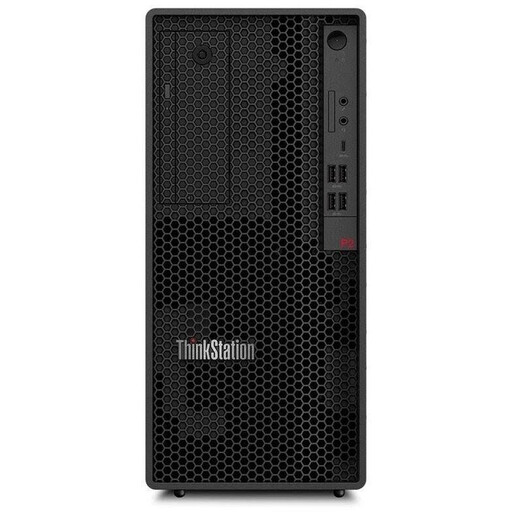
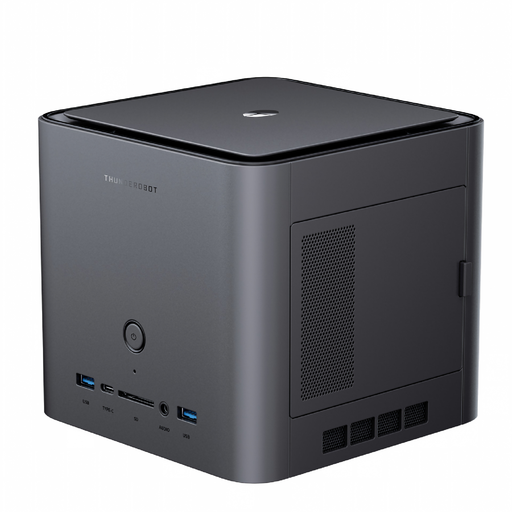
The Joybuy products below include a tower PC and a mini PC. Their listed resources and form factors may be relevant when planning a desktop testing workstation; check that the operating system and specifications meet the needs of your specific testing workflow.
 No image available
If you’re looking for a tower with Windows 11 Pro for an Android-focused testing workstation, this model could be an option in the desktop category. Its specifications don’t guarantee a particular level of emulator performance.
32 GB DDR5 RAM; 512 GB NVMe SSD; NVIDIA RTX A400 with 4 GB.
 No image available
If space is limited at your testing workstation, the mini PC form factor may be worth considering when planning your setup. The listed memory specifications don’t guarantee a particular level of emulator performance.
128 GB LPDDR5X RAM at 8000 MT/s; 1 TB SSD; Wi-Fi 7.
Side-access SSD and quick-release network card interface.
You’ll need a compatible Mac for a local Xcode and iOS simulator workflow. Before choosing a computer, check the Xcode version you need and its macOS requirements.
No, you can also test with a physical Android device. Google describes connecting via USB or Wi-Fi for debugging; depending on the connection and system, you may need to complete additional setup steps.
Google recommends around 4 GB of additional RAM per AVD running at the same time. Your actual requirements may vary, so plan around the number of devices you’ll run in parallel and check the requirements for the versions you use.
Set up your workstation for alternating between sitting and standing rather than assuming you’ll use just one desk height. The BAuA describes this as a sit-stand dynamic and advises taking your monitor, computer and cables into account in both positions.
Electrical and electronic equipment must meet the applicable EU conformity requirements; CE marking is required where the relevant regulations stipulate it. The Federal Network Agency lists labelling and product identification among the aspects it monitors. Base your choice on the specific configuration on offer, not just the model name.