Comparing plans in CAD
If you regularly compare two drawings or plan versions side by side, your software’s scaling should keep both views clear on the available screen space.


When comparing two architectural plans, the key is whether both drawing windows, along with any toolbars you need, remain easy to read at your usual scaling. A widescreen monitor gives you one continuous display area, while two monitors can be positioned independently. A single 4K monitor may also suit detailed views. Desk space, connections and adjustability are also important, particularly at a shared workstation.
If you regularly compare two drawings or plan versions side by side, your software’s scaling should keep both views clear on the available screen space.
If you mainly check lines, dimensions and labels, consider screen size and pixel density together.
If several people use different computers at the same desk, you’ll need suitable video connections, enough power delivery and an adjustable monitor, as well as sufficient screen space.
A good fit if: You want to arrange two drawing windows on one continuous screen and have enough desk space. Dell Germany lists the U4025QW as a 39.7-inch monitor with a resolution of 5120 × 2160 pixels.
Consider: More horizontal screen space doesn’t guarantee that dimensions will be easy to read at your chosen scaling. Check the monitor’s dimensions and whether it will fit your setup, too.
A good fit if: You want to display one plan clearly alongside toolbars, with the option to arrange two views when needed. EIZO lists the EV2740X as having a resolution of 3840 × 2160 pixels and 163 ppi; BenQ gives the PD3225U the same pixel count on a 31.5-inch screen.
Consider: Monitors with the same pixel count can have different screen sizes and pixel densities. Check text size and window width using one of your own plans, rather than focusing on “4K” alone.
A good fit if: You want to position a reference plan and your editing window independently, and have the connections and desk space for both monitors.
Consider: A laboratory study by the Institute for Occupational Safety and Health of the German Social Accident Insurance examined ten people using 22-inch monitors for text and sorting tasks, not architectural CAD. It therefore doesn’t establish a general advantage for comparing plans.
| Buying priority | What to check before buying | Who is this particularly relevant to? |
|---|---|---|
| Two plans side by side | Test both windows, including toolbars, at your usual scaling. Compare the aspect ratio, pixel count and space required on your desk. | When I compare two plan versions directly, I need to be able to use both drawing windows. Around 36% of consumers put comparing plans first. |
| Fine lines and dimensions | View one of your own plans from your usual distance and assess the resolution and screen size together. | If you need to check lines and labels closely, test readability at your preferred scaling. Around 29% of consumers put legibility of details first. |
| Switching computers at a shared workstation | Check that the laptops’ video output and charging requirements match the monitor’s connections. Check the upstream connections you need and whether you require KVM. | If several people connect different laptops, I need suitable connections and enough power delivery. Around 21% of consumers prioritise switching between devices. |
| Adjusting the monitor | Check the height, tilt and swivel adjustments, as well as reflections and the space needed for the stand and viewing distance. | At a workstation used by several people, I want to be able to adjust the monitor for each person’s seating position. Around 14% of consumers put a personalised setup first. |
27-inch and 31.5-inch models can display the same 3840 × 2160 pixels across different screen sizes. Window layout and scaling affect how easy dimensions and labels are to read in your workflow.
Open one of your own plans with dimensions and toolbars in the window layout you intend to use, then check how it looks at your usual scaling.
A USB-C connector alone doesn’t tell you whether a laptop can output video or receive enough power from the monitor. The monitors mentioned may differ in their connections and maximum charging power.
Check the video output, charging requirements and upstream connections of each device you actually use against the monitor you’re considering.
Depending on the laptop, you may need a compatible adapter, a suitable cable or a separate power supply. Check what’s required for the connection you want to use.
The study by the Institute for Occupational Safety and Health of the German Social Accident Insurance examined ten people using 22-inch monitors for text and sorting tasks. Its findings don’t establish a general advantage for comparing architectural plans.
Assess a single widescreen monitor and two separate monitors using your own plans, the window layout you prefer and the desk space available.
Dell’s UltraSharp range includes the widescreen U4025QW and the 31.5-inch 4K U3225QE.
The FlexScan EV2740X is a 27-inch 4K monitor with connectivity features for workstations used with different computers.
The DesignVue PD3225U is a 31.5-inch 4K model with features for a design workstation.
The UltraFine 27UP850K-W is a 27-inch 4K option with an adjustable stand.
The Joybuy models below are single monitors for viewing drawings, including 4K and QHD options. Compare the resolution, window layout and connections with the way you actually work.
 No image available
PIP/PBP is listed as a way to split the screen for two views. Check whether this layout suits the way you compare plans.
27 inches; 3840 × 2160 pixels; IPS; PIP/PBP; USB-C with 90 W Power Delivery; height-, tilt-, swivel- and pivot-adjustable stand.
 No image available
KVM and height adjustment are listed as features for a shared workstation. Check that the connections match the computers you actually use.
27 inches; 3840 × 2160 pixels; USB-C with 65 W; KVM; height-adjustable stand with tilt and swivel.
 No image available
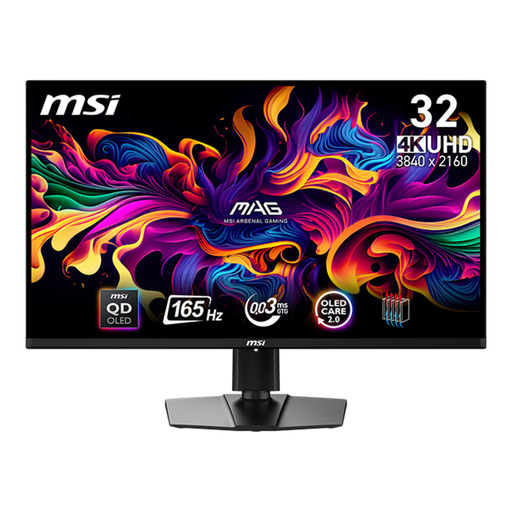
The 31.5-inch screen may suit a larger single drawing view. Check how dimensions appear at your chosen scaling.
31.5 inches; 3840 × 2160 pixels; 4K UHD; QD-OLED; height-adjustable stand with pivot and swivel.
 No image available
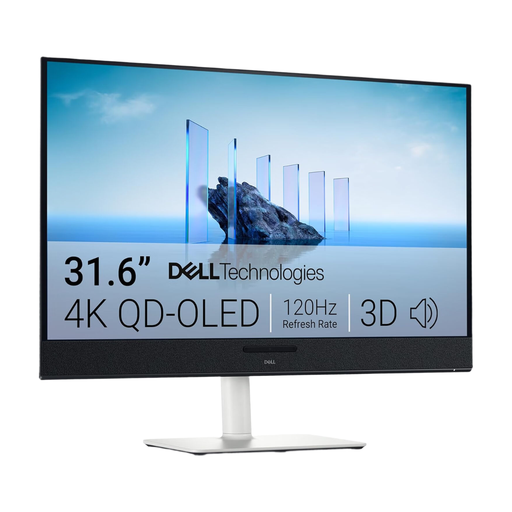
USB-C and an adjustable stand are listed for a shared workstation. Check the video output and charging power your devices need.
31.6 inches; 3840 × 2160 pixels; 4K UHD; QD-OLED; USB-C with 90 W Power Delivery; height-, tilt-, swivel- and pivot-adjustable.
 No image available
If connectivity and an adjustable setup matter at a shared workstation, compare the USB-C features with your laptops’ requirements.
27 inches; 2560 × 1440 pixels; IPS; USB-C with up to 65 W Power Delivery; USB hub; height-, tilt-, swivel- and pivot-adjustable.
No. A widescreen monitor gives you one continuous display area, but two separate monitors or a single 4K monitor may also work. The laboratory study by the Institute for Occupational Safety and Health of the German Social Accident Insurance looked at text tasks on 22-inch monitors, not architectural plans. So test your own drawing windows.
You can’t tell from the connector shape alone. Check each laptop’s video output and charging requirements against the specific monitor: EIZO lists USB-C with DisplayPort Alt Mode and up to 94 W for the EV2740X; BenQ lists Thunderbolt 3 and 85 W Power Delivery for the PD3225U.
Adjust the screen and stand for each person’s seating position, and check for reflections in the actual location. For screen-based workstations covered by the Workplace Ordinance, ASR A6 sets out requirements for their setup and operation, as described by the Federal Institute for Occupational Safety and Health. The Federal Ministry of Labour and Social Affairs assigns responsibility for the workplace to the employer.
Compare the specific models’ details on the EU energy label and in EPREL, and calculate consumption using the same usage period and electricity price. The European Commission describes an A-to-G efficiency scale for covered electronic displays, with additional model information available in EPREL.
Yes, if the workstation falls within the scope of the Workplace Ordinance. The Federal Ministry of Labour and Social Affairs outlines the employer’s responsibilities for health and safety when setting up and operating workplaces. The Federal Institute for Occupational Safety and Health describes ASR A6 as setting out requirements for screen-based workstations. This doesn’t amount to blanket certification for any particular monitor.