For comparing two plans
If you open two drawings, or a plan alongside a reference document, the usable window space is key. LG and Dell list different screen formats and resolutions for their respective ultrawide models.


When comparing two plans, first check whether your software can arrange both drawings and their toolbars clearly on screen. An ultrawide format gives you more horizontal space, while vertical resolution varies by model. LG lists 3,440 × 1,440 pixels for the 34U650A-B; Dell lists 5,120 × 2,160 pixels for the U4025QW. A sit-stand desk also calls for a suitable screen position and enough space for your chosen format.
If you open two drawings, or a plan alongside a reference document, the usable window space is key. LG and Dell list different screen formats and resolutions for their respective ultrawide models.
For fine labels and lines, consider resolution, screen size and your preferred scaling together. ASUS lists 163 ppi for the PA279CRV; Dell specifies a 31.5-inch screen and 3,840 × 2,160 pixels for the U3225QE.
Your screen position should work at both desk heights and suit the way you normally view the screen. The German Federal Institute for Occupational Safety and Health (BAuA) points out that your workstation, screen position and individual visual needs should all be taken into account together.
A good fit if: you have limited desk space and want to inspect specific areas of a plan or fine labels.
Consider: Test window sizes and scaling in your drawing software before relying on a clear side-by-side view of two plans.
A good fit if: you can use 4K resolution on a larger screen and have enough space for the monitor.
Consider: Connectivity and colour features vary by model. Check which ones your computer and workflow actually need.
A good fit if: you mainly want to arrange two windows side by side horizontally.
Consider: LG lists 1,440 vertical pixels for the 34U650A-B, compared with 2,160 for the 4K models reviewed here.
A good fit if: you can combine a wide window layout with 2,160 vertical pixels and have enough desk width.
Consider: Check in advance that your desk, viewing position and computer are suitable for the size and resolution you want.
| What matters when buying | What to check | Who it matters to |
|---|---|---|
| Two drawings side by side | Aspect ratio, native resolution, desk width and how windows appear with toolbars. | If I want to compare two plans at the same time, I need enough width without losing sight of the plans’ vertical detail. Around 28% of consumers put a shared window view first. |
| Fine lines and labels | Resolution, screen size and readability from your usual viewing position. | If small details in a drawing matter more to me than extra window width, I also check the scaling. Around 22% of consumers prioritise making fine details easy to see. |
| Position when switching between sitting and standing | Height and tilt adjustment, plus a suitable stand or mount. | If I regularly switch between sitting and standing, I need to be able to position the screen comfortably in both. Around 22% of consumers pay particular attention to positioning. |
| Assessing the colours in designs | The required colour space and the colour modes available for your workflow. | If I work on colour visualisations, I put suitable colour settings ahead of extra window width. Around 17% of consumers prioritise colour assessment. |
| Connecting a laptop with fewer cables | Video output, USB-C or Thunderbolt support, charging power and the ports you need. | If I want to combine video, peripherals and power through one connection, my monitor and laptop need to be compatible. Around 11% of consumers prioritise laptop connectivity. |
Horizontal width and vertical detail space are different things. LG lists 1,440 vertical pixels for the 34U650A-B reviewed here, compared with 2,160 for the 4K models.
Check how both plans fit on screen with their toolbars, and whether they’re readable at your usual scaling.
The adjustment range varies by model. You’ll need to check whether the monitor suits your desk height and viewing position while you work.
Test the settings while sitting and standing, and check the stand and, if needed, a suitable VESA mount.
BenQ lists a CAD/CAM mode for the PD3225U. The feature name alone doesn’t prove that it helps you spot more errors in plans.
Choose colour and display features according to how well they suit your drawing and visualisation workflow.
The ProArt PA279CRV is a 27-inch 4K model for checking details and, potentially, working with colour.
The U3225QE and U4025QW cater to different space requirements and window layouts.
The PD3225U is a 31.5-inch 4K model for drawings and additional colour work.
The UltraWide 34U650A-B is a 34-inch example designed for arranging windows horizontally.
The FlexScan EV3240X is a 31.5-inch 4K example that the manufacturer positions for office and CAD use.
The products below include 27-inch 4K models, a large-format ultrawide monitor and a portable secondary screen. For each model, check that its format and connectivity suit your plan layout and sit-stand workstation.
 No image available
The wide format and Picture-by-Picture may be useful when viewing multiple sources; check that the monitor will fit on your desk.
40 inches, 5,120 × 2,160 pixels, IPS, 21:9 and 100 Hz; according to the product information, it has a height-adjustable stand and USB-C with 65 W Power Delivery.
 No image available
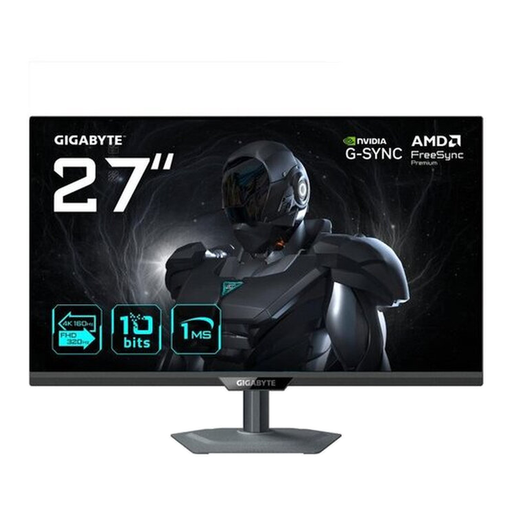
This compact 4K model may be worth considering for checking individual areas of a plan; test how readable your drawings are at your preferred scaling.
27 inches, 4K UHD, 160 Hz in 4K mode and 320 Hz in FHD; the product title lists 65 W USB-C, plus height, tilt, swivel and pivot adjustment.
 No image available
This 27-inch 4K model is a compact option for checking details; compare how it displays fine lines from your usual viewing position.
27 inches, 3,840 × 2,160 pixels, IPS and 144 Hz according to the product title.
 No image available
4K resolution is one feature to look for when working on fine details in plans. Also check that the size and display work well with your drawing software.
27 inches and 3,840 × 2,160 pixels; the product title lists 160 Hz at 4K and 320 Hz at FHD.
 No image available
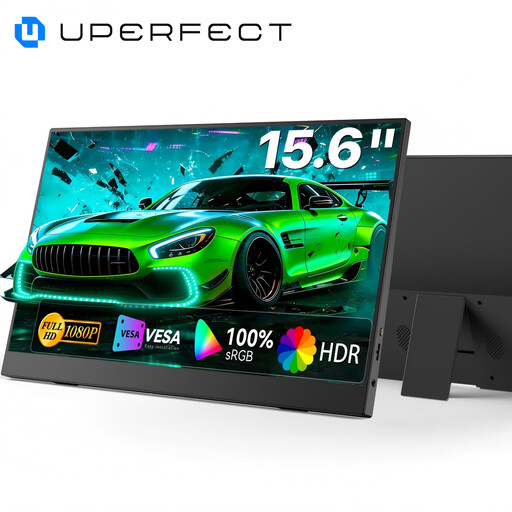
This compact screen could work well as a secondary display; check whether it offers enough space for your plans.
15.6 inches; the product title lists a built-in adjustable stand and USB-C connectivity.
Adjust your desk and screen in both positions so you can see drawings and text clearly from your usual working posture. The BAuA stresses that screen position, your workstation and your individual visual needs should work together. An adjustable monitor doesn’t remove the need to make these adjustments.
Only if your laptop’s port supports the required video signal and the specific monitor provides enough power for your laptop. ASUS lists 96 W for the PA279CRV and BenQ lists 85 W for the PD3225U; check these figures against your laptop’s requirements.
Check the EU energy label and product datasheet for the monitor in question, rather than estimating energy use from screen size or display technology alone. If a fault occurs, distinguish your statutory rights against the seller from any voluntary manufacturer’s warranty. The consumer advice centre recommends checking the relevant terms and conditions.
According to the BAuA, ASR A6 sets out requirements under the German Workplace Ordinance for display-screen equipment at workplaces and in teleworking settings within its scope. It doesn’t apply universally to all private screen use, so choosing a monitor for a home desk doesn’t establish a single legal minimum specification.