Who this advice is for

Readers working with lots of art illustrations

If you compare colours, image details and captions, a clear, usable colour display is important. Manufacturers’ display specifications tell you about the device, but not how your particular book file will look on it.

Researchers working with full-page PDFs

When reading fixed-layout articles or catalogue pages, you’ll want to take in the text, footnotes and annotations without having to zoom in frequently. Check a typical page in the view you actually plan to use.

Users borrowing digital library books

For borrowed titles, the version of Onleihe you use, the app and the copy protection on each title all matter. divibib GmbH’s Onleihe help pages explain the different versions and title-specific DRM requirements.

What to consider when buying

Versatile colour tablet

A good fit if: you want to read colour illustrations, library materials and documents on one device. Apple lists a P3 colour gamut for the 11-inch iPad Air (M4), while Samsung gives the Galaxy Tab S10 FE a 10.9-inch display.

Bear in mind: display specifications don’t tell you how your particular file will look. Apple doesn’t list a Pencil in the stated contents of the iPad Air package, although certain Pencil models are supported.

Dedicated colour E-paper

A good fit if: you mainly read your own supported PDFs or EPUBs and want to write by hand. reMarkable lists an 11.8-inch colour display for the Paper Pro, along with PDF and EPUB file import.

Bear in mind: PDF and EPUB import doesn’t automatically mean support for library apps or copy-protected borrowed titles. Check that your Onleihe service and the reading app you need are compatible.

What matters when buying What to check Who it matters to
Colour illustrations Compare the same typical page on the displays you’re considering, and check the image, caption and zoomed-in view. When I compare art illustrations and image details, I want to be able to assess colours and captions in the view I normally use. For around 36% of consumers, viewing colour illustrations is the top priority.
Full-page PDFs and annotations Try a catalogue or article page in full-page view and check whether your chosen app can save annotations. When I want to read text, images and footnotes without having to zoom in frequently, and add handwritten comments, the actual page-by-page experience matters. For around 29% of consumers, full-page PDFs with annotations are the main priority.
Digital library loans Check which version of Onleihe your library uses, as well as the app and DRM for the specific title. When I want to read borrowed titles, the device needs to work with both my library app and the copy protection on my title. For around 21% of consumers, access to digital library loans comes first.
Personal files and notes Check whether your most important files can be imported, annotated and used in the format you need. When I mainly want to read and work on my own files without distractions, a straightforward document workflow matters more than an unverified promise of support for borrowed titles. For around 14% of consumers, focused reading of their own files is the priority.

Avoiding buying mistakes

  • Assuming PDF import means library compatibility

    Being able to import a PDF isn’t the same as being able to read a borrowed, copy-protected title. divibib GmbH’s Onleihe help pages explain the title-specific DRM requirements; reMarkable’s stated PDF and EPUB import doesn’t confirm support for every borrowed title.

    Check your library, the version of Onleihe it uses, the specific title and the reading app you need together.

  • Assuming stylus support means one is included

    A device can support a stylus without including one in the box. Apple doesn’t list a Pencil in the stated contents of the iPad Air package. For the Lenovo configuration in question, too, you should check exactly what’s included in the bundle.

    Before buying, check the model number, compatible stylus model and the stated contents of the box.

    Depending on the model and retailer bundle, you may need to buy a compatible stylus separately.

  • Assuming the biggest display will make the best library device

    Screen size alone won’t tell you whether captions and footnotes in your files will be readable in the view you want. A larger device also needs more room on the library table.

    Compare a typical page and consider how much space you have where you usually read.

Brands to consider

Apple

The 11-inch iPad Air (M4) is a colour tablet option for illustrations and a workflow with a compatible Pencil.

  • Apple lists a P3 colour gamut, 2360 × 1640 pixels and support for Apple Pencil Pro and Apple Pencil (USB-C) for this model.
  • Apple lists the iPad Air and a USB-C charging cable in the box, but no Pencil. Also check that your library app and PDFs work with your planned workflow.

Samsung

The Galaxy Tab S10 FE SM-X520NZAREUB is an Android colour tablet option for reading and handwritten notes.

  • Samsung’s German product page lists a 10.9-inch display and an S Pen included in the box.
  • These specifications don’t tell you how readable your particular full-page PDF will be, or whether every library title is supported.

Lenovo

The Idea Tab Pro ZAE40020SE is a larger Android option for reading fixed-layout pages at the library table.

  • Lenovo lists a 12.7-inch screen and 2944 × 1840 pixels for this configuration.
  • The product page also lists the Tab Pen Plus as a separately available accessory. Check which stylus, if any, is included with the specific version.

reMarkable

The Paper Pro is a specialist colour E-paper option for your own PDFs, EPUB files and handwritten work.

  • According to reMarkable, the Paper Pro has an 11.8-inch colour display, reMarkable OS and PDF and EPUB import.
  • These specifications don’t confirm support for the Onleihe app or any particular DRM-protected borrowed title.

Colour tablets for art illustrations and large PDFs

This selection features colour tablets for colour illustrations, documents and large-format PDFs. Check how readable your typical pages are, as well as app compatibility and which stylus, if any, is included with the specific version.
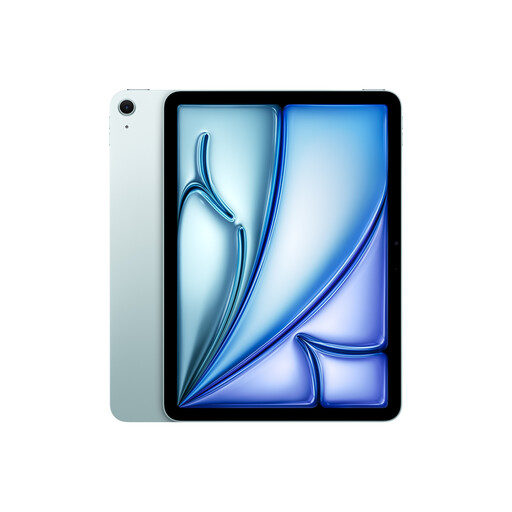
Apple 11-inch iPad Air (M4, 2026), Wi-Fi, 128GB, Blue

Apple 11-inch iPad Air (M4, 2026), Wi-Fi, 128GB, Blue

For colour illustrations and handwritten notes, if you’re planning to use a compatible Pencil.

Apple lists a P3 colour gamut, 2360 × 1640 pixels and support for Apple Pencil Pro and Apple Pencil (USB-C) for the 11-inch iPad Air (M4); a Pencil isn’t included in the stated contents of the box.

View at Joybuy

TECLAST T65, 13.4-inch, 120 Hz, Android 16

TECLAST T65, 13.4-inch, 120 Hz, Android 16

If you want to view PDFs on a large colour tablet, compare a typical page in the view you prefer.

The Joybuy listing specifies a 13.4-inch display, 120 Hz, Android 16 and Dual SIM 4G.

View at Joybuy

TECLAST ArtPad Pro 2025, 13.4-inch, 2K, T-Pen

TECLAST ArtPad Pro 2025, 13.4-inch, 2K, T-Pen

An option for large-format PDFs and handwritten notes with a compatible T-Pen.

The Joybuy listing specifies a 13.4-inch 2K display, Android 15 and T-Pen support with 4096 pressure levels.

View at Joybuy
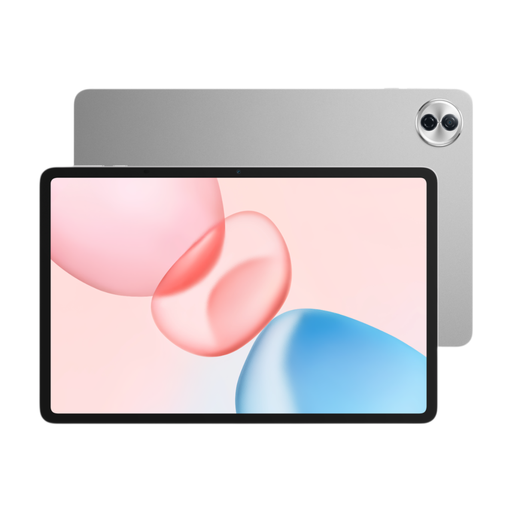
HONOR Pad 10, 12.1-inch, Wi-Fi, 256GB, Grey

HONOR Pad 10, 12.1-inch, Wi-Fi, 256GB, Grey

If you want to read documents on a 12.1-inch display, check how a typical PDF page looks.

The product listing specifies a TFT LCD display with 2560 × 1600 pixels and MagicOS 9.0 (Android 15).

View at Joybuy

TECLAST ArtPad Pro, 12.7-inch, 2K, T-Pen

TECLAST ArtPad Pro, 12.7-inch, 2K, T-Pen

If you want to combine handwritten work with PDFs, check that the stated stylus support suits the way you work.

The Joybuy listing specifies a 12.7-inch 2K display, Android 15 and T-Pen support with 4096 pressure levels.

View at Joybuy

Frequently asked questions

How do I check a tablet for an art history PDF book?

Open a typical page with both images and text in the view you plan to use. Check whether the illustration, caption and footnotes are readable without having to zoom in frequently; screen size and pixel count alone won’t tell you.

Can I simply transfer borrowed Onleihe titles as PDFs to any device?

No, the ability to import PDFs doesn’t mean you can do that. divibib GmbH’s Onleihe help pages explain that there’s an app for smartphones and tablets, as well as title-specific DRM requirements; some titles need an external app that supports the relevant DRM. Check the specific title and the version of Onleihe you use.

What should I set up before my first library visit?

Select your library in the right Onleihe app and test signing in, opening a title and, if relevant, using it offline with a title that’s actually available. Onleihe help distinguishes between Onleihe 2.0 and Onleihe 3, so follow the instructions for the version your library uses.

Does every tablet come with a stylus?

No, stylus support and what’s included in the box are separate considerations. Apple doesn’t list a Pencil in the stated contents of the iPad Air package, while Samsung lists an S Pen for the Galaxy Tab S10 FE. For Lenovo, check what’s included with the specific version being sold.