If you’re recording on your own, choose a microphone that you can position reliably close to your mouth. A USB headset stays on your head as you move, while a directional desktop microphone gives you more control over its placement. Before buying, check the connection and what’s included, then make a test recording where you’ll actually be recording. A polar pattern or advertised noise cancellation won’t guarantee that household noise disappears from your recording.
Which type is right for you?
Learners recording in a noisy room
If you’re recording flashcards on your own, you can make your voice stand out by positioning and angling the microphone appropriately. Audio-Technica describes the ATR2100x-USB as having a cardioid polar pattern, which picks up less sound from the sides and rear.
Learners without a regular recording spot
If you want to record short cards without a desktop stand, or move around as you speak, a headset microphone can stay close to your mouth. Logitech describes the H390 as having a swivelling microphone boom.
Learners recording on more than one device
If you switch between a computer and another recording device, check the connection and monitoring options for each one. Audio-Technica lists USB and XLR connections, as well as direct headphone monitoring, for the ATR2100x-USB.
What should you look for when buying?
USB headset with boom microphone
A good fit if: you want to record short cards without a separate desktop stand, or move around as you speak.
The trade-off: You wear the microphone and headphones together, and the USB version needs to be compatible with your recording device.
Directional dynamic USB microphone
A good fit if: you record in one place and can position the microphone directly in front of your mouth.
The trade-off: You need to get the positioning right while recording. Speaking from very close to the microphone can change the tone of your voice.
USB condenser microphone
A good fit if: your own test recording in a fixed spot is clear enough, and a desktop microphone works for your setup.
The trade-off: A cardioid polar pattern won’t eliminate sounds coming from in front of the microphone, and a desktop stand takes up space.
| What matters |
What to check before buying |
Who is it important to? |
| Clear speech over household noise |
Check the polar pattern, the direction you speak into the microphone and a test recording made in your usual conditions. |
If I’m recording on my own in a noisy flat, I want to hear whether my voice is still clear over the background noise. Around 40% of consumers are likely to put speech clarity first. |
| Quick set-up in a small space |
For a headset, check the boom position; for a desktop microphone, check the stand and how much space it needs. |
If I want to record lots of short cards without a complicated set-up, I need to be able to get into position quickly. Around 30% of consumers are likely to prioritise an easy, space-saving set-up. |
| Connection to your recording device |
Check that the USB connection and cable work with your specific device. For XLR, you’ll need a compatible microphone input or an interface. |
If I want to use my microphone with a particular computer or mobile device, the recording set-up needs to work with it. Around 20% of consumers are likely to focus mainly on device compatibility. |
| Monitoring and controls |
Check for a headphone output and test how the mute function actually works with your software. |
If I want to check the audio before recording a batch of short clips and be sure I can mute the microphone, I’ll test both features directly. Around 10% of consumers are likely to prioritise monitoring and control. |
Common buying and usage mistakes
-
Assuming noise cancellation guarantees a clean recording
An advertised feature doesn’t prove that other people’s voices will be completely removed from recordings made in your own space.
Position the microphone close to you and at the right angle, then check a short test recording in the conditions you’ll actually be using before recording lots of cards.
Audible distractions may mean you have to record your cards again.
-
Confusing USB, XLR and USB connector types
An XLR output isn’t a USB connection for your computer. USB-A and USB-C also need to be compatible with the recording device you plan to use.
Check the connections and what’s included with the exact model against your device. If you’re using XLR, make sure you have a compatible microphone input.
An XLR recording set-up or a particular placement may require extra cables, an interface or a mount.
-
Assuming a button mutes the microphone without testing it in your software
According to RØDE, pressing the headphone control on the PodMic USB only turns off headphone monitoring outside RØDE Connect or UNIFY; the microphone continues to transmit audio.
Record a short test in the software you use and check whether muting actually cuts the microphone signal.
Key brands at a glance
Logitech
USB headsets such as the H390 are worth considering for a compact recording set-up with a boom microphone you wear.
- Logitech lists a swivelling microphone boom and inline controls for the H390.
- Noise cancellation is a manufacturer claim, not proof that voices in your home will disappear. Also check that you’re choosing the right connection type.
Audio-Technica
The dynamic ATR2100x-USB offers USB and XLR connections; the ATR2500x-USB is a USB condenser alternative supplied with a desktop stand.
- Audio-Technica lists a cardioid polar pattern and direct headphone monitoring for the ATR2100x-USB. According to the manufacturer, the ATR2500x-USB comes with a desktop stand.
- The models differ in design and set-up. Test how well they record in the conditions at your actual recording spot.
Shure
The dynamic MV7+ is an option for a USB-C or XLR recording set-up.
- Shure lists USB-C, XLR and headphone monitoring for the MV7+.
- Voice Isolation details are manufacturer claims. Check the system requirements for the MOTIV Mix desktop app if you plan to use it.
RØDE
The dynamic PodMic USB is designed for a fixed recording spot and has USB-C and XLR connections.
- RØDE lists a swivel mount, a pop filter and a headphone output.
- According to RØDE, outside RØDE Connect or UNIFY, the button only turns off headphone monitoring. For XLR, you’ll need to mute the microphone through an interface or mixer.
Microphones and headsets at Joybuy
This selection includes USB microphones for a fixed recording spot and a USB headset with a boom microphone. Compare the connection, positioning and controls with your recording device and the place where you’ll be recording your flashcards.
 No image available
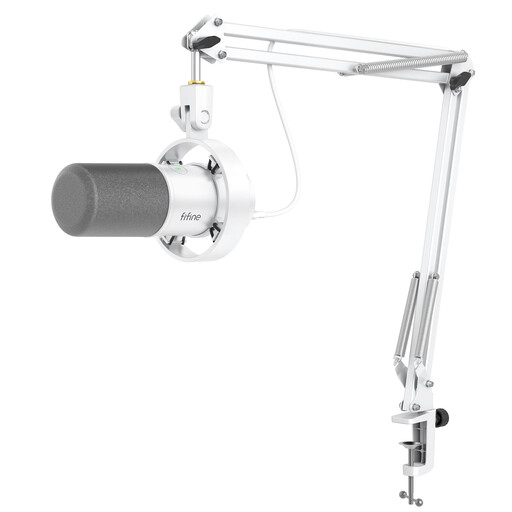
FIFINE K688CTW with boom arm
For a fixed recording spot where you can position the microphone in front of your mouth.
Dynamic, unidirectional microphone with USB-C and XLR, plus a headphone jack. According to the product description, the microphone controls only work in USB mode; an XLR cable is not included.
View at Joybuy
 No image available
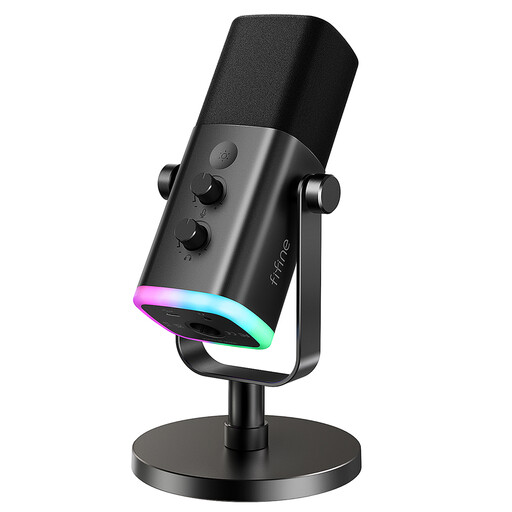
FIFINE AM8 USB/XLR
For a fixed recording spot where you want to position the microphone using the supplied desktop stand.
Dynamic microphone with USB-C and XLR, plus a headphone jack. According to the product description, the controls and RGB lighting are only available in USB mode; an XLR cable and microphone arm are not included.
View at Joybuy
 No image available
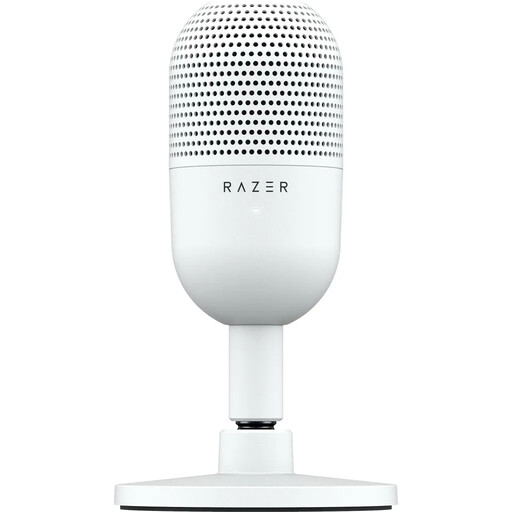
Razer Seiren V3 Mini White
For a fixed spot where you can position a compact desktop microphone.
USB microphone with USB-C, a condenser capsule and a supercardioid polar pattern. The product description lists a tilting stand and tap-to-mute with an LED indicator.
View at Joybuy
 No image available
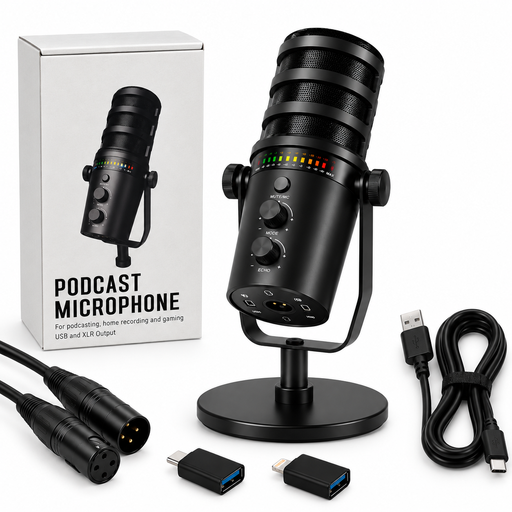
Dynamic USB/XLR microphone set
For a fixed recording spot where you want to use a desktop stand and headphone output.
The product details list USB-C and XLR, a cardioid polar pattern, gain control, mute and a headphone jack.
View at Joybuy
 No image available
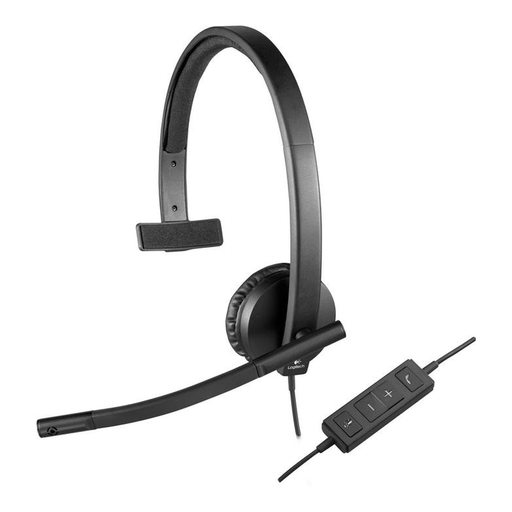
Logitech H570e mono headset
For short recordings without a separate desktop stand, if a headset microphone suits your set-up.
Wired mono headset with USB-A, a flexible microphone boom, inline mute with LED indicator and volume control.
View at Joybuy
Frequently asked questions
How can I tell whether my flashcard recordings are clear enough?
Record a short card where you plan to sit, then listen back with the background noise you’d normally hear there. If you’re using a cardioid microphone, point the speaking side towards you; the manufacturer’s description of its directionality is no substitute for this test.
Do I need an audio interface for a USB microphone?
You don’t need a separate audio interface to record through the USB connection on a compatible USB microphone, as long as your recording device is compatible. If you use XLR instead, you’ll need a suitable microphone input or an interface.
How can I avoid mistakes when making lots of short recordings?
Before your first batch, check the recording level, monitoring and mute function in the software you’re using. According to RØDE, pressing the headphone control on the PodMic USB outside RØDE Connect or UNIFY won’t mute the microphone audio sent to your recording app.
What if I can hear my flatmates talking while I’m recording?
Don’t record other people’s private conversations without their permission. The Lower Saxony State Commissioner for Data Protection points out that unauthorised recording of private conversations is a criminal offence under § 201 StGB. Where possible, record your cards when other people aren’t talking; the legal position on a specific, accidental recording can’t be determined in general terms.
What can I do if my microphone is faulty after purchase?
For a consumer purchase in the EU, the seller must provide a legal minimum guarantee of two years from the date you receive the goods. Any additional manufacturer’s guarantee does not replace these rights.
Do the same rules apply to wireless microphones as to USB microphones?
No. In Germany, the frequency range and terms of use also matter for wireless microphones. In April 2026, the Federal Network Agency published the general frequency assignment Vfg. 37/2026. Whether a specific model meets the requirements depends on its wireless specifications.


