
Lieferung heute & morgen

Qualitätsgarantie

Willkommens-Angebote freischalten: KOSTENLOSE Lieferung | Bis zu 80 % RABATT | Kostenlose 30-Tage-JoyPlus-Testphase
App herunterladen
Modern laptops like the MacBook Pro or Dell XPS feature minimalist designs, often at the expense of port variety. A USB-C docking station or hub promises to solve this problem by providing a multitude of ports for monitors, peripherals, and network cables through a single connection. However, the market is confusing and saturated with products whose specifications promise more than they deliver. Many users invest in a device only to discover later that it fails to meet their needs.
This guide will help you understand the crucial technical details and avoid common purchasing pitfalls. We'll show you what to look for to make an informed decision for your specific use case.
Before you make a purchase, you should be aware of the three most common issues that can lead to frustration and unnecessary expense:
To avoid the problems mentioned above, you should check three core technical parameters before buying. These are the primary determinants of your docking station's performance and future-proofing.
The Power Delivery feature allows you to charge your laptop through the docking station. Pay close attention to the specified maximum power output in watts (W).
For users who want to connect one or more external monitors, the specifications of the video ports (usually HDMI or DisplayPort) are critical.
The speed of the USB ports and the network connection is crucial for an efficient workflow.
Based on the criteria above, we have identified a few products that represent a suitable solution for specific user groups.
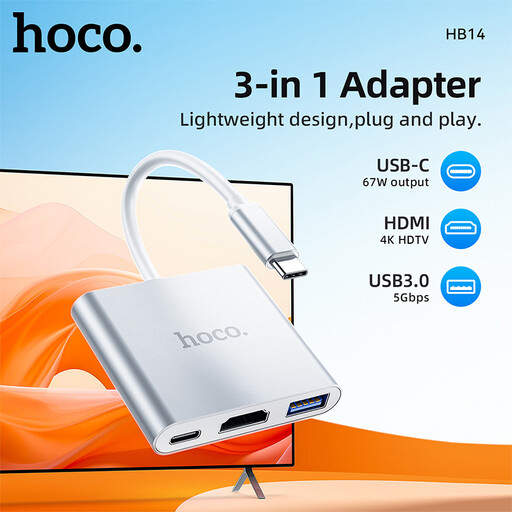
Why This Fits Their Persona: Ideal for users who are frequently on the go and need a lightweight, compact solution for the most important connections. This adapter offers the essential combination of HDMI, USB-A, and Power Delivery for presentations or working from a café.
This USB-C multiport adapter focuses on the three most critical functions, avoiding the bulk of unnecessary ports that only add weight for mobile use. It provides a USB 3.0 port for fast data transfer instead of slower alternatives.
Compact Design: Very lightweight and portable. Essential Ports: Offers the most important connections for mobile use with HDMI, USB 3.0, and PD passthrough.
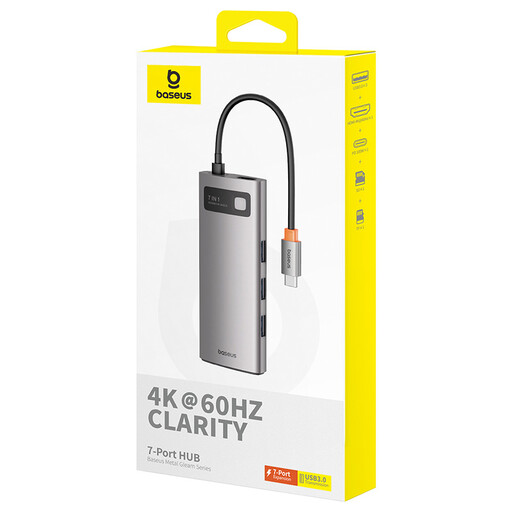
Why This Fits Their Persona: Perfect for a tidy and functional home workspace. This hub offers a balanced mix of ports to connect a monitor, external keyboard, mouse, and memory cards with just a single cable.
It delivers a smooth 4K@60Hz video output, thus avoiding the 30Hz trap. With a 100W PD input, the charging power is sufficient even for more demanding laptops. All three USB-A ports are configured as fast USB 3.0 connections.
Strong All-Around Performance: Offers 4K@60Hz, 100W PD, and fast USB ports. Comprehensive Connectivity: Includes SD/TF card readers for versatile applications.
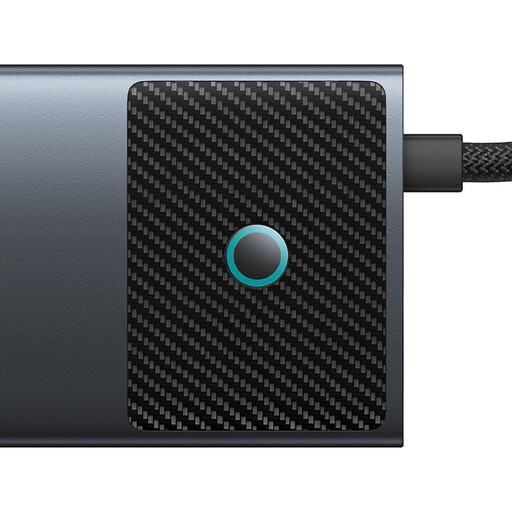
Why This Fits Their Persona: Designed for users who make no compromises on performance. Ideal for video editing, demanding gaming, or complex multi-monitor setups, as is often required with a MacBook Pro docking station.
This Baseus model directly addresses performance pitfalls: it offers one HDMI port with 4K@120Hz, a second with 4K@60Hz, USB-A and USB-C ports with 10 Gbit/s data rates, and a Gigabit Ethernet port.
Maximum Performance: Supports 4K@120Hz and fast 10 Gbit/s data transfer. Dual-Monitor Capable: Two HDMI ports for advanced setups. Comprehensive Features: 10 ports cover nearly every use case.
We have compiled a complete, real-time updated list of products that fully meet these strict selection criteria and safety regulations.
The terms are often used interchangeably, but there is a traditional distinction. A USB-C hub is typically smaller, more portable, and powered directly by the laptop's USB-C port (bus-powered). A laptop docking station is often larger, intended for stationary use, and has its own external power adapter to guarantee higher performance for numerous connected devices and more powerful charging for the laptop. However, modern, high-performance hubs with PD passthrough charging are increasingly blurring these lines.
In principle, yes, as long as the docking station supports USB-C DisplayPort Alternate Mode. However, there are important details to consider. There are limitations, especially when driving two external monitors: standard USB-C hubs can often only output a mirrored image to two monitors on MacBooks (with the exception of M1/M2/M3 Pro/Max/Ultra chips). For two independent, extended displays, a docking station with DisplayLink technology or a Thunderbolt dock is required. Therefore, check the compatibility with your specific MacBook model before purchasing if you plan a dual-monitor setup.
That depends on the model. Simple, portable hubs draw their power directly from the laptop. More powerful docking stations with many ports and high charging capacity use "Power Delivery Passthrough" technology. This means you connect your laptop's original USB-C power adapter to the docking station, which then passes the power on to the laptop while siphoning off a portion for itself. True high-end docking stations come with their own dedicated power supply.