Illustration with lots of references
If you have image references, both language versions and your canvas open at the same time, extra screen width is useful if it makes your specific window layout easier to manage.


For bilingual story cards and lots of references open at once, a wide 21:9 monitor makes sense if the windows remain easy to read at your chosen text scaling. For fine detail, a 27-inch 4K model is an alternative, with more vertical pixels. LG Germany lists a resolution of 3440 × 1440 pixels for the 34WR50QK-B, while BenQ Germany lists 3840 × 2160 pixels for the PD2706U. For print, you’ll also need suitable colour profiles and, where necessary, calibration.
If you have image references, both language versions and your canvas open at the same time, extra screen width is useful if it makes your specific window layout easier to manage.
For a defined print process, colour profiles, proofing and, where necessary, calibration all matter. Colour gamut figures alone won’t determine the print result.
If you switch between a laptop and a fixed workstation, check the video signal, charging power, ports and the stand’s adjustment options.
Start by comparing your actual window layout and how easy your bilingual card is to read. Then decide whether you’re working for digital viewing or for a specific print process.
| Consideration | What to look for when buying | Who it matters most to |
|---|---|---|
| Space for references | Compare the aspect ratio, resolution and desk width with your own window layout. | If I want to see my canvas, both language versions and references at the same time, the layout needs to remain easy to read on my screen. Around 31% of consumers put viewing references side by side first. |
| Digital colours and detail | Check the resolution, readability at your preferred scaling and a colour mode suited to your digital output. | When I’m checking small text and illustration details for digital output, I look for a clear preview and a suitable colour mode. Around 31% of consumers prioritise digital colours and detail. |
| Colours for print | Confirm the print process and output profile, then compare monitor profiles, proof settings and calibration features. | If my cards are for a specific print process, I need a proof set up for it, not just a wide-gamut figure. Around 23% of consumers put a reliable print-colour workflow first. |
| Laptop and workstation | Check the video output, charging power required, ports and height adjustment on the specific model. | If I switch between a laptop and a fixed workstation, I want to be able to connect the display, charging and setup in a way that suits me. Around 15% of consumers prioritise laptop and workstation integration. |
A wide aspect ratio and high vertical resolution serve different purposes. LG Germany lists 3440 × 1440 pixels for its 34-inch 34WR50QK-B monitor; BenQ Germany lists 3840 × 2160 pixels for its 27-inch PD2706U.
Sketch out your usual window layout, then check a bilingual card at the scaling you actually plan to use.
Print results also depend on the profiles used for the document, monitor and output. Adobe describes colour proofing in Photoshop as the use of colour profiles within a workflow.
First decide on your output process, then check which colour modes and calibration features suit it.
If your print process requires it, allow time for profiling, proofing and calibration.
One-cable operation requires your laptop and monitor to support a compatible video signal and the charging power you need. BenQ lists USB-C with DisplayPort Alt Mode and 90 W Power Delivery for the PD2706U.
Check the specifications for both devices to confirm your laptop’s video output and charging requirements.
Depending on your laptop, you may need a separate power adapter or a suitable port.
The DesignVue range includes the PD2706U, a 27-inch 4K option for illustration and connecting a laptop.
The UltraWide range includes the 34WR50QK-B, with a wide workspace for several reference windows.
The ProArt range includes the PA279CRV, a 27-inch 4K option with colour presets for different output requirements.
The ColorEdge range includes the CG2700X, which is particularly relevant for workflows where repeatable calibration matters.
The UltraSharp range includes the U2725QE, an option if you need a built-in hub and an adjustable workstation setup.
These Joybuy monitors include wide workspaces for multiple references and high-resolution options for checking fine detail.
 No image available
A 32-inch screen with 4K resolution could be a good fit for checking illustrations and bilingual text at a fixed workstation.
The product details list 3840 × 2160 pixels, a VA display, 3000R curvature and HDR10. The description claims 100% sRGB; this is a product specification, not an independent measurement.
 No image available
The wide 21:9 format could work well if you want to keep several references open alongside your canvas.
The product details list 5120 × 2160 pixels, an IPS display, PIP/PBP and a height-adjustable stand. They also specify USB-C with 65 W Power Delivery, plus 99% sRGB and 87% Adobe RGB (1931); these are product specifications.
 No image available
The extra-wide format could be a good choice if you want to fit references, text versions and your canvas side by side.
The product details list 5120 × 1440 pixels, a 32:9 aspect ratio and a height-adjustable stand. The description claims 120% sRGB; this is a product specification, not an independent measurement. Check whether 1440 vertical pixels are enough for the level of detail you need.
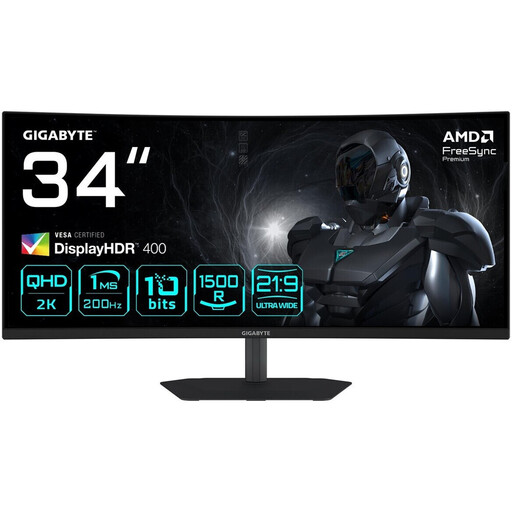 No image available
A 34-inch monitor in 21:9 format can fit several reference windows side by side, as long as the text remains easy to read in your layout.
The product details list 3440 × 1440 pixels, 1500R curvature and a stand that adjusts for height and tilt. The description claims 95% DCI-P3; this is a product specification, not an independent measurement.
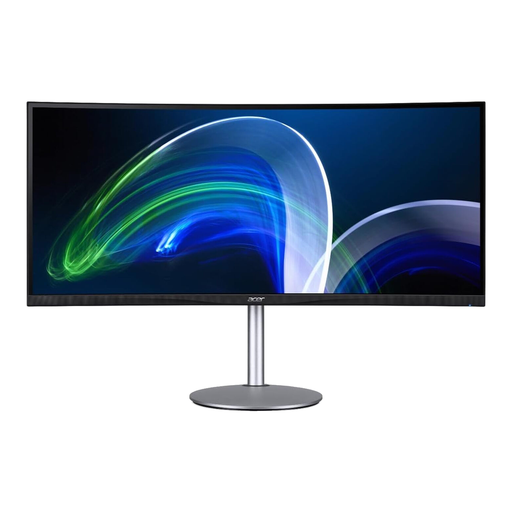 No image available
The 21:9 format could suit a wide layout, with image and text references alongside your canvas.
The product details list 3840 × 1600 pixels and a 75 Hz refresh rate. Check whether the available width and vertical resolution suit your work by testing your actual window layout.
Not necessarily. First, confirm the print process and the profiles it requires. Adobe describes colour proofing as using colour profiles; a wide monitor colour gamut alone won’t determine the print result.
Only if your laptop can output a compatible video signal through the chosen port and the monitor provides enough charging power. BenQ lists USB-C with DisplayPort Alt Mode and 90 W Power Delivery for the PD2706U.
First, choose a scaling and window layout that make both language versions easy to read. For colour-critical work, make sure the monitor and document profiles, and any proof settings, suit your intended output.
The European Commission rates electronic displays from A to G on the EU energy label; compare the consumption figures of similar models. For online purchases, the Council of the European Union says that consumers generally have a 14-day right to withdraw, subject to the applicable conditions and exceptions. Separately, EU rules provide for free repair or replacement if goods are faulty or don’t work as described.