What to consider when choosing
27-inch QHD
A good fit if: You want to view your catalogue and source file side by side regularly and have room for a larger screen.
The trade-off: Window width and text size both play a part; QHD won’t automatically provide room for every view.
24-inch 16:10
A good fit if: Desk space is limited or you mainly work on longer entries.
The trade-off: There are fewer horizontal pixels than with QHD, so wide windows may need more scaling down or switching between them.
27-inch 4K
A good fit if: You need to assess small labels or fine details in source files.
The trade-off: More pixels won’t automatically give you more usable workspace if you increase the text scaling.
When cataloguing with linked source files, your priorities may differ: viewing multiple windows side by side, readability, desk space and connecting a laptop.
| Priority |
What to check before buying |
Who is this important to? |
| Room for the catalogue and source file |
Open a catalogue and a typical source file side by side. Compare window width and text size on a 27-inch QHD screen and a more compact 16:10 model. |
If I want to see an entry and its source at the same time, usable window space matters most to me. Around 36% of consumers prioritise room for side-by-side views. |
| Readable text and details |
Check a typical source file using your preferred scaling and viewing distance. |
If I need to read small labels or fine details in source files, a clear display matters more to me than having as many windows open as possible. Around 29% of consumers prioritise readability of source material. |
| Desk space and screen position |
Measure the available desk space and check the height, tilt and, where applicable, pivot adjustment of the specific model. |
When space is limited, I want to position the screen to suit my desk and line of sight. Around 21% of consumers prioritise desk space and screen position. |
| Connecting a laptop |
Check your laptop’s video output and charging requirements against USB-C, Power Delivery and the available hub ports. |
If I want to connect my laptop at a fixed workstation, the display connection and charging need to work with my device. For around 14% of consumers, laptop connectivity is their top priority. |
Monitor options at Joybuy
This selection includes monitors for viewing catalogues and source files side by side, as well as 27-inch QHD and 4K use. When deciding, consider your desk space, preferred text scaling and computer ports.
 No image available
INNOCN 40C1U, 40-inch 5K ultrawide monitor
The 40-inch format may suit you if you often have a catalogue and source file open side by side. Check first that the screen will fit on your desk.
Features listed in the product name: 21:9, 5120 × 2160 pixels, IPS, 100 Hz, PIP and PBP, plus USB-C with 65 W Power Delivery and a height-adjustable stand.
Video transmission and charging over USB-C depend on whether the connected laptop supports them.
Joybuy
 No image available
INNOCN CB27U1, 27-inch 4K UHD monitor
If you want to use a catalogue and source file at the same time, this 27-inch model is a 4K option. Check that the text scaling is comfortable for you to read.
Features listed in the product name: 3840 × 2160 pixels, IPS, 120 Hz, PIP and PBP, USB-C with 90 W Power Delivery, and a height-adjustable stand.
USB-C charging and video transmission require a compatible laptop.
Joybuy
 No image available
KTC M27P6, 27-inch 4K MiniLED monitor with dual mode
If you want to assess 4K details in source files and adjust the screen position, consider this model’s resolution and stand features.
Features listed in the product name: 4K at 160 Hz or FHD at 320 Hz, HDR1400, Fast IPS, USB-C with 65 W, KVM, and tilt, swivel and height adjustment.
Whether the 65 W charging power is suitable for your laptop depends on its charging requirements.
Joybuy
 No image available
MSI PRO MP275QPDGDE, 27-inch WQHD docking monitor
If you want to work on a catalogue and source file side by side and connect your laptop and peripherals to the monitor, check the docking features and their compatibility with your device.
Features listed in the product name: IPS, 100 Hz, 1 ms MPRT, USB-C with 98 W Power Delivery, daisy-chain, KVM and an integrated webcam.
A single-cable connection and charging require a compatible laptop.
Joybuy
 No image available
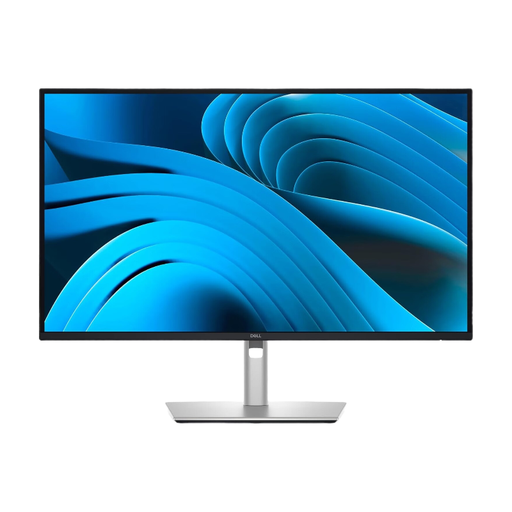
Dell Pro Plus P2725DE, 27-inch QHD monitor
If you often have a catalogue and source file open side by side, this 27-inch QHD model is one option. Check the window layout and text size with your own setup.
Dell Germany lists the P2725DE as having a 2560 × 1440-pixel resolution and a 100 Hz refresh rate.
USB-C charging and video transmission depend on support from the connected laptop.
Joybuy
Frequently asked questions
Is a USB-C port enough to charge my laptop?
No, not just because it has a USB-C port. Compare your laptop’s video output and charging requirements with the specifications of the specific monitor. LG lists 15 W for the 27U631A-B, while EIZO lists up to 94 W over USB-C for the EV2740X.
How can I tell whether QHD or 4K is right for my source files?
Open a typical file alongside your catalogue and test both views using your preferred text scaling. A higher native resolution doesn’t automatically mean you’ll see more content at once if you increase the scaling.
How can I compare monitors’ energy consumption?
Compare the EU energy labels of specific models with similar screen sizes. The European Commission gives energy consumption in kWh per 1,000 hours; your electricity costs also depend on how long you use the monitor and your tariff.
Do the rules for workplace display screen equipment also apply to cataloguing as a hobby?
Not as a blanket rule. The German Federal Institute for Occupational Safety and Health’s ASR A6 applies within its scope to workplaces and teleworking environments; using display screen equipment outside workplaces or teleworking environments is exempt. Its guidance can help you set up your space, but it doesn’t create a general obligation for private collectors to buy specific equipment.
How should I clean the screen?
ASUS recommends using a soft microfibre cloth for its LCD and OLED monitors. If needed, use a little clean water on the cloth, not directly on the screen. Also follow the instructions for the model you actually buy.


