Choose a monitor based on whether you want to enter scores directly on screen, how many people need to see the score at once and which computer will run the application. If you want to save game scores locally, you’ll need to confirm where they’re stored on that computer: touch controls and smart TV apps don’t, by themselves, mean the scorekeeping application saves locally.
Who are the different types of monitor suitable for?
Scorekeepers with local data storage
If you’re developing or running the application yourself, decide where game scores will be stored and backed up before choosing a monitor. According to Raspberry Pi, a microSD card is the primary storage medium for the operating system and user data on a Raspberry Pi.
Game nights with direct input
If several people need to enter scores directly on the display, check the data connection and compatibility with your computer and application as well as the touchscreen. Philips lists a touchscreen for the 242B1TC/00, but that alone doesn’t confirm compatibility with your software.
Game nights with a shared display
If one person operates the scorekeeper and everyone else needs to see the score from different seats, consider the screen size, positioning and computer connection. Dell lists the P2425 as a 24-inch monitor with 1920 × 1200 pixels, while Samsung lists the Smart Monitor M7 M70F as a 32-inch 4K model.
What should I look for when buying a monitor?
First, work out which device will run the scorekeeper and where it will store game scores. Then choose the input method, screen size and connections to suit your gaming table and computer.
| Consideration |
What to check before buying |
Who is it important to? |
| Local storage |
Plan the computer that will run the application, its storage medium and backups; check that the monitor’s video input matches the computer’s video output. |
If I’m using my own scorekeeping application, I want to know where game scores are stored long-term and how to back them up. Around 33% of consumers put local data storage first. |
| Easy viewing for everyone |
Compare the screen size, resolution and stand with the seating distance, the application’s text size and the available space. |
If everyone at the table needs to read the score from their seat, I look for a screen and setup that work for those viewing angles. Around 25% of consumers prioritise being able to see the score easily. |
| Touch input |
Check that the application supports touch, and that the computer’s operating system and touch data connection are compatible. |
If players are going to enter scores directly on the display, their taps need to register in the application they’re using. Around 25% of consumers prioritise direct on-screen input. |
| Connections and setup |
Check video, data and charging power separately for each connection; make sure HDMI or DisplayPort matches your computer. |
If I want to connect the scorekeeper easily to a laptop or computer, I check what the specific connection can do rather than choosing based on USB-C alone. Around 17% of consumers put easy connection and setup first. |
Which buying mistakes should I avoid?
-
Assuming USB-C means there’s a USB-C video input
Dell describes the P2425’s USB-C port as a downstream data port with up to 15 W of power, not as a video input. The exact function depends on the model and its full model number.
Check the video, data and charging capabilities separately in the specifications for the exact model.
If the video signal and connection aren’t compatible, you may need a separate video connection or a different monitor model.
-
Confusing touch or smart features with local storage
Touch describes how you interact with the screen; smart TV apps are additional monitor features. Neither proves that your scorekeeping application saves data locally.
First decide which device will run the application and how you’ll save and back up game scores. If needed, plan for a computer, storage medium and separate input devices.
Your setup may also need a separate computer, storage medium and additional input devices.
-
Comparing screen size alone
A larger screen takes up more space, while a touchscreen needs to be positioned within easy reach for input.
Check how the scorekeeping interface looks from your usual seating positions and measure the space available on your gaming table.
Which brands are worth considering?
Dell
The P2425 is a 24-inch monitor with a 16:10 aspect ratio; the P2425E is a separate USB-C hub model.
- Dell lists 1920 × 1200 pixels, HDMI and an adjustable stand for the P2425.
- According to Dell, the P2425’s USB-C downstream port is for data and provides up to 15 W; it isn’t a video input. Don’t assume the Power Delivery specified for the P2425E also applies to the P2425.
Philips
The 242B1TC/00 is a touchscreen monitor that could serve as an input surface for a scorekeeping application.
- Philips lists a 23.8-inch Full HD touchscreen, HDMI and an adjustable-angle stand.
- The display specifications don’t confirm that a particular computer or custom-built application supports touch input.
LG
The 24BA750-B pairs a compact screen with USB-C features for a connected computer.
- LG lists Full HD, an adjustable stand, and video, data and power delivery over USB-C at up to 65 W.
- Whether a single-cable connection works also depends on the capabilities of the connected device.
Samsung
The Smart Monitor M7 M70F is a larger display with additional smart TV features.
- Samsung lists the LS32FM700UUXEN as a 32-inch 4K monitor with smart TV apps.
- These features don’t prove that a custom-built scorekeeping application will save data locally and offline on the monitor.
Monitors for keeping score
This selection features monitors used as external displays for a connected computer. Plan to store game scores locally on the device running the application, not on the monitor.
 Image unavailable
Samsung Odyssey G5 G50F, 32-inch, QHD, IPS
A good fit if you want several people to be able to see the score on a larger display from different seats. Plan to save and back up scores on the connected computer.
- 32-inch, QHD with 2560 × 1440 pixels, IPS
- HDMI 2.0 and DisplayPort 1.2
- The listed viewing angle is 178°.
View at Joybuy
 Image unavailable
CRUA CR320QB, 32-inch, curved, 4K
Could work as a shared display if you have room for a 32-inch screen on your gaming table. Local storage remains the responsibility of the connected computer.
- 32-inch curved VA display
- 4K UHD resolution with 3840 × 2160 pixels
- The product description lists a 3000R curvature.
View at Joybuy
 Image unavailable
KOORUI MB24V29FS4, 24-inch, Full HD, IPS
A good fit if you’re planning a more compact external display with HDMI or VGA. Before buying, check which output is available on the computer running the application.
- 24-inch, Full HD, IPS
- HDMI and VGA
- Tiltable stand and listed viewing angle of 178°
View at Joybuy
 Image unavailable
INNOCN CB27U1, 27-inch, 4K UHD, IPS
A good option for a shared display if 27 inches suits your viewing distance and available space. Check that the computer connection matches the video input you need.
- 27-inch, 4K UHD resolution with 3840 × 2160 pixels, IPS
- HDMI, DisplayPort and USB-C
- The product name specifies USB-C with 90 W PD; check compatibility with your connected device.
View at Joybuy
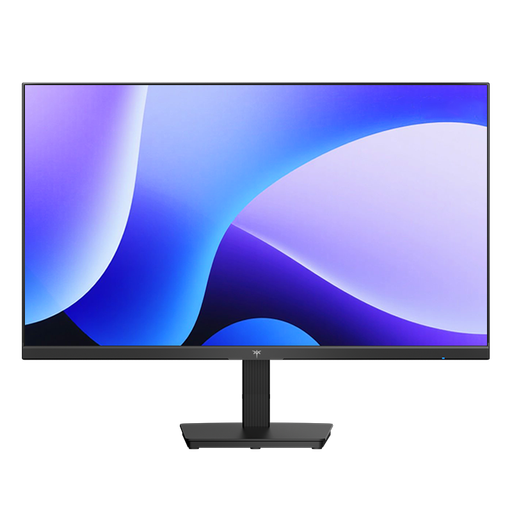 Image unavailable
KTC H24B9S, 24-inch, Full HD, IPS
Could work as a compact display for a connected computer if HDMI or DisplayPort suits your setup.
- 24-inch, Full HD with 1920 × 1080 pixels, IPS
- 144 Hz, HDMI and DisplayPort
- The description lists a viewing angle of 178°.
View at Joybuy
Frequently asked questions
Does a monitor store my game scores locally?
A monitor doesn’t automatically store game scores; that’s handled by the device running the application. According to Raspberry Pi, a microSD card is the primary storage medium for the operating system and user data on a Raspberry Pi. Whether your specific application saves data offline depends on how it’s built.
What should I check before connecting a touchscreen monitor?
As well as the video connection, check the touch data connection, the computer’s operating system and whether your application supports touch input. Philips’ datasheet lists touch and HDMI for the 242B1TC/00, but doesn’t confirm compatibility with your own software.
How do I back up game scores before reinstalling?
Back up important files to a separate storage medium before reinstalling. Raspberry Pi notes that installing a new operating system overwrites the SD card; whether and how you can export the scorekeeper’s data depends on the application.
Should I choose a standard, touch or smart monitor?
A standard monitor may be enough if separate input devices suit your setup; a touchscreen is an option if your computer and application support touch input. A smart monitor can offer extra features, but it doesn’t replace the computer needed to run a custom-built application that saves data locally.
What energy and warranty information should I check?
Check the label for the exact model, and distinguish your statutory consumer rights from a voluntary guarantee when dealing with faults. The European Commission describes an A to G efficiency scale for covered electronic displays; the consumer advice organisation Verbraucherzentrale explains the difference between statutory rights and a guarantee.


