For drawing directly on screen
You want to work on outlines and figures directly on the book illustration displayed on screen, and you have a permanent place for a connected pen display.


If you already work with a computer and monitor and want to put your drawing surface away when you’re finished, a graphics tablet without a screen is a natural starting point. A pen display is a better fit if you want to draw directly onto the illustration on screen and have the space and suitable connections. A standalone tablet is an option if you want to sketch without using your home office computer. Whichever device you choose, check the image size and colour workflow against your printer’s requirements before preparing the book for publication.
You want to work on outlines and figures directly on the book illustration displayed on screen, and you have a permanent place for a connected pen display.
You draw on a computer but want to position your drawing surface separately from the screen and clear your desk when needed.
You’re refining image details and colours with the finished book page in mind, and checking the image size and colour workflow against your printer’s requirements.
| Buying consideration | What to look for | Who is this important to? |
|---|---|---|
| Drawing directly on the image | Active display area, pen and positioning options; check your computer’s connections. | If I want to edit outlines directly beneath the pen tip, having a permanent spot for the display is part of my workflow. Around 33% of consumers put drawing directly on screen first. |
| Drawing surface and desk space | Check the available space, and compare the overall dimensions with the active area separately. | If I already use a monitor and want to put my drawing surface away after work, the space the device takes up matters. Around 27% of consumers prioritise space-saving computer drawing. |
| Files for book printing | Check the finished size, bleed and colour profile with your publisher or printer. | If I’m preparing an illustration for a specific book page, I set the image size and colour workflow to meet the output requirements. Around 27% of consumers prioritise print preparation. |
| Sketching without a computer | Check the device model, compatible pen, what’s included and the drawing app’s export features. | If I want to sketch away from my home office computer, the pen, app and file transfer process all need to work together. Around 13% of consumers prioritise drawing without a connected computer. |
The device’s resolution doesn’t automatically determine the pixel dimensions of your finished illustration. For print, the output size and the resulting resolution of the image file matter too.
Check the finished size and file requirements before you start drawing, then make sure your final file meets them.
Screen size alone won’t tell you whether the device will fit on your desk or connect to and sit alongside your computer as you’d like.
Compare the overall dimensions and connections of the exact model variant with your workspace and computer.
Depending on the model, you may need suitable cables, a power supply or an additional stand.
Pen compatibility can depend on the exact tablet model, and a pen isn’t necessarily included with every device.
Check the full model names and what’s included. Apple lists Pencil compatibility by iPad model and Pencil version; Samsung says the Galaxy Tab S10 FE and FE+ come with an S Pen.
With some device combinations, you’ll need to buy a compatible pen or other accessories separately.
The models described offer two different ways to work on a computer: a graphics tablet without a screen and a connected pen display.
The Deco Pro (Gen 2) is a range without a screen, while the Artist Pro 16 (Gen 2) and Artist Ultra 16 are different pen displays for computer-based work.
The Kamvas 16 (Gen 3) is a pen display for a permanent drawing setup at your computer.
An iPad with Apple Pencil is a standalone option if you don’t want your sketches to depend on your home office computer.
The Galaxy Tab S10 FE and FE+ are standalone Android tablet options with different screen sizes.
The products below are standalone Android tablets with a pen, for sketching without a connected home office computer. Before preparing your book, check that the drawing app and its file export meet your printer’s requirements.
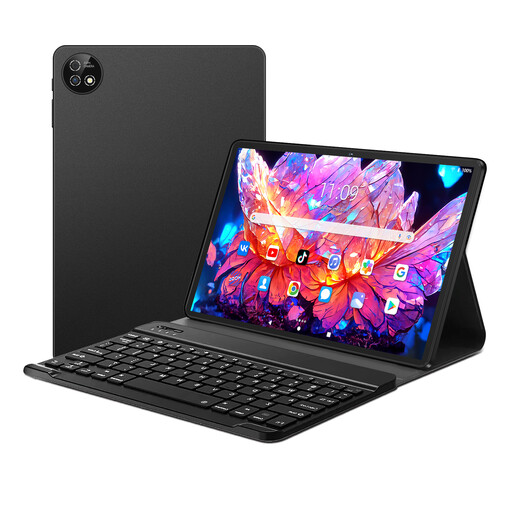 Image unavailable
Described as a standalone tablet for sketching without a connected home office computer.
Android 16, 256 GB ROM and 36 GB RAM, according to the product name.
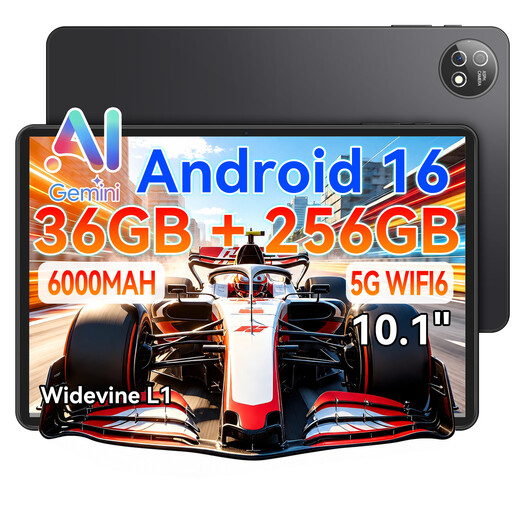 Image unavailable
Described as a tablet with a stylus for drawing and creative projects.
Android 16, 36 GB RAM, 256 GB ROM and Wi-Fi 6, according to the product name; a keyboard and stylus are also listed.
Image unavailable
The product name describes a tablet with a touch pen for drawing or writing.
Android 16, Unisoc T310, 36 GB RAM and 256 GB ROM, according to the product name; a keyboard is also listed.
 Image unavailable
The product name describes drawing with a T-Pen on a standalone tablet.
4,096 pressure levels, Helio G99, 20 GB RAM (8 + 12 virtual), 256 GB storage and Android 15, according to the product name.
 Image unavailable
The product name describes drawing with the T-Pen on a standalone tablet.
4,096 pressure levels, Helio G99, 20 GB RAM (8 GB + 12 GB virtual), 256 GB storage and Android 15. According to the product name, a pen, protective case and English-language Bluetooth keyboard are included.
The pen displays described here are computer peripherals, not standalone drawing computers. Check the connections for video, data and power required by the specific model; the XPPen Artist Pro 16 (Gen 2) manual describes several connections and a separate setup process.
First, check that the correct tablet driver is installed and which input protocol is being used in Windows. Whether a particular device and operating system work together depends on your setup.
No. On their own, neither determines the pixel dimensions of the finished file nor how the colours will appear on the book page. Check the finished size and colour profile with the recipient of your print files, then set up your colour workflow accordingly.
If you buy from a trader as a consumer, Your Europe generally states that you have 14 days from delivery to cancel a distance purchase, as well as a minimum two-year legal guarantee from receipt. This is separate from any voluntary manufacturer’s warranty. Whether these consumer rules apply to a purchase made as part of self-employed work can’t be determined from the home office scenario alone.
No. The European Union explains that CE marking applies only to product categories covered by relevant legislation and indicates the manufacturer’s declaration that the product meets the applicable requirements. Whether it’s required and present for a particular device variant must be checked for that product; it doesn’t indicate whether the device is suitable for book illustration.