For botanical studies using pressure-sensitive brush strokes, a compatible pressure-sensitive stylus is a good choice. Apple lists this feature for the Pencil Pro, but not the Apple Pencil (USB-C). Tilt recognition may be enough for outlines, while a graphics tablet without a screen requires a computer.
Which option is right for you?
Tablet owners who want to capture fine detail
If you want to draw leaf veins, outlines and shading on a tablet you already own, check the exact model of your device against the stylus compatibility list. Apple Germany, Samsung Germany and STAEDTLER all specify device-dependent requirements.
Sketchers with limited desk space
A basic drawing stylus may be enough for outlines and labels. It’s also worth thinking about charging and storage: Apple Germany says the Apple Pencil (USB-C) charges by cable, while STAEDTLER says the Noris digital jumbo needs neither charging nor pairing.
Artists using a computer they already own
If you already work on a computer, you could consider a separate graphics tablet instead of a stylus for your tablet screen. XPPen describes the Deco 01 V2 as a graphics tablet; it does not have a screen of its own.
What to look for when buying
Pressure-sensitive stylus for a compatible tablet
Best for: varying the pressure you apply while drawing to control fine lines and shading.
Bear in mind: the stylus, tablet and drawing app must all support the feature you need.
Basic sketching stylus for a compatible iPad
Best for: outlines, sketches and labels where tilt recognition is enough.
Bear in mind: Apple does not list pressure sensitivity for the Apple Pencil (USB-C); it pairs and charges using a USB-C cable.
Compatible S Pen or EMR stylus
Best for: anyone who already has a Galaxy Tab specifically listed as compatible, or a tablet with a suitable EMR display.
Bear in mind: S Pen models are device-specific; the Noris digital jumbo only works with an EMR display.
Screenless graphics tablet for a computer
Best for: using a computer you already own and keeping your drawing surface separate from your display.
Bear in mind: a graphics tablet is not a standalone screen tablet, so check the connection, operating system and space available.
| Priority |
What to check before buying |
Who it matters most to |
| Device compatibility |
Check the exact tablet model and stylus version; the Noris digital jumbo requires an EMR-compatible display. |
If I want to keep using my current tablet, the stylus needs to match its exact model and, where relevant, its display technology. Around 36% of consumers put device compatibility first. |
| Fine lines and shading |
Check pressure and tilt recognition separately; the drawing app must also support the feature you need. |
I want to control leaf veins and shading with stylus pressure, rather than relying on tilt alone. Around 29% of consumers prioritise brush control. |
| Space and ease of use |
Allow extra room for a separate drawing surface, and check how the stylus charges and can be stored. |
At a small desk, I want to keep my stylus, cable and drawing surface together without any fuss. Around 21% of consumers focus primarily on workspace and ease of use. |
| Overall setup |
Check your existing device, the cable actually included and any accessories you need. |
Before I decide, I want to know whether my current device, along with the necessary cable and accessories, will be enough. Around 14% of consumers focus on the complete setup. |
Avoiding common buying mistakes
-
Assuming “works with tablets” means compatibility is confirmed
A stylus won’t automatically work with every tablet. Apple lists the iPad models supported, while STAEDTLER says the Noris digital jumbo requires an EMR display.
Find your device’s full model name and check it against the details for the exact stylus model.
-
Confusing tilt recognition with pressure sensitivity
Tilt and pressure are different input features. Apple lists pressure sensitivity for the Pencil Pro, but not the Pencil (USB-C); this can make a real difference when controlling varied brush strokes.
Before buying, think about whether you want to change line thickness by pressing harder or by using tilt and app settings.
-
Expecting a screenless graphics tablet to work like a standalone tablet
A graphics tablet such as the XPPen Deco 01 V2 requires a computer. Wacom says a USB-C cable is not included with the Wacom One main device.
Check that you have a computer and a suitable connection, and that your chosen setup includes all the parts you need.
Depending on your setup, you may need to buy a suitable cable separately, so check exactly what’s included.
Key brands to consider
Apple
The Apple Pencil Pro and Apple Pencil (USB-C) are options for the iPad models they support.
- Apple lists pressure, tilt and rotation recognition, as well as magnetic charging, for the Pencil Pro.
- The Pencil (USB-C) pairs and charges by cable.
- Apple does not list pressure sensitivity for the Pencil (USB-C); compatibility depends on the iPad model.
Samsung
S Pen styluses vary by model and may suit compatible Galaxy Tab devices.
- Samsung describes the S Pen EJ-PX710 as supporting pressure and tilt recognition.
- Gestures and remote features vary between S Pen models; Samsung lists Bluetooth requirements for these functions.
- Check the exact stylus and tablet combination.
STAEDTLER
The Noris digital jumbo is a pencil-shaped EMR stylus for compatible displays.
- STAEDTLER lists 4,096 pressure levels, a replaceable nib and use without charging or pairing.
- The stylus requires an EMR display, and the eraser function also depends on the app.
XPPen
The Deco 01 V2 is a screenless graphics tablet for use with a computer setup you already have.
- XPPen lists pressure and tilt recognition.
- For the Android use described, XPPen specifies portrait orientation and OTG support, among other requirements; the product does not have a screen of its own.
Wacom
The Wacom One S and M are configurable, screenless graphics tablets for use with a setup you already have.
- The configurator lets you select components such as the stylus and cable.
- Wacom says a USB-C cable is not included with the main device; what comes in the box depends on the setup you choose.
Logitech
The Crayon (USB-C) is designed for supported iPads and is suitable for outlines, notes and labels.
- Logitech says tilt can be used to vary line thickness, and the stylus charges via USB-C.
- Check compatibility with your exact iPad model.
Joybuy products for drawing
The Joybuy products below are described as suitable for digital drawing on compatible tablets, particularly iPads. Check device compatibility and the charging method for the model you’re considering.
 No image available
ZSPEED Wireless Charging Stylus Pen for iPad, White
For drawing on compatible iPads; the product description lists tilt recognition and palm rejection.
Magnetic charging on compatible iPads is listed. The product name specifies iPad Pro 11″ (4th/3rd/2nd/1st generation), iPad Pro 12.9″ (6th/5th/4th/3rd generation), iPad Air 4/5 and iPad mini.
View on Joybuy
 No image available
Stylus for iPad (2018–2026) with fast charging
For drawing and shading on iPad models; the product description lists tilt support and palm rejection.
Use only suitable 5 V USB power adaptors for charging, and unplug the cable once fully charged.
View on Joybuy
 No image available
Rechargeable Active Stylus Pen for iOS and Android
Described as an active, rechargeable stylus for iOS and Android touchscreens.
The product description lists a dual-touch function and palm rejection. Use only 5 V USB power adaptors for charging, and unplug once fully charged.
View on Joybuy
 No image available
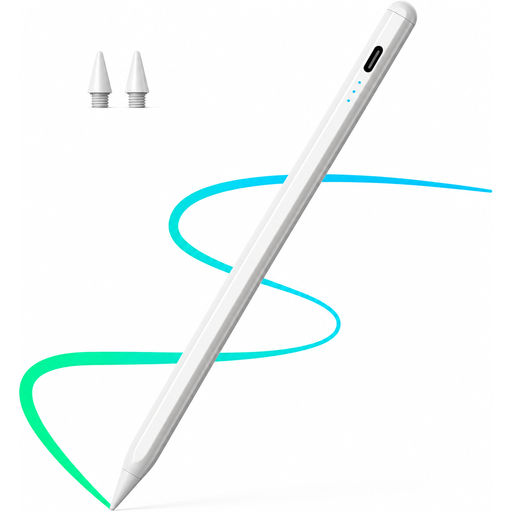
iPad Stylus with USB-C Charging Port
For sketching and shading on selected iPad models; the product description lists tilt recognition and palm rejection.
The magnetic attachment is for storage, not wireless charging. The stylus charges via a USB-C cable.
View on Joybuy
Frequently asked questions
Is tilt recognition enough for botanical drawings?
Tilt recognition may be enough for outlines and labels. If you want to control line thickness by pressing harder or more lightly, check that the stylus, device and drawing app support pressure sensitivity. Apple lists it for the Pencil Pro, but not the Pencil (USB-C).
Do I need to pair or charge the stylus before drawing?
It depends on the model: the Apple Pencil (USB-C) pairs and charges using a USB-C cable, while the Pencil Pro charges magnetically on a compatible iPad. STAEDTLER says the Noris digital jumbo needs neither pairing nor charging, but it does require an EMR display.
What should I check if the eraser or gestures don’t work?
First check the exact stylus and device combination, then check the drawing app. STAEDTLER says the eraser function depends on the app; Samsung lists Bluetooth requirements for certain remote and gesture features.
What are my rights when buying online from a business seller?
The European Union’s consumer information states that online purchases generally come with a 14-day right to cancel from the date of delivery, and a minimum two-year legal guarantee for faulty goods. Cancellation rights and the legal guarantee are different rights, and the relevant conditions and exceptions apply.
How should I dispose of a faulty electronic stylus in Germany?
The German Environment Agency says that waste electrical and electronic equipment must not go in household rubbish. Take the device to an appropriate collection point, and remove the battery before returning it only if possible; batteries are collected separately.


