Artists with an existing tablet
If you want to draw leaves, flowers and fine lines directly on an iPad or Galaxy Tab, first check that the specific stylus works with your device. Apple and Samsung list compatibility by model.


If you already own a compatible iPad or Galaxy Tab, you can draw directly on its screen with a stylus designed for that device. If you work on a computer, a small graphics tablet helps keep your workspace compact. For fine botanical outlines and shading, check the specific stylus features, app support and what’s included, as a high pressure-level count alone doesn’t guarantee better drawing results.
If you want to draw leaves, flowers and fine lines directly on an iPad or Galaxy Tab, first check that the specific stylus works with your device. Apple and Samsung list compatibility by model.
If you already use a computer and don’t have room for another screen on your small desk, a compact graphics tablet without a display could be a good option. Wacom, XPPen and Huion offer models designed to work with a host device.
If you want to see your strokes directly beneath the stylus tip, you can use a tablet you already own or connect a pen display to a computer. Alongside graphics tablets without displays, XPPen also offers a pen display; it isn’t a standalone tablet.
A good fit if: Your exact iPad model appears on Apple’s compatibility list and you want to draw directly on the screen.
Things to weigh up: Features vary by Pencil model; Pencil Pro requires a supported iPad and iPadOS 17.5 or later.
A good fit if: You want to draw on a supported Galaxy Tab with pressure- and tilt-sensitive input.
Things to weigh up: Compatibility and any accessories already included depend on the specific tablet and stylus.
A good fit if: You already draw on a computer and want a small, separate drawing surface on your desk.
Things to weigh up: You draw on the tablet but view your work on the computer screen. Check the connection, stylus and cable for the specific model.
A good fit if: You want to draw directly on a screen but would rather use a computer than a standalone tablet.
Things to weigh up: The display needs a suitable connected device, so remember to allow for cables and desk space too.
| Buying criterion | What to check before buying | Who it matters most to |
|---|---|---|
| Compatibility | The exact tablet and stylus models, and any required operating system version; for graphics tablets, also check the connection and computer operating system. | If I want to draw on my existing iPad or Galaxy Tab, the stylus needs to be compatible with that exact device. Around 33% of consumers would put device compatibility first for this reason. |
| Control over lines and shading | Pressure and tilt support on the specific stylus, as well as support in the drawing app. Pressure-level counts from different manufacturers aren’t a direct measure of quality. | For fine outlines and graduated shading, I need features that work with my brushes. Around 27% of consumers would prioritise control over outlines and shading. |
| Desk space and drawing style | Overall dimensions, not just the active area, cable routing and whether you want to draw on a separate monitor or directly on a display. | If my desk is small, the whole setup, including cables, needs to fit. Around 20% of consumers would consider space requirements and drawing style first. |
| What’s included and any extra requirements | Check whether you’ll need to buy a stylus, suitable cable or preferred drawing app separately. | If I want to get started with my intended workflow straight away, I want to know in advance if any accessories are missing. Around 20% of consumers would look for a complete package that suits their needs. |
Apple and Samsung specify compatibility by stylus and device model. A stylus that doesn’t work with your existing tablet won’t meet your drawing needs.
Before buying, compare the full model names and check whether a particular operating system version is required.
An incompatible stylus may mean you have to buy another one.
The Apple Pencil (USB-C) attaches magnetically for storage; Apple says it pairs and charges via a USB-C cable.
Follow Apple’s instructions for your exact Pencil model when setting it up and charging it. Don’t rely on the magnetic attachment alone.
Check whether you already have a suitable USB-C cable.
The XPPen Deco mini7 V2 is larger overall than its active area; using it with a computer also requires space for the screen and connection.
Measure the available desk space and allow for the tablet’s overall dimensions, cables and your preferred drawing position.
The Wacom One S CTC4110WLW3B version is sold without a stylus or connection cable. You may also need to buy your preferred drawing app separately.
Compare what’s included with the specific version against the devices, cables and apps you already own.
Depending on what you already have, you may also need a compatible stylus, suitable cable or drawing app.
Apple Pencil models are worth considering if you already use an iPad for drawing directly on the screen, provided your iPad is specifically supported.
S Pen models are an option for supported Galaxy Tab devices if you want to draw directly on a tablet you already own.
Small graphics tablets such as One by Wacom Small or Wacom One S are worth considering if you want to work with a computer you already own.
The Deco mini7 V2 is a small graphics tablet without a display; the Artist 12 (2nd Generation) is a pen display for use with a connected computer.
The Inspiroy 2 S is a small graphics tablet for use with a computer you already own or, according to the manufacturer, a supported mobile device.
The following Joybuy products are styluses for existing touchscreens, including Android devices and iPads. Compatibility depends on the model; these products don’t replace a graphics tablet for working on a computer.
 No image available
Designed for drawing on compatible Android or HarmonyOS touchscreens.
The product details list Samsung, Huawei and Xiaomi. They also state that the stylus isn’t intended for iPads, Microsoft devices or some Lenovo tablets. Check your exact model against this list.
 No image available
Designed for sketching and illustration on a compatible iPad. Check whether your exact iPad model is supported.
The product name specifies USB-C charging. The description lists tilt recognition for varying line weights and shading.
 No image available
Designed for sketching and illustration on selected iPad models. Check that your model is compatible with the product.
The product name lists tilt recognition, palm rejection, magnetic attachment and an LED battery-level indicator.
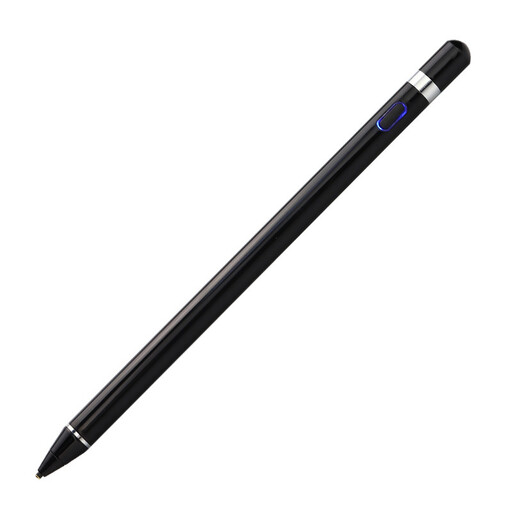 No image available
Described as an active stylus for iOS, iPad and Android devices. Check the specifications against the touchscreen you plan to use it with.
According to the description, setup involves scanning a QR code and using the accompanying app.
 No image available
Designed for sketching and drawing on compatible iPads. Check that your exact model is supported.
The product name specifies USB-C charging. According to the product details, this stylus isn’t pressure-sensitive.
No. Compatibility depends on the Pencil and iPad model. Apple also specifies iPadOS 17.5 or later for Pencil Pro. With an iPad (A16) or iPad (10th generation), the 1st generation Apple Pencil requires an adapter for pairing and charging.
Apple explains that you pair and charge it using a USB-C cable connected to a compatible iPad. Attaching it magnetically to the side of the iPad for storage isn’t the same as pairing or charging it magnetically.
With a graphics tablet that has no display, you draw on the tablet surface and view your work on the connected device. Check what’s included too: the Wacom One S CTC4110WLW3B version is sold without a stylus or connection cable.
Check whether you’ll need to buy any additional hardware, accessories or a drawing app. According to the European Union’s Your Europe website, for qualifying distance purchases from a trader, you generally have 14 days from delivery to withdraw from the contract, subject to legal exceptions. This is separate from the statutory guarantee of at least two years; it isn’t the same as a voluntary warranty.