If there’s a spare socket at your workstation and your laptop supports USB-C video output and the charging power you need, a desktop 4K docking monitor is a sensible starting point for fine lines and annotations. For two views side by side, a wide USB-C monitor may suit your setup better. If there’s no spare socket, consider a compact screen powered by your laptop or a suitable power source. Before you buy, check how legible plans are at your preferred scaling, along with the ports and power requirements of all your devices.
Who are the different monitor options suited to?
Plan reviewers working at a laptop
If you regularly check fine lines and annotations and have a spare socket for your monitor, a USB-C docking monitor can connect your laptop to the screen and charge it at the same time. EIZO lists these features for the FlexScan EV2740X.
Comparing plans in multiple views
If you want to view a plan alongside supporting documents, or compare two plan views at the same time, a wide screen may be more important than a compact design. Philips describes the 346B1C/00 as a 34-inch model with 3440 × 1440 pixels.
Mobile plan reviewers without a spare socket
If you need an extra view while you’re on the go, a portable screen powered by a compatible laptop or USB-C power source could be a good fit. ASUS describes these options for the ZenScreen MB16AHVE, which has a 15.6-inch Full HD display.
What should you look for when sockets are limited?
Desktop 4K docking monitor
A good fit if: you have a spare socket for the monitor and review fine plan details on your laptop.
Keep in mind: The monitor still needs mains power. USB-C charging depends on your laptop, its port and its charging requirements.
Wide USB-C monitor
A good fit if: you want to compare a plan with supporting documents, or view two plans side by side on your desk.
Keep in mind: A wide format takes up space and doesn’t necessarily offer the same vertical resolution as a 4K model.
Portable monitor powered via USB-C
A good fit if: you don’t have a spare socket and a smaller second view will do.
Keep in mind: The smaller screen gives you less room to view the plan as a whole. If it’s powered by your laptop, it will use up its battery.
| What matters |
What to check before buying |
Who will find this most important? |
| Power supply and laptop connection |
Your laptop’s USB-C video output, charging requirements, the power delivered through the monitor’s port and a suitable cable. |
When sockets are limited at my workstation, I want to connect my laptop and monitor with as few extra power adapters as possible. Around 36% of consumers prioritise power supply and laptop connectivity. |
| Legible lines and annotations |
Resolution, screen size and how legible the plan is at your preferred scaling. |
When I’m checking fine lines and small annotations, I want to be able to see them clearly at my usual scaling. Around 29% of consumers prioritise legible plan details. |
| Viewing multiple plans at once |
Desk space, your preferred window layout and how legible both views are. |
When I’m comparing plans or supporting documents side by side, I need room for both views. Around 21% of consumers prioritise displaying multiple views at the same time. |
| Extra screen without a spare socket |
Your laptop’s USB-C video output and power supply, or whether your power bank is suitable; for pass-through charging, check the power required too. |
When there’s no spare socket on site, a smaller extra view that can be powered appropriately may be enough for me. Around 14% of consumers prioritise being able to use a screen without a spare socket. |
Which buying mistakes should you avoid?
-
Assuming every USB-C port provides full docking functionality
For video and charging to work, the capabilities of your laptop, the monitor port and the cable all need to match. The stated charging power depends on the model and port.
Before you buy, compare your laptop’s specifications with the monitor’s USB-C upstream port, its charging requirements and the cable you plan to use.
-
Expecting a portable monitor to offer the same-sized plan view
According to ASUS, the ZenScreen MB16AHVE has a 15.6-inch Full HD display. If it’s powered by your laptop, it will use up the laptop’s battery.
Check whether the smaller view is large enough for your plans and what power source will be available where you intend to use it.
-
Assuming an ultrawide screen offers 4K detail
According to the manufacturer, the Philips 346B1C/00 has a 34-inch screen with 3440 × 1440 pixels; the EIZO FlexScan EV2740X is a 27-inch model with 3840 × 2160 pixels. These formats suit different ways of arranging your views.
Choose based on how you arrange your plans and windows, the desk space available and how legible everything is at your preferred scaling.
Relevant brands to consider
EIZO
The FlexScan EV2740X is a desktop 27-inch 4K option with USB-C docking for a laptop workstation.
- EIZO lists DisplayPort Alt Mode, up to 94 W via the USB-C upstream port, as well as KVM and LAN.
- The monitor still needs a socket, and its charging power needs to suit your laptop.
Dell
The Pro P2725QE is a 27-inch 4K USB-C hub option for a desktop laptop workstation.
- Dell lists a resolution of 3840 × 2160 pixels and 90 W USB-C power delivery for this product configuration.
- Check the exact variant and your laptop’s charging requirements. These specifications don’t apply to all Dell monitors.
BenQ
The DesignVue PD2706U is a 27-inch 4K option if documented colour modes and design features also matter to you.
- BenQ describes a CAD/CAM mode for lines and shapes on this model.
- Check whether this mode is relevant to your plan software. The manufacturer’s claim alone doesn’t prove that it is better for reviewing building plans.
Philips
The 279P1/01 is a 27-inch 4K docking option, while the 346B1C/00 has a wide 34-inch screen for side-by-side views.
- Philips lists USB-C docking with 90 W for the 279P1/01. For the 346B1C/00, the manufacturer gives a resolution of 3440 × 1440 pixels.
- You can’t assume that one model has the same ports and charging power as the other; the wide screen also needs enough space.
ASUS
ASUS offers both the portable ZenScreen MB16AHVE for a smaller extra view and the desktop ProArt PA279CRV as a 27-inch 4K option.
- According to ASUS, the ZenScreen MB16AHVE can be powered by a laptop. ASUS lists 4K and 96 W USB-C Power Delivery for the ProArt PA279CRV.
- The ZenScreen has a 15.6-inch Full HD display; the ProArt is a desktop option and needs its own power supply.
Joybuy products for reviewing plans
The models below include desktop 4K and WQHD monitors with USB-C, plus a portable screen for an extra view.
 No image available
INNOCN CB27U1, 27-inch, 4K UHD, USB-C 90 W
For a desktop plan-review workstation where you need a 4K view and a USB-C connection to your laptop.
27-inch, 3840 × 2160 pixels, IPS; USB-C with 90 W Power Delivery.
The monitor needs its own power supply. Connecting a laptop requires USB-C video output and compatible charging requirements.
View at Joybuy
 No image available
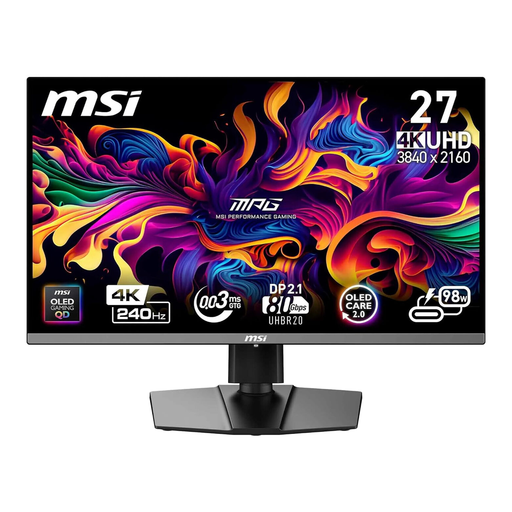
MSI MPG 272URXDE, 26.5-inch, 4K UHD, USB-C PD 98 W
A desktop option if you want to connect a 4K screen with USB-C charging to a compatible laptop.
26.5-inch, 4K UHD, QD-OLED and 240 Hz; USB-C Power Delivery with 98 W.
The product specifications list a mains cable for the monitor. To connect your laptop, its USB-C video output and charging requirements need to be compatible.
View at Joybuy
 No image available
KTC M27P6, 27-inch, 4K MiniLED, USB-C 65 W
For a desktop plan-review workstation where 4K resolution and a USB-C laptop connection are important.
27-inch, MiniLED and Dual Mode with 4K at 160 Hz or Full HD at 320 Hz; USB-C with 65 W.
Using a single cable requires a laptop that supports USB-C video output and can work with the stated charging power.
View at Joybuy
 No image available
MSI PRO MP275QPDGDE, 27-inch, WQHD, USB-C PD 98 W
A desktop docking option if USB-C charging and WQHD resolution suit your plan-review workstation.
27-inch, WQHD with 2560 × 1440 pixels; USB-C Power Delivery with 98 W, KVM and Daisy Chain.
WQHD has a different resolution from 4K. The monitor still needs its own power supply, and your laptop, video output and charging requirements all need to be compatible.
View at Joybuy
 No image available
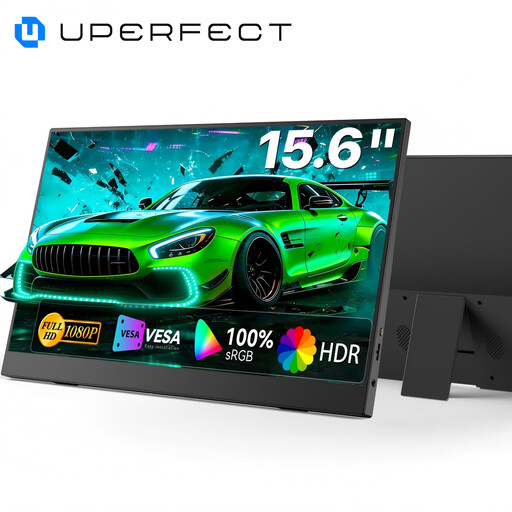
UPERFECT portable monitor, 15.6-inch, Full HD
For an extra view at different workstations, when a compact monitor is a better fit than a desktop model.
15.6-inch, 1920 × 1080 pixels, IPS; USB-C and Mini-HDMI.
The smaller screen gives you less room to view the plan as a whole than a desktop 4K monitor. The product description says it can be powered via USB-C or HDMI without an external power supply.
View at Joybuy
Frequently asked questions
Does a USB-C monitor mean you don’t need a socket?
No. A desktop docking monitor needs mains power, but with a compatible laptop it can replace the laptop’s separate power adapter at your workstation. Check video output, cable and charging requirements. EIZO specifies up to 94 W via the USB-C upstream port on the FlexScan EV2740X.
How can I use a second screen without an extra socket?
According to ASUS, the ZenScreen MB16AHVE can be powered by a compatible laptop. For pass-through charging, ASUS also lists a suitable USB-C power bank or power adapter as an option. Before you buy, check the ports and requirements of the power source you plan to use.
How should I set up a monitor for extended plan reviews?
Check annotations at your usual scaling, and position the screen and lighting so that reflections don’t affect visibility. The DGUV notes that glare can make things harder to see; its guidance on setting up screen-based workstations relates to the specific workplace.
What are your rights when buying a monitor online in Germany?
For a typical online purchase by a consumer, you generally have a 14-day right to cancel from the date of delivery; conditions and exceptions apply. Your Europe explains this right for online purchases in the EU. If a product is faulty, statutory rights should be distinguished from a voluntary guarantee, as the Verbraucherzentrale explains.


