
Lieferung heute & morgen

Qualitätsgarantie

Willkommens-Angebote freischalten: KOSTENLOSE Lieferung | Bis zu 80 % RABATT | Kostenlose 30-Tage-JoyPlus-Testphase
App herunterladen
Buying a new internal SSD can significantly boost the performance of a PC, laptop, or console. Shorter loading times, faster system boot-ups, and a smoother overall experience are the main benefits. However, the market is filled with technical jargon and marketing promises that make an informed decision difficult. Many users invest in features their system can't use or overlook critical attributes that affect the drive's lifespan.
This guide will help you navigate the most common pitfalls and find an internal SSD that is precisely tailored to your needs and budget.
An uninformed decision can lead to you paying for unused performance or unintentionally shortening your system's lifespan. Watch out for these three common mistakes:
To avoid these mistakes, focus on the following three core aspects that determine the compatibility and real-world value of your new SSD.
The physical shape and connection technology are the first criteria.
Before buying, check which slot (2.5-inch SATA or M.2) and which PCIe generation your motherboard supports.
Choosing the right capacity depends on your usage patterns.
The speeds listed on the packaging are often theoretical maximums. More important is consistent real-world performance and longevity.
Here are some recommendations tailored to specific user groups and their requirements.
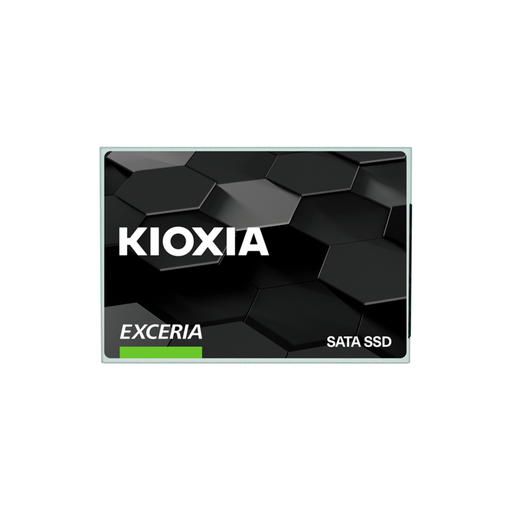
Why This Fits Their Persona: Ideal for users looking to noticeably speed up an older PC or laptop with a mechanical hard drive. Switching from an HDD to this SATA SSD drastically reduces boot and load times without requiring a new system.
This model bypasses the speed trap by fully utilising the SATA interface of older systems without paying for unused NVMe performance. It's a pragmatic and cost-effective upgrade.
High compatibility with almost all desktops and laptops from the last 10 years. Offers a balanced price-to-performance ratio with nearly 1 TB of storage space.
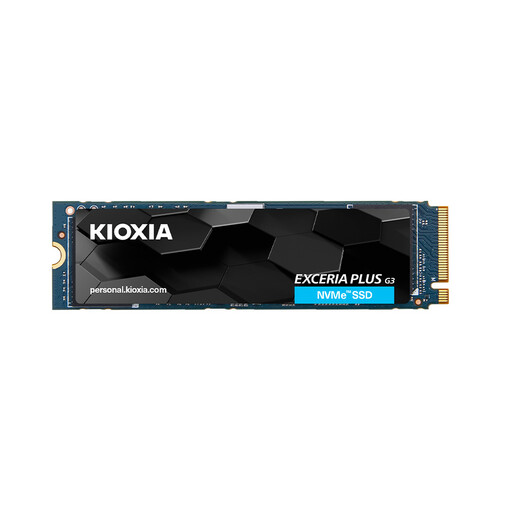
Why This Fits Their Persona: Perfect for users with a modern PC who want fast loading times for games and applications. The PCIe 4.0 performance ensures a responsive system without breaking the bank on top-tier models.
This model offers solid PCIe 4.0 performance that can be utilised by most current gaming PCs. The 600 TB TBW rating is more than sufficient for gaming and general use, thus avoiding the low-longevity trap.
Delivers read speeds of up to 5,000 MB/s according to the manufacturer. The compact M.2 2280 form factor allows for a simple, cable-free installation.
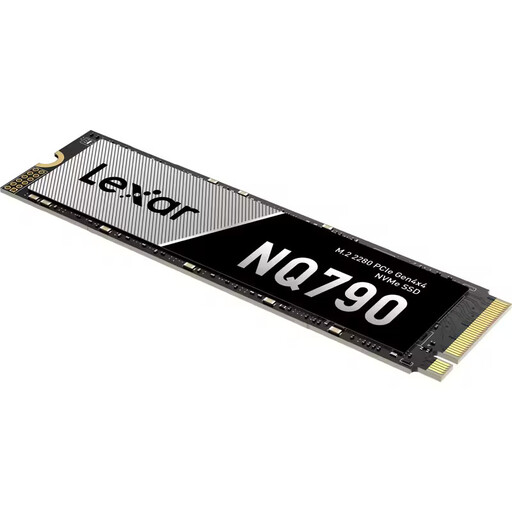
Why This Fits Their Persona: Designed for users who need maximum PCIe 4.0 speed, whether for professional video editing, large data analysis, or as a storage expansion for the PlayStation 5. The 2 TB capacity provides ample space for extensive projects and game collections.
This model meets the specific performance requirements for PS5 storage expansion, thus avoiding compatibility issues. The high 1200 TB TBW rating ensures longevity even under intensive use.
Very high speeds (up to 7,000 MB/s read, according to the manufacturer) and a high TBW rating for reliability. Explicitly compatible with the PS5 (heatsink required).
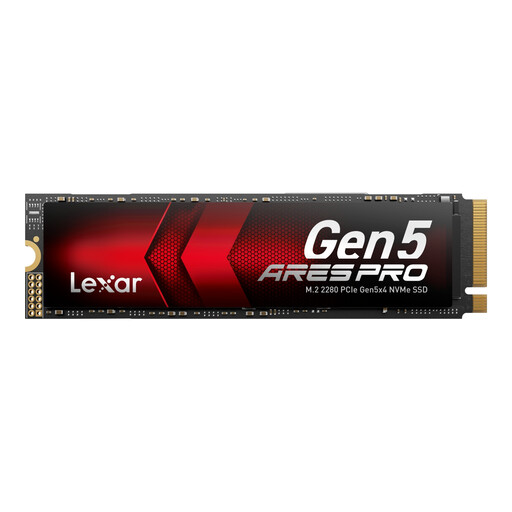
Why This Fits Their Persona: For users who already have a PCIe 5.0-capable system and want to leverage the maximum possible storage performance for AI applications, 8K video editing, or to future-proof their high-end build.
This is a deliberate investment in cutting-edge technology for users whose hardware can actually use the speed. The speed trap is avoided here because the performance is fully exploited.
Utilises the PCIe 5.0 interface for extremely high transfer rates (up to 14,000 MB/s read, according to the manufacturer). Backward compatible with PCIe 4.0 slots.
We have compiled a complete, up-to-date list of products that fully meet these strict selection criteria.
1. Does every M.2 SSD need a heatsink? Not necessarily. SATA M.2 SSDs and slower PCIe 3.0 NVMe SSDs generally do not generate enough heat to require a heatsink. However, for high-performance PCIe 4.0 SSDs and especially PCIe 5.0 SSDs, a heatsink is strongly recommended. Under heavy load, these drives can get very hot, leading to performance reduction (thermal throttling). Many motherboards already have integrated M.2 heatsinks. For a PS5 SSD expansion, a heatsink is a mandatory requirement.
2. What does the TBW value mean, and how important is it really? The TBW (Total Bytes Written) value is a measure of the guaranteed amount of data that can be written to an SSD during its lifespan. For example, a rating of 600 TBW means you could write about 164 GB of data to the drive every day for 10 years. For the average user who mainly reads data (playing games, browsing), this value is less critical. For content creators who save and edit large video files daily, a high TBW rating is a key feature for the reliability and longevity of the internal SSD.
3. Can I use a PCIe 4.0 SSD in a PCIe 3.0 slot? Yes, you can. The PCIe interface is backward compatible. A PCIe 4.0 SSD will work in a PCIe 3.0 slot, but its speed will be limited to the maximum of the PCIe 3.0 standard (approx. 3,500 MB/s). This means you won't benefit from the full speed you paid for. It is a functional, but not cost-effective, solution.