Use your calendar and email side by side
If you want to view two applications on the same computer at the same time, a wide display may be enough. Microsoft Support explains how to snap windows in Windows.


If you want to see your calendar and email as two windows on the same computer at the same time, an ultrawide monitor could be a good fit. Microsoft Support explains how to arrange windows side by side in Windows. If you want two displays that you can position independently, two monitors may work better. Before you buy, check that both windows will fit at your preferred text size, which display and charging features your computer supports, and how much desk space you have.
If you want to view two applications on the same computer at the same time, a wide display may be enough. Microsoft Support explains how to snap windows in Windows.
If you want to handle display, power and, where available, network connections through the monitor, its ports and charging output need to suit your laptop. Dell Germany and Lenovo Germany explain the features of their respective models.
If you want to position or align your screens separately, consider two individual monitors and the desk space available. The German Federal Institute for Occupational Safety and Health covers screen-based work within the scope of ASR A6.
A good fit if: Your calendar and email are two windows on the same computer and you want to view them without a bezel in between.
Things to consider: Both windows share one display area, so make sure the window widths and text scaling work well for the applications you use.
A good fit if: You want to position two physically separate displays independently, or continue using a second monitor you already own.
Things to consider: You’ll need to plan for two devices, their connections and the desk space they require.
A good fit if: You want to display content from two computers on the monitor at the same time.
Things to consider: Check for picture-by-picture support for two video signals and, where needed, a KVM switch for sharing a keyboard and mouse. Neither feature replaces snapping windows from one computer.
First decide whether you mean two windows on one computer, two physical displays or video signals from two computers. Then compare the available window space, laptop connectivity and desk space.
| Priority | What to check | Who it matters most to |
|---|---|---|
| Read both windows comfortably | Check the aspect ratio and native resolution; arrange both applications side by side at your preferred text size. | If I want to read my calendar and email at the same time, having enough space for both windows is important to me. Around 36% of consumers say readability is their top priority when buying. |
| Connect a laptop | Check the laptop port’s video output, suitable cables and required charging power against the monitor’s specifications. | If I want to run display and, where available, power through the monitor, it needs to work with my laptop. Around 29% of consumers prioritise laptop connectivity. |
| Choose one or two displays | Distinguish between two windows on one computer, two physical monitors and inputs from two computers. If you’re using two computers, check picture-by-picture and KVM separately. | If I need two independently positioned display areas, one continuous screen isn’t automatically an equivalent option. Around 21% of consumers say separate displays are their top priority. |
| Set up a monitor at your workstation | Check the monitor and stand dimensions, plus height and tilt adjustment, against your desk and seating position. | If I need to adjust the screen to suit my desk and seating position, the setup is key. Around 14% of consumers put this first. |
Window snapping arranges applications on one computer. Picture-by-picture is designed for monitors equipped to display two video sources.
Before you buy, check whether your content will come from one computer or two.
A USB-C connector alone doesn’t tell you whether the port supports video or supplies enough power to charge your laptop.
Check the laptop port, video output, cable, monitor input and charging requirements for the specific devices you’ll use.
An ultrawide display doesn’t automatically give you two screens that can be positioned and aligned independently.
Decide on your preferred layout before you buy and check your desk measurements.
With the P3425WE, Dell combines a 34-inch office display with USB-C connectivity.
According to LG, the 34BA75QE-B combines a wide workspace with connectivity and picture-by-picture features.
Lenovo describes the ThinkVision P34WD-40 as an ultrawide monitor with docking ports.
According to Samsung, the ViewFinity S65UC is designed for a setup with multiple inputs and shared peripherals.
According to EIZO, the FlexScan EV3451X combines an ultrawide display with USB-C docking.
These products are designed to give you one wide display area, where you can place your calendar and email side by side. Before choosing, check that the aspect ratio and resolution suit the applications you use.
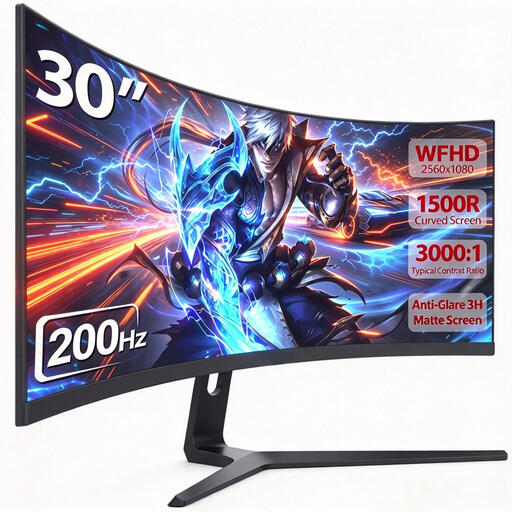 No image available
The 21:9 aspect ratio is designed for viewing two windows side by side on one wide display.
30 inches; 2560 × 1080; 1500R VA panel; HDMI and DisplayPort; tilt adjustable.
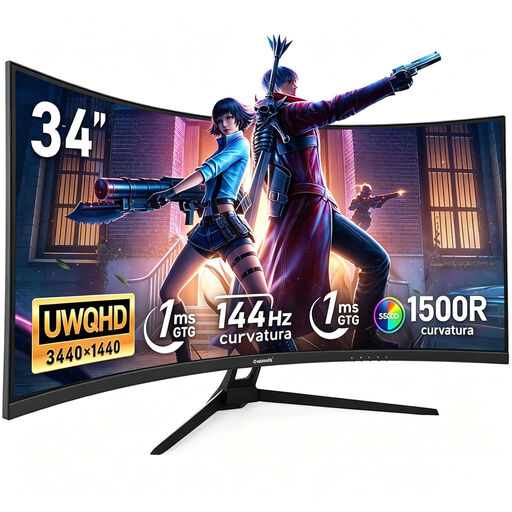 No image available
The 34-inch ultrawide display is designed for viewing your calendar and email side by side on one screen.
21:9; UWQHD 3440 × 1440; 144 Hz; 1500R curvature; VA panel; no speakers.
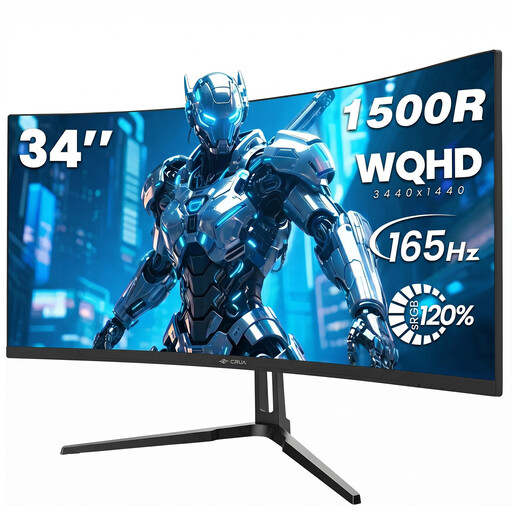 No image available
The 21:9 display gives you one wide area for using applications side by side.
34 inches; 21:9; 3440 × 1440; 165 Hz; 1500R curvature; VESA compatible with 75 × 75 mm.
 No image available
The 32:9 aspect ratio gives you a wide, continuous display area for several windows side by side.
49 inches; DQHD 5120 × 1440; 165 Hz; 1500R curvature; height-adjustable stand; HDMI 2.1 and DisplayPort 1.4.
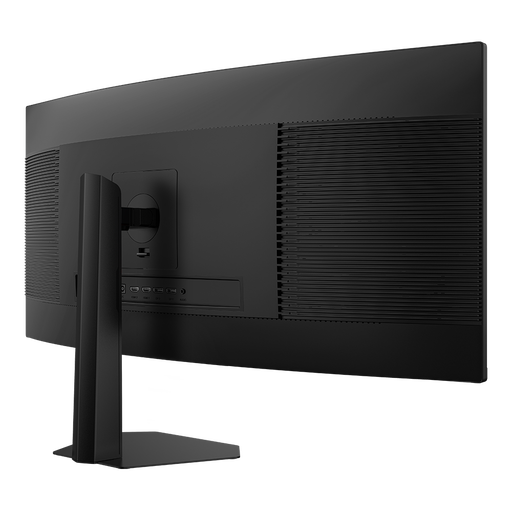 No image available
The 21:9 aspect ratio is designed for two windows side by side; PIP and PBP are also mentioned in the product title.
34 inches; 3440 × 1440; VA panel; 200 Hz; 1500R curvature; height adjustable; HDMI and DisplayPort.
No, if both applications are windows on the same computer: in Windows, you can arrange windows side by side. On compatible monitors, picture-by-picture is designed to display two input signals.
Not necessarily. The USB-C connector alone doesn’t determine what the port can do. Check video output, the cable and your laptop’s charging requirements against the specifications for the specific monitor.
Adjust the height and tilt to suit your seating position, and check window sizes and text scaling. For screen-based work in workplaces and at home-based workstations, ASR A6 sets out requirements under the German Workplace Ordinance. Ordinary private use outside a home-based workstation is explicitly outside its scope.
Compare the EU energy label for each monitor and the information it provides under the same usage conditions. The European Commission includes computer monitors among the electronic displays covered; you can’t work out an electricity cost from display width alone.
For a consumer contract made online, you generally have a 14-day right to cancel, although exceptions and the exact start of the cancellation period need to be taken into account. The Verbraucherzentrale distinguishes the statutory guarantee against the seller from a voluntary manufacturer’s warranty. Since 19 June 2026, online contracts with a right to cancel have also been required to provide an electronic cancellation function.