Teachers who keep the paper in view
If the sheet stays in shot for most of the lesson, make sure the capture area and focus suit your camera position and leave room for your writing hand.


If you mainly show the paper during your lessons, a document camera is a natural place to start. Check that its capture area and focus suit your sheet of paper, writing hand and camera position. If you often switch between an overview and close-ups, a movable overhead camera could be a good option. A webcam with a desk view may work if you only show the paper occasionally and it’s clearly visible from where you sit at your monitor. Also, check how the image will get to your computer or display, and test the lighting and sound in your actual set-up.
If the sheet stays in shot for most of the lesson, make sure the capture area and focus suit your camera position and leave room for your writing hand.
If you switch between showing the whole sheet and individual strokes, consider how easily the camera can be moved and whether its desk base or clamp will fit on your small table.
If you mainly speak to the webcam and only show the paper from time to time, check that the desk view captures the sheet, your hand and the writing area from where you sit at your monitor.
A good choice if: the paper stays in shot for most of the lesson and you’re capturing the camera feed on a computer.
Things to consider: the capture area, focus distance and USB connection all need to suit the paper, your hand movements and your computer.
A good choice if: you want to switch the shot frequently between the whole page and close-ups.
Things to consider: check that the specific mounting option fits your table and leaves enough room.
A good choice if: you mainly speak to the camera and only want to show the paper occasionally.
Things to consider: check that the writing area and your hand stay visible from where you sit at your monitor. A desk view doesn’t automatically give you a directly overhead shot.
A good choice if: you want to send the live feed directly to a display with a compatible input.
Things to consider: check the specific model’s connections and operating mode against your set-up.
| What you need | What to check when buying | Who it matters most to |
|---|---|---|
| Keeping the paper, hand and pen in shot | Measure the paper and the space your hand needs to move, then compare both with the capture area and the space available for the camera. IPEVO gives the V4K PRO a maximum capture area of 34.2 × 25.5 cm; Logitech offers the Reach with either a desk base or a clamp base. | If you need the paper and your writing hand to stay visible together on a small table, the frame and space for the camera both matter. Around 31% of consumers prioritise framing and footprint. |
| Fine strokes and focus | Check the focus range and the video mode you’ll actually use. IPEVO specifies a minimum focus distance of 10 cm for the V4K PRO; frame rates and resolutions vary by model and mode. | If you need fine strokes to remain clear as you write, focus and image quality in your own set-up are key. Around 25% of consumers prioritise stroke detail and focus. |
| Getting the image to your computer or display | Check the computer or display inputs against the camera connection and operating mode. IPEVO describes the V4K PRO as using USB-A/UVC; ELMO lists HDMI and USB among the MO-2’s connections. ELMO says activation may be required for USB camera mode. | If the camera feed needs to work with your existing teaching set-up, the right connection is essential. Around 19% of consumers prioritise connections and image transfer. |
| Lighting on the paper and ink | Try a writing session with your desk lighting and check brightness, reflections and flicker in the recording. IPEVO lists a switchable LED for the V4K PRO. | If you want the paper and ink to be visible without distracting glare, test your own materials under your actual lighting. Around 13% of consumers put lighting conditions first. |
| Audio for your explanations | Check whether you can use the microphone with your intended recording set-up, and listen back to a test recording. ELMO notes that the MO-2’s built-in microphone isn’t designed for direct audio recording on a PC. | If you want your explanations of how to form each stroke to be clear in the recording, check the audio in the mode you plan to use. Around 12% of consumers prioritise audio for explanations. |
Resolution, frame rate and sharpness at the actual distance from the paper are different things. Manufacturers’ specifications for individual models can list different values for resolution and video mode.
Compare the specifications for the video mode you’ll use, then make a test recording to check that the writing and hand movements are clear on the screen you plan to use.
Sending a camera feed to a computer over USB and outputting it directly to a display are two different signal paths. IPEVO lists USB-A/UVC for the V4K PRO; ELMO also lists HDMI for the MO-2.
Before buying, check the route from the camera to your recording or display, and make sure every connection is compatible with your computer or display.
Whether you can use a microphone depends on the specific model and recording set-up. ELMO says the MO-2’s built-in microphone isn’t designed for direct audio recording on a PC.
Test the audio in the operating mode you plan to use, and check that your speech is actually captured in a test recording.
Document cameras for keeping a writing area in view on a computer.
The Reach is described as a movable overhead and content camera for changing the shot.
According to the manufacturer, the Link series offers DeskView for occasional desk demonstrations alongside the webcam view.
The MO-2 is a document camera for set-ups that need a direct connection to a compatible display as well as USB.
The Joybuy products below are webcams and cameras for computer or conference-room set-ups. For each model, check that the framing, mounting and connections suit filming paper and your writing hand.
 No image available
Described as a PC webcam with a microphone. Check whether it keeps the paper and your writing hand in shot together in your planned set-up.
The product name lists 4K, a 99° field of view, a cover and plug-and-play functionality.
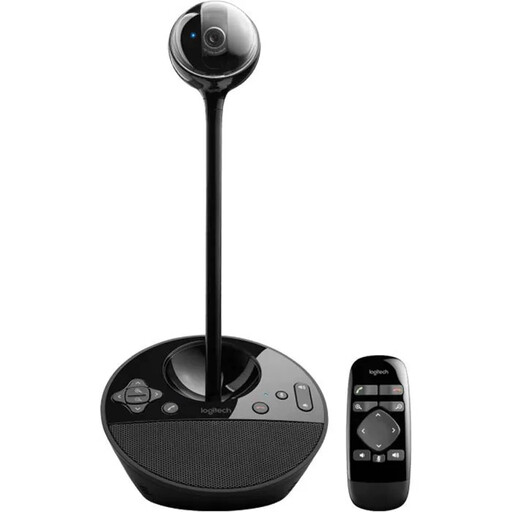 No image available
Described as a ConferenceCam for meeting rooms and offices. Check whether its intended framing and mounting will work for a desk demonstration.
 No image available
Described as a webcam for streaming and computers. Check that the clip mount is suitable for your monitor or intended position.
The product name lists 2K QHD, a noise-reducing microphone and a clip mount.
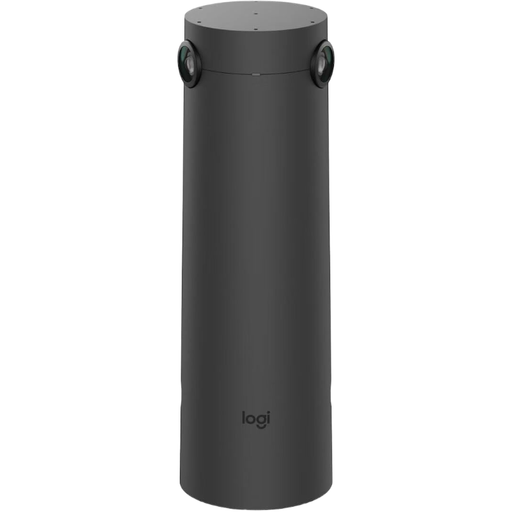 No image available
Described as a table camera for hybrid meeting rooms. Check that its intended room and system set-up suits your needs for a small writing area.
In OBS, you can select a supported camera as a video capture device and a microphone as a separate audio input. Make a short test recording before your lesson; the available resolutions and frame rates depend on the connected device.
Put the sheet you’ll be using on the table and check that the pen, your hand and the edges you want to show all stay in shot. Then check the focus and lighting in a test recording. Capture area and focus limits vary by model.
No. If identifiable people or other personal data are recorded or transmitted, the processing needs an appropriate legal basis under the GDPR. Consent is one possible legal basis, but not the only one; the basis that applies in a particular lesson depends on the circumstances. The Federal Commissioner for Data Protection and Freedom of Information explains the requirements for consent.
No. Your statutory rights are separate from a guarantee, which is a voluntary offer with its own terms and conditions. The Verbraucherzentrale recommends considering guarantee terms separately from the seller’s information.
Electrical waste must not go in your household rubbish. The Federal Ministry for the Environment says that old electrical equipment can be handed in to public waste disposal authorities. Retailers must also offer free take-back in certain circumstances set out by law.