If you already have an HDMI camera, an HDMI-to-USB capture device may be suitable, provided the camera output, supported format and computer connection are all compatible. OBS Project lists capture cards as video sources. If you want to switch between several HDMI camera angles, a video mixer offers a different signal path: Blackmagic Design describes the ATEM Mini Pro as having four HDMI inputs. Plan your music audio separately from the camera feed and check the actual signal path. A higher video resolution won’t tell you how to set up the audio or whether you have the necessary music rights.
Which solution is right for you?
Musicians with an existing HDMI camera
You want to use your camera with your streaming computer. Check its HDMI output and the format it actually outputs against the capture device’s specifications. Elgato lists support for unencrypted HDMI signals and up to 1080p at 60 frames per second for Cam Link 4K, among other features.
Musicians with a separate audio setup
You record instruments or vocals using a separate device and want to control the music audio in your stream. OBS Project describes audio sources separately from video sources and warns that capturing the same device twice can cause echo.
Musicians using several camera angles
You want to switch between different views during a performance. A video mixer can be an alternative to a single HDMI-to-USB capture device; Blackmagic Design describes the ATEM Mini Pro as having four HDMI inputs and a USB webcam output.
What should you look for when buying?
HDMI-to-USB capture device for one camera
A good fit if: You want to use the picture from a compatible HDMI camera as a source on your streaming computer.
Consider: A basic capture device won’t replace a separate audio interface or a mixer for several cameras.
Capture device with HDMI passthrough
A good fit if: You want the same signal to go to another HDMI screen as well as your computer.
Consider: The extra HDMI output may not be necessary for a single camera-to-streaming software setup, and it doesn’t guarantee a lag-free preview in the software.
Video mixer for several cameras
A good fit if: You want to connect several HDMI camera angles and switch between them during a performance.
Consider: This is a more involved signal path than using a single USB capture device. Check how you’ll connect and control your separate music mix, too.
No extra capture card
A good fit if: Your camera already appears as a supported video source in OBS and you don’t need an external HDMI input.
Consider: You’ll still need to set up the music audio as a suitable audio source. You’ll also need an appropriate input if you add an HDMI signal path later.
First, check where your picture and music audio are coming from, and how many camera angles you want to connect. The buying considerations below will help you match these signal paths to your camera and streaming computer.
| Buying consideration |
What to check before buying |
Who is this most relevant to? |
| Routing music audio separately |
Decide whether the mix you want will come through the camera’s HDMI connection or a separate audio device. Check the levels and make a test recording in OBS. Don’t capture the same device twice. |
If I’m routing vocals or instruments through a separate device, I want to control the levels and avoid echo. That’s why around 29% of consumers prioritise being able to control their music audio. |
| Camera and video signal |
Check the HDMI output, the resolution and frame rate actually being output, any on-screen menus, and the power supply during a performance. |
I want to use my existing camera and know in advance what signal it actually outputs. Around 36% of consumers prioritise compatibility with their own camera. |
| Number of camera angles |
Count how many cameras you’ll need to use at the same time and consider whether you want to switch between them during a performance. |
If I want to show several camera angles, I need a signal path that can capture the views I need and switch between them. Around 14% of consumers put multi-camera control first. |
| Connection to your streaming computer |
Check that your operating system and available USB port or PCIe slot meet the requirements of the specific device. |
I want to connect the solution to my existing computer without choosing a setup that relies on the wrong connection. Around 21% of consumers prioritise computer connectivity and setup. |
Avoid common buying mistakes
-
Assuming “4K input” means “4K recording”
The input signal and maximum recording resolution may be listed differently. AVerMedia gives separate input signal and recording specifications for the BU113 model.
Compare your camera’s output with the specific device’s supported input and recording resolutions, rather than focusing only on the biggest number in the product name.
-
Assuming the camera’s HDMI audio will give you a ready-made music mix
The camera picture won’t automatically ensure that instruments and vocals sound right in your stream. An incorrectly configured audio source—or capturing it twice—can result in no sound or echo, as OBS Project points out.
Decide on your audio setup in advance and listen back to a test recording using the streaming mix you plan to use.
-
Choosing an internal PCIe capture card for a laptop-only setup
According to the manufacturer, the AVerMedia GC573 requires PCIe Gen 2 x4 and doesn’t connect like an external USB capture device.
Check which connections are available on your computer before choosing an internal model.
-
Confusing passthrough with a lag-free OBS preview
Manufacturers’ HDMI passthrough specifications describe the separate HDMI output. This is different from the preview in your streaming software.
Test a recording using the actual picture and audio signal paths, especially if you’re routing the music audio separately.
Choosing a manufacturer to suit your signal path
Elgato
Cam Link 4K is designed for a compatible HDMI-camera-to-USB setup. Game Capture 4K S may be suitable if you also need HDMI passthrough.
- Elgato lists unencrypted HDMI and up to 1080p at 60 frames per second for Cam Link 4K, among other features. The additional 2160p60 support on the latest hardware version is expressly subject to certain conditions.
- Elgato lists an HDMI output and a 3.5 mm stereo line input for Game Capture 4K S.
- These specifications apply to the individual models and don’t, by themselves, confirm the quality of music audio in your stream.
AVerMedia
The range offers different signal paths: the BU113 as a camera capture device, the GC311 with HDMI passthrough, the GC573 as an internal PCIe card and the GC553G2 as an external model.
- AVerMedia specifies USB 3.1 Gen 1 for the BU113 and explicitly rules out USB 2.0. HDMI passthrough is specified for the GC311.
- The manufacturer specifies PCIe Gen 2 x4 for the GC573.
- Requirements and connections vary by model. High gaming frame rates aren’t automatically a key advantage for a music performance.
Magewell
USB Capture HDMI Gen 2 is an HDMI-to-USB alternative with specified video and audio formats.
- Magewell lists HDMI-embedded audio and 1080p60 as one of its output formats, among others.
- Magewell notes that the USB bandwidth may limit the frame rate you can actually achieve. The specification alone doesn’t confirm compatibility with your camera.
Blackmagic Design
The ATEM Mini Pro is a video mixer for several HDMI cameras, offering a different signal path from a single USB capture device.
- Blackmagic Design describes the Pro model as having four HDMI inputs, a USB webcam output and direct streaming over Ethernet.
- More connections let you add further camera angles, but also mean a more involved setup. Check how to connect and control your separate music mix on the specific device.
Joybuy products
The selection below includes external HDMI capture devices for connecting camera signals to your streaming computer. HDMI passthrough is listed for several models. Check which connections and audio features are relevant to your own signal path.
 No image available
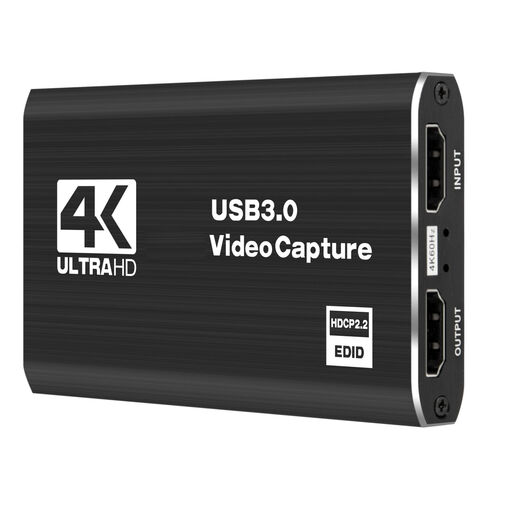
4K capture card with 5 ports
For a camera-to-computer signal path if you’re looking for an external capture device with HDMI passthrough.
The product name specifies 5 ports.
View at Joybuy
 No image available
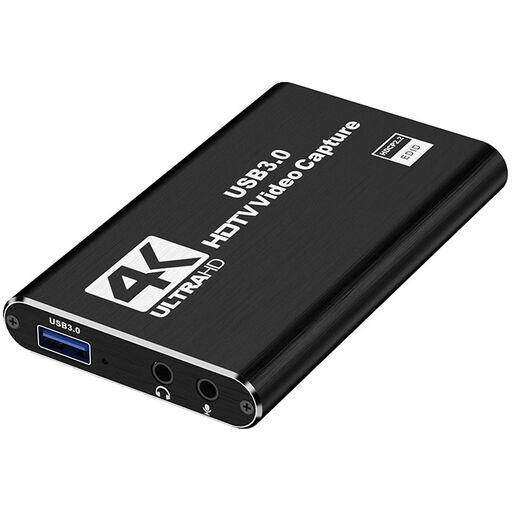
4K HDMI capture card with USB 3.0
For connecting an HDMI camera to your computer if you can match the input and recording formats listed in the product name to your camera’s output.
HDMI input up to 4K at 30 Hz; recording at 1080p at 60 Hz. USB 3.0. The product name also lists a microphone input and headphone output.
View at Joybuy
 No image available
4K USB 3.0 capture card with 5 ports
For connecting a camera to your streaming computer if you’re looking for a USB 3.0 capture device for video recording.
USB 3.0; the product name specifies 5 ports.
View at Joybuy
 No image available
VIELLAN 4K HDMI capture card with USB 3.0
For an HDMI camera setup with separate passthrough if the listed recording specifications and connections suit your setup.
1080p recording and 4K HDMI passthrough. USB 3.0; Windows, macOS and Linux are listed in the product name.
The product description notes that performance may be limited when using a USB 2.0 port.
View at Joybuy
 No image available
VIELLAN HDMI capture card with USB 3.0
For connecting an HDMI signal to your computer if you want to use the video and audio connections listed in the product name.
1080p recording and 4K HDMI passthrough. The product name lists UVC/UAC, a microphone input and a headphone output.
View at Joybuy
Frequently asked questions
Do I need a capture card if OBS already recognises my camera as a video source?
Not for that reason alone. OBS Project describes webcams and capture cards as possible video sources. An extra capture card is mainly relevant for this picture signal path if you want to connect an external HDMI signal.
How do I connect a separate audio interface for instruments or vocals?
Select the audio interface as an audio input source in OBS, then check the sound and levels in a test recording. OBS Project warns that echo can occur if the same device is captured both globally and again as a scene source.
What else should I plan for when using a camera I already own?
Check whether your setup needs a suitable HDMI cable, a power supply for longer camera use, or a separate signal path for the music audio. Match the connections you need to your camera, streaming computer and audio setup.
Do I automatically need my own GEMA licence to livestream a cover song in Germany?
There’s no blanket yes or no: GEMA distinguishes between factors including the platform, how the music is used, whether it’s a cover or an adaptation, and other rights relating to recordings used. For paid access to a music livestream on YouTube, Facebook or Instagram, it generally says a livestream licence is required; voluntary donations without restricted access are treated differently. Check the rights for your specific song and distribution method before you go live.


