Which card reader is right for you?

Photographers who switch between camera cards

First, check whether your camera uses SD, microSD or CFexpress Type A or Type B: a reader won’t automatically support every card type. The SD Association explains the differences between SD card standards.

Photographers with large batches of images

If you often import lots of photos or several SD cards, check which card mode the reader supports and whether both slots can be used at the same time. Lexar describes its workflow dual-slot reader as supporting simultaneous transfers from two SD cards.

Photographers importing to a mobile device

If you transfer photos on the go to a laptop or compatible phone, the reader’s connection needs to suit your device and the import method you plan to use. Apple explains how to import using a compatible card reader or camera adapter.

What should you look for when buying?

UHS-I SD and microSD reader

A good fit if: you want to read compatible SD or microSD cards on a compatible computer or mobile device.

Bear in mind: A UHS-I reader won’t use a UHS-II card in UHS-II mode.

SD UHS-II reader with one or two slots

A good fit if: your camera uses SD UHS-II cards and you regularly import large batches of images or two SD cards.

Bear in mind: Any potential speed advantage also depends on the card, host device and cable. Two slots don’t confirm that a copy is complete.

Combined CFexpress and SD reader

A good fit if: your camera uses the specific CFexpress type supported by the reader and you also want to read SD cards.

Bear in mind: CFexpress Type A and Type B are different formats, so check that the model specification matches your card type.

Priority What to check before buying Who is it most important to?
Card compatibility Match your card format and, where relevant, CFexpress Type A or Type B against the formats explicitly supported by the reader. When I need to import quickly between appointments, I want to be sure the reader can actually read my camera card. Around 36% of consumers put this exact compatibility first.
Import speed Check the UHS mode of the card and reader, as well as the data rates of the host device and cable, separately. Don’t assume the stated maximum speed is the same as the time it takes to copy files. When working with large batches of images, I want to avoid unnecessary delays, so I check the entire transfer chain. Around 29% of consumers put import speed first.
Mobile connectivity Check that the USB connection supports data, or that you have the adapter you need, and make sure it suits the import method on your specific device. When I’m importing to a laptop or phone on the go, the reader needs to work with my device. Around 21% of consumers put mobile device connectivity first.
Multiple cards Check the number and format of the slots, as well as whether simultaneous use is explicitly supported. When I’m working with several cards between appointments, I want to spend less time swapping them without skipping file checks. Around 14% of consumers put a multi-card workflow first.

Common mistakes when buying a card reader

  • Assuming “CFexpress” without a type specification guarantees compatibility

    CFexpress Type A and Type B readers aren’t interchangeable. Lexar explicitly states that its Type B reader supports CFexpress Type B only.

    Before buying, compare your camera’s full card type with the reader’s model specification.

    You may need another compatible reader for a different card type.

  • Assuming the USB data rate is the same as the actual photo copying speed

    The card, reader, cable and host device may support different transfer modes. A UHS-I reader may read a UHS-II card at UHS-I speeds only. ProGrade Digital says that a compatible host connection, cable and device are needed to achieve its stated USB data rate.

    Check the entire connection chain and don’t treat maximum speeds as a guaranteed import time.

  • Erasing your camera card as soon as you’ve imported the files

    Starting an import doesn’t confirm that every file has been copied in full or backed up elsewhere. Apple explains that imported items can be deleted from the card or left on it.

    Check the files in the destination and complete your backup process before making the card available for reuse.

    If you assume an incomplete copy is safely backed up, you risk losing any photos that weren’t transferred.

An overview of leading card reader brands

Lexar

The documented models include dual-slot SD UHS-II readers, as well as separate combinations for SD and CFexpress Type A or Type B.

  • Lexar says its workflow dual-slot reader has two SD slots and can transfer data from two SD cards at the same time.
  • The RW530 and Type B/SD readers are specified for different CFexpress types. Information about one model doesn’t automatically apply to other Lexar readers.

ProGrade Digital

According to ProGrade Digital, the PG08 is designed for two SD UHS-II cards in a mobile reader.

  • The manufacturer lists two SD UHS-II slots that can be used at the same time, along with USB-C and USB-A connections.
  • The stated USB data rate of up to 10 Gbit/s requires a compatible host, cable and device, according to the manufacturer. This model isn’t specified as having a CFexpress slot.

SanDisk

The documented PRO-READER SD and microSD is designed for SD and microSD workflows with a USB-C connection.

  • SanDisk’s data sheet lists USB-C at 5 Gbit/s and describes use with compatible USB-C iPads.
  • This model specification doesn’t indicate CFexpress support or a 10 Gbit/s connection.

Anker

The documented USB-C 2-in-1 card reader is designed for SD and microSD in UHS-I mode.

  • Anker Support lists one SD UHS-I slot and one microSD UHS-I slot.
  • UHS-II and CFexpress support aren’t specified for this reader.

UGREEN

The documented 2-in-1 USB SD reader is designed for SD and microSD cards.

  • UGREEN lists SD and microSD slots for easy card switching.
  • UGREEN notes that the documented model reads UHS-II cards at UHS-I speeds only, and that using both cards at the same time may affect speed.

Joybuy products for SD and microSD imports

These Joybuy products combine SD or microSD/TF card readers with mobile hubs, adapters or other devices. Before buying, check your card type and the connection on the device you’ll use for importing. For UHS-II or CFexpress, explicit support is essential.
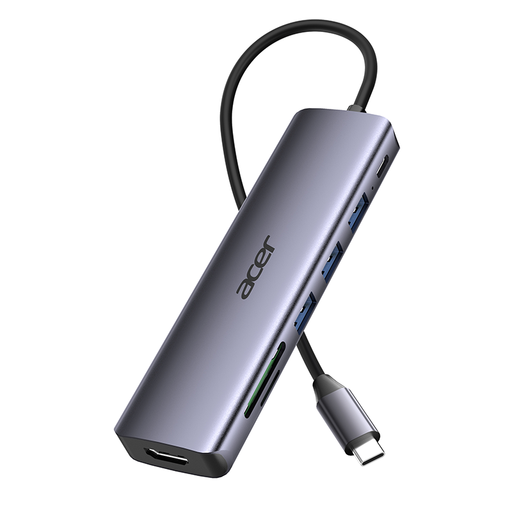
Acer 7-in-1 USB-C hub with SD and TF card reader

Acer 7-in-1 USB-C hub with SD and TF card reader

An option if you want to connect SD or TF cards to a compatible device using a USB-C hub.

USB-C hub with SD and TF card reader.

The product title lists three USB 3.0 ports at 5 Gbit/s; this figure doesn’t refer to the card reader’s speed.

The product title also lists HDMI with 4K at 30 Hz and 100 W PD charging.

View at Joybuy
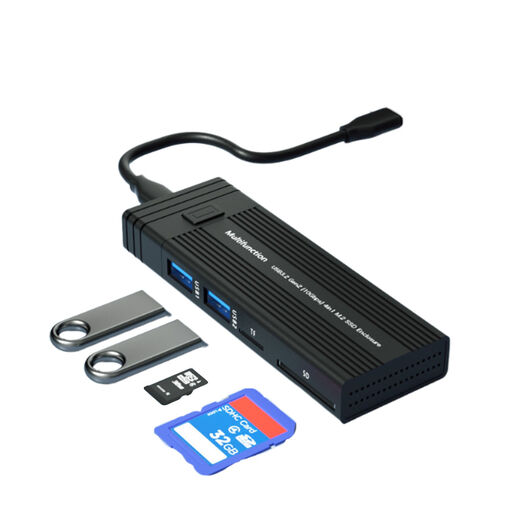
4-in-1 M.2 SSD enclosure with USB hub and SD/TF card reader

4-in-1 M.2 SSD enclosure with USB hub and SD/TF card reader

This combination is worth considering if, when travelling, you need a USB hub and an M.2 SSD enclosure as well as SD or TF card readers.

Specified for NVMe/SATA and B-Key/B&M-Key.

The title lists 10 Gbit/s; this figure isn’t specifically attributed to the card reader.

View at Joybuy
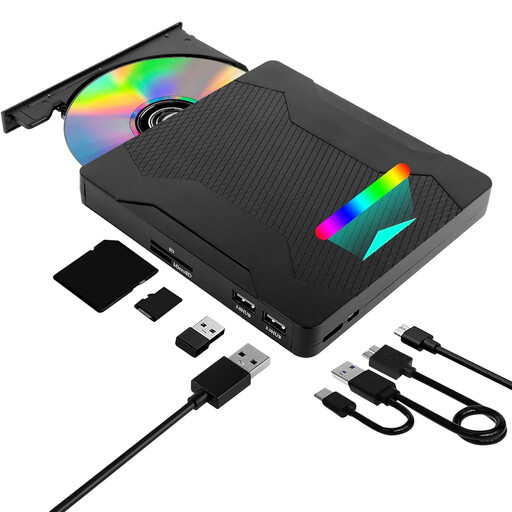
7-in-1 DVD drive with SD/TF card reader

7-in-1 DVD drive with SD/TF card reader

A possible option if you also need an external DVD drive for importing SD or TF cards.

The title lists USB 3.0 and Type-C; the SD and TF card readers are listed separately.

The description gives a data transfer rate of up to 5 Gbit/s, without specifically attributing this figure to the card reader.

View at Joybuy
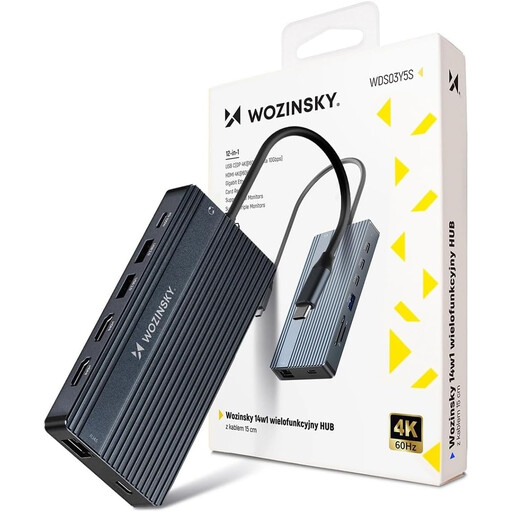
WOZINSKY USB-C hub with SD and TF card reader and 15 cm cable

WOZINSKY USB-C hub with SD/TF card reader, 15 cm cable

This hub is an option if you want to read SD or TF cards and use additional connections at a mobile workstation.

The description lists a 15 cm cable and a weight of approximately 180 g.

The stated USB data transfer rate of up to 10 Gbit/s isn’t specified as the card reader’s speed.

View at Joybuy
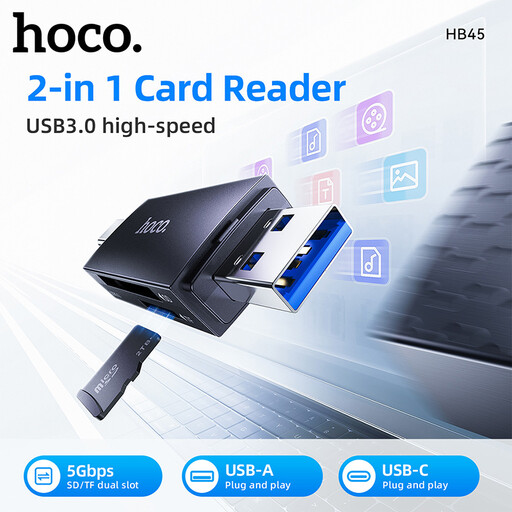
HOCO HB45 Spirit 2-in-1 card reader with USB-A and USB-C

HOCO HB45 Spirit 2-in-1 card reader, USB-A/USB-C

This reader is worth considering if you want to read microSD/TF cards on a device with USB-A or USB-C.

For microSD/TF cards; the product title lists USB-A and USB-C.

The description lists a metal casing.

View at Joybuy

Frequently asked questions

Is USB-C enough for a fast import?

No. USB-C alone doesn’t tell you the overall import speed. According to the USB Implementers Forum, USB 3.2 includes different nominal data rates. The card mode, reader, cable and host device also need to be compatible with one another.

How can I import photos to an iPhone when I’m out and about?

Apple explains how to import photos from an SD card into the Photos app using a compatible card reader or camera adapter. Check which connection and adapter suit your particular iPhone, and make sure the import has finished before deleting the originals.

What should I do before unplugging the card reader?

Wait until the transfer is complete and check the copied files. For removable media on Windows, Microsoft recommends safely ejecting the device before disconnecting it to help prevent data loss.

What rights do I have if a product I’ve bought is faulty?

For consumer purchases in the EU, the European Union’s consumer portal states that goods are covered by a legal guarantee of at least two years from the date you receive them. This is separate from a voluntary manufacturer’s warranty. If you’re buying as a business, these consumer rules don’t necessarily apply.

Do I need to consider data protection when importing clients’ photos?

If photos contain personal data and the GDPR applies to how you process it, your security measures need to reflect the level of risk and the type of data involved. Germany’s Federal Commissioner for Data Protection and Freedom of Information gives encryption as one possible example. This doesn’t create a blanket requirement to buy a particular card reader or one with a specific encryption feature.