For live lessons on a computer, a suitably mounted USB webcam may be all you need. The Logitech MX Brio specifically offers a downward-facing presentation mode for showing sketches. For recording independently, consider a mirrorless camera with a suitable lens or a camcorder. What matters is the framing at your own drawing table, a stable mount, clear audio and a test using your own lighting. A high quoted resolution alone won’t answer these questions.
Which camera is right for teaching drawing?
Teachers who need an overhead view
If you want learners to see the paper, pen tip and each step of your process at the same time, check the framing and how the camera will be mounted above your table. Logitech says the MX Brio has a Show Mode that lets you tilt the webcam down to show notes and sketches.
Teachers running live lessons on a computer
If you want to show your work surface during a computer-based lesson, consider the connection, camera position and teaching software together. Elgato specifies USB 3.0 or better as a requirement for the Facecam Pro.
Creators recording longer lessons
If you record lessons independently, plan for power and your recording workflow as well as framing and audio. Canon, Sony and Panasonic describe different camera types and conditions, which you should check for the specific model you’re considering.
What to consider when buying a camera for teaching drawing
USB webcam
A good fit if: you mainly teach or record live on a computer and have a suitable mount.
The trade-off: Your computer and a suitable USB port are part of the recording setup. A presentation mode doesn’t guarantee the right framing for every sheet of paper.
Mirrorless camera with interchangeable lens
A good fit if: you want to choose your lens and framing carefully, and plan your own recording setup.
The trade-off: You’ll need to factor in a suitable lens and mount as well as the camera body.
Camcorder
A good fit if: you want to record independently and prefer a built-in zoom lens.
The trade-off: Zoom won’t replace the right recording angle or a stable mount above your drawing table.
| What matters |
What to check before buying |
Who is it important to? |
| Showing the drawing area |
Film the paper size you plan to use from the intended camera height; check the mount and hand position. |
If I need to show the paper and pen tip at the same time, I check the framing and hand position first. Around 28% of consumers put a clear overhead view first. |
| Live lessons on a computer |
Check that the USB connection, mount and teaching software you use work with your preferred video mode. |
If I want to show the drawing area in a live computer session, I look for a suitable connection and setup. Around 22% of consumers prioritise live integration. |
| Longer recordings made independently |
Test your planned recording workflow with the power supply and available storage for the specific model. |
If I’m recording a longer lesson without using a computer throughout, I plan for power and the recording process. Around 17% of consumers prioritise longer, independent recordings. |
| Paper, lines and colours |
Using your own lighting, make a short recording of white paper, fine lines and the colours you use. |
If I want to show fine strokes and colours on paper, I check how they look under my studio lighting. Around 17% of consumers place particular importance on being able to control how the image looks. |
| Clear speech |
Record and listen back to your speech, as well as pen and paper sounds, at your drawing table. |
If I want my explanations to remain clear even when I’m some distance from the camera, I listen back to a test recording from where I’ll actually be speaking. Around 16% of consumers prioritise the audio in their lesson explanations. |
Common mistakes when filming drawing lessons
-
Assuming 4K means you’ll get the right framing
High video resolution won’t automatically show the whole sheet of paper. Distance, camera height and the position of your hand also affect whether learners can see each step.
Decide on your table and paper size first, then check the framing with a short recording from the camera position you plan to use.
Depending on your setup, you may need an extra mount or, with a mirrorless camera, a lens suited to the recording distance.
-
Planning to use a USB webcam as a standalone recording camera
USB webcams are designed to connect to a computer; mirrorless cameras and camcorders have a different recording workflow.
Before choosing a model, decide whether your lesson will be live on a computer or recorded independently, then check which connection you’ll need.
For a webcam setup, you’ll need a suitable computer with a compatible USB port available while you’re recording.
-
Assuming the camera’s audio will be good enough without testing it
A camera mounted above your table may be some distance from you as you speak. Information about built-in microphones alone won’t tell you how clear the audio will be in your room.
Record a test at your actual workstation, including your speech and drawing sounds, and listen back before deciding whether you need a separate audio solution.
If the test recording isn’t good enough, you’ll need to factor a suitable separate audio solution into your setup.
Camera brands to consider
Logitech
The MX Brio is a webcam for computer-based setups, with a mode designed to show notes and sketches on your desk.
- Logitech lists 4K at 30 frames per second or 1080p at 60 frames per second, along with options for adjusting image settings.
- Show Mode tilts the camera down. You’ll need to check separately whether the paper size, distance and mounting height suit your table.
Elgato
The Facecam Pro is a USB webcam for computer-based setups where manual image and focus settings are useful.
- Elgato lists 4K at up to 60 frames per second, with manual or automatic focus.
- Elgato specifies USB 3.0 or better as a connection requirement; this doesn’t confirm a dedicated mode for showing a drawing area.
Canon
The EOS R50 V is a video-focused mirrorless camera with an RF lens mount, allowing you to choose your lens and framing to suit your needs.
- Canon lists features including 4K 60p and compatibility with RF and RF-S lenses.
- You’ll also need to plan for a suitable lens and the specific overhead setup; Canon says EF-M lenses aren’t compatible.
Sony
The ZV-E10 II is a video-focused APS-C mirrorless camera with interchangeable E-mount lenses.
- Sony lists 4K 60p; a 16–50mm lens is specified for one kit version.
- The lens specification doesn’t tell you what framing you’ll get at your drawing table or how long you can record in your particular conditions.
Panasonic
The HC-VX3 is a camcorder with a built-in lens and 24x optical zoom.
- Panasonic lists 4K recording and describes USB-C power options under certain conditions.
- Check the angle of view at your drawing table, the mounting options and the power requirements with your own setup.
Joybuy camera picks for recorded drawing lessons
This selection includes cameras for recording video independently. Before buying, check whether you can mount your chosen camera in the specific setup you need for an overhead view of your drawing table.
 No image available
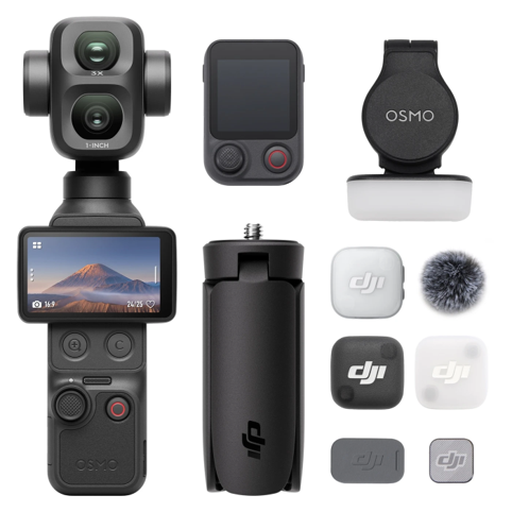
Osmo Pocket 4P Vlog Combo, Black
Could be worth considering for recorded lesson clips; check the framing and mount for an overhead view at your own table.
1-inch CMOS sensor; 20mm wide-angle lens with f/2.0; 4K video recording. According to the product information, 4K/240 fps is limited to slow-motion mode.
View at Joybuy
 No image available
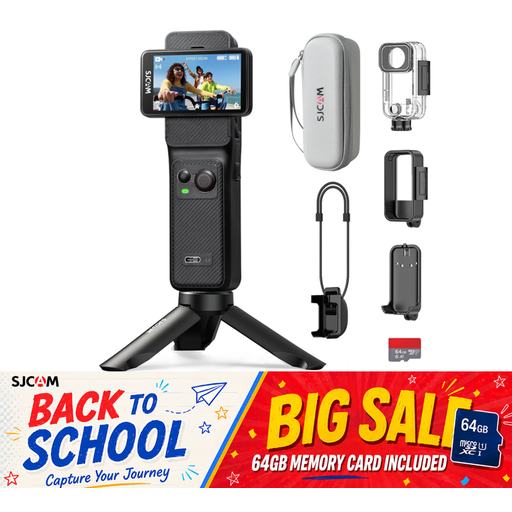
SJCAM C400 Action Camera 4K, with 64GB card
The stated video recording capability may suit recorded drawing lessons. Check whether the wide angle of view works for your preferred distance and table view.
4K recording at 30 fps; 154° wide-angle lens; 6-axis stabilisation. A 64GB card is included, according to the product name.
View at Joybuy
 No image available
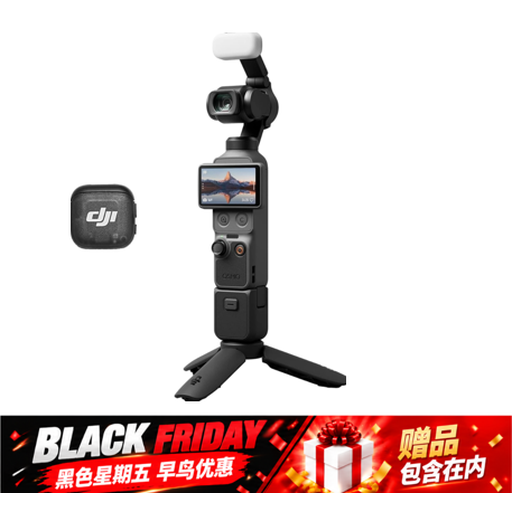
DJI Osmo Pocket 4 Creator Combo
Worth considering for independent video recording; test the framing and mounting options before planning your lesson setup.
1″ CMOS; 4K/240fps; 3-axis stabilisation; 2× lossless zoom; 107 GB built-in storage. The Combo includes a handle with a 1/4″ thread.
View at Joybuy
 No image available
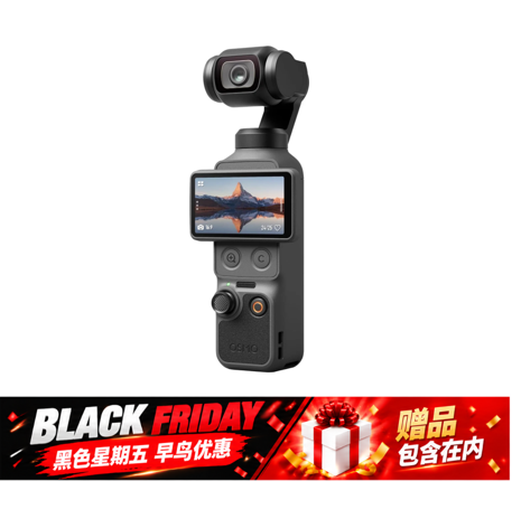
DJI Osmo Pocket 4 Standard Combo
Could suit independently recorded lesson clips; a rotating display alone doesn’t confirm that the camera can be mounted above your drawing table.
1″ CMOS; 4K/240fps; 3-axis stabilisation; 2× lossless zoom; 107 GB built-in storage; rotating 2″ display.
View at Joybuy
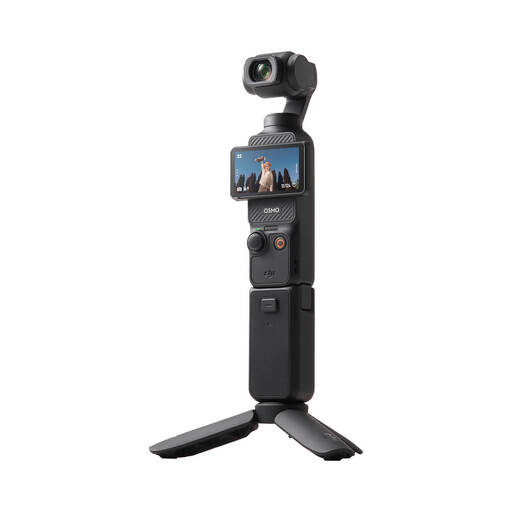 No image available
DJI Osmo Pocket 3 Creator Kit
One camera option for recorded drawing lessons; check the angle you need and where the camera will be mounted before you buy.
1-inch sensor; 4K/120fps; mechanical 3-axis stabilisation. The Creator Kit is described as including a microphone transmitter, battery handle and mini tripod.
View at Joybuy
Frequently asked questions about filming drawing lessons
Is a presentation mode enough for an overhead recording?
Not necessarily. Logitech says the MX Brio can tilt down to show sketches on your desk. Whether the whole sheet and pen tip remain in view also depends on the distance, mount and position of your hand. Check the framing with a test recording.
How can I reduce visible banding under studio lighting?
Start by testing the lighting you’ll actually use when filming. For regions with a 50 Hz mains frequency, Sony lists 1/50 or 1/100 second as possible shutter speeds for reducing flicker. This is a manufacturer recommendation, not a guarantee for every light source or camera.
What should I test before recording a longer drawing lesson?
Make a test recording of the entire process and check the framing, audio, power supply and storage media. Panasonic describes USB-C power for the HC-VX3 under certain conditions; you shouldn’t assume this applies to other models without checking.
Can I show other people in a drawing course I publish?
If other people can be recognised in the video, you need to consider their image and data protection rights. Under § 22 KunstUrhG, consent is generally required to distribute or publicly display images of people; the exceptions in § 23 cannot be applied to a drawing course across the board. You’ll also need an appropriate legal basis under the GDPR to process personal data. The rules that apply will depend on the specific video.


