Filming close-ups at the soldering bench
You film small components or solder joints and want to check the focus and framing while you demonstrate your work.


For soldering videos filmed at a home-studio workbench, first make sure the camera monitor matches your camera’s HDMI output and signal format. Then consider viewing distance, focus and exposure tools, and how you’ll mount it. A compact model may be all you need close to the camera and work surface, while a larger screen can be easier to read from further away. A monitor doesn’t replace your camera’s recording function or the appropriate safety precautions when soldering.
You film small components or solder joints and want to check the focus and framing while you demonstrate your work.
You’re working at the bench with both hands and need a display that you can mount somewhere easy to see.
You want to plan for exposure and power during longer recordings, and make sure your setup works with your camera’s output.
Start by checking your camera’s signal, then consider where you’ll position the screen and which image tools you need. Finally, check the mounting and power options. This helps you focus on the features you’ll actually use at the soldering bench.
| What matters | What to check before buying | Who it matters most to |
|---|---|---|
| Focusing on small solder joints | Check whether the specific model has focus tools such as peaking or image magnification, and whether you can see them clearly from your working position. | When I’m filming tiny solder joints, I want to be able to check the focus while recording. Around 25% of consumers put focusing on small details first. |
| Camera and HDMI compatibility | Compare your camera’s output resolution and frame rate with the monitor’s supported input signals. Also check the connector type and whether you need an HDMI output. | I want to be sure the monitor works with my camera and its chosen signal settings. Around 25% of consumers prioritise HDMI and signal compatibility. |
| Readability and positioning | Choose a screen size and weight that work with your viewing distance and mount. Position the monitor and cables away from the immediate soldering area. | When I need both hands for soldering, I want to see the image without blocking my work area. Around 20% of consumers prioritise readability and positioning. |
| Checking exposure | Choose a waveform, histogram or false colour only if you plan to use these tools. Make sure the screen brightness suits the ambient light. | When filming close-ups, I want to check the lighting with the right image tools. Around 15% of consumers put exposure monitoring first. |
| Power for long takes | Check the power options and what’s included with the version you’ve chosen. Don’t assume that a battery is included just because the monitor has a battery plate. | For longer demonstrations, I need a power source that suits the planned recording time. Around 15% of consumers prioritise power and accessories. |
A monitor may support a 4K input signal but still have a Full HD panel. The frame rates it accepts may also differ.
Check the input signal and the screen’s native resolution separately, and make sure the frame rate matches your camera settings.
Manufacturers list power connections, battery options and box contents separately. Depending on the version, you may need to buy a compatible battery, suitable power source or cables separately.
Check the box contents for the exact version you’ve chosen, and plan the power supply around the length of your recordings.
Depending on the version, you may need to budget for accessories separately, so check exactly what’s included for your setup.
The monitor’s stated brightness affects how easy the screen is to read. It won’t bring an out-of-focus solder joint into focus or fix poor lighting in your recording.
First, consider signal compatibility, viewing position and the analysis tools you need. Then assess the screen brightness in your actual working conditions.
Germany’s Verbraucherzentrale distinguishes statutory consumer rights from a voluntary guarantee; the party responsible and the terms are not the same.
Keep your proof of purchase and any written product promises, and check the guarantee terms as well as your rights when dealing with the seller.
The Shinobi II range is designed for compact HDMI monitoring with analysis tools. Camera control needs to be checked separately for each model and camera.
The PT5 II is a compact HDMI option if focus and exposure tools close to the camera are all you need.
The F700 may suit setups where a larger 7-inch display and multiple mounting positions could come in handy.
According to the manufacturer, the F5 PROX and LUT5 offer different combinations of screen brightness and features.
The Indie 5 combines HDMI and SDI with PageOS tools. These extra features aren’t necessarily needed if you only want to check a preview image.
This selection features a larger screen for your workbench. Before buying, check that it supports your camera’s HDMI signal and that you can position it to suit your soldering area.
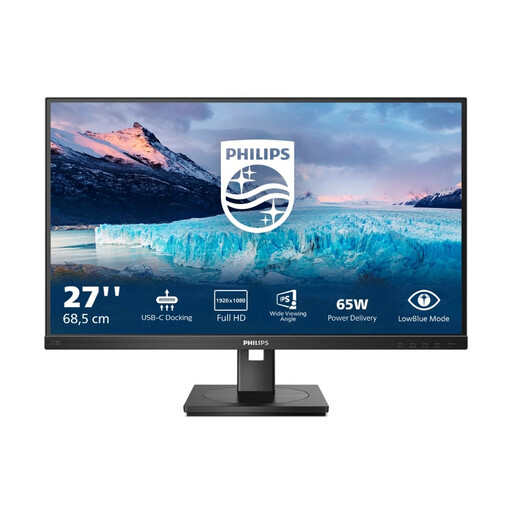 No image available
A larger screen may suit a permanent workbench setup if you want to view the camera image from a distance while soldering. Check the signal formats supported by your camera and monitor before relying on this setup.
Listed in the product name: 27 inches, Full HD (1920 × 1080), IPS, 75 Hz, USB-C with 65 W, RJ45, USB hub, HDMI and DisplayPort.
No. Compare your camera’s HDMI signal, including its resolution and frame rate, with the input signals supported by the specific monitor model, and check which connector type you need. Camera control is an additional compatibility requirement that you’ll need to check separately.
Position it so you can see the camera image from where you’re working, and choose a stable mount that suits the mounting thread and the monitor’s weight. Keep the monitor and its power and HDMI cables away from the immediate area around the hot soldering iron. A test run will help you check the viewing angle and signal before recording.
Check your power source before recording, and confirm whether a battery or mains adapter is included with the version you’ve chosen. Take suitable safety precautions at your soldering bench, regardless of the monitor you use. Germany’s statutory accident insurance, Deutsche Gesetzliche Unfallversicherung, covers exposure to soldering fumes in its guidance on manual lead-free soldering with an iron in industry; workplace-specific requirements shouldn’t be presented as a universal legal threshold for a private home studio.
No. The stated brightness describes how easy the monitor screen is to read, not the exposure of the recorded file. Waveform, histogram or false colour tools may help you assess the recording, provided the specific model offers them and you want to use them.