Artists filming detailed work
If you want to check the pencil tip and fine lines during a demonstration, look for peaking or magnification and a monitor you can see clearly from your workspace.


Choose a camera monitor that matches your camera’s signal and offers peaking or magnification so you can check the pencil tip and fine lines. Exposure tools can help with bright areas of paper, but check for banding or flicker from artificial light with a test recording and suitable camera settings, not by turning up the display brightness.
If you want to check the pencil tip and fine lines during a demonstration, look for peaking or magnification and a monitor you can see clearly from your workspace.
Exposure tools can help you check bright areas of paper. You should also test your camera and lighting to see whether artificial light causes banding or flicker in the recording.
For a monitor mounted on your camera or a bracket, the video signal, connection, cable routing and power supply all need to suit your specific setup.
First, check that your camera outputs a compatible signal and that you can position the monitor where it’s easy to see. Then choose the focus and exposure tools that suit your drawing setup. External recording is only necessary if you also want to record using the monitor.
| Consideration | What to check before buying | Who should pay particular attention |
|---|---|---|
| Paper exposure and artificial light | Waveform or False Color; test your lighting with a sample recording. | If you’re filming bright areas of paper, you’ll want to check exposure and spot banding in the recorded image. Around 31% of shoppers prioritise this. |
| Focus on fine lines | Peaking or magnification; make sure you can position the screen within reach of your drawing area. | If you want the pencil tip and fine strokes to remain clearly visible, suitable focus tools can help you check the preview. Around 25% of shoppers prioritise focus above all else. |
| Camera signal and connection | Check the camera’s HDMI output mode against the input format supported by the exact monitor model. | If you want to use the signal from your existing camera, it needs to work with the monitor without relying on a different format. Around 25% of shoppers consider connection compatibility their top priority. |
| Setup and power supply | Check the mounting options, viewing angle, cable routing and the power source required for the model. | If you need to fit the monitor and cables around your drawing table, you’ll need a practical position and a suitable power supply. Around 19% of shoppers prioritise this. |
A brighter display won’t prevent flicker or banding in your recording, nor does it prove that paper colours are being reproduced accurately.
Choose a brightness level that suits where you’ll actually use the monitor. Test your lighting with a recording and use exposure tools to check the preview.
A monitor may accept a 4K signal without offering a 4K display or external recording in that format. For the Blackmagic Video Assist 5” 3G, Blackmagic Design lists supported formats up to 1080p60.
Check the input format, display resolution and, where relevant, recording format separately for the exact model.
A monitor may be impractical for your drawing setup if the mount, cable routing or power source isn’t suitable. Atomos doesn’t list a built-in battery for the Shinobi II.
Check that the power supply, mounting options and items included are suitable for your camera and planned desk setup.
Depending on the equipment you already have, you may also need a suitable power supply, cables or a mount.
The Shinobi II range is designed for HDMI monitoring, with focus and exposure tools.
The F5 PROX and LUT5 models offer HDMI monitoring with focus and exposure tools.
The PT5 II is a compact HDMI monitor for basic image monitoring; the LH5P II adds camera control, depending on the model.
The Video Assist range is an option if you specifically want to record externally as well as monitor your image.
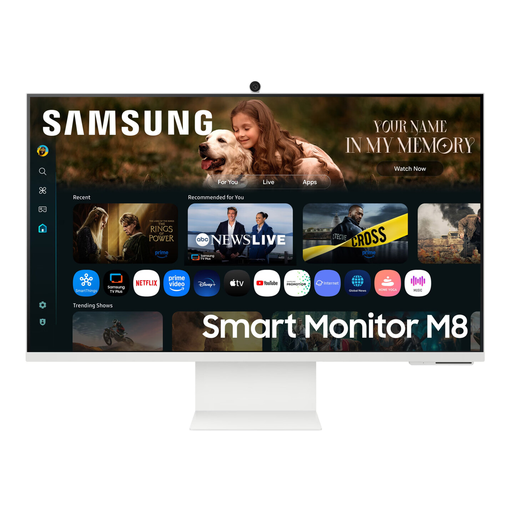
The product below is described as a monitor for previewing a smartphone’s rear camera. Before buying, check that it works with your recording device and the connection you want to use for your drawing demonstration.
 No image available
The product description says you can preview a smartphone’s rear camera on the monitor, including wirelessly. Check that the connection described is suitable for your specific device and recording setup.
Listed features: 32 inches, VA, 4K UHD, 60 Hz and webcam. The product description also states that wireless monitoring is available up to 50 m; check whether this applies to how you plan to use it.
No. A monitor displays the camera signal for you to check, but it won’t fix the cause in the lighting or recording. Sony and Panasonic describe shutter speed or flicker settings for their respective cameras; test the results with your camera, light and a sample recording.
Position it so you can see the preview without blocking your drawing surface or the camera’s view. Before recording, check the mount, cable routing and power source: Atomos doesn’t list a built-in battery for the Shinobi II; Portkeys lists battery plates for NP-F or LP-E6 for the PT5 II.
Only if you want to record externally as well as monitor the image. Blackmagic Design lists SD card recording and formats up to 1080p60 for the Video Assist 5” 3G; check that these match your camera output and preferred recording format.
For a consumer purchase from a retailer, EU law provides a legal guarantee of at least two years from the date you receive the goods. Any additional manufacturer’s warranty doesn’t replace these rights; the same EU rules don’t apply in the same way to purchases from private individuals.
The German Federal Network Agency lists points to check including the correct CE marking, manufacturer details, instructions and warnings, and the declaration of conformity. Check the information for the specific device and power supply; a logo alone doesn’t prove that a particular product listing has been checked.