Show your working on paper
If you write in your exercise book during a tutoring session, the most important thing is to get a well-positioned view of the page. IPEVO describes the V4K as a document camera for displaying written work on paper.


If your tutor mainly needs to see your handwritten working, a document camera is a good place to start. If you often switch between showing your face and your exercise book, consider a webcam with a specifically stated desk mode. What matters is whether the page on your desk can be captured clearly and whether your teaching software recognises the camera. In a shared room, you should also check the framing and microphone: according to the Data Protection Conference, video calls can capture living spaces and people nearby.
If you write in your exercise book during a tutoring session, the most important thing is to get a well-positioned view of the page. IPEVO describes the V4K as a document camera for displaying written work on paper.
If you share a room with others, pay attention to what the camera and microphone pick up. The Data Protection Conference of the independent data protection supervisory authorities of the federal and state governments points out that people nearby may be captured in video and audio recordings.
If you want to show yourself and your working in turn while explaining, a webcam with a stated desk or presentation mode may be suitable. Logitech lists Show Mode for the Brio 500.
Best if: Your handwritten working is the main thing you need to show.
Consider: You may need to switch video sources or use an additional camera to show your face.
Best if: You want to switch between a view of yourself and your desk using one camera.
Consider: A stated mode doesn’t prove that small figures in your working will be legible. OBSBOT describes the Tiny 2’s Desk Mode for use with a compatible remote control.
Best if: You want to point the camera at yourself or your exercise book.
Consider: Being able to rotate the camera doesn’t mean it has a specifically stated automatic desk mode; you’ll need to check the position and framing yourself.
| What matters | What to check before buying | Who it matters most to |
|---|---|---|
| Making your working easy to read | Check the camera position, whether you can adjust the framing, and how a sample problem appears in your teaching software. | If you want your tutor to be able to read the numbers and working on your page, the view of the paper is crucial. Around 36% of consumers are primarily concerned with making their working legible. |
| Keeping your living space out of shot | Check whether you can point the camera directly at the page; preview the image and check the microphone before your call. | If you share a room, you’ll want to show only the work area you need and avoid capturing anyone else. Around 29% of consumers primarily want to limit what is captured on video and audio. |
| Switching between your face and your exercise book | Check the mode on the exact model, as well as any software or remote control it may require, and try switching views in your teaching software. | If you want to show spoken explanations and written working with the same camera, it’s important to be able to switch views easily. Around 21% of consumers are primarily concerned with switching between a conversation and their work. |
| Connection and set-up | Check that the USB connection, software requirements and space for a mount or tripod all work with your set-up. | If you want a solution that’s straightforward to set up, the camera and teaching software should work with the computer you already have. Around 14% of consumers are primarily concerned with connections and set-up. |
The resolution alone doesn’t tell you how large your writing will appear during a lesson once the camera is positioned and the image has been transmitted.
Set up the camera as you would for a lesson and test a page of writing in your video platform before comparing resolution figures.
OBSBOT describes the Tiny 2’s Desk Mode as requiring a set-up with the compatible Tiny Smart Remote 2. A rotatable webcam also needs to be positioned securely to show your paper.
Check the exact model to see what you need for the controls you want, and how the camera can be mounted on your desk.
Video calls can capture living spaces, as well as images or audio of people nearby. A privacy cover won’t stop audio from being transmitted.
Check the preview and microphone before your call. Cover the lens when you’re not using the camera, if your model has a cover.
The V4K is designed as a USB document camera for showing exercise books and other paper documents.
The Brio 500 and MX Brio are worth considering if you want to switch between a conversation and a view of your desk. This doesn’t apply to all Logitech webcams.
The PW310P is a webcam you can position by hand, with a tripod thread.
The Tiny 2 is an option if you’re considering switching views using the camera’s controls.
This selection focuses on Joybuy webcams for video calls and the possibility of showing your desk. Whether a particular camera can be positioned to show your exercise book properly depends on the mount and viewing angle.
 No image available
If you want to switch between showing yourself and your page, check the stated DeskView feature and set up the framing before your lesson.
Described as a 4K webcam for PC and Mac; according to the product information, it isn’t compatible with ARM-based Windows systems.
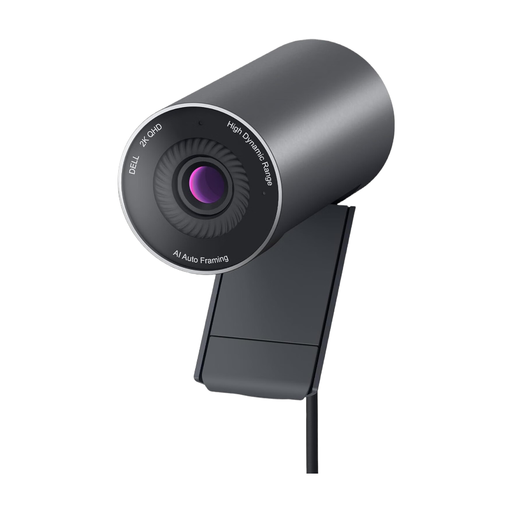 No image available
If you share a room, the stated magnetic privacy shutter may be useful for covering the lens when you’re not in a lesson. Check whether the clip mount gives you the view of your page you want.
Described as a 2K webcam with USB 2.0.
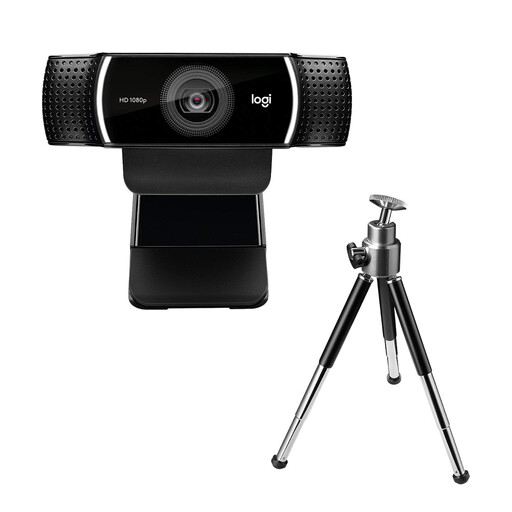 No image available
If you want flexibility to position the camera for a view of your paper, check whether the stated adjustable stand gives you the right angle at your desk.
The product name describes it as a USB webcam.
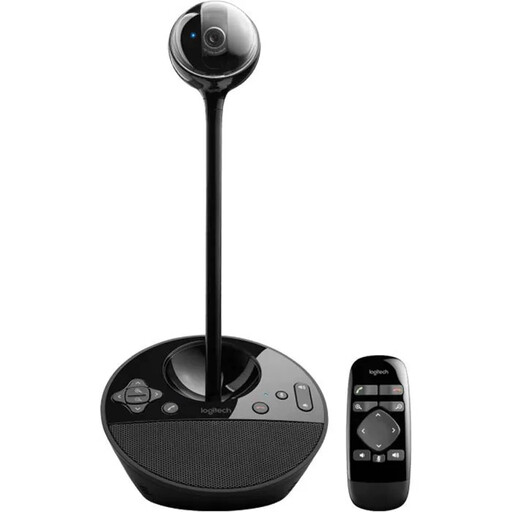 No image available
If you want to adjust the view during a call, check whether the stated remote control lets you zoom in on your page.
Described as a conference camera with USB and video resolution of up to 1920 × 1080; pan, tilt and zoom functions are listed.
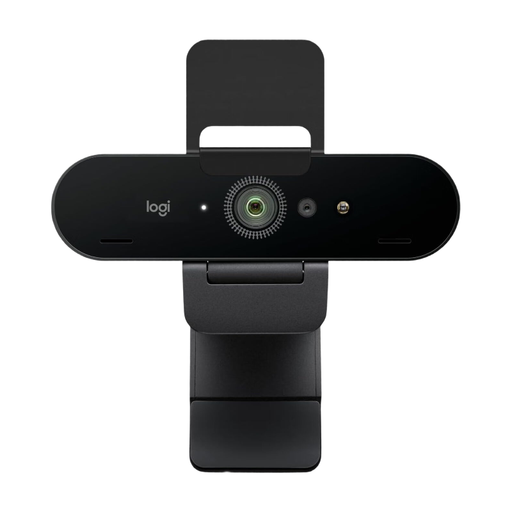 No image available
A removable camera cover is listed if you want to cover the lens when you’re not on a video call. Check that the viewing angle captures your page.
Described in the product name as a 4K webcam.
Select the right camera in your teaching software and show a page of writing from the position you plan to use. Check the preview for cropped lines or blurry small characters. IPEVO says you need to select the V4K as the camera in the software you’re using.
Point the camera at just the work area you need, if possible, and check the microphone before your call too. The Data Protection Conference of the independent data protection supervisory authorities of the federal and state governments notes that video calls may capture living spaces and images or audio of people nearby. A privacy cover only prevents video from being transmitted when the lens is covered.
Not on every platform. One German tutoring platform describes a webcam as optional and offers a whiteboard and formula editor. Whether that’s enough for your handwritten work depends on the platform you use and what you agree with your tutor.
Taking part in a live session doesn’t automatically give you permission to record or share it. The Data Protection Conference includes people nearby and visible documents among the personal data that may be captured during a video call. Before recording, check who is involved and what rules apply on your platform or at your school.
If you buy from a trader in the EU, the seller is generally responsible for the statutory guarantee that the goods are free from faults. The EU’s Your Europe portal says this lasts for at least two years from the date you receive the goods, and distinguishes it from any additional manufacturer’s guarantee. The remedy available depends on the fault.