For regular overhead recording at your computer, an adjustable USB document camera is a sensible starting point, provided it captures the paper and your hands from your position at the table. A webcam with a desk-view mode may suit you better if you switch between drawing and speaking to camera. A compact or mirrorless camera is worth considering if you want to film more independently or choose your lens and framing more precisely. Whichever option you choose, check the framing, focus and colours under your own lighting.
Which camera is right for you?
Artists who want a fixed overhead view
If you want to film your paper and hands from the same position at your computer every time, an adjustable document camera may be a good fit. The key is whether its arm can capture the whole area you want to show from your table.
Artists who switch between views
If you explain your process and want to show your work surface from time to time, a webcam with a desk-view mode could suit you. Logitech describes a downward-tilting Show Mode for the MX Brio, while Insta360 lists a Desk View mode for the Link 2.
Artists without a permanent computer setup
If you want to film without relying on a USB camera that stays connected, consider a compact or mirrorless camera. Sony says the ZV-1 II has a built-in 18–50 mm zoom lens in 35 mm equivalent; Canon lists an RF mount for the EOS R50, with native support for RF and RF-S lenses.
What should you look for when buying?
Choosing a camera for filming pastel drawings on a small table comes down to what matters most to you: framing, colour, movement, your recording workflow or the extra space your setup will need.
USB document camera
A good fit if: you regularly want to record the same view of your paper at your computer.
Consider: You’ll need a compatible computer, and the adjustable arm must be able to capture the framing you want on your table.
Webcam with desk-view mode
A good fit if: you often switch between showing your drawing and talking to camera while recording.
Consider: An angled view from your monitor doesn’t automatically give you a straight-down view of the whole sheet.
Compact or mirrorless camera
A good fit if: you want to film more independently or choose a lens to suit your setup.
Consider: The mount, angle of view and power supply need to suit your particular setup. With a mirrorless camera, you’ll also need to choose a lens.
| What matters |
What to check before buying |
Who this matters most to |
| Keeping the paper and your hands in shot |
Frame the sheet and your hand movements from where you plan to position the camera; allow for the base or clamp, too. |
If I want to see the whole sheet and my hands despite the small table, I’ll check the angle of view at the planned mounting point. Around 31% of consumers say getting the full area in frame is their main concern. |
| Pastel colours under your own lighting |
Record a test shot of your paper and colours; assess the white balance and exposure under consistent lighting. |
If I want the pastel shades to look true to life in my video, I’ll test them with my own paper and lighting. Around 25% of consumers prioritise colour reproduction. |
| Sharpness and movement |
Check the focus distance, resolution and frame rate in the same video mode; record the drawing movements you actually make. |
If I want the pencil tip and hand movements to remain clear, I’d rather assess a short clip than a still image. Around 19% of consumers prioritise sharpness and how movement is captured. |
| Recording workflow |
Decide in advance whether you’ll record through a computer or independently; for USB devices, check computer and software compatibility. |
If I want to record at my computer or without a permanent USB connection, I’ll choose the workflow that suits my space. Around 19% of consumers focus primarily on their recording workflow. |
| Extra equipment and space |
Check what’s included, how the camera is mounted and how much space the complete setup will need; factor in a lens for mirrorless cameras. |
If I want to keep extra equipment to a minimum on my small table, I’ll check the mount and fixings as well. Around 6% of consumers say keeping additional setup to a minimum is their main concern. |
Avoid common pitfalls
-
Assuming 4K means clear strokes and smooth movement
Resolution, frame rate, focus and how much of the sheet is in shot all affect different aspects of your recording. High resolution alone won’t tell you whether your hands and the edges of the paper will stay in frame.
Compare resolution and frames per second in the same mode, and try recording the drawing movements you actually make.
-
Assuming a webcam’s desk mode gives you a straight-down view
Show Mode and Desk View show the table from the camera’s position. Where your monitor is placed and how the camera is angled will determine how the paper and your hands appear.
Check the view from where you plan to sit at your monitor, including the edges of the sheet and your hands.
-
Comparing just the camera body, not the complete setup
Overhead filming may require a suitable mount and, with a mirrorless camera, an appropriate lens. A mount could take up extra space on a small table.
Check what’s included, the mounting options and the lens you’ll need for the specific model and your table.
You may need a suitable mount or an additional lens; also allow for the space needed to position or clamp it.
Camera brands worth knowing
IPEVO
Document cameras that give you an adjustable view of your paper and work surface at your computer.
- IPEVO lists autofocus from 10 cm and 30 fps at 3264 × 2448 pixels for the V4K PRO.
- These manufacturer specifications don’t confirm how your pastel colours will look; your computer and framing also need to suit your setup.
Logitech
Webcams for recording at your computer, with the option to switch to a desk view occasionally.
- Logitech describes the MX Brio as having a downward-tilting Show Mode, along with exposure and white balance controls.
- This mode doesn’t guarantee that the whole sheet will be visible from your monitor position in a straight-down, unobstructed view.
Insta360
Webcams with features for switching between camera views.
- Insta360 lists a Desk View mode for the Link 2.
- Check the exact model and the view from your own monitor position; specifications for the Link 2 Pro or Link 2C Pro don’t automatically apply to the Link 2.
Sony
Compact cameras for video recording with a more independent setup.
- Sony lists a built-in 18–50 mm zoom lens in 35 mm equivalent for the ZV-1 II.
- Check whether the angle of view from your planned camera position covers the paper and your hands; the lens can’t be changed.
Canon
Mirrorless cameras for buyers who want to choose the camera, lens and mount as one complete setup.
- Canon lists an APS-C sensor and an RF mount with native support for RF and RF-S lenses for the EOS R50.
- The camera body alone won’t determine the framing above your table or how close you can focus; the lens needs to suit your setup.
Joybuy products for filming at your drawing table
The Joybuy products below include USB webcams for recording through a computer and a portable digital camera. For each model, check that the framing and mounting options will capture your paper and hands on your small table.
 No image available
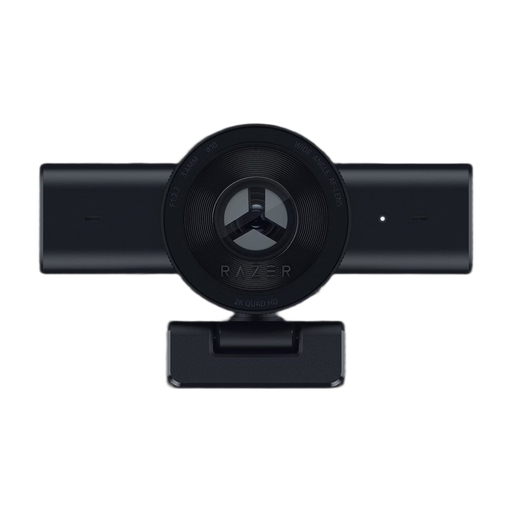
Razer Kiyo V2 X
It’s worth considering for recording at your computer if you want to adjust the framing; check that your paper and hands will stay in shot.
The product specifications list 1080p at 60 fps, an 80° field of view and autofocus. OBS compatibility and software adjustment of the wide-angle view are also listed.
View at Joybuy
 No image available
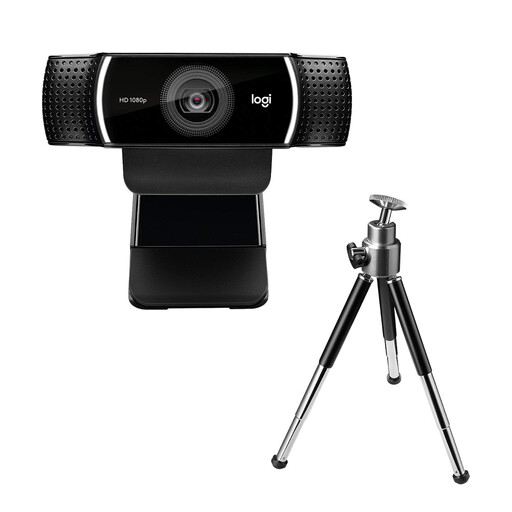
Logitech C922 Pro Stream Webcam
It could suit you if you record at your computer and want to use an adjustable desk stand; check whether it gives you enough height for an overhead view.
The specifications list autofocus and a 78° field of view. Video modes are 1080p at 30 fps or 720p at 60 fps. The desk stand extends up to 18.5 cm; UVC operation and support for several operating systems are also listed.
View at Joybuy
 No image available
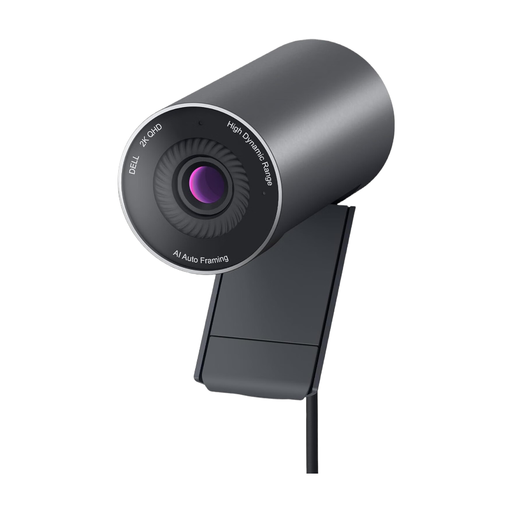
DELL Pro WB5023
It’s an option as a USB webcam for recording at your computer; check that the clip mount will work at your planned camera position.
The product specifications list 2560 × 1440 pixels, up to 60 fps, autofocus and a 78° horizontal field of view. USB 2.0, AI Auto Framing and a clip mount for a monitor or laptop are also listed.
View at Joybuy
 No image available
Philips 4K UHD Webcam 4000 Series SPL6408BT/00, EU version
It’s an option for recording at a desktop computer; check that mounting it on your monitor or laptop gives you the view of the paper you need.
The product title lists 4K, 8 MP and autofocus. A privacy cover, two microphones and compatibility with Zoom and Teams are also listed.
View at Joybuy
 No image available
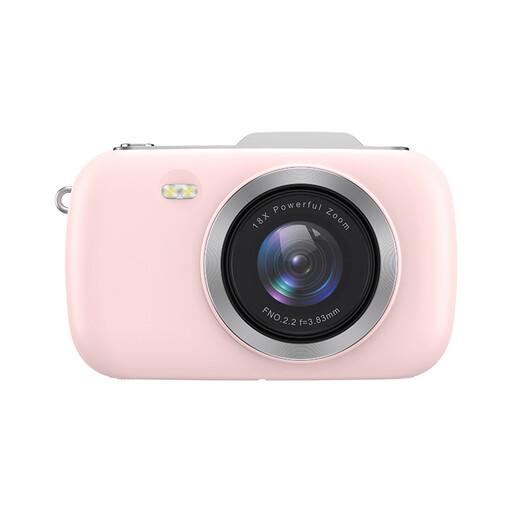
KOMERY G7-A 4K digital camera, pink
It’s worth considering if you’re looking for a portable point-and-shoot camera for video; check the mount and framing for overhead recording.
The product specifications list 4K, 80 MP, an 18x digital zoom and a built-in LED light.
View at Joybuy
Frequently asked questions
How do I start recording with a USB document camera on my computer?
In OBS, add a video capture source and select the detected device; OBS Project describes this process for capture sources. Then check the available resolutions and frame rates, and make sure the framing includes your paper and hands. Compatibility depends on the camera and computer.
How can I stop light pastel shades looking different in my video?
Make a test recording of your paper and colours under the lighting you plan to use. Adjusting the white balance can reduce colour casts from the light source; Canon Academy explains that manual white balance can help reproduce colours more accurately in different lighting conditions. A camera’s specifications alone can’t guarantee true-to-life colour.
What else should I plan for alongside the camera?
Check whether you’ll need a suitable mount, a compatible computer or other recording equipment. With a mirrorless camera, choosing the right lens is also part of the setup.
Can I return a setup bought online in Germany if it doesn’t fit my table?
For an eligible online distance purchase in Germany, you generally have a 14-day right to cancel; statutory exceptions and the terms of the specific purchase should be taken into account. Your Europe also explains that faulty goods are covered by a statutory guarantee of at least two years from receipt.


