If your camera already works as a webcam via USB with your computer and calling software, try that option first. A capture card is mainly useful for a camera with a suitable HDMI output. The HDMI signal, cable and USB connection all need to be compatible. Also decide whether you want the camera to appear as your call camera or as a presentation source: a higher capture resolution alone doesn’t guarantee the same output on a call.
Who might need a capture card?
Students with an existing HDMI camera
If you want to use your camera for seminars or calls on your laptop, first check its output, cable, USB connection and whether it can run continuously. Elgato lists a clean, supported HDMI signal and suitable system requirements as key compatibility considerations for the Cam Link 4K.
Students who want to show objects
If you want to show notes or objects instead of your face, check whether your calling app lets you use the external camera as a presentation source. Google Meet documents this option for accounts where the feature is available and enabled.
Students with a small desk setup
If you want to keep extra equipment to a minimum, first see whether your camera already works as a webcam via USB. Canon describes this option for compatible cameras using EOS Webcam Utility; support depends on the specific model and software.
What should you look for when buying?
| What you need |
What to check before buying |
Who will find this particularly important? |
| Connecting your camera to your computer |
Check that your camera’s signal format and connections meet the capture device’s requirements. The Elgato Cam Link 4K requires a clean, supported HDMI signal and USB 3.x. |
If I want to connect my existing camera, I mainly need to know whether its HDMI signal is compatible with my computer’s connection. Around 36% of consumers would prioritise connection compatibility. |
| Sharing your camera feed in the right way |
Check whether you can select the source as your call camera in your chosen calling app, or whether a separate camera presentation option is available. |
If I want to show notes or objects, I need a setup where the calling app offers the camera as a presentation source. Around 29% of consumers would prioritise sharing their camera feed during a call. |
| Audio and longer calls |
Consider camera battery life and power supply; test the microphone and camera separately in the calling app. Only factor in audio features on the capture device if you need them. |
For longer calls, I want to avoid the camera switching off and make sure I can use my preferred microphone. Around 21% of consumers would prioritise audio and continuous operation. |
| Avoiding unnecessary extras |
First test your camera model’s USB webcam function; for HDMI, plan for the cable type and power supply you actually need. |
If USB already lets me use my camera as a webcam, I want to try that first instead of buying unnecessary adapters and cables. Around 14% of consumers would prioritise avoiding unnecessary extras. |
Avoid common mistakes
-
“4K” doesn’t automatically mean everyone on the call sees a 4K image
The capture specification doesn’t automatically determine the calling app’s output. Google Meet lists up to 1080p and 30 fps for one presentation method; the output you can actually use depends on your setup.
First decide whether you want to use the camera as your call camera or as a presentation source. Then compare the formats supported by your camera, capture device and calling app, rather than assuming the capture specification guarantees call quality.
-
Assuming the HDMI cable will fit and the camera will run continuously
Cameras can have different HDMI connectors, display overlays in the image or switch off after a certain amount of time. A capture card won’t stop the camera from switching off.
Before buying, check the camera output, whether it can provide a clean image without overlays, the right cable type, power-saving settings and power supply.
-
Assuming a call camera and a camera presentation are the same thing
Selecting a camera as your call camera in the calling app is a different process from sharing it as presentation content. The second option may depend on the app settings and account features.
Before choosing a capture device, test which of the two options you need using the account you’ll actually use for calls.
Key brands to consider
Elgato
The Cam Link 4K connects a suitable camera to a computer via HDMI.
- Elgato says a supported, unencrypted HDMI signal can appear as a webcam in compatible applications.
- Check camera compatibility, USB 3.x requirements and hardware revision; don’t assume the resolution specifications apply to every revision.
AVerMedia
The CamStream 4K BU113G2 is designed for camera capture on PC or Mac and for video calls, according to the manufacturer.
- AVerMedia lists capture up to 4K60 for this model.
- The capture specification doesn’t guarantee image quality or 4K output in every calling app. BU113G2 and BU113 are different model names.
j5create
The European product page lists the JVA02-N variant as an HDMI-to-USB-C capture device with additional audio connections.
- According to the manufacturer, the JVA02 family supports 1080p60 capture over USB 3.0, UVC and multiple audio sources.
- Check the model variant on offer, the host connection and whether you actually need the audio features.
INOGENI
The 4K2USB3 is an HDMI-to-USB capture solution aimed at conference technology, according to the manufacturer.
- INOGENI says it is recognised as a USB camera and supports video conferencing systems.
- In Zoom Rooms, the device may be recognised as an HDMI sharing source rather than a camera by default; check how it works with your conferencing system.
Joybuy products for cameras and video calls
The following products are HDMI-to-USB capture cards for connecting a camera to a computer. They may be suitable if your camera outputs a compatible HDMI signal; check the connections and the call setup you want before buying.
 No image available
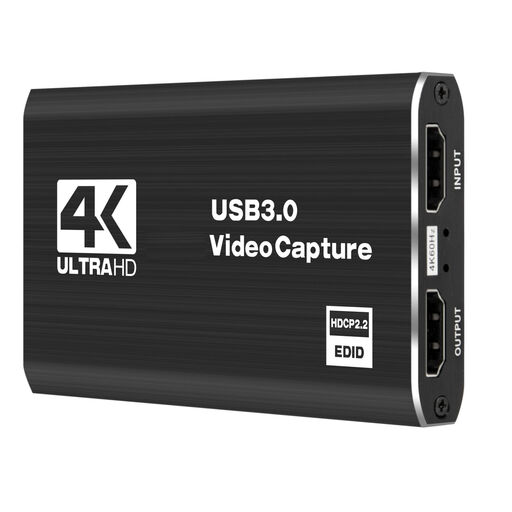
4K USB 3.0 video capture card, 5 ports
Designed for using a camera as an HDMI source and connecting it to a computer via USB 3.0.
The product title mentions 4K and five ports; check which connections this refers to before buying.
View at Joybuy
 No image available
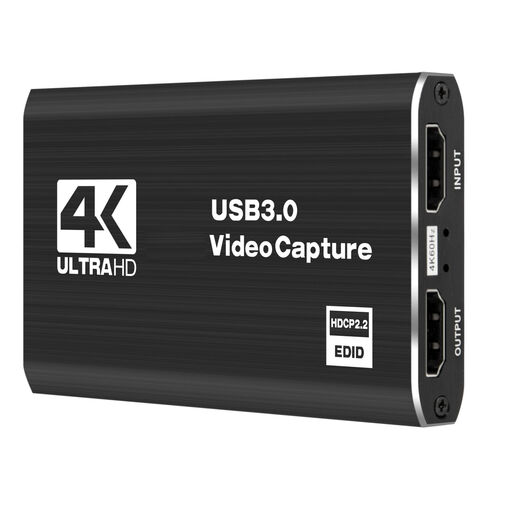
4K video capture card, 5 ports
An option if you want to connect a camera as a video source using a capture device.
The product title mentions 4K and five ports; check the specific connection types and make sure they’re compatible with your camera and computer.
View at Joybuy
 No image available
4K HDMI capture card, USB 3.0
Designed for an HDMI camera and a computer with a compatible USB 3.0 connection.
The product title lists an HDMI input up to 4K 30Hz and recording at 1080P 60Hz. These specifications refer to different formats.
View at Joybuy
 No image available
4K USB 3.0 video capture card, audio capture
Designed for using a camera or recorder as a video source and connecting it to a computer via USB 3.0.
The product title mentions audio capture and five ports; check which connections are included and whether you need the audio feature before buying.
View at Joybuy
 No image available
VIELLAN 4K HDMI capture card, USB 3.0
Designed for a camera with an HDMI output and connection to a computer via USB 3.0.
The product title lists 1080p recording and 4K passthrough, as well as compatibility with Windows, macOS and Linux.
View at Joybuy
Frequently asked questions
How can I tell whether my camera needs a capture card?
First, test whether your specific camera model works as a webcam via USB. For an HDMI setup, check that the camera outputs a clean image without overlays, and make sure the cable type and continuous operation are suitable.
How do I set up the camera feed for a call?
Connect the camera, capture device and computer, then select the detected camera in your calling app; test the image and microphone before your call. To use an OBS scene, add the capture device as a video source, then select the OBS virtual camera in your calling app. The OBS Project guide explains these features.
Can I show the external camera as a presentation instead of showing my face?
That depends on your calling app and, in some cases, your account features. Google Meet Help describes camera presentation as a separate process that requires the feature to be available and enabled. This is different from selecting the camera as your call camera.
What should I bear in mind for longer calls and audio?
Check whether your camera can stay on for the full length of the call and has an adequate power supply. Select your preferred microphone in the calling app; a capture device with audio features is only worthwhile if you actually need those inputs.


