For a single camera, an HDMI-to-USB capture device is the obvious way to connect it to a video-conferencing app, provided the camera outputs a suitable, clean HDMI live feed and can be powered throughout the call. If you want to switch between several HDMI sources, a video mixer such as the Blackmagic Design ATEM Mini is better suited to the job, but involves a more involved setup. A high capture resolution does not guarantee that the video-conferencing app will stream at the same resolution.
Who is a camera on a call right for?
People who already own an HDMI camera
If you want to use a DSLR, mirrorless or video camera on calls, check its HDMI live feed, battery life and power options. Elgato and AVerMedia explain how to connect a camera via a capture device, but whether it will work also depends on your specific camera.
Regular video-call users
If you want to select your camera in the video-conferencing app without a complicated switching setup, check that it is recognised as a video source and meets the app’s requirements. Elgato describes the Cam Link 4K as a UVC device; still, check the exact hardware revision and your own combination of computer and software.
Presenters using several video sources
If you want to switch between cameras or other HDMI sources during a call, you’ll need a solution with switching capabilities. Blackmagic Design describes ATEM Mini models with several HDMI sources and USB webcam output.
What should you look for when buying?
One HDMI camera via a capture device
Best for: When your camera outputs a suitable HDMI live feed and you want to use it as a single video source in your video-conferencing app.
Trade-off: You’ll need an HDMI cable and, if necessary, a power supply for the camera. This setup won’t automatically let you switch between several sources.
HDMI video mixer with USB output
Best for: When you want to switch between several cameras or other HDMI sources during the same call.
Trade-off: An ATEM Mini needs its own power supply and a more involved setup. If you only need one fixed camera angle, you may not use its switching features.
Webcam instead of a capture device
Best for: When you don’t own a suitable HDMI camera and mainly want a straightforward camera for regular calls.
Trade-off: A webcam won’t use your existing HDMI camera, so compare the total cost of each setup before deciding.
| What you need |
What to check |
Who should pay particular attention |
| Camera HDMI live feed |
Check that the feed is free of overlays, the signal format is compatible and the camera can be powered for the duration of the call. |
If I want to use my existing camera, its HDMI live feed needs to be clean and its power supply must last for the call. Around 36% of consumers would put camera compatibility first. |
| Connection to your computer and app |
Check the USB connection and system requirements for the exact device revision against your computer, and make sure the video source appears in your video-conferencing app. |
If I want to select my camera quickly during the working day, it needs to be recognised by my computer and video-conferencing app. Around 29% of consumers would prioritise easy setup. |
| Resolution during meetings |
Distinguish between the supported HDMI and capture resolutions and the settings and requirements of your video-conferencing platform. |
If I’m considering a higher capture resolution, I want to know what will actually come through on the call. Around 21% of consumers would first weigh up image quality against software limitations. |
| Switching between sources |
Check how many HDMI sources you want to connect at the same time and whether your chosen mixer offers USB output as a webcam. |
If I need to switch between several HDMI feeds during a presentation, a single input won’t be enough. Around 14% of consumers would prioritise switching between multiple sources. |
Common buying pitfalls
-
Assuming that ‘has HDMI’ means it provides a suitable camera live feed
On-screen menus may remain visible during the call, and a camera with limited battery life may run out before a longer conversation ends.
Test the clean HDMI live feed and power options on your specific camera before choosing a capture device.
-
Confusing a 4K input, 4K capture and a 4K meeting
Different hardware revisions may support different formats, and the video-conferencing platform may limit the resolution being streamed.
Check the signal and capture specifications separately. If you’re considering a Cam Link 4K, check the exact revision and your video-conferencing app’s requirements.
-
Choosing a capture device with one HDMI input for several sources
A single HDMI input won’t switch between several video sources connected at the same time.
Before buying, decide whether you only want to stream one camera or switch between several HDMI sources during a call.
Key brands to consider
Elgato
Elgato describes the Cam Link 4K as an HDMI-to-USB solution that lets you use a camera as a video source in video-conferencing software that supports webcams.
- The manufacturer lists UVC support and documents use with Zoom and Microsoft Teams, among other apps.
- Supported resolutions and system requirements vary by hardware revision. Check the specific version, as well as your camera and computer.
AVerMedia
AVerMedia describes the Live Streamer CAP 4K BU113 as suitable for connecting a camera or camcorder; the BU113G2 is a different model.
- The manufacturer lists cameras and camcorders as sources for the BU113.
- The specific video-conferencing use case mentioned by the manufacturer applies to the BU113G2. Advertised capture and latency specifications are manufacturer claims, not independent measurements of call image quality.
Magewell
Magewell lists the USB Capture HDMI Gen 2 as an HDMI-to-USB device for a single video source.
- The manufacturer lists one HDMI input, USB 3.0 with USB 2.0 compatibility and embedded HDMI audio.
- The operating systems listed do not automatically guarantee compatibility with every video-conferencing app or camera combination.
Blackmagic Design
ATEM Mini video mixers are designed for setups where several HDMI sources need to feed into a call as a switchable webcam output.
- Depending on the model, Blackmagic Design documents four or eight HDMI sources and USB output as a webcam.
- A mixer needs its own power supply. Its extra switching features may be unnecessary if you only need one fixed camera angle.
Joybuy products
The Joybuy products below are for connecting an HDMI camera to a computer as a video source.
 No image available
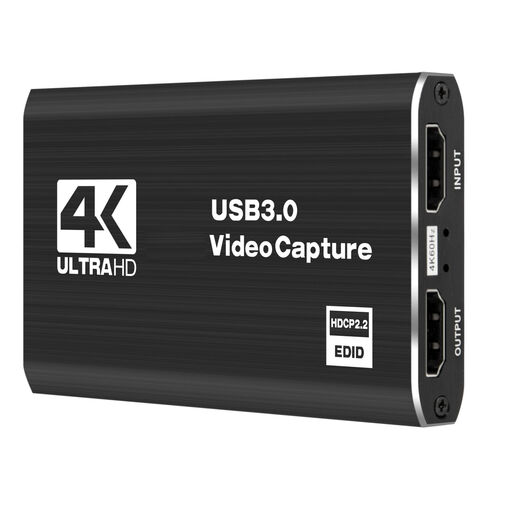
4K capture card with 5 ports for a camera and recorder
If you want to use a camera or video recorder as your source, the product title lists both as suitable devices.
The title specifies 4K, five ports and a black finish.
View on Joybuy
 No image available
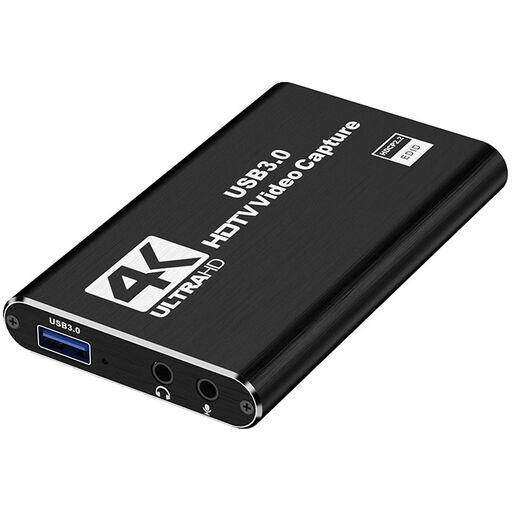
4K HDMI capture card with USB 3.0
If you want to connect a camera to a computer, the product title lists cameras as a source.
HDMI input up to 4K at 30 Hz; capture at 1080p at 60 Hz; HDMI passthrough and USB 3.0.
View on Joybuy
 No image available
USB 3.0 capture card with 5 ports for a camera and recorder
If you want to use a camera or recorder as your source, both are listed in the product title.
The title specifies USB 3.0, five ports, audio capture and a black finish.
View on Joybuy
 No image available
VIELLAN 4K HDMI capture card with USB 3.0
If you want to connect an HDMI camera to a computer, the product title lists cameras as a source.
Capture at 1080p; 4K HDMI passthrough; USB 3.0. Compatible operating systems listed are Windows, macOS and Linux.
View on Joybuy
 No image available
VIELLAN HDMI capture card with USB 3.0
If you want to connect an HDMI camera as a video source via USB, the title specifies HDMI capture and UVC and UAC support.
Video capture up to 1080p; 4K HDMI passthrough; microphone input and headphone output.
View on Joybuy
Frequently asked questions
How will my HDMI camera appear in a video call?
Connect a camera with a suitable HDMI live feed to your computer via the capture device, then select it as the video source in your video-conferencing app. Elgato documents this process for the Cam Link 4K; also check the preview in the app you use.
What should I check before a longer call?
Test that the live feed is free of camera menus and that the camera can be powered throughout the call. Also check the requirements for the exact version of the capture device against your computer.
Why can’t other people see a 4K image even though I’m using 4K capture?
The capture specification does not automatically determine the resolution of the meeting stream. Zoom states that group meetings are limited to 720p when HD is enabled; according to Zoom, Full HD at 1080p is limited to Business and Enterprise plans. Check the requirements of the video-conferencing app you actually use.
Can I record a work call using a capture card?
Owning a capture card does not mean you have permission to record. In its 2020 guidance, the German Data Protection Conference covers data protection requirements for video conferences; its checklist also calls for a separate check of the legal basis for recording. Whether a particular recording is permitted depends on the circumstances.


