What should you consider when choosing a camera?
First decide whether your priority is a fixed close-up view, a complete lesson with spoken instructions or live teaching on a computer. Then check the framing and focus, how the camera performs under artificial light, and the audio and power options.
| Buying consideration |
What to look for |
Who will find this particularly important? |
| Small details and clear workspace |
Decide on the camera height and how much of the work surface you want to show; check the framing and focus range with the specific lens or fixed-lens camera. |
If I want to show the tip of a tool and small shapes without losing space for my hands, a detailed view is particularly important. Around 31% of consumers put it first. |
| Artificial light and colours |
Test the camera under the lights you actually use and check for flicker and white balance in a test recording. Sony Deutschland Support lists 1/50 or 1/100 second as possible shutter speeds to reduce flicker in regions with a 50 Hz power supply. |
If I want to show sound and modelling materials consistently under my lights, avoiding flicker and getting repeatable colours are essential. Around 25% of consumers prioritise control over artificial lighting. |
| Long lessons and clear audio |
Check the recording conditions, power supply and storage capacity for the planned duration; if you’ll be explaining as you go, include an audio test. |
If I want to record a complete process with an explanation, I need to plan for audio, storage and power. Around 19% of consumers place the greatest importance on long, clear recordings. |
| Live teaching on a computer |
Test the mount, framing, computer connection and teaching software you use with a test recording or stream. |
If I want to show my workbench during an online class, the camera view needs to work with my computer setup. Around 13% of consumers prioritise live teaching. |
| Moving viewpoints |
Consider whether you really need to film around the workpiece; if so, check the viewing angle, working distance and secure mounting. |
If I need moving viewpoints as well as a fixed view of the workbench, being able to reposition the camera matters. Around 12% of consumers put mobile views first. |
Joybuy products for teaching on a computer
The following USB and conference cameras are designed for teaching on a computer. Before buying, check whether you can position each camera above your workbench to get the view you need.
 No image available
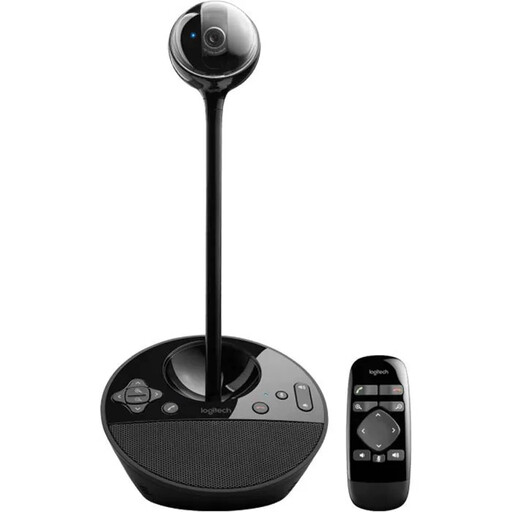
Logitech ConferenceCam, 10.4x15x15.4cm, Conference Room/Office
For live teaching on a computer when you need to adjust the camera angle.
USB connection; pan, tilt and zoom functions; autofocus; stated resolution: 1920 × 1080 pixels. The microphone and speaker are designed for video conferencing; the stated microphone range is 2,40 m.
Shop at Joybuy
 No image available
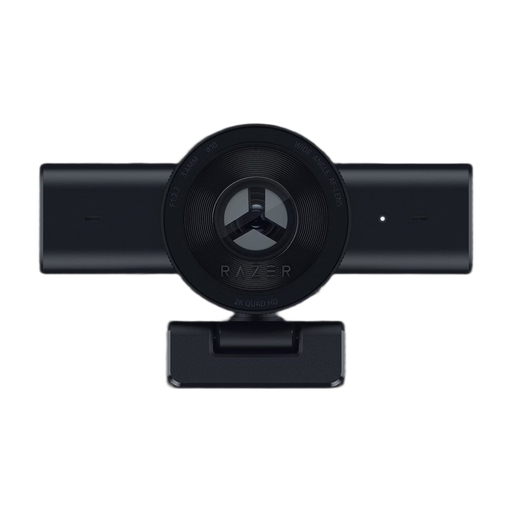
Razer Kiyo V2 X Full HD Webcam 1080p, 60 FPS, Black
For live teaching on a computer when you need your webcam to work with your streaming software.
Autofocus, an 80-degree field of view and 1080p at 60 frames per second; described as compatible with OBS and XSplit.
Shop at Joybuy
 No image available
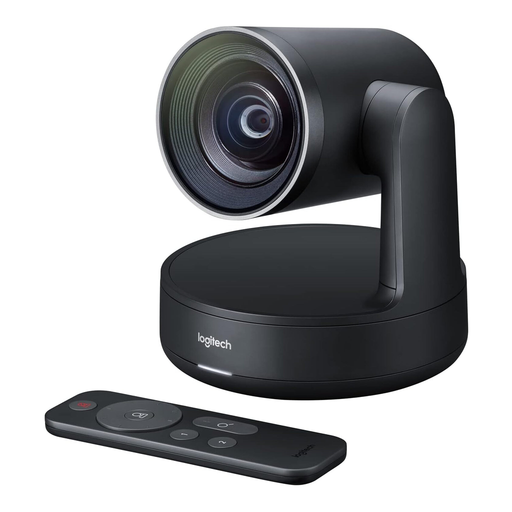
Logitech Conference Camera Rally 960-001227
For teaching and recording on a computer when a USB conference camera suits your setup.
The product description lists 4K resolution, a CMOS sensor, USB and autofocus.
Shop at Joybuy
 No image available
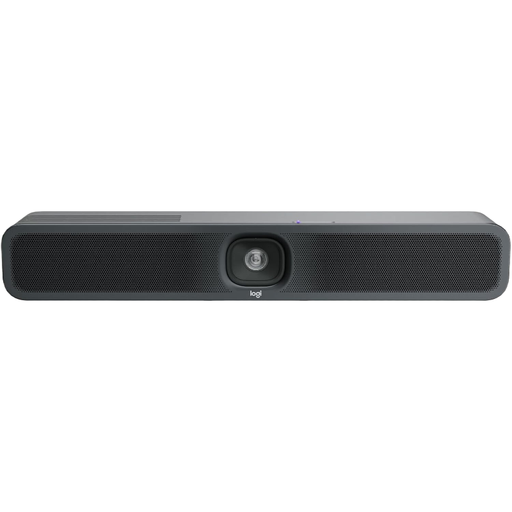
Logitech MeetUp 2, 4K All-in-One Conference Camera
For live teaching on a computer when a conference camera with built-in audio suits your setup.
The product description lists 4K resolution, autofocus, USB, and an integrated microphone and speaker.
Shop at Joybuy
Frequently asked questions
How can I check whether my lights cause flicker in video?
Record a short test clip using the lights you actually plan to use. Sony Deutschland Support lists 1/50 or 1/100 second as possible shutter speeds to reduce flicker in regions with a 50 Hz power supply; check the clip yourself to see which setting works with your lights.
Is connecting the camera enough for a live lesson?
No. Check the framing and audio in the software you use by making a test recording or stream. The OBS guide recommends running a test for several minutes before you start recording or streaming.
What accessories should I check for longer lessons?
For the specific kit, check the lens and mount, as well as the memory card, power supply and, if needed, a microphone. Panasonic notes that actual recording time for the GH7 depends on the battery and recording media; Sony lists the lens included with its ZV-E10 II kit separately.
Can I film participants recognisably and publish the video?
Taking part in a class does not, by itself, establish whether recording or publication is permitted. The Federal Commissioner for Data Protection and Freedom of Information explains that processing personal data requires a legal basis. Under § 22 KunstUrhG, consent is generally required to distribute or publicly display images, although statutory exceptions and the specific circumstances must also be considered. Before recording and publishing, clarify who can be recognised, the purpose of the recording and the legal basis for each use.
What should I look for in a camera for use in Germany?
Check the applicable conformity information, labelling and manufacturer details for the specific product. The Bundesnetzagentur explains that CE marking should only appear on products that are required to carry it, and that it is applied by the manufacturer on their own responsibility; it is not proof of origin.


