If you play and stream on the same Windows PC, try OBS Game Capture first. For an HDMI feed from a console or second PC, a capture card is the right option. Then compare models by passthrough to your gaming screen, recording format in OBS, audio routing and the space they take up on your desk. 4K passthrough doesn’t automatically mean 4K recording.
Who might need a capture card?
Console gamers with a streaming laptop
If you want to show a console’s HDMI feed in OBS while playing on a separate screen, check the HDMI signal path and the passthrough and recording modes of the model you’re considering. The OBS Project describes a game capture card as one way to bring console gameplay into OBS; AVerMedia lists up to 1080p60 for both passthrough and recording on the GC311.
PC gamers short on space
If you play and stream on the same Windows PC, try OBS Game Capture before making room on your desk for extra devices and cables. The OBS Project recommends trying this source for games, and a short test recording can help you assess your own setup.
Streamers using commentary or party chat
If you want to combine game audio, your microphone and other voices, the audio signal path matters. The OBS Project notes that adding the same audio source twice can cause an echo; ASUS lists additional headset and gamepad connections on the CU4K30.
What should you look for?
Direct recording in OBS on your PC
A good fit if: You play on the same Windows PC that you use to stream. The OBS Project recommends trying Game Capture first.
The trade-off: You won’t need an extra capture card, but you should test your PC with a short recording to see whether it can handle gaming and streaming at the same time.
External HDMI capture card
A good fit if: Your gameplay comes from a console or a second PC and you want to record it in OBS.
The trade-off: Check the HDMI and USB connections you need, and compare passthrough and recording modes separately. Supported modes vary by model.
Start with your video source: for games on the same PC, the OBS Project recommends trying Game Capture; for an external console, a capture card may be suitable. For a charity stream, test your picture settings and audio routing together beforehand.
| Buying priority |
What to check |
Who it matters to |
| HDMI feed to your gaming screen |
Check for an HDMI input and output, and confirm the supported passthrough mode. AVerMedia lists up to 1080p60 for both passthrough and recording on the GC311. |
When I play on a console, I want the picture to reach both OBS and my gaming screen. Around 40% of consumers prioritise finding the right HDMI signal path. |
| Avoiding extra devices and cables |
Check whether you play on the same Windows PC and whether OBS Game Capture can capture the game, then make a short test recording. The OBS Project recommends trying this source first. |
If desk space is limited, I want to test whether my current PC can handle gaming and streaming before I buy anything. Around 30% of consumers are mainly looking to avoid extra purchases and cables. |
| Game audio and commentary |
Check the microphone or headset connection and your OBS audio sources. The OBS Project warns that adding the same source twice can cause an echo. |
If I want to combine game audio and spoken commentary, both should be clear in a test recording. Around 20% of consumers have this as their main priority. |
| Higher screen resolution or refresh rate |
Check the screen mode, passthrough, recording format and USB requirements separately. Elgato lists up to 2160p60 for both passthrough and recording on the 4K S; ASUS lists 2160p60 passthrough and recording up to 2160p30 over USB 3.2 Gen 1 for the CU4K30. |
If my gaming screen uses a higher mode, I want to know whether OBS can also record in my preferred format. Around 10% of consumers prioritise their screen mode. |
Common buying mistakes
-
Assuming 4K passthrough means 4K recording
Passthrough and recording can have different limits. ASUS lists 2160p60 passthrough but recording up to 2160p30 over USB 3.2 Gen 1 for the CU4K30; both modes are limited to 1080p60 on the AVerMedia GC311.
Compare the screen mode and recording format separately, using the specifications for the exact model.
If your preferred recording format isn’t supported, you may need to buy additional equipment.
-
Automatically buying hardware to play on the same Windows PC
The OBS Project recommends trying Game Capture when your game and streaming software run on the same PC. A capture card, on the other hand, is one way to bring an external HDMI signal from a console into OBS.
Before you buy, make a short recording with your game and planned stream layout.
An extra device, along with its HDMI and USB connections, takes up space on a small desk.
-
Checking the picture but not the commentary or game audio
A clear picture alone won’t tell you whether game audio, your microphone and party chat are coming through as intended. The OBS Project notes that selecting the same audio source twice can cause an echo.
In a test recording, check game audio, your microphone and, if applicable, party chat separately and together.
Key brands at a glance
AVerMedia
The Live Gamer MINI GC311 is an external Full HD option, while the Live Gamer ULTRA 2.1 GC553G2 supports different picture and audio modes.
- AVerMedia lists up to 1080p60 for both passthrough and recording on the GC311, as well as Micro-USB 2.0.
- Specifications for higher modes and party chat on the GC553G2 apply to this different model and, in some cases, only under the stated software or Windows conditions.
Elgato
The 4K S lists its passthrough and recording modes separately; the HD60 X is best viewed as an older comparison model.
- Elgato lists up to 2160p60 for both passthrough and recording on the 4K S, along with a USB 3.0 Type-C connection.
- Elgato says the HD60 X has been discontinued. The 4K S system requirements also depend on the software you use.
ASUS
The TUF Gaming Capture Box CU4K30 is an external HDMI solution with extra connections for specific audio setups.
- ASUS lists 2160p60 as a possible passthrough mode, as well as headset and gamepad connections.
- Recording is limited to 2160p30 over USB 3.2 Gen 1; ASUS lists 720p30 over USB 2.0. HDCP-protected signals aren’t supported.
Razer
Razer describes the Ripsaw X as a USB capture card, including for connecting a 4K camera.
- Razer lists recording at 4K and 30 frames per second, with USB 3.0.
- If you want to use a separate display while gaming, check specifically whether your setup needs HDMI passthrough.
Capture cards for external HDMI sources
This Joybuy selection covers capture cards for external HDMI gameplay, such as from a console, with varying passthrough and recording specifications. Compare the modes with your gaming screen and preferred OBS recording format.
 No image available
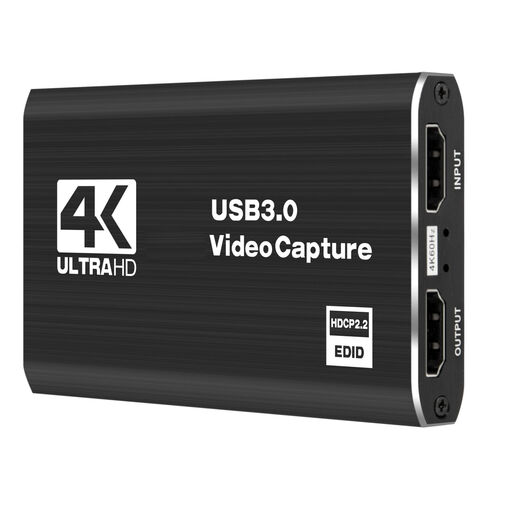
4K video capture card, USB 3.0
For an external HDMI source when recording at up to 1080p60 is enough.
USB 3.0; recording up to 1080p60; 4K input and loop-through, according to the product specifications.
View at Joybuy
 No image available
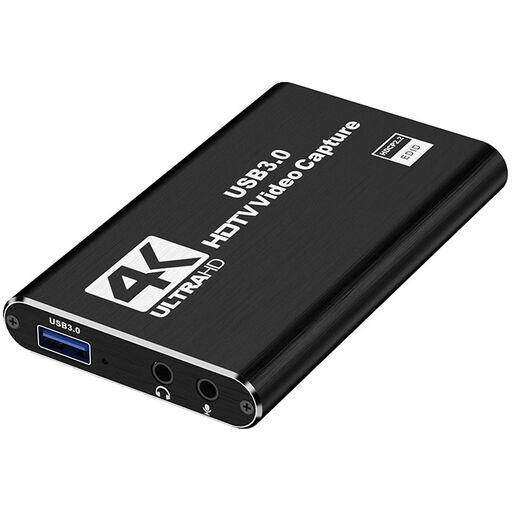
4K HDMI capture card with USB 3.0
For external HDMI gameplay with passthrough and microphone and headphone connections.
HDMI input up to 4K30; recording up to 1080p60; microphone input and headphone output.
View at Joybuy
 No image available
4K USB 3.0 video capture card
For HDMI gameplay that you want to send to a screen and record at the same time.
4K/60Hz input and passthrough; recording up to 1080p/60Hz; USB 3.0 and audio recording.
View at Joybuy
 No image available
VIELLAN 4K HDMI video capture card, USB 3.0
For an external HDMI source with passthrough and microphone and headphone connections.
Recording up to 1080p; 4K HDMI passthrough; USB 3.0; microphone input and headphone output.
View at Joybuy
 No image available
VIELLAN HDMI video capture card, USB 3.0
For external HDMI gameplay with passthrough and separate microphone and headphone connections.
Recording up to 1080p; 4K HDMI passthrough; USB 3.0; UVC and UAC support.
View at Joybuy
Frequently asked questions
How do I set up a console’s picture in OBS?
Connect the compatible HDMI source to the capture card’s input and, if you need passthrough, connect its HDMI output to your gaming screen. Connect the card to your streaming PC, select a Video Capture Device source in OBS, and test the picture and sound before you stream. The exact connections depend on the model.
Will a different capture card help if my stream is dropping frames?
Not necessarily. The OBS Project lists an unstable connection or an unsuitable bitrate as possible causes of dropped frames in a stream. First check your upload connection and the OBS statistics; if you’re having picture or audio issues with your capture device, test its source separately.
What should I do if a product develops a fault after purchase?
Your statutory rights against the seller are separate from any voluntary manufacturer’s or retailer’s guarantee. The consumer advice centre Verbraucherzentrale recommends documenting the fault and checking the terms of your specific order. A voluntary guarantee doesn’t replace your statutory rights.
Can I show my flatmates in a charity stream?
Under section 22 of the German KunstUrhG, consent from the person shown is generally required to distribute or publicly display identifiable images of them. Whether an exception applies to a particular stream, or other requirements apply, depends on how it is produced. Plan your camera framing and anyone’s involvement carefully.
Are viewer payments automatically tax-deductible because the stream is for charity?
No. Calling a stream a charity stream doesn’t automatically make payments tax-deductible. The German Federal Ministry of Finance describes tax benefits for donations to certain eligible causes; to establish whether they apply to a specific donation route, you need to check the recipient, how the donations are handled and the relevant requirements.


