Who is this guide for?

Co-op hosts sharing a microphone space

If you share a bedroom, check your game audio, co-op partners’ voices and any conversations in the room as separate audio sources in OBS. The OBS Project Audio Mixer Guide explains how to control and monitor individual sources.

Console players with their own screen

If you want to capture your console feed in OBS while playing on your own screen, compare capture and HDMI passthrough separately. The OBS Project describes a capture card as one way to bring console gameplay into OBS.

Hosts short on desk space

For a compact setup, check the space available, the HDMI and USB connections you’ll need, and the capture resolution you actually require. AVerMedia and Elgato list different connections and picture modes for their respective models.

What should you look for?

Game and OBS on the same Windows PC

A good fit if: You don’t need to bring in an external HDMI signal from a console or a second PC.

The trade-off: Try OBS Game Capture first. This option won’t capture an external game source.

External Full HD capture card

A good fit if: Capture and passthrough up to 1080p60 are enough for your game source and screen.

The trade-off: According to the manufacturer, the AVerMedia Live Gamer MINI GC311 supports 1080p60 capture and passthrough. Check the audio setup separately.

4K60 passthrough with analogue audio input

A good fit if: Your external game source and screen use 4K60, or you need a suitable analogue audio connection.

The trade-off: Elgato lists HDMI 2.0, capture and passthrough up to 4K60, and a 3.5 mm line-in for the Game Capture 4K S. According to the manufacturer, HDR capture is limited to up to 1080p60 and currently only supported on Windows.

Picture modes above 4K60

A good fit if: Your game source and screen genuinely need a higher picture mode.

The trade-off: AVerMedia advertises passthrough up to 4K144 for the Live Gamer ULTRA 2.1 GC553G2. According to the manufacturer, the advertised 4K144 capture requires Streaming Center and MJPEG.

Consideration What to check before buying Who should pay particular attention?
Audio you can control Check HDMI audio output, your headset and microphone setup, and separate OBS sources and levels. The OBS Project Audio Mixer Guide explains how to control individual sources; Elgato describes an analogue Chat Link connection for certain console headsets. If you want to keep game audio and co-op voices separate in a shared room, pay particular attention to this signal path. Around 31% of consumers have this as their main concern.
Passthrough while gaming Compare resolution, frame rate and, where relevant, HDR separately for input, passthrough and capture. AVerMedia and Elgato list different limits for their respective capture cards. If you want to keep your own screen’s picture mode while gaming, check passthrough rather than just the capture resolution. Around 31% of consumers consider this especially important.
The right capture setup First, work out whether your game source is a console, a second PC or the same Windows PC. Then check HDMI output, USB connection and support for OBS on the specific model. The OBS Project describes Game Capture for a game running directly on the PC, and capture devices for external sources. If you want to make sure your game source, streaming PC and connections are compatible, check the setup before buying. Around 23% of consumers focus on this.
Space and connection requirements Check the space available, what’s included in the box, and the complete connection path between your game source, capture card, screen and streaming PC. Elgato notes that a passthrough setup requires an additional HDMI cable. If you have limited space on a shared desk and want to keep extra connections to a minimum, plan out the whole setup. Around 15% of consumers pay particular attention to this.

Common buying mistakes

  • Assuming capture resolution and passthrough are the same

    A card may pass a signal through to your screen without capturing it on your PC at the same resolution. NZXT explains this for the Signal HD60; for other models, too, check the capture and passthrough specifications separately.

    Compare HDMI input, HDMI output and capture individually against your preferred game mode.

  • Assuming the card will automatically capture everyone’s co-op audio

    Headset audio and your own microphone can be separate signals. Elgato notes that, with its described Chat Link setup, your own voice isn’t automatically recorded directly.

    Map out the audio connections for your console, headset, microphone and line-in, then make a test recording with all the voices you want before streaming.

    Depending on your console and headset setup, you may also need an audio cable or a separate microphone.

  • Buying extra hardware too quickly for a game running on the same Windows PC

    The OBS Project describes Game Capture as a way to capture a game running directly on your PC. You don’t automatically need an external HDMI capture card for this use.

    Try Game Capture in OBS first, and only choose an external card if you actually need to bring in an external signal.

  • Planning for the card but not the complete connection setup

    Your source, capture card, screen and streaming PC all need a suitable signal path. The audio connections and USB connection also need to work with your setup.

    Check what’s included and map out the connections for your specific setup before buying.

    You may need an additional HDMI cable for HDMI passthrough.

Key brands to consider

Elgato

The external Game Capture 4K S and 4K X models support different picture modes, according to their published specifications. For the 4K S, passthrough up to 4K60 and an analogue audio input are worth noting.

  • Elgato lists capture and passthrough up to 4K60, plus a 3.5 mm line-in, for the 4K S.
  • According to the manufacturer, HDR capture on the 4K S is limited to up to 1080p60 and currently only supported on Windows. These specifications don’t automatically apply to other Elgato models.

AVerMedia

According to the manufacturer, the Live Gamer MINI GC311 is designed for Full HD setups, while the Live Gamer ULTRA 2.1 GC553G2 supports higher passthrough modes and additional chat features.

  • AVerMedia lists 1080p60 as the limit for both capture and passthrough on the GC311.
  • According to the manufacturer, the GC553G2’s advertised 4K144 capture requires Streaming Center and MJPEG. The specifications for one model don’t automatically apply to the other.

Streamplify

The CAPTURE 4K is an external option if capture up to 4K30, 4K60 passthrough and a microphone input suit your planned setup.

  • Streamplify lists these picture modes and a microphone input for the CAPTURE 4K.
  • If you want to capture in 4K60 or use a particular console chat setup, check the capture limit and audio connections for the specific model.

NZXT

According to NZXT, the Signal range includes the HD60 for Full HD streaming and a 4K30 model for higher-resolution capture.

  • NZXT explains that the Signal HD60 can accept and pass through a 4K signal.
  • According to the manufacturer, Signal HD60 can’t capture that signal in 4K on a PC or stream it at that resolution. For headset communication, NZXT describes an additional chat cable connection; check compatibility with the exact model.

Joybuy products for external game sources

This selection features external HDMI capture cards for game sources such as consoles. Several of the cards listed combine 4K passthrough with 1080p/60 capture. Check the input, passthrough and capture specifications for each specific model.
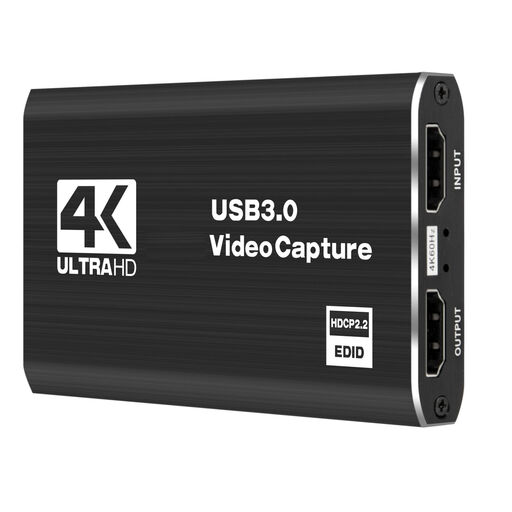
USB 3.0 capture card with five ports

USB 3.0 capture card with five ports

For an external game source when you want 4K60 passthrough while playing and Full HD capture.

  • According to the product description: 4K/60 input and passthrough.
  • Capture: 1080p/60.
  • USB 3.0; the description lists game consoles as compatible devices.
View at Joybuy
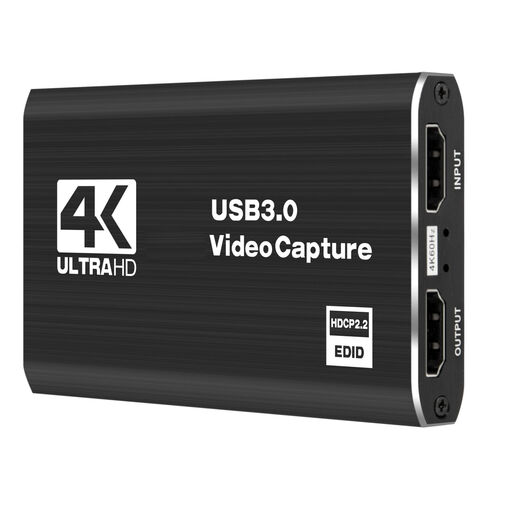
Video capture card with five ports and USB 3.0

Video capture card with five ports

For an external game source when you want to combine 4K60 passthrough with Full HD capture.

  • According to the product description: 4K/60 input and loop-through.
  • Capture: 1080p/60.
  • USB 3.0; the description lists game consoles as compatible sources.
View at Joybuy

HDMI capture card with microphone input and headphone output

HDMI capture card with microphone input

For an external HDMI game source when a microphone input and headphone output suit your planned audio setup.

  • HDMI input up to 4K 30Hz; capture at 1080p/60.
  • The product description lists HDMI passthrough.
  • 3.5 mm microphone input and headphone output, according to the product description.
View at Joybuy

USB 3.0 capture card with five ports and 4K60 passthrough

USB 3.0 capture card with five ports

For an external game source when you want 4K60 passthrough to your screen and Full HD capture.

  • According to the product description: 4K/60 input and passthrough.
  • Capture: 1080p/60.
  • USB 3.0; the description lists game consoles as compatible sources.
View at Joybuy

VIELLAN 4K HDMI video capture card with USB 3.0

VIELLAN 4K HDMI Video Capture Card USB 3.0

For an external console game source when a microphone input and headphone output suit your planned audio setup.

  • 4K passthrough; capture at 1080p according to the product specifications.
  • USB 3.0; the description lists Windows, macOS and Linux, as well as PS4, Xbox and Nintendo Switch.
  • Microphone input and headphone output, according to the product description.
View at Joybuy

Frequently asked questions

Do I need a capture card if my game and OBS are running on the same PC?

Not for that reason alone: the OBS Project recommends trying Game Capture first for a game running directly on the same Windows PC. An external console or second-PC signal, however, needs a suitable capture setup.

Why is there no game or party audio in my console stream, even though the picture comes through?

The audio setup depends on your console, headset and output settings. For PS4 and PS5 with a compatible wired controller headset, Elgato describes an analogue Chat Link Pro connection to the line-in. Check your own microphone separately, and make a test recording before streaming.

How can we control what our audience hears in a shared room?

Watch the levels for each active source in OBS, mute any sources you don’t need, and listen back using a configured monitoring device. A short test recording lets you check the game audio and the voices you want before streaming.

Can we simply stream other players’ or housemates’ voices or images?

Not in every case. Section 201 of the German Criminal Code protects, among other things, spoken words that are not intended for the public from unauthorised audio recording. Section 22 of the German Copyright Act generally requires consent to distribute or publicly display a person’s image. Before recording or streaming, check who will be heard or seen and obtain any consent required. These provisions don’t provide a blanket rule for every possible live-chat situation. The legal sources are the Federal Ministry of Justice and the Federal Office of Justice.

What can we check if the PS5 picture is black?

With the Elgato HD60 X, the manufacturer documents that an HDCP-protected signal can’t be captured. Elgato describes turning off HDCP on the PS5 for gameplay capture. This is model-specific setup information, not a general diagnosis for every capture card or permission to record protected content.